Here is how you can manage your MeshInspector subscription.
Purchasing a MeshInspector Subscription
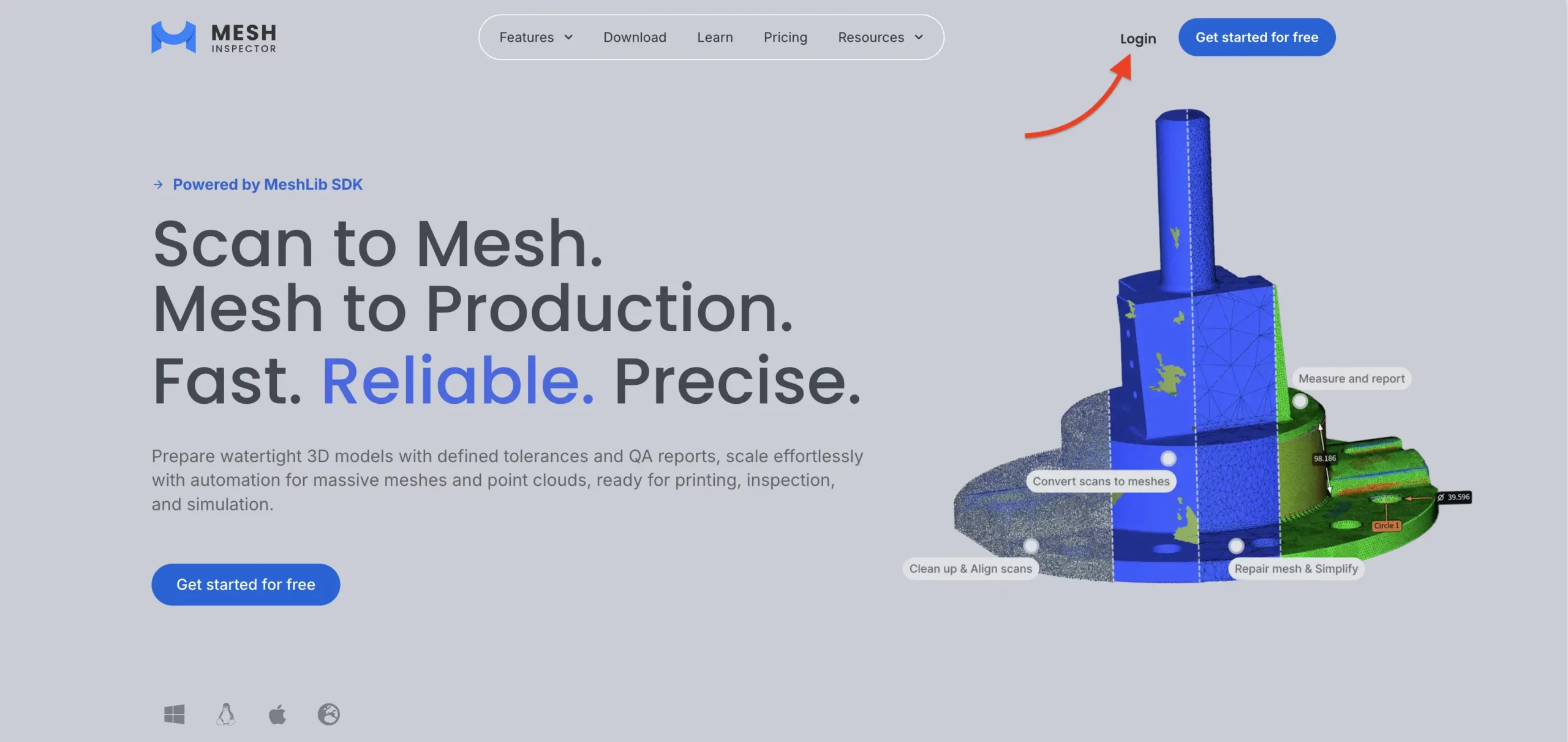
To start using MeshInspector and purchase a subscription, you first need to create an account. To do this, click Login on the main page.
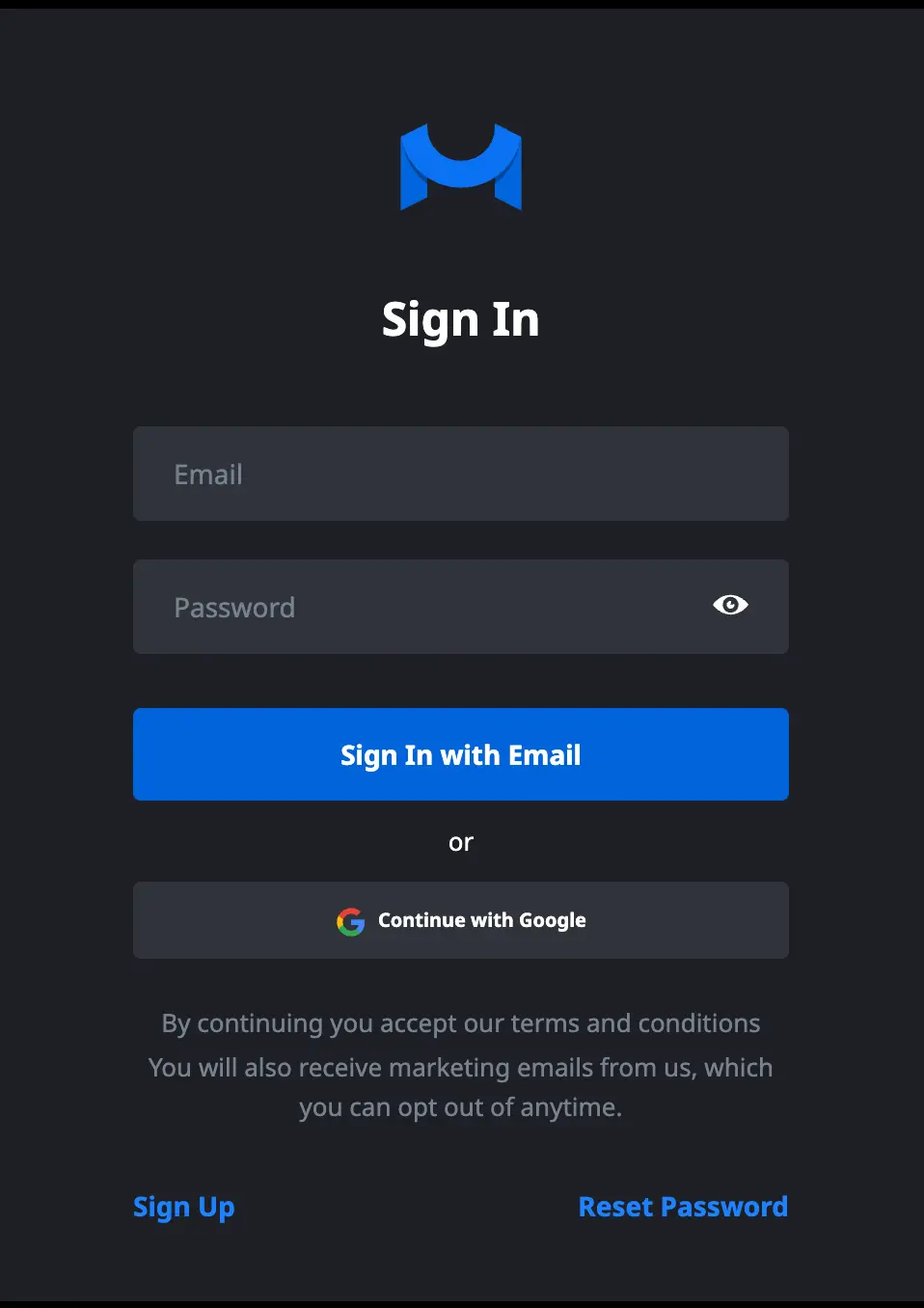
Once you do so, you will see a dedicated window asking you to provide your account credentials. You can continue with Google. Alternatively, sign up using any email address of your choice.
After you complete the registration process, you will be granted a free trial. To purchase a subscription, click the green button displaying the remaining time of your trial.

After clicking the green trial button, a subscription selection window will open. Here, you can compare available plans and choose the one that best fits your needs.
MeshInspector currently offers three plans (please note that the prices shown in the screenshots below are effective as of April 2026 and may change):
- Community, a free plan intended for basic tasks;
- Makers, designed for individual professionals and small-scale production tasks;
- Professional, a full-featured plan for high-volume tasks, automation workflows, and more.
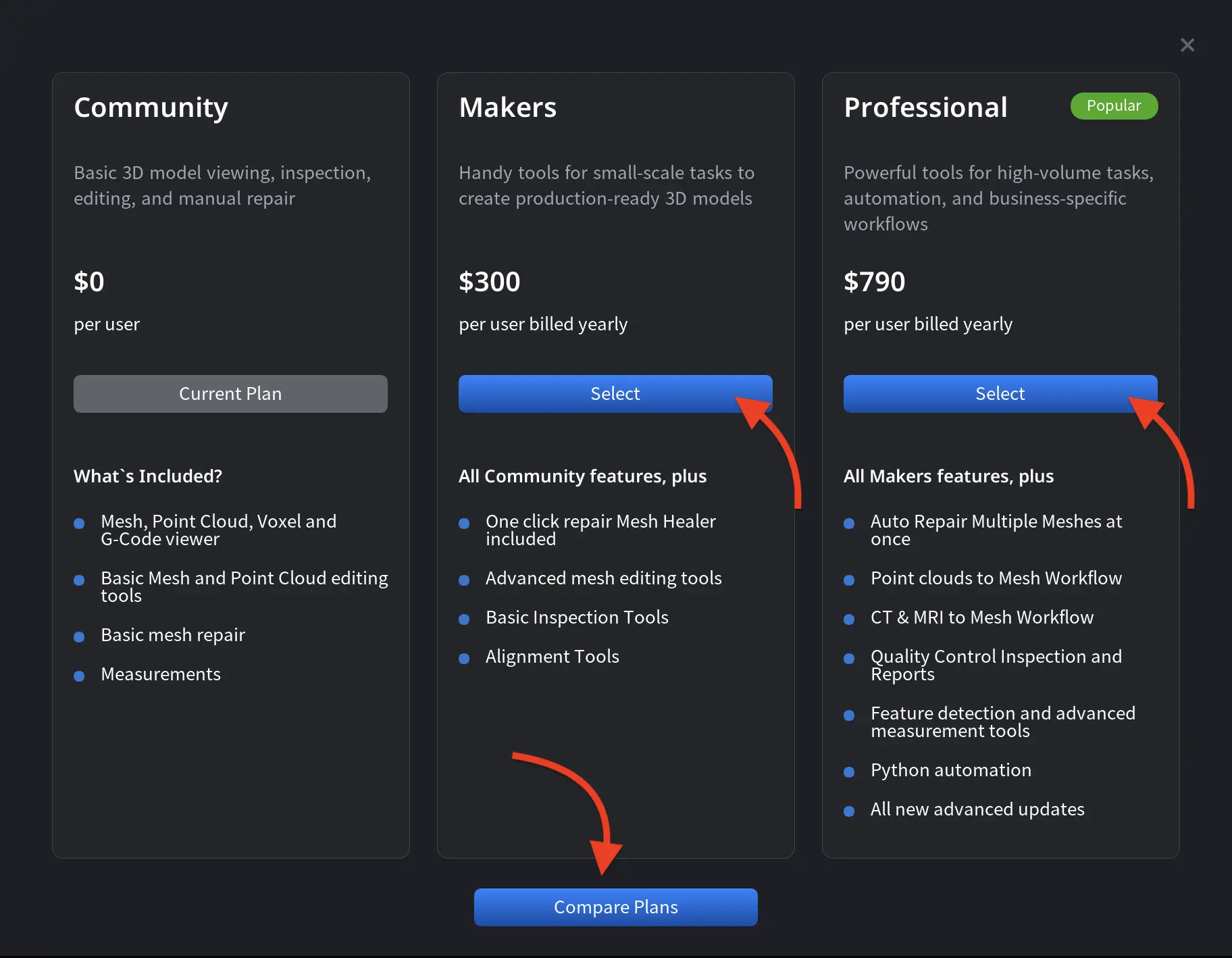
If you want to learn more about specific features, click Compare Plans to open MeshInspector’s pricing page with detailed descriptions of all subscription tiers. To proceed with the payment, click Select.
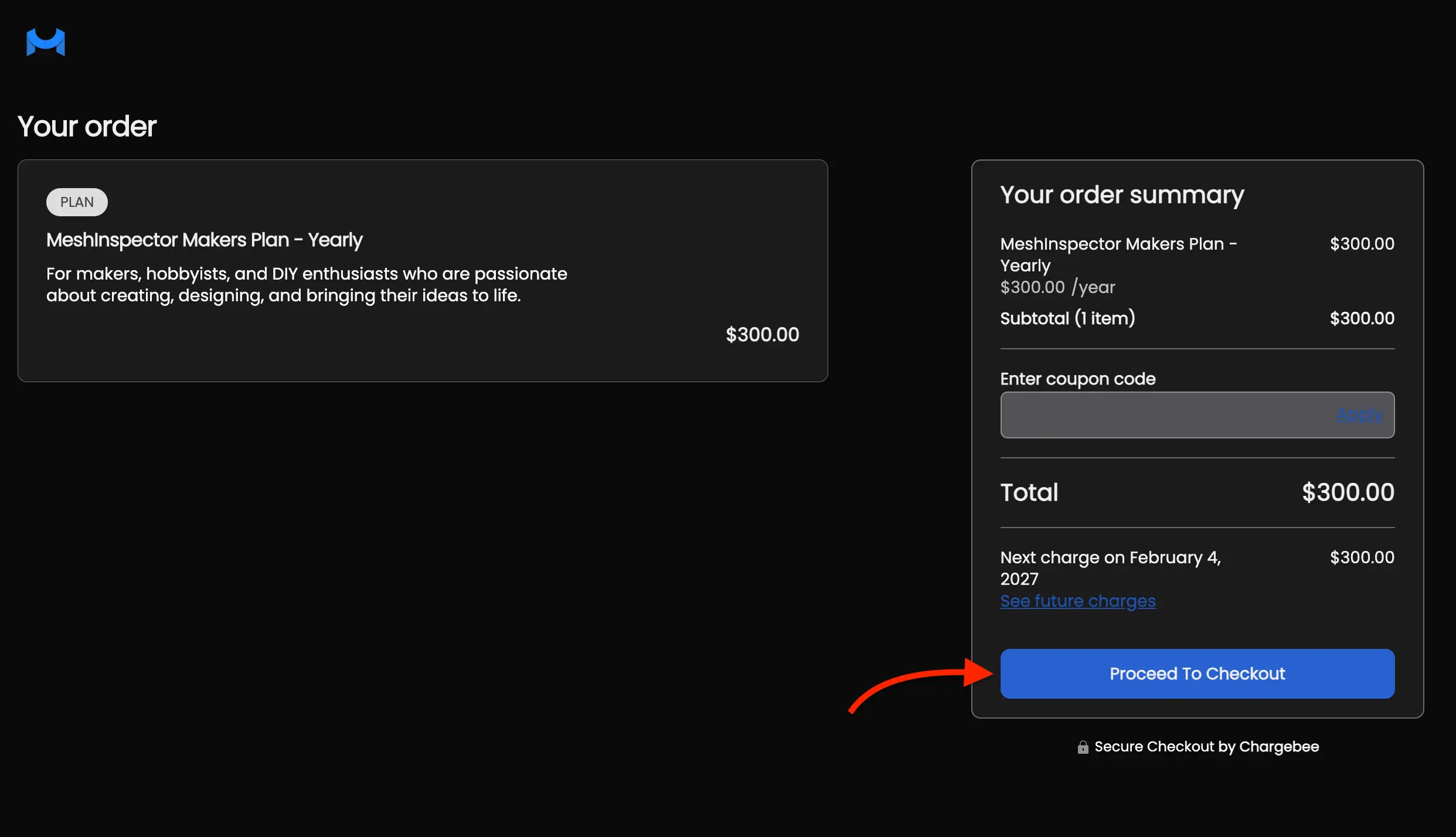
Clicking Select will take you to a secure payment page. There, you can enter your coupon details (if applicable) and click Proceed to Checkout.
After that, you will be asked to:
- Agree to MeshInspector’s Terms and Conditions and Privacy Policy
- Complete your Billing Address fields
- Choose your payment method. Then provide the required details
- Optionally, enter your PO Number under Subscription Details
The final step is to click Pay $XXX & subscribe. Your subscription to MeshInspector will become active after the payment is completed.
Managing a MeshInspector Subscription
To manage or cancel your subscription, use your account settings. To access them, open the Home tab and click About.

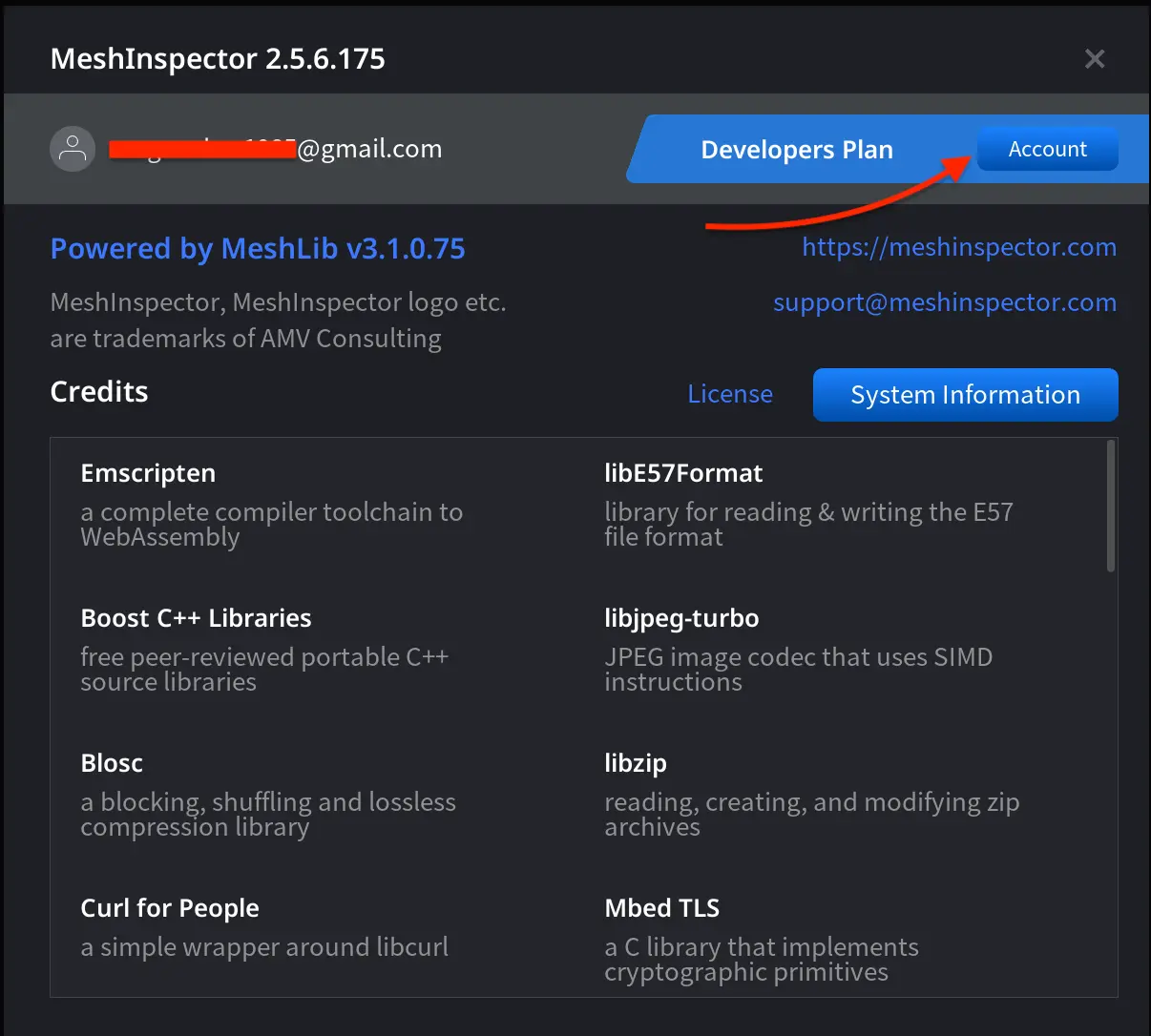
After clicking About, an information window will open. This window displays details about your current MeshInspector version, active subscription plan, and account information.
At the top of the window, you can see:
- Your MeshInspector version number
- The email address associated with your account
- Your current subscription plan
On the right side of the window, click Account to open your account and subscription settings.
You will then see a small Follow Link window. Click Follow Link to access the Customer Portal. The Manage Subscriptions page will open. At the top of the page, you will see your current subscription plan, along with its billing status. Click the arrow on the right side of the plan card to view subscription details.
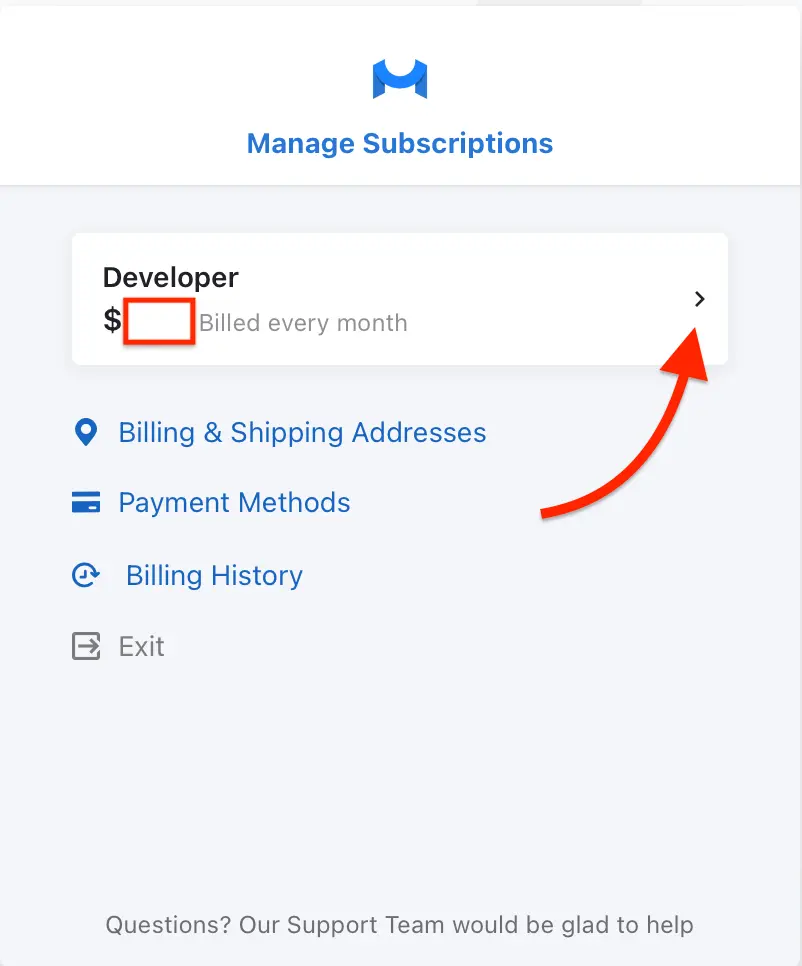
From the Customer Portal, you can also:
- Update your Billing & Shipping Addresses;
- Manage your Payment Methods;
- View your Billing History.
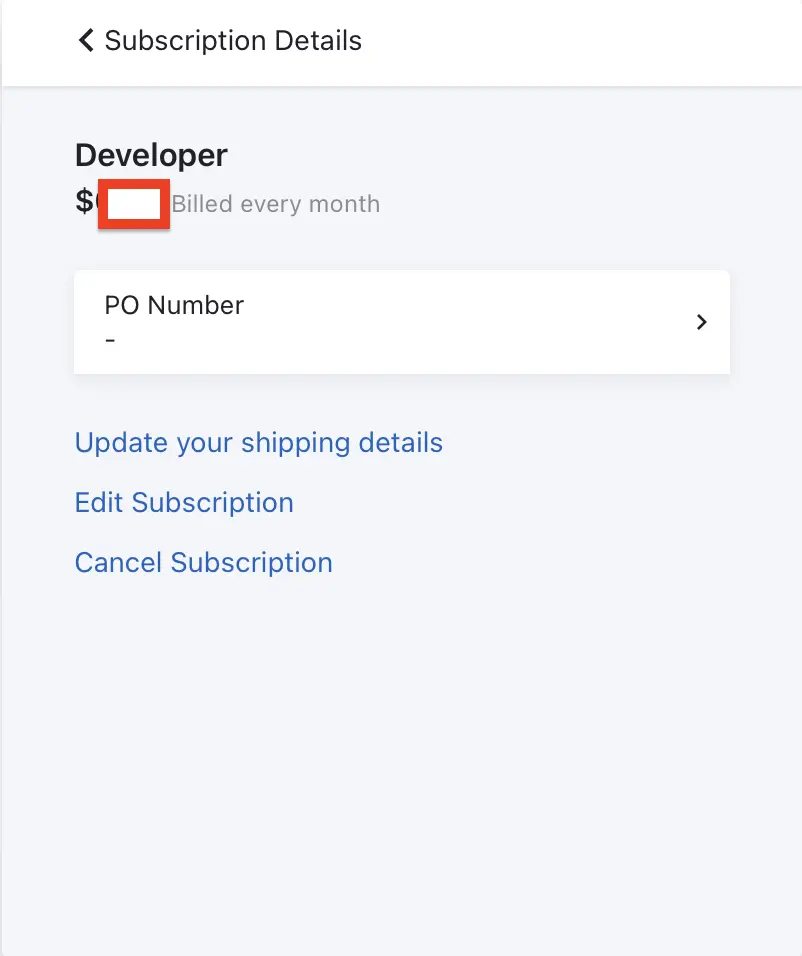
To leave the Customer Portal, click Exit at the bottom of the page. After clicking the arrow next to your current plan, the next page will open, where subscription management and cancellation options are available.
Canceling a MeshInspector Subscription
From here, you can:
- Modify your current plan using Edit Subscription. Click Change, select a new plan, and confirm your choice by clicking Update.
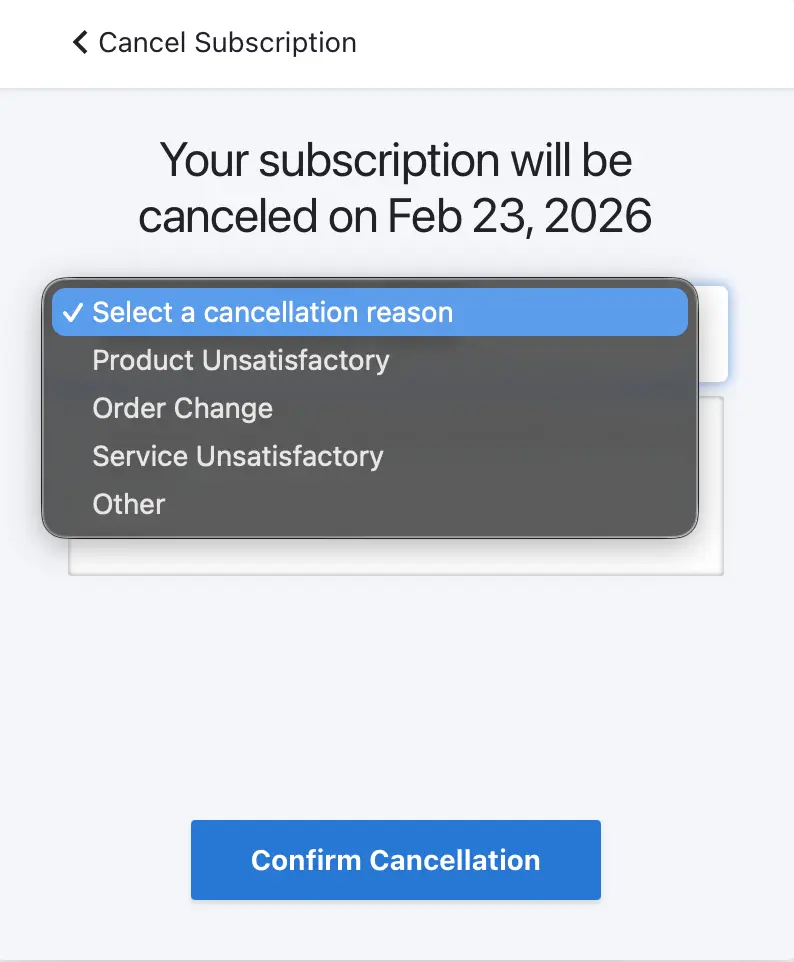
- Cancel your subscription by clicking Cancel Subscription. In the next window, you will be asked to specify a reason for cancellation. You can select Other if none of the listed reasons apply. Complete the process by clicking Confirm Cancellation.
Also, you can Update your shipping details.
As you can see, subscription management is convenient and straightforward with MeshInspector.