Free Online STL Repair
Fill holes, flip inside-out normals, remove tunnels and download the fixed STL, right in your browser. For large scans, use the desktop app for Windows, macOS and Linux.
No sign-up: the repair tools open right on this page.
- Free, no sign-up
- Nothing to install
- Your file stays in your browser
Repair your STL here
Click Open Files and pick an STL on your computer, then fix it with the repair tools on the ribbon. No sign-up: the file is opened in your browser, not uploaded.
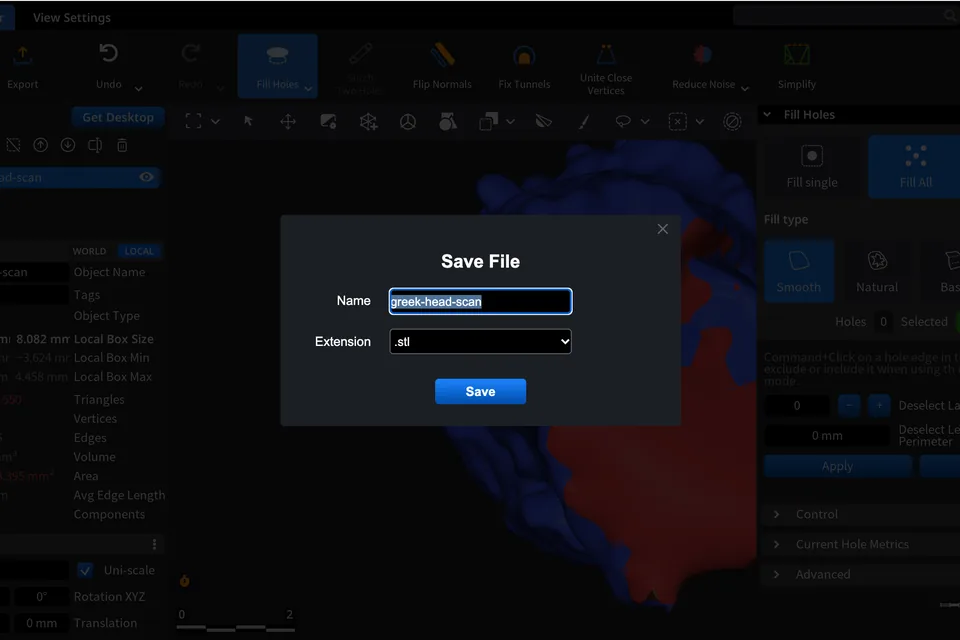
To save the result as STL, click Export, choose .stl in the Extension list and click Save: the repaired file downloads to your computer.
Fix common STL errors
Each problem below has its own tool. The seven free tools are on the ribbon of the repair tool on this page, no account needed. Mesh Healer and Auto Repair Mesh are in the paid plans: sign in to the web app or the desktop app to use them.
- Free
Holes and gaps
Fill Holes closes open boundaries with new triangles: the hole you click with Fill Single, or every hole at once with Fill All. Make Bridge first splits a large opening into smaller holes.
Fill Holes guide - Free
A torn strip of surface
When two openings belong to one torn region, Stitch Two Holes builds the missing surface between them instead of sealing each opening with its own patch.
Stitch Two Holes guide - Free
An inside-out model
Flip Normals reverses the normals of the whole mesh, or of one of its components when a single mesh is selected, so the outer side faces out again.
Flip Normals guide - Free
Tunnels through the model
Fix Tunnels removes tunnel loops from the mesh topology, so the surface becomes topologically equivalent to a sphere. You choose which loops it looks for, such as the shortest ones.
Fix Tunnels guide - Free
Duplicate vertices and cracks
Unite Close Vertices merges vertices that lie closer than a distance you set, removing duplicates and small gaps left by scanning, file conversion or joined parts.
Unite Close Vertices guide - Free
A rough, noisy scan
Reduce Noise smooths small irregularities of a scanned surface while keeping the overall shape of the object.
Reduce Noise guide - Free
A file that is too heavy
Simplify reduces the number of triangles to a target count or within a tolerance while keeping the shape of the model, so the file gets smaller.
Simplify guide - Makers plan
Many problems at once
Mesh Healer checks the model for holes, self-intersections, flipped normals, small tunnels, stray parts, thin walls and undercuts, and repairs all of them except thin walls and undercuts, which it only finds.
Mesh Healer guide - Professional plan
A mesh too broken to patch
Auto Repair Mesh rebuilds one or several meshes completely within a tolerance you set, instead of fixing the defects one by one.
Auto Repair Mesh guide
How to repair an STL file online in 3 steps
The same steps work in the repair tool on this page, in the web app and in the desktop app.
Open your STL
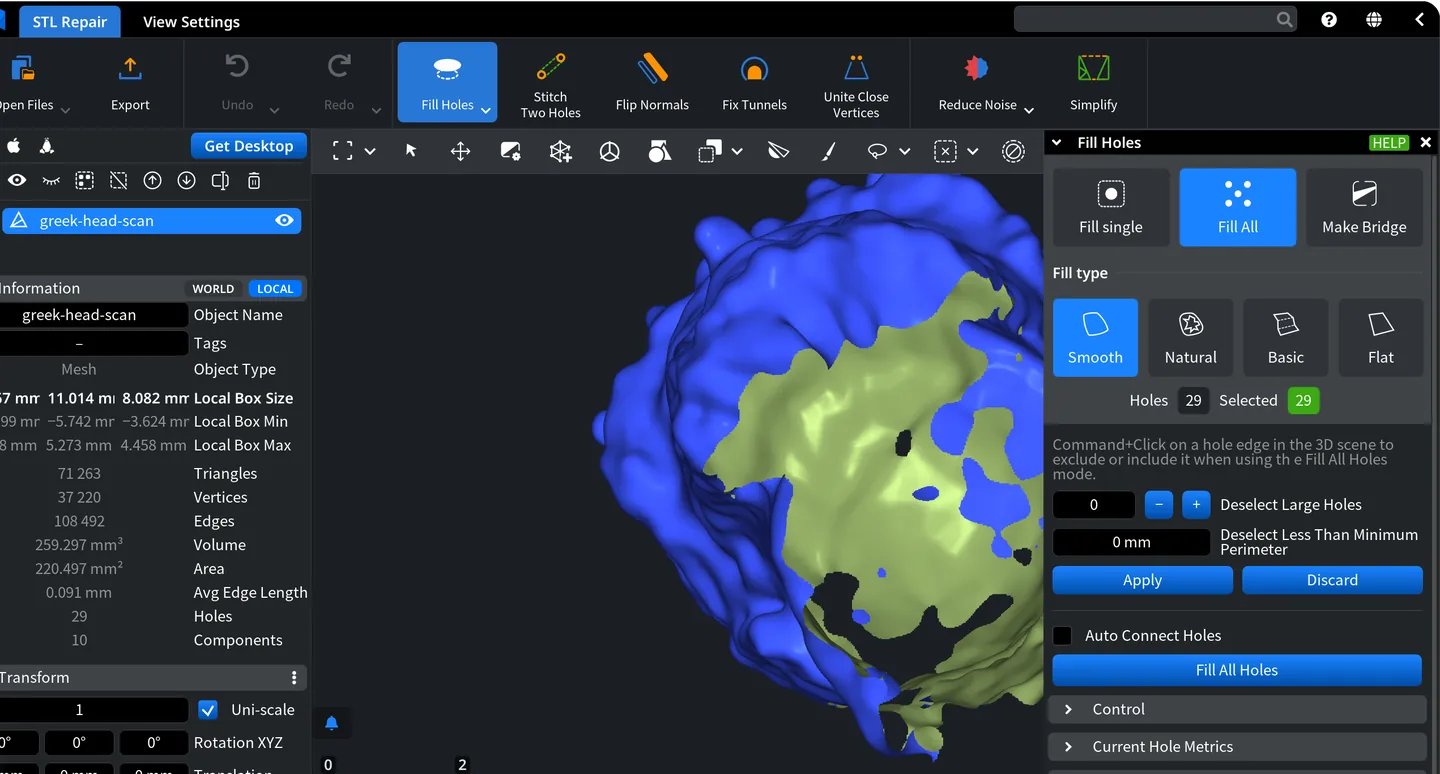
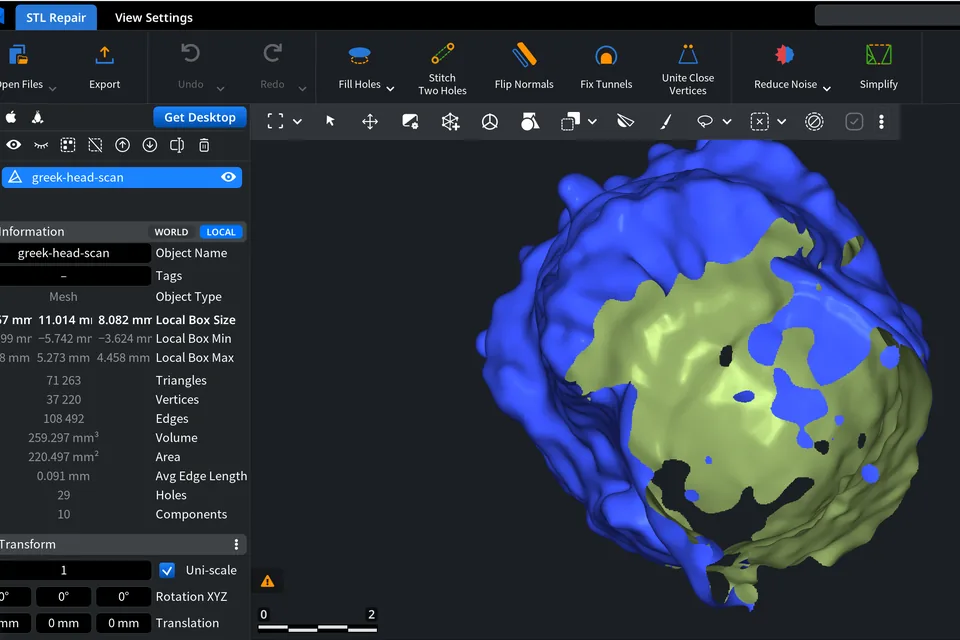
Click Open Files in the tool on this page and pick the STL file on your computer; no account is needed. The Information panel shows what is wrong with the mesh, here 29 holes and 10 separate parts of a scan. OBJ, PLY and 3MF files open the same way.
Fix the errors
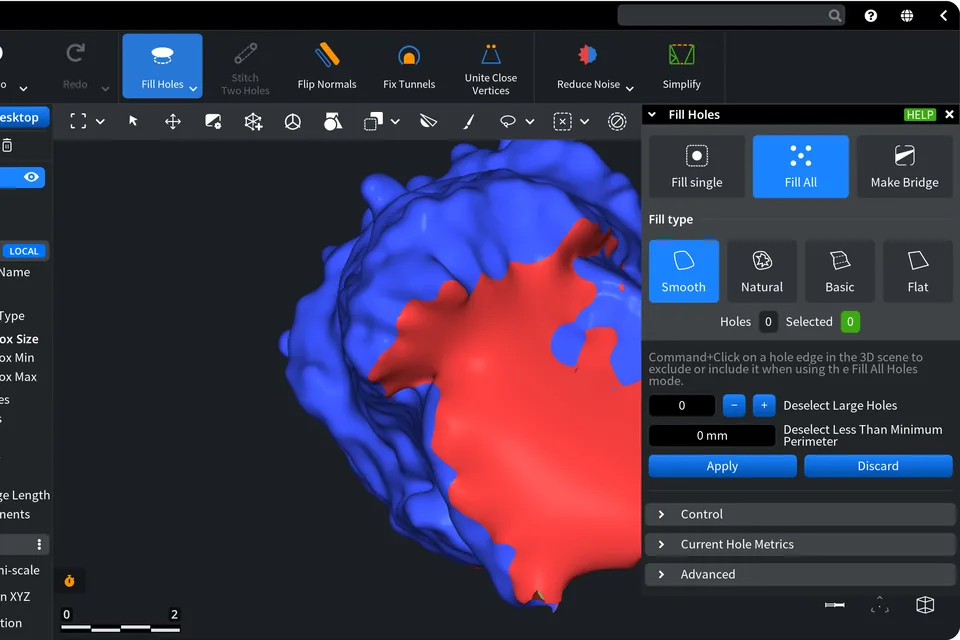
Pick the repair tool for the problem on the ribbon and set its options in the panel. Here Fill Holes in Fill All mode closes all 29 holes at once with 27,189 new triangles; Undo takes the change back.
Export as STL
Click Export, choose .stl in the Extension list and click Save. The repaired file downloads to your computer, also from the tool on this page without an account.
Online or desktop
Start in the browser: the repair tool on this page needs no account. For Mesh Healer, Auto Repair Mesh and the other tools of your plan, sign in to the web app or install the desktop app; both use the same account.
In the browser
- Runs in a desktop browser, with nothing to install.
- The tool on this page works without an account and has the free repair tools; sign in to the web app at app.meshinspector.com for Mesh Healer, Auto Repair Mesh and the other tools of your plan that run in a browser.
- STL, OBJ, PLY and 3MF files are opened and saved in the browser's memory, not uploaded.
- The browser limits the memory, so very large scans may not fit.
Desktop app
- Windows (x64 and ARM64), macOS (Intel and Apple silicon) and Linux (Ubuntu 22.04 or newer).
- Built for large meshes and 3D scans: uses your computer's memory and GPU.
- Adds desktop-only tools such as Python automation and AI assistants through MCP.
Your file stays in your browser
The repair tool on this page reads STL, OBJ, PLY and 3MF files into your browser's memory, repairs them there and saves the result as a download, so the model is not uploaded to a server. STEP files are the exception: they are converted on our server and open only after you sign in.
What repair can't fix
Repair tools fix the mesh, not the design. Fill Holes patches a hole with new triangles but cannot bring back the original detail of the missing area, and Mesh Healer finds thin walls and undercuts but does not change them. When a wall is too thin to print or a feature is missing, change the original CAD model and export a new STL.
STL repair FAQ
Can I repair an STL file online for free?
Yes. The repair tool on this page is free and needs no sign-up: open your STL, fix it with Fill Holes, Stitch Two Holes, Flip Normals, Fix Tunnels, Unite Close Vertices, Reduce Noise or Simplify, then export it as STL. Mesh Healer, which repairs many problems at once, is in the paid Makers plan.
How do I fix an STL file?
Open the file in the repair tool on this page and pick the tool for the problem: Fill Holes for holes, Flip Normals for an inside-out model, Fix Tunnels for tunnels, Simplify for a heavy file. Set its options in the panel and apply it, then click Export, choose .stl and save the file.
How do I fill holes in an STL file?
Click Fill Holes on the ribbon. Fill All closes every hole of the model at once, Fill Single closes the hole you click, and Make Bridge splits a large opening into smaller holes first. If two openings belong to one torn strip, Stitch Two Holes rebuilds the surface between them instead.
Why does my STL file need repair?
STL files exported from CAD or made from 3D scans often come with holes, inside-out normals, duplicate vertices, tunnels or noisy surfaces. Such defects can make a slicer fail or a print come out wrong. Repair tools close the holes and clean up the mesh; check the result in your slicer before you print.
Do I need to sign up or install anything?
No. The repair tool on this page runs in a desktop browser without an account, and the file is opened in the browser, not uploaded. Sign in to the web app for Mesh Healer and Auto Repair Mesh, or install the desktop app for Windows, macOS or Linux to work with very large 3D scans.
Is my STL file uploaded to a server?
No. STL, OBJ, PLY and 3MF files are read into your browser's memory, repaired there and saved as a download. Only STEP files are converted on our server, and they open after you sign in. Very large scans may not fit into the browser's memory; the desktop app works with them on your computer.
Can STL repair fix every problem automatically?
Not every one. Mesh Healer in the Makers plan finds holes, self-intersections, flipped normals, small tunnels, stray parts, thin walls and undercuts, and repairs all of them except thin walls and undercuts. Auto Repair Mesh in the Professional plan rebuilds a badly broken mesh. Design problems need a change in the original CAD model.