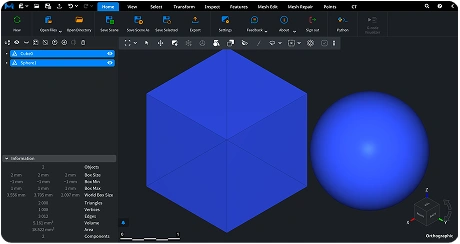
STP Viewer: Online & Free
Open, analyze parts and assemblies, measure distances and volume, and prepare STP files for manufacturing.



Which STP Viewer Is Best for You?
| MeshInspector | MeshInspector | Other STL Readers | |
|---|---|---|---|
| Perfomance | Ultra-fast (GPU acceleration) | High | Slow |
| Batch Import | Unlimited | Unlimited | Single file |
| File Limits | Unlimited | Unlimited | ~100 MB |
| Measurement Tools | Advanced | Advanced | Limited |
| Metadata Support | Full | Full | Not supported |
| Scaling | Advanced | Advanced | Not supported |
| 3D Editor | Advanced | Advanced | Not supported |
| Screenshots | Advanced | Advanced | Limited |
| Supported Files | STL (ASCII/Binary), OBJ, PLY, GLTF | STL (ASCII/Binary), OBJ, PLY, GLTF | STL (Binary) |
| Export | Multiple formats | Multiple formats | Not supported |
| Security & Privacy | Corporate security + Local storage | SSL + Auto-delete | Server-side storage |
| Cross-Platform | Windows, macOS, Linux | All devices | Web only, poor mobile UX |
| Suitable for | Professional & industrial use | Quick viewing & sharing | Not recommended |
Ready to get started with MeshInspector?
Join thousands of engineers who trust MeshInspector to view and inspect their 3D files. Start exploring your models today with no limits and professional‑grade visualization.
How to Open STP Files on Windows, Mac & Linux
Open an STP to View It
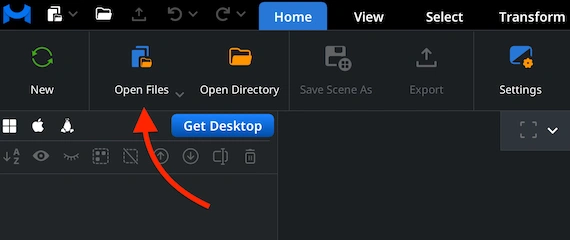
Under the ’Home’ tab, choose ’Open Files.’ This will allow you to load your STEP geometry into MeshInspector to read it. Once selected, the program imports the STP file and prepares it for viewing, no matter how detailed the model is or how many components it contains.
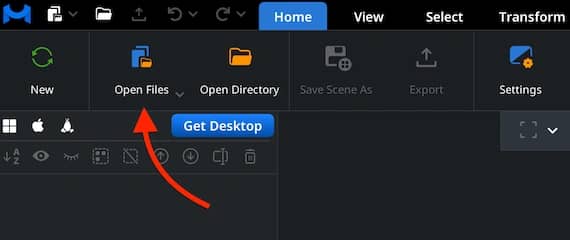
Selecting an STP File
Navigate to the folder where your STP is stored. Then, either double-click it or confirm the choice with 'Upload.' The MeshInspector program for STP files can accept entire folders and zipped project archives. Thus, you can bring in complex datasets without any headache.
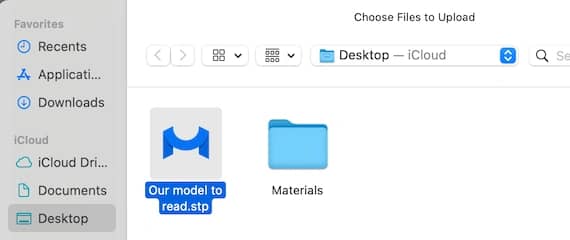
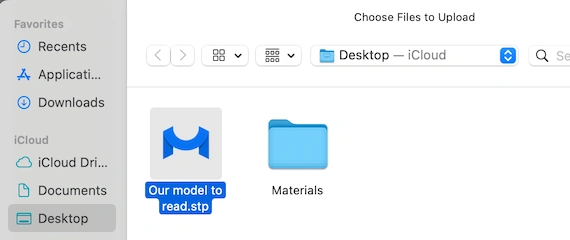
Viewing an STP File
After the STP is loaded, the model appears in the workspace. Explore it. Rotate the view by dragging via the left mouse button or using a single-finger touchpad gesture. Pan by holding the right mouse button or moving two fingers. Zoom by scrolling the mouse wheel or pinching on the touchpad. Tilt the perspective by holding Ctrl while dragging with the left button.
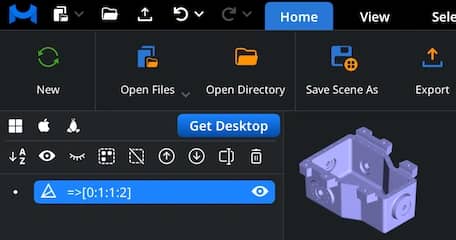
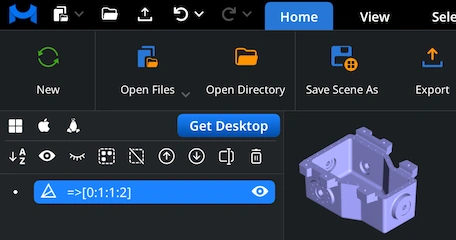
Checking the Size of an STP
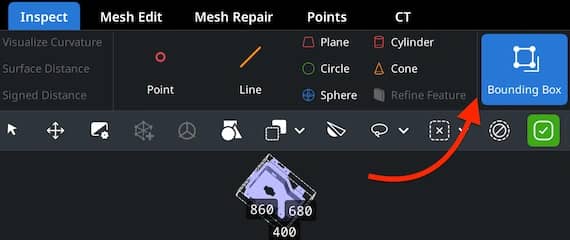
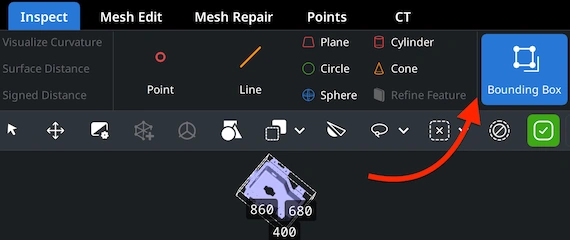
To quickly inspect the size of your STP model, go to the ’Inspect’ tab to enable ‘Bounding Box,’ with the mesh selected in our Scene Tree. This will display the model’s overall dimensions and help you verify its scale before exporting or processing it.
Changing the STP Size
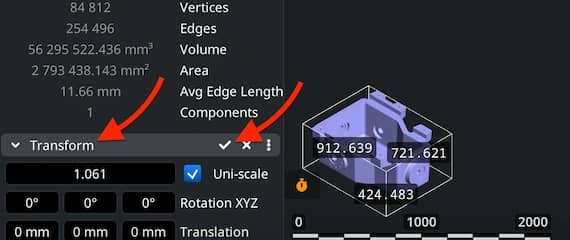
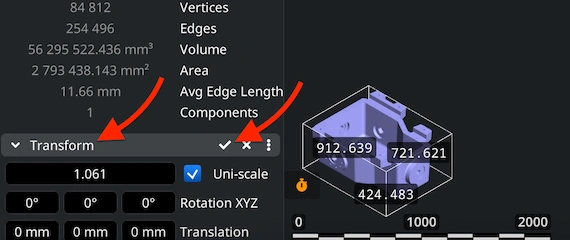
Need to adjust the size of your STP? Use the Scale slider under ‘Transform,’ located in the lower-left panel. After selecting the value, apply the change by clicking the checkmark icon. The model’s dimensions will update instantly, together with its volume.
Inspecting the STP Quality
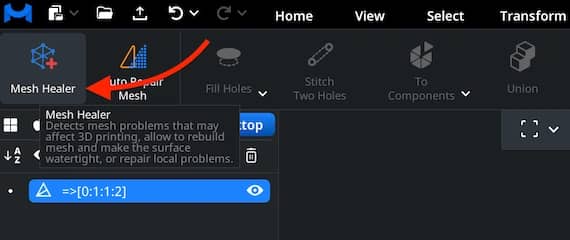
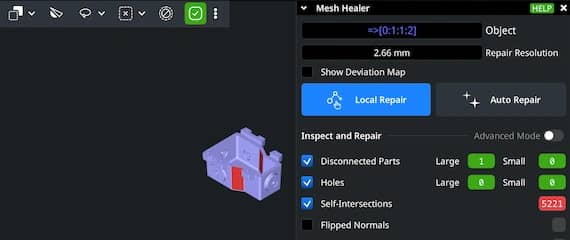
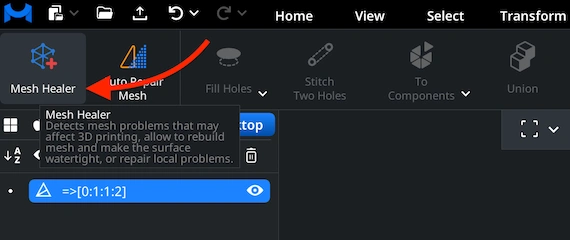
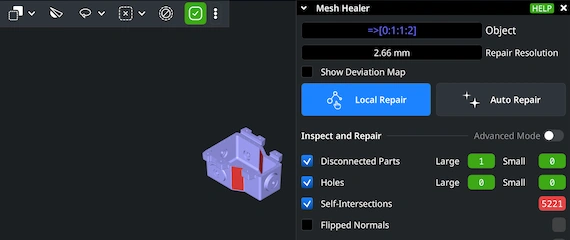
Any advanced program for reading STP files should offer more than simple viewing. MeshInspector fully meets this requirement. To verify the quality of your STP model, open ‘Mesh Healer’ under ‘Mesh Repair’ and review the model for potential issues.
Fixing Issues in STPs
Use ‘Local Repair’ to detect various issues, e.g., holes and disconnected parts. Enable specific checks using the checkboxes, then run the repair. If you choose ‘Auto Repair’, MeshInspector will attempt to fix the model by rebuilding the geometry.
Distance Measurements in STPs
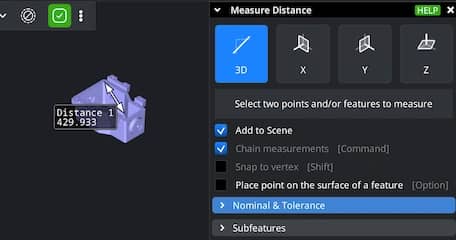
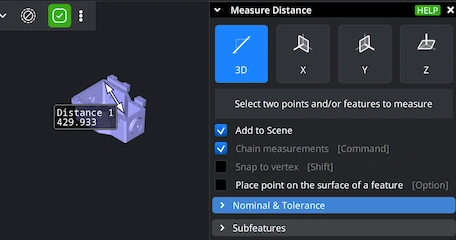
In order to measure distances in your STP model, open ‘Inspect,’ then enable ‘Measure Distance’. After that, click on the points of interest on the surface. MeshInspector will calculate the full 3D distance, along with the X, Y, and Z projections. This feature is helpful when you need precise dimensional checks.

Open-Source STP Viewer for Developers
- Multi-Format Support — meshes, point clouds, voxels, and line data
Modern UI — built with Dear ImGui: ribbon interface, scene tree, view cube, and measurement tools.
Order-Independent Transparency (OIT) — realistic rendering of transparent materials.
Customizable Interaction — support for mouse, keyboard, touch gestures, and SpaceMouse devices.
Plugin Architecture — extend the Viewer with your own tools and workflows.