Imported meshes may sometimes contain tunnel structures in their topology. These elements create additional loops, making the topology more complex. In many workflows, such structures are undesirable.
To resolve this issue, MeshInspector provides a dedicated Fix Tunnels tool. This operation removes tunnel structures and modifies the topology so that the mesh becomes topologically equivalent to a sphere, simplifying its structure. You can access this tool from the Mesh Repair tab. Click Fix Tunnels to run the operation on the selected mesh.

After you click Fix Tunnels, a dedicated panel opens with several settings. The most important one is Prefer Tunnels. It defines which types of tunnel loops the algorithm will search for.
Prefer Tunnels
The available options include:
- Shortest searches for the shortest loops by length.
- Most Curved searches for loops passing along edges where the mesh is most curved (either concave or convex).
- Most Concave searches for loops passing along edges where the mesh is most concave.
- Most Convex searches for loops passing along edges where the mesh is most convex.
- Least Curved searches for loops passing along edges where the mesh is least curved (neither concave nor convex).
Advanced Select Options
The Advanced Select Options section provides additional controls that help refine how tunnel loops are detected.
- Max Tunnel Length defines the maximum allowed length of tunnel loops. Loops longer than this value will be ignored during the search.
- Curvature Priority controls how strongly curvature influences the loop search. If the value is 0, curvature is ignored during the search. As the value increases, desired curvature becomes more important than the Euclidean length of the loops.
- Max Iterations defines the maximum number of tunnel detection iterations. Not all tunnels may be found during the first iteration. On large meshes with many tunnels, even a single iteration may take some time.
- Build Co-Loops enables a mode that helps detect shorter tunnels, but requires more computation time.
- Filter Equivalent Co-Loops filters duplicate or equivalent co-loops. If this option is disabled, some tunnels may be cut in several places. Enabling this option helps avoid such cases, but significantly increases computation time.
Commands
Once you define the tunnel loops you are searching for, you can process them using the following buttons:
- Select Tunnel Triangles selects the triangles that belong to the tunnel regions matching your criteria.
- Remove Selected Triangles deletes the currently selected tunnel triangles from the mesh.
- Fill Created Holes fills the holes that appear after the tunnel triangles are removed.
Sample Workflow
In this example, we apply the Fix Tunnels tool to a mesh representing a root structure. After opening the tool, we keep the default settings and click Select Tunnel Triangles. MeshInspector analyzes the surface and detects tunnel regions that match the selected criteria. The triangles belonging to these tunnel areas are then selected and highlighted in red.
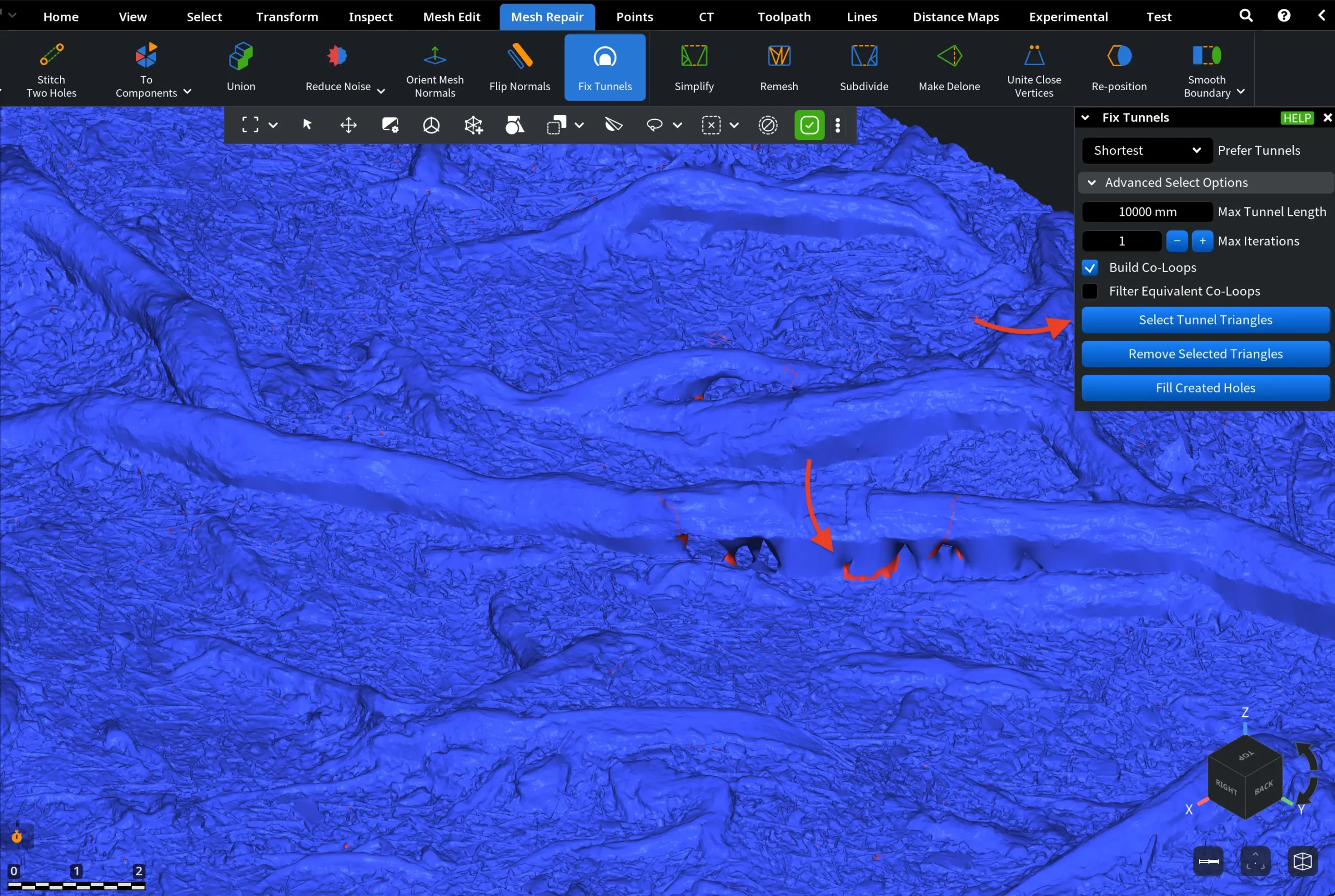
As shown in the screenshot, the detected triangles appear along narrow tunnel-like cavities within the root geometry. These highlighted regions indicate the parts of the mesh that can be removed to eliminate the tunnel structures.
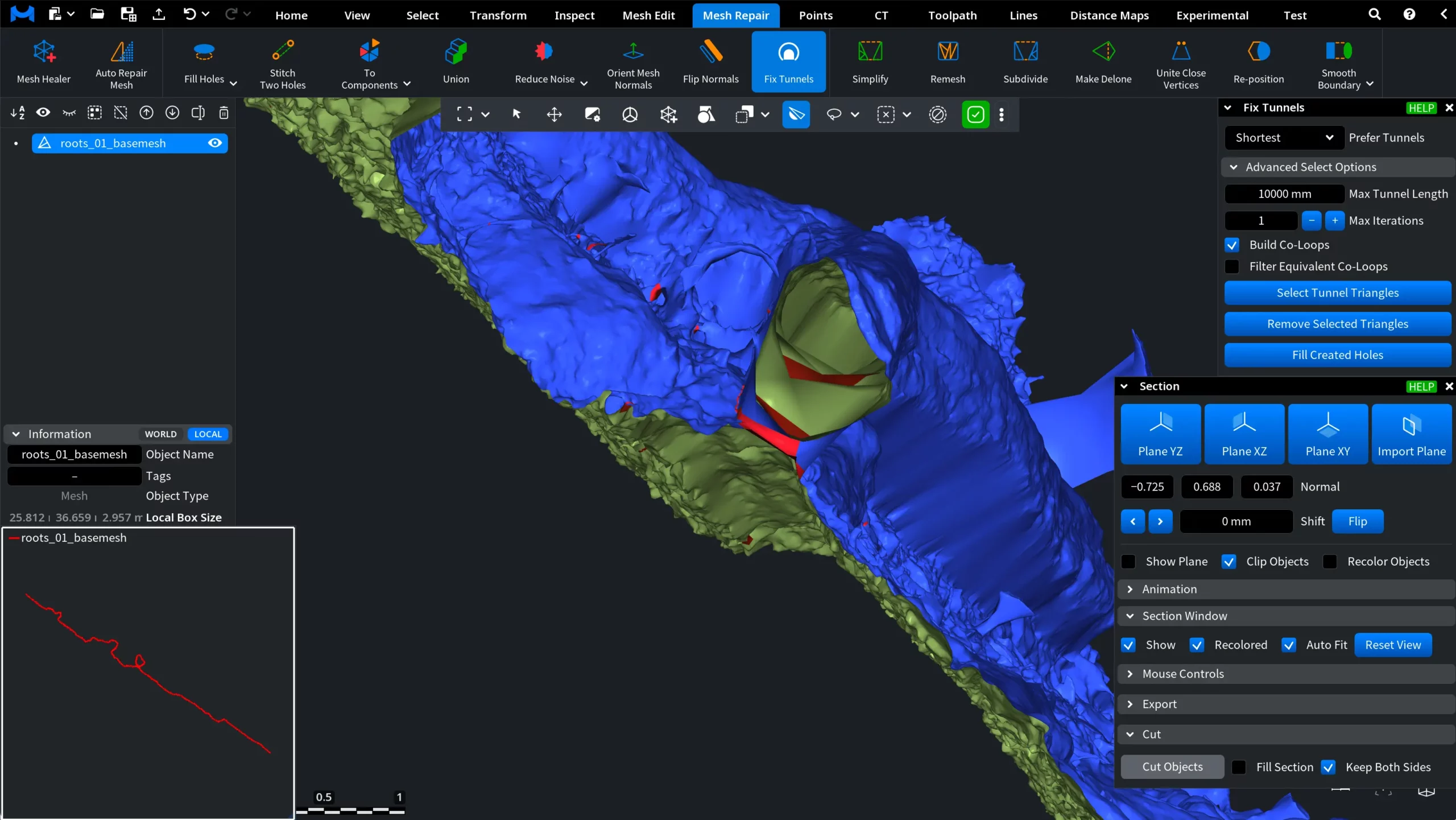
To better inspect the detected regions, we apply the Section tool. The mesh is 'clipped' by a plane, allowing us to see the internal structure of the model. As shown in the screenshot, the section plane cuts through the root geometry and reveals the interior of the mesh. The triangles previously detected by Select Tunnel Triangles remain highlighted in red, making it easier to understand how the tunnel passes through the model.
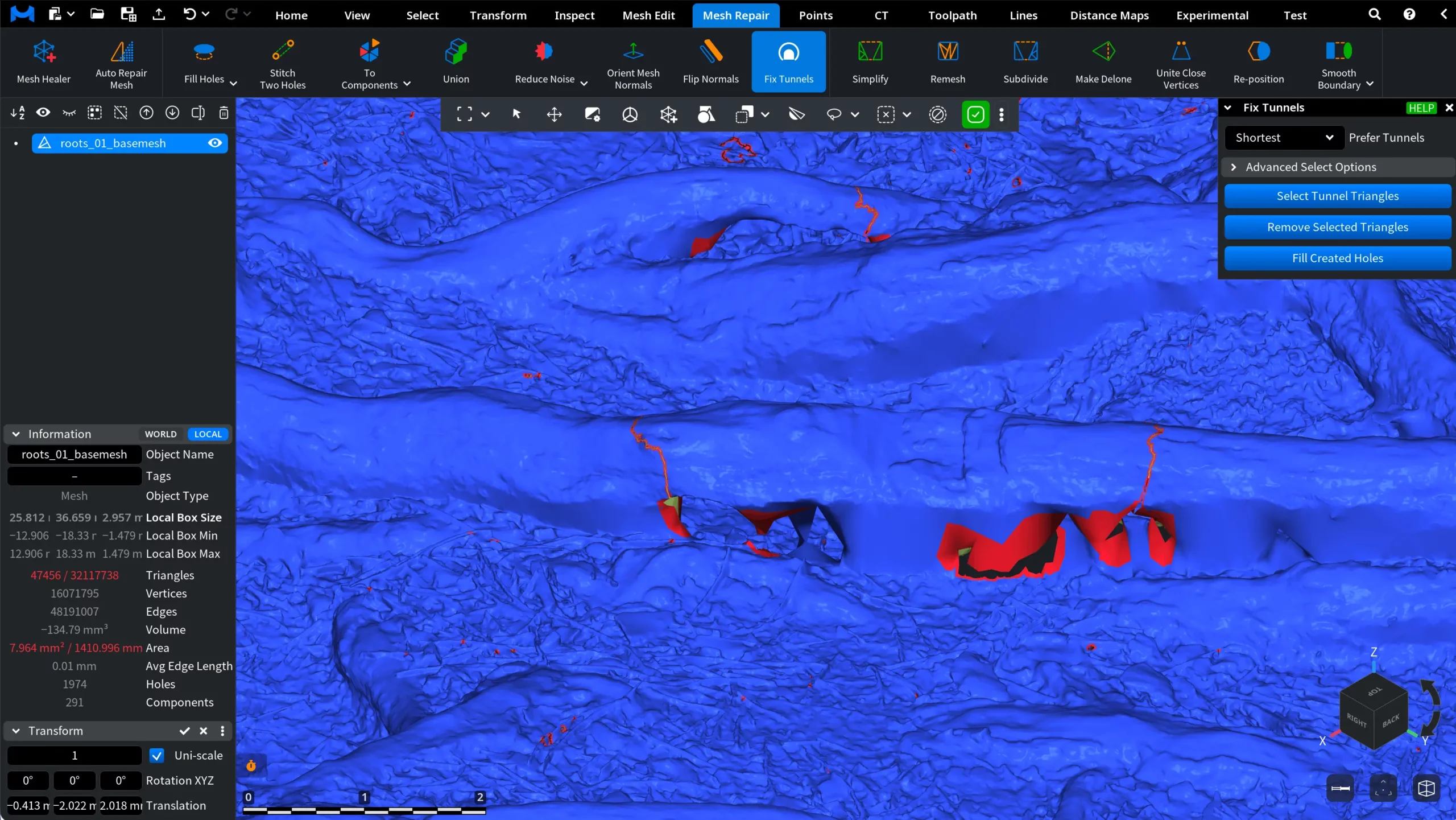
Next, we click Remove Selected Triangles. MeshInspector deletes the triangles that were previously selected as part of the detected tunnel regions. As a result, the tunnel geometry is removed from the mesh, leaving open holes where the tunnel structures used to be.
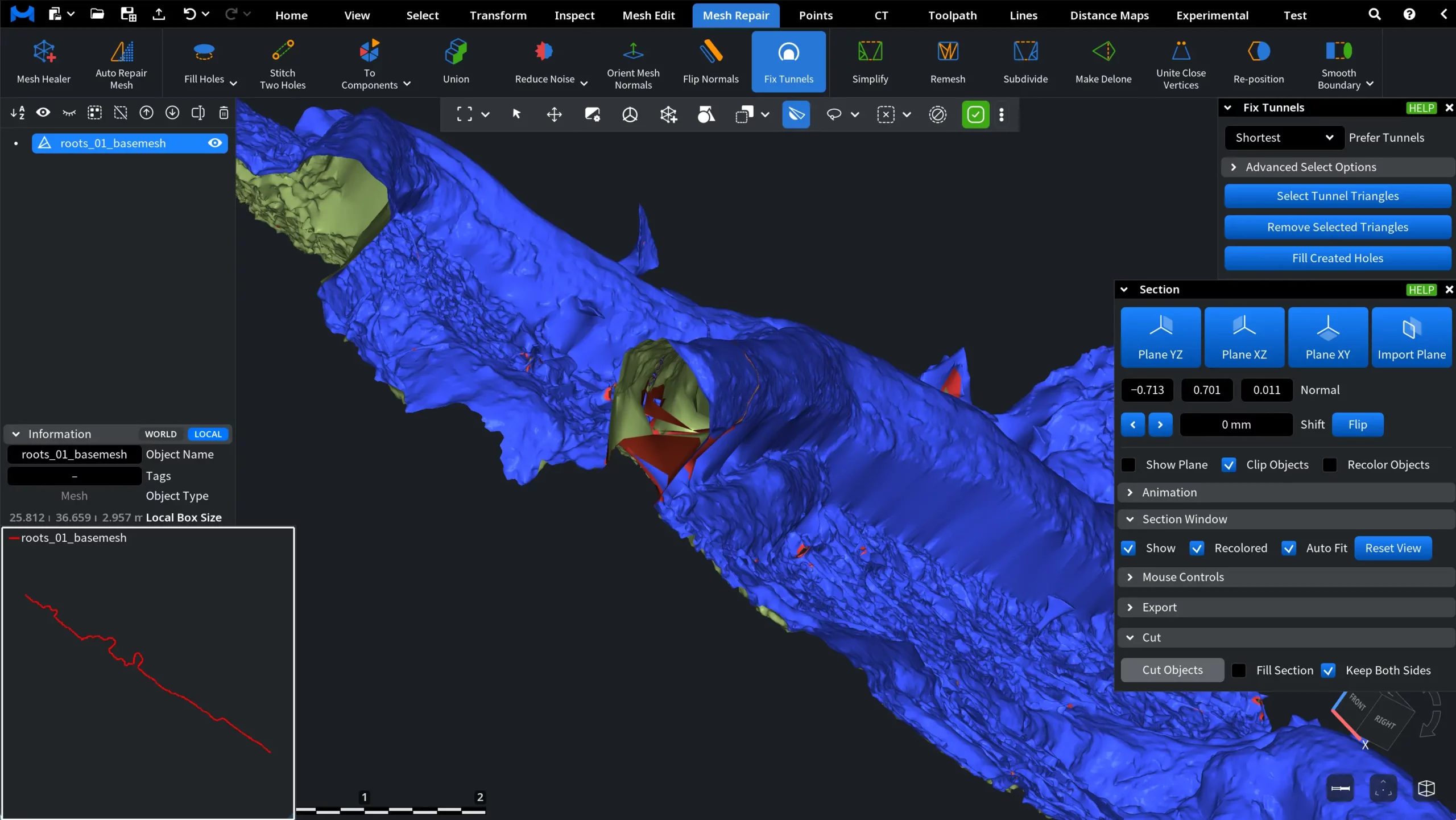
Again, you can use Section to examine the internal structure of the model.
Finally, we click Fill Created Holes. MeshInspector automatically fills the openings that appeared after the tunnel triangles were removed. The tool reconstructs the missing surface and restores a continuous, closed mesh. As shown in the screenshot below, the previously open tunnel areas are now filled with new geometry.
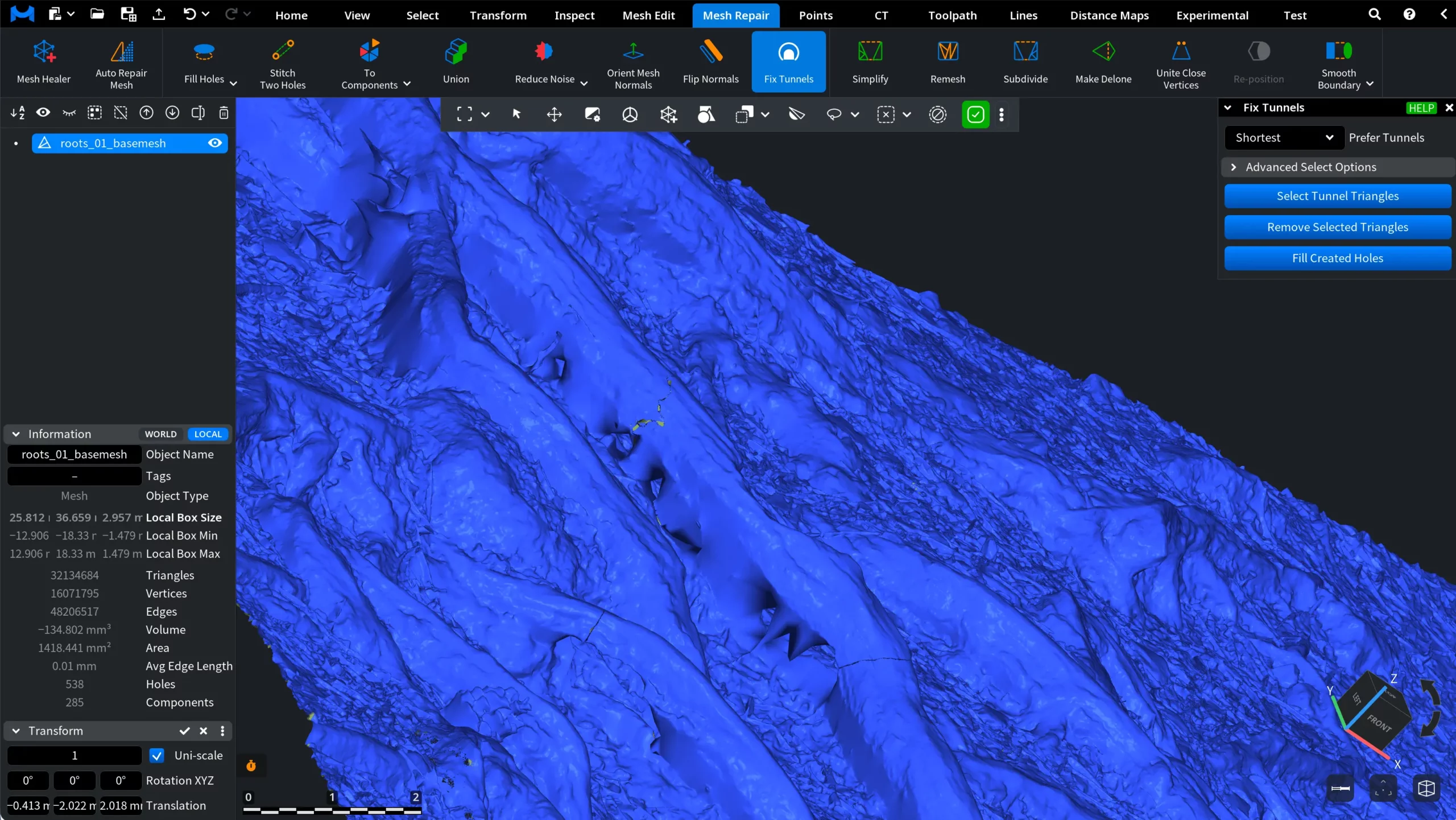
How to Fix Tunnels in MeshInspector