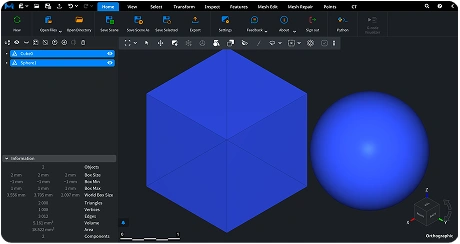
OBJ Viewer: Online & Free
Open, inspect geometry, structure, and colors, measure distances and volume, repair, and resize OBJ files for 3D printing.


Which OBJ Viewer Is Best for You?
| MeshInspector | MeshInspector | Other STL Readers | |
|---|---|---|---|
| Perfomance | Ultra-fast (GPU acceleration) | High | Slow |
| Batch Import | Unlimited | Unlimited | Single file |
| File Limits | Unlimited | Unlimited | ~100 MB |
| Measurement Tools | Advanced | Advanced | Limited |
| Metadata Support | Full | Full | Not supported |
| Scaling | Advanced | Advanced | Not supported |
| 3D Editor | Advanced | Advanced | Not supported |
| Screenshots | Advanced | Advanced | Limited |
| Supported Files | STL (ASCII/Binary), OBJ, PLY, GLTF | STL (ASCII/Binary), OBJ, PLY, GLTF | STL (Binary) |
| Export | Multiple formats | Multiple formats | Not supported |
| Security & Privacy | Corporate security + Local storage | SSL + Auto-delete | Server-side storage |
| Cross-Platform | Windows, macOS, Linux | All devices | Web only, poor mobile UX |
| Suitable for | Professional & industrial use | Quick viewing & sharing | Not recommended |
Ready to get started with MeshInspector?
Join thousands of engineers who trust MeshInspector to view and inspect their 3D files. Start exploring your models today with no limits and professional‑grade visualization.
How to Open OBJ Files on Windows, Mac & Linux
Open an OBJ to View It
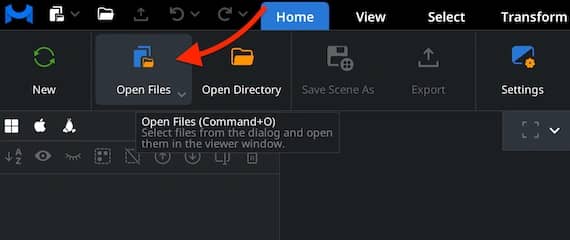
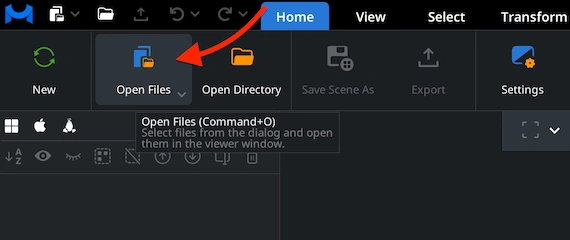
Go to the ’Home’ tab and click ’Open Files.’ Select your OBJ file to load it into the MeshInspector program. Once chosen, the program imports the geometry and prepares it for display, no matter how many polygons your mesh contains.
Selecting an OBJ File
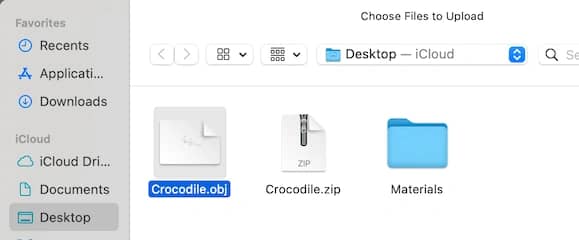
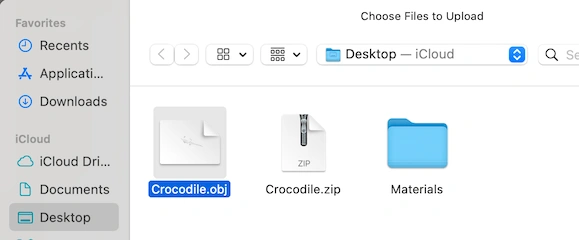
Browse to the directory where your OBJ file is stored. Double-click it or confirm the selection with ’Upload.’ We can accept OBJ files both as standalone meshes and as complete archived project folders, including their relevant assets packaged in a ZIP folder.
Viewing an OBJ File
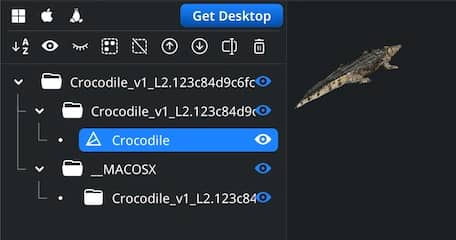
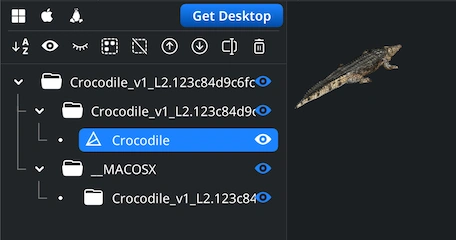
Let’s assume we have uploaded an entire ZIP package containing the OBJ mesh and its supporting elements. After import, the full project structure appears in the Scene Tree. You can now freely explore the OBJ, e.g., rotate the view by dragging with the left mouse button or using a single-finger touchpad gesture. Pan with the right mouse button or two-finger movement. Zoom with the mouse wheel or a pinch gesture. Tilt the perspective by holding Ctrl while dragging with the left button.
Checking the Size of an OBJ
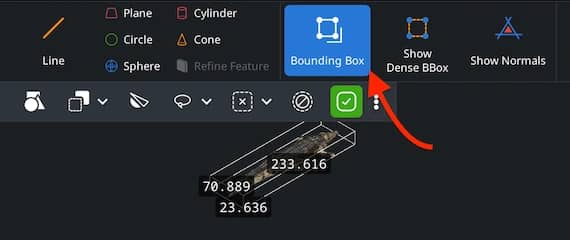
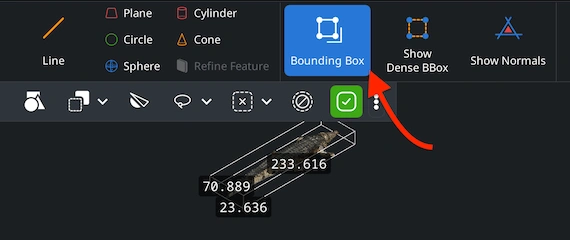
To review the dimensions of your OBJ model, open the ’Inspect’ tab and enable ‘Bounding Box’ with the mesh selected in the Scene Tree. MeshInspector will display the overall size of the OBJ model, helping one verify scale and proportions before further processing.
Changing the OBJ Size
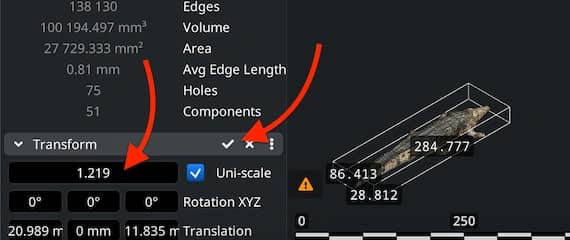
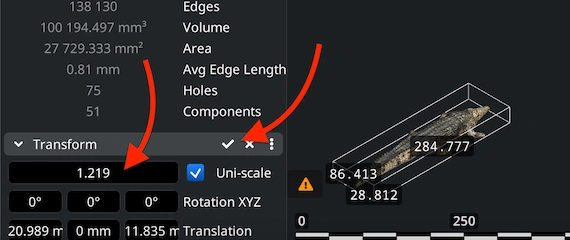
If you need to resize your OBJ model for some reason, use the Scale slider in the ’Transform’ section of the lower-left panel. Select the scaling ratio. After that, apply the change by clicking the checkmark icon. The OBJ mesh will be updated instantly, including its bounding box values as well as volume.
Inspecting OBJ Mesh Quality
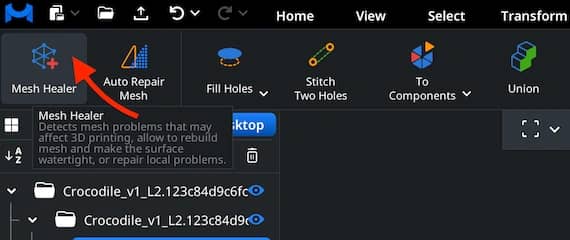
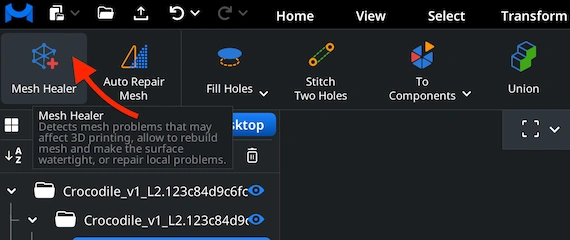
Mesh files represent polygonal geometry. As such, they might contain holes, flipped normals, disconnected islands, or other defects. To examine mesh quality quickly and with ease, open ‘Mesh Healer’ under ‘Mesh Repair.’ This tool analyzes your OBJ and highlights potential issues.
Fixing Issues in OBJs
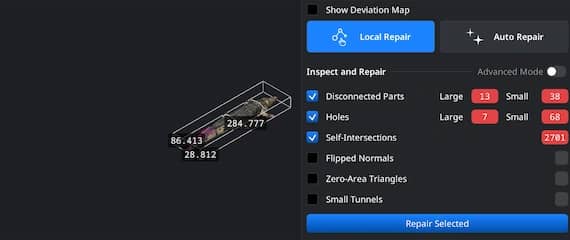
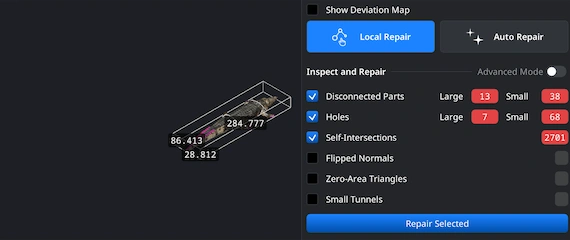
Use the ’Local Repair’ option to check for specific defects, such as holes, non-manifold edges, or self-intersections. Activate the options you need and run the repair to achieve the level of quality you require. Also, the ’Auto Repair’ option will attempt to simply rebuild a problematic mesh.
Distance Measurements in OBJ Models
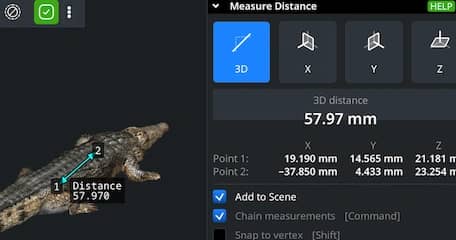
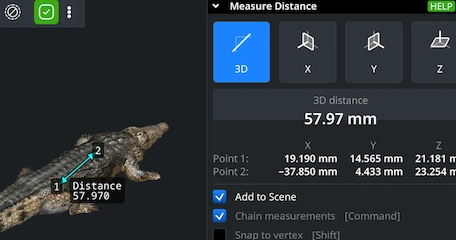
To measure distances, go to ’Inspect’ and enable ’Measure Distance.’ Then click your points on the model. MeshInspector calculates the exact 3D distance and also shows X, Y, and Z projections. This might be useful for quick dimensional checks and validation.

Open-Source OBJ Viewer for Developers
- Multi-Format Support — meshes, point clouds, voxels, and line data
Modern UI — built with Dear ImGui: ribbon interface, scene tree, view cube, and measurement tools.
Order-Independent Transparency (OIT) — realistic rendering of transparent materials.
Customizable Interaction — support for mouse, keyboard, touch gestures, and SpaceMouse devices.
Plugin Architecture — extend the Viewer with your own tools and workflows.