The Transform tools in MeshInspector provide a comprehensive set of operations for positioning, aligning, and scaling objects in 3D space. These tools are designed to handle a wide range of use cases, including alignment, multi-object registration, inspection preparation, and controlled shape modification.

Align Manually
By clicking Align Manually, when there are at least two objects in the scene, you can manually align a target object with a fixed object by selecting corresponding points on both. This tool enables precise positioning by ensuring that specific points on the target object match those on the fixed object. This method is particularly useful when automated alignment is unreliable, such as when working with asymmetrical or irregular shapes.
The Selected Objects section allows you to define which objects participate in the alignment process. It consists of:
-
Floating Objects — objects that will be moved and adjusted during alignment.
-
Fixed Objects — objects that remain stationary and serve as the reference for alignment.
Use the arrow buttons to assign objects to either category.

Below the object selection section, the Auto Improve Alignment checkbox controls automatic refinement of the alignment during point picking. When enabled, the alignment is automatically refined after each newly picked pair of points, starting from the third pair. The refinement is performed using the Iterative Closest Points (ICP) algorithm, which progressively improves object positioning based on the selected point pairs.
Below the checkbox, two action buttons are available:
-
Delete Pick Points removes all previously selected points from both the floating and fixed objects, allowing you to restart the alignment process.
-
Accept finalizes the manual alignment based on the selected point pairs. After clicking Accept, the floating object is positioned according to the corresponding pivot points on the fixed object.
The alignment workflow is as follows:
-
Choose the floating and fixed objects.
-
Pick pivot points on the fixed object by clicking on its surface.
-
Pick corresponding points on the floating object that should match the selected pivot points.
A minimum of two point pairs is required for basic alignment; additional pairs improve accuracy. -
Click Accept to apply the alignment.
Pairs Forming Settings in Align Manually
The Pairs Forming Settings section allows you to control how point pairs are selected for alignment. These parameters refine the accuracy of point matching and influence how the floating object is adjusted relative to the fixed object.
-
Normals Max Angle defines the maximum allowable angle between the normals of two points for them to be considered a valid pair.
-
Max Distance sets the maximum distance between two points for them to be considered a valid pair.
-
Far Distance Factor filters point pairs based on the root-mean-square (RMS) distance. A point pair is counted only if its distance is lower than the RMS distance multiplied by this factor.
-
Mutual Closest Points in Each Pair, when enabled, forms pairs only if both points are mutual closest neighbors.
-
Sampling Spacing determines the voxel size used for point sampling, ensuring that only one point per voxel is selected.

Methods in Align Manually
The Method setting defines how point correspondences are handled during the alignment process. Available options include:
-
Combined, which uses a mix of Point-to-Point and Point-to-Plane methods for more robust alignment.
-
Point-to-Point, which matches points directly and is suitable for simpler alignment cases.
-
Point-to-Plane, which takes surface normals into account and improves alignment on curved or irregular geometry.
Transformation Settings in Align Manually
The Transformation setting defines how the floating object is transformed during alignment. Available options include:
-
Rigid Body, which preserves object shape and allows only translation and rotation.
-
Rigid + Scale, which allows uniform scaling in addition to translation and rotation.
-
Orthogonal Axis Rotation, which restricts rotation to predefined axes.
-
Fixed Axis Rotation, which limits rotation to a specified axis.
-
Translation Only, which moves the object without rotation or scaling.
Stop Conditions in Align Manually
The Stop Conditions section controls when the Iterative Closest Points (ICP) algorithm stops refining the alignment:
-
Max Iterations defines the maximum number of ICP iterations allowed.
-
No Improvement Iterations specifies how many consecutive iterations without improvement will cause the algorithm to stop.
-
Deviation Reached defines the target RMS distance (in millimeters). Once this deviation is reached, the algorithm stops.
By adjusting these parameters, you can balance alignment accuracy and computation time to achieve reliable results across different alignment scenarios.
Registration
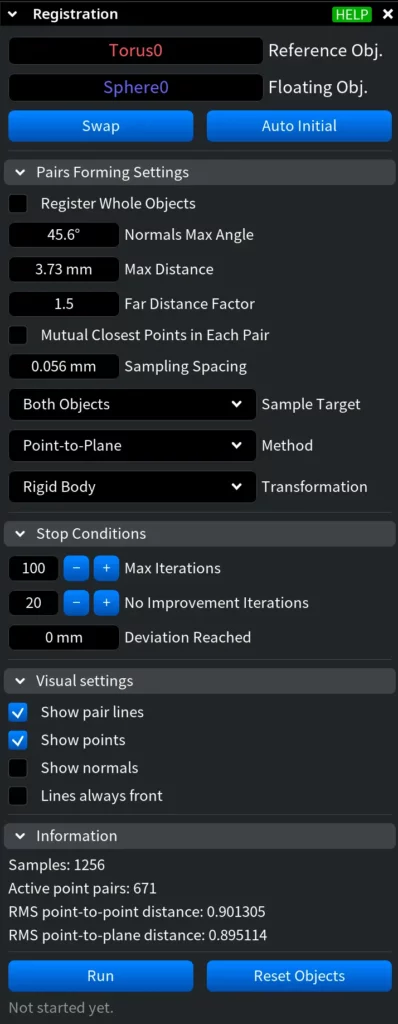
Clicking mesh Registration allows you to compute an optimal transformation that aligns a floating object to a reference object by minimizing geometric differences between them. The process is performed using the Iterative Closest Points (ICP) algorithm, which refines alignment by establishing and updating point correspondences between the two objects. This tool is intended for automatic fine alignment.

When the tool is activated, a settings panel opens. At the top of the panel, you define the participating objects:
-
Reference Object is the fixed object that remains stationary during registration.
-
Floating Object is the object that is transformed to align with the reference.
Below, two action buttons are available:
-
Swap exchanges the roles of the reference and floating objects.
-
Auto Initial automatically computes an initial transformation for the floating object based on the covariance matrices of both the reference and floating objects. This provides a reasonable starting position and improves convergence of the ICP algorithm, especially when the objects are initially far apart.
Pairs Forming Settings are mostly identical to those in Align Manually, with the addition of the Sample Target option.

This setting defines which objects are used for point sampling during correspondence formation and provides three choices:
- Both Objects
- Floating Only
- Reference Only.
Stop Conditions are identical to those in Align Manually.
Visual Settings in Mesh Registration
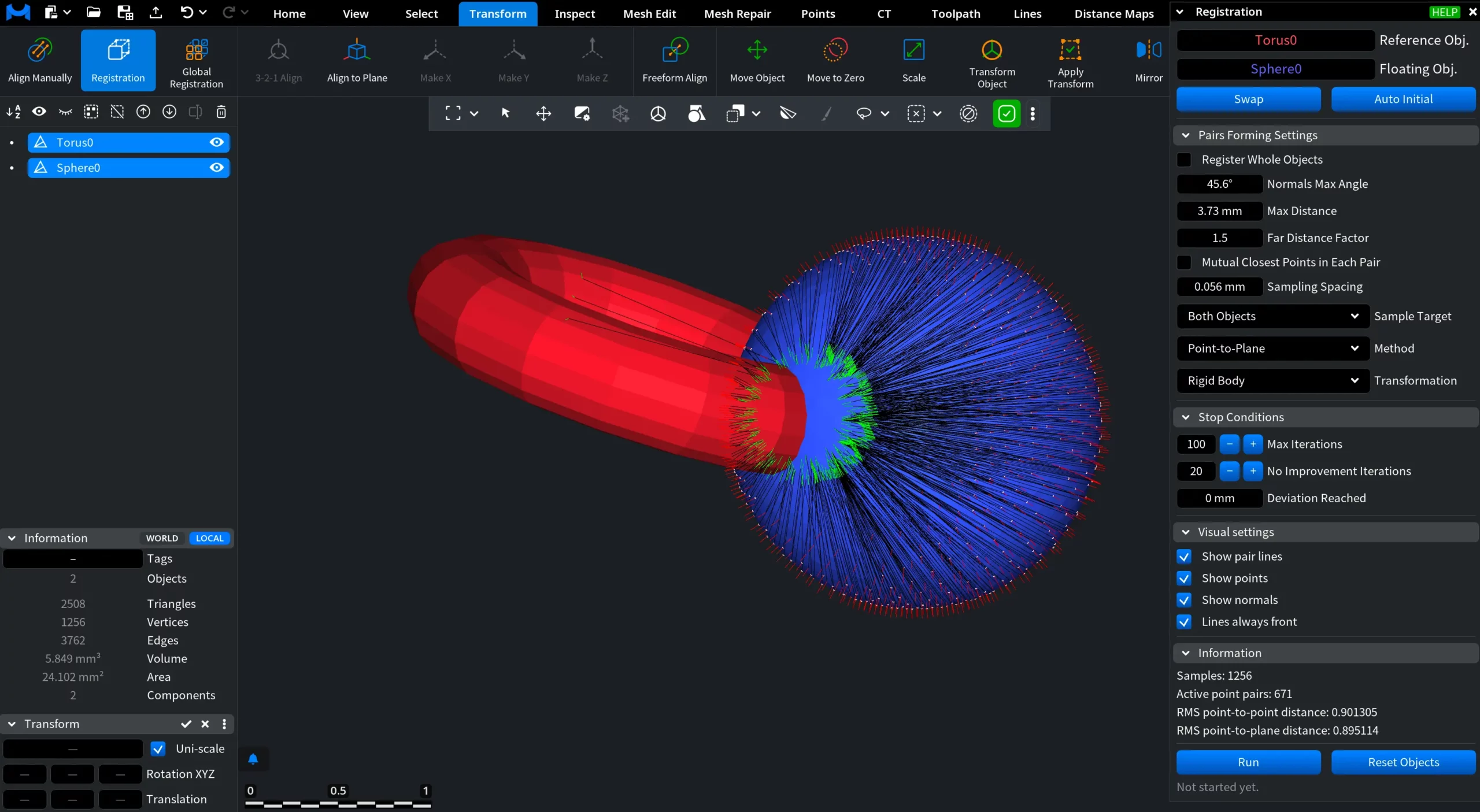
The Visual settings section controls how alignment data is displayed in the viewport during the registration process.
These options do not affect the registration result itself but help visually assess correspondence quality and convergence behavior.
-
Show pair lines displays lines connecting corresponding point pairs.
-
Show points shows the participating sampled points.
-
Show normals visualizes surface normals.
-
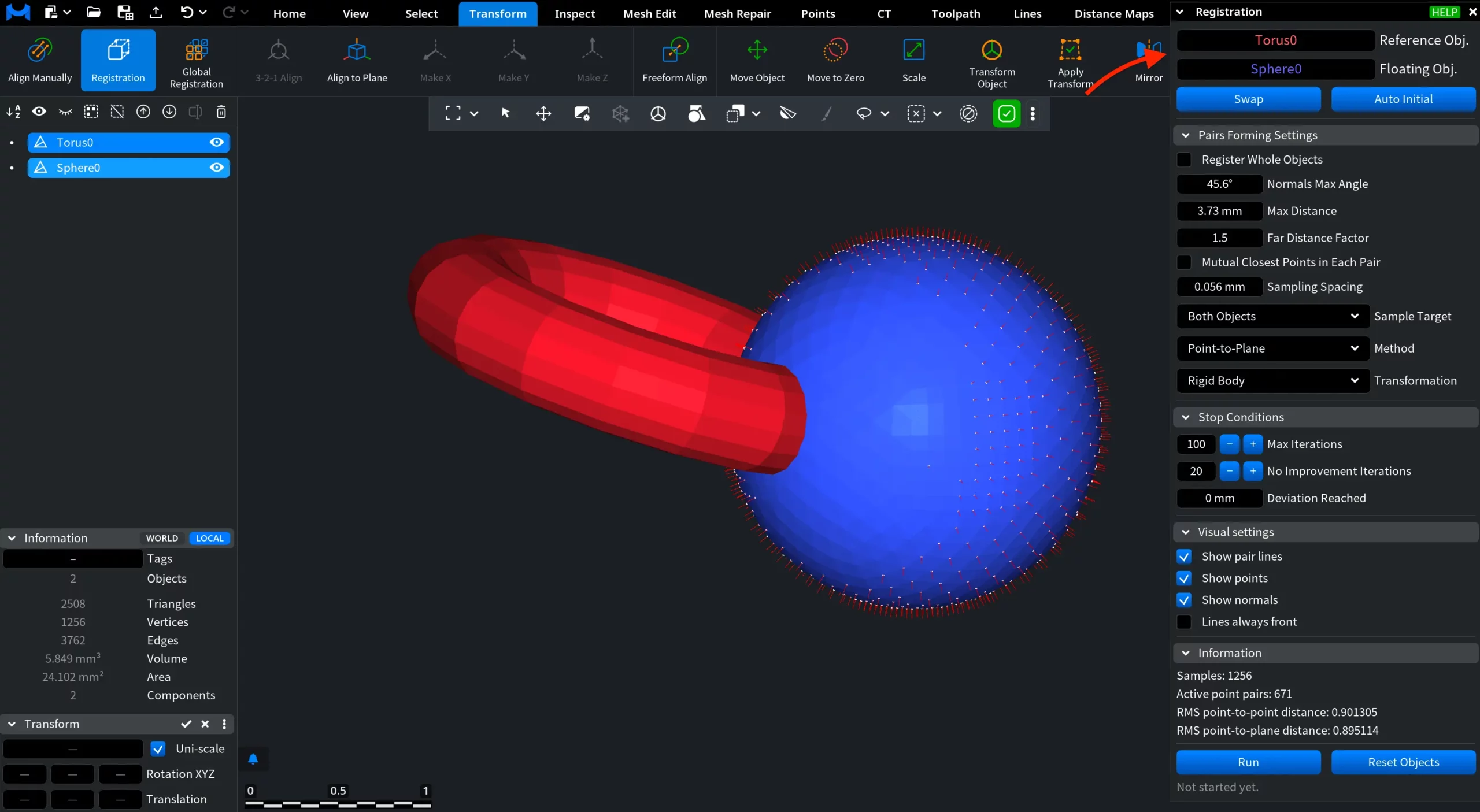
Lines always front forces correspondence lines to remain visible, preventing them from being occluded.
These options are useful for debugging alignment issues, evaluating point pairing quality, and understanding how the algorithm converges.
Running and Resetting Registration
At the bottom of the panel, two action buttons control the registration process:
-
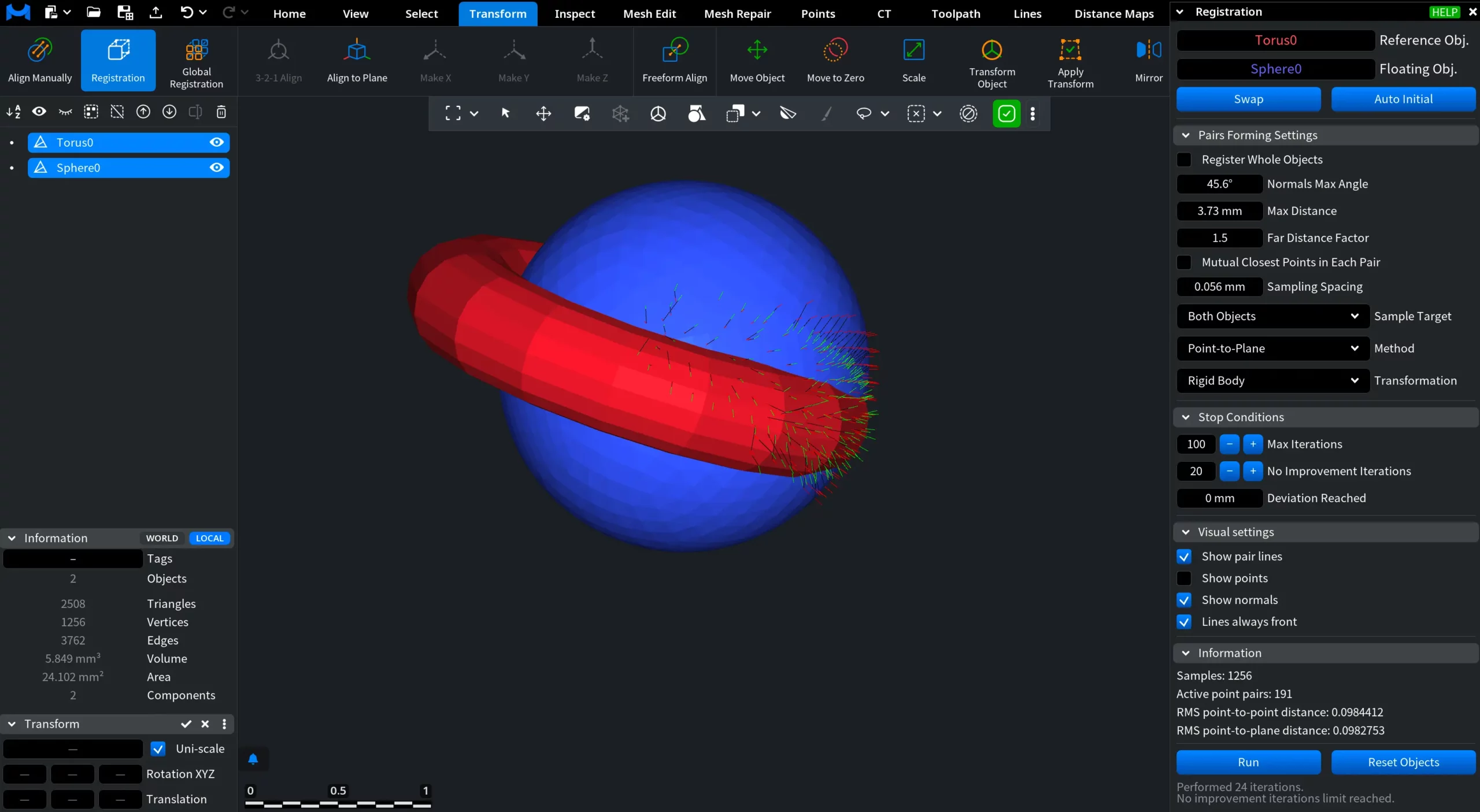
Run starts the Iterative Closest Points (ICP) algorithm using the current settings and the current position of the floating object.
-
Reset Objects restores both the reference and floating objects to their original positions, effectively undoing the registration result and allowing the process to be restarted from the initial state.
Together, these controls allow you to iteratively test, visualize, and refine registration parameters while maintaining full control over the alignment workflow.
Below, you can also see the numbers of:
After running registration, the information panel displays execution details:
-
Performed Iterations is the total number of ICP iterations executed before stopping.
-
Stop Reason explains why the ICP process terminated, such as reaching the No improvement iterations limit reached.

Global Registration
Clicking Global Registration starts an automated alignment process that computes transformations for multiple objects simultaneously. Global Registration optimizes the positions of all selected objects together, ensuring that they align consistently relative to one another.
This approach is useful when no single object should act as a reference, for example when aligning multiple scans of the same structure. A typical use case is imaging, where several scans must be jointly aligned into a coherent global configuration.

In Global Registration, most Pairs Forming Settings follow the same principles as those used in Align Manually and Registration, with additional parameters specific to multi-object alignment. In particular, Max Group Size defines the maximum number of objects that can be processed together during a single registration step. This setting helps control computational complexity and ensures stable performance when working with larger object sets.
Cascade Mode in Global Registration
The Cascade Mode option in Global Registration defines how objects are divided into groups for sequential alignment. Two modes are available:
- Sequential divides objects into groups based on their order in the scene. This mode is effective when individual objects are comparable in size to the overall scene, allowing alignment to progress in a predictable, linear manner.
- AABB Tree groups objects using an Axis-Aligned Bounding Box (AABB) hierarchy built from object bounding boxes. Subtrees of the AABB tree are used as registration groups. This mode is well suited for scenarios where objects are significantly smaller than the overall scene and benefit from hierarchical, spatially driven processing.
Results, Stop Conditions, and Post-Registration Controls
The Stop Conditions in Global Registration are identical to those used in Align Manually and Registration. These conditions define when the Iterative Closest Points (ICP) optimization terminates based on iteration limits, convergence behavior, or target deviation thresholds.
After running Global Registration, the interface provides detailed feedback about the process and offers controls for applying, resetting, or manually refining the computed transformations.
Information Panel
The Information section displays quantitative results from the registration process, including:
-
Samples is the number of sampled points used during correspondence formation.
-
Active point pairs is the number of point correspondences that satisfied the pairing constraints.
-
RMS point-to-point distance is the root-mean-square error between corresponding points.
-
RMS point-to-plane distance is the root-mean-square error measured along surface normals (when applicable).
-
Performed iterations is the number of ICP iterations executed.
-
Stop reason is the condition that caused the algorithm to terminate, such as reaching the maximum iteration count or exceeding the no-improvement threshold.
These metrics allow users to assess both convergence behavior and alignment quality.
When deviation data is available, a deviation distribution graph is shown and can be exported to CSV for further analysis, reporting, or quality control.
Applying and Resetting Results
-
Apply finalizes the transformations computed by Global Registration and commits them to the objects.
-
Reset Transforms discards the computed transformations and restores all objects to their original positions prior to registration.
These controls make it possible to iteratively test different parameter configurations without permanently modifying object placement.
Free Form Adjust
The Free Form Adjust section provides a manual transformation tool that can be used independently or after Global Registration to fine-tune object positioning.
-
Adjustment Grid (X, Y, Z) defines the step size for manual adjustments along each axis.
-
Clicking Adjust activates Free Form Adjust mode, allowing precise, incremental translation and rotation based on the defined grid values.
This tool is useful for final visual corrections or controlled refinements after automatic alignment.
Deviation Histogram
The Deviation Histogram section visualizes the distribution of distances between corresponding points after registration. The graph shows how deviation values are spread across all active point pairs, making it easier to assess alignment quality beyond a single RMS value.
This histogram is useful for identifying outliers, uneven convergence, or localized misalignment that may not be obvious from summary metrics alone.
The displayed deviation data can be exported to CSV for further analysis, reporting, or quality control in external tools.
3-2-1 Align
Clicking 3-2-1 Align activates an alignment workflow that allows an object to be fully oriented and positioned in 3D space using a sequence of geometric constraints. As such, 3-2-1 Align relies on explicitly defined references and produces predictable and repeatable results.
The 3-2-1 Align method is based on three sequential constraints:
-
A Plane constraint defines orientation relative to one global axis.
-
A Vector constraint defines rotation within that plane.
-
A Point constraint defines the final position.
Together, these steps determine both the orientation and the position of the object with respect to the global coordinate system.
This approach is especially useful when alignment must be precise, explainable, and reproducible, e.g., in inspection, manufacturing preparation, and downstream geometric processing.

Alignment Mode
At the top of the 3-2-1 Align panel, the Mode selector defines the order of constraints and the target global axes used during alignment.
For example, the default ZZZ-YY-X mode specifies:
-
Which global axis the reference plane is aligned to.
-
Which axis the direction vector is aligned to.
-
Which axis is used for the final point positioning.
By changing the mode, users can control how the plane, vector, and point constraints map to the global X, Y, and Z axes. This makes the alignment workflow adaptable to different coordinate system conventions and use cases.
Step 1: Plane Definition
The Plane section defines the primary reference plane used for alignment.
Pick Mode
In Fit Samples mode, the plane is defined by selecting points directly on the object’s geometry. A minimum of three points is required to define a plane, though additional points may be selected to improve stability.
Alternatively, users can switch to Feature mode and select a pre-created plane feature.
Offset
The Offset parameter allows the plane to be shifted by a specified distance along its normal. This is useful when the alignment reference should not lie directly on the selected surface.
The offset can be:
-
Entered numerically for precise control, or
-
Adjusted interactively for visual feedback.
Controls
-
Accept confirms the plane definition and advances the workflow.
-
Flip reverses the direction without changing the selected points.
-
Reset clears the current plane selection and allows it to be redefined.
Step 2: Vector Definition
The Vector section defines the direction used to orient the object within the previously defined plane.
Pick Mode
In Fit Samples mode, the vector is defined by selecting at least two points on the object. The direction from the first point to the second determines how the object is rotated within the plane. In Feature mode, a pre-created line feature can be selected instead. All other controls behave the same as in the Plane step.
Step 3: Point Definition
The Point section defines the final positional constraint. A single point is selected to determine how the object is translated relative to the global coordinate system. This point fixes the object’s location after orientation has been fully resolved by the plane and vector steps. Again, in the Fit Samples mode, the point is assigned manually. In the Feature mode, you can use an already existing point feature.
Step 4. Applying the Alignment
Once all three steps, i.e., Plane, Vector, and Point, have been accepted, clicking Apply executes the alignment and updates the object’s transformation. At this stage, the object is fully aligned and positioned according to the selected constraints.
Align to Plane
Align to Plane allows you to quickly orient an object relative to one of the global coordinate planes (X, Y, or Z) using a selected face of the mesh. The tool rotates the object so that the selected face aligns with the chosen global plane and moves that face to the global origin.
To use Align to Plane, open the Transform tab and click Align to Plane.
How to Use Align to Plane
When the tool is activated, the following interface elements appear:
-
A reference plane corresponding to the currently selected global axis (Z by default) is displayed in the scene.
-
The global coordinate axes are visible, with its center providing orientation context.
-
The Align to Plane panel opens, allowing the user to select the target plane (X, Y, or Z).

- Select the target plane (X, Y, or Z) in the tool panel.
-
Click a face (triangle) on the mesh to use it as the reference.
Once a face is selected:
-
The chosen face is placed on the origin of the selected plane.
-
The object is rotated so that the face normal aligns with the plane normal.
If the resulting orientation is inverted, use Flip to reverse the alignment direction without changing the selected face.
The same behavior applies for all three global planes.
To better see the triangle to click on, you can press L to visualize the triangles.

Make X / Make Y / Make Z
Make X, Make Y, and Make Z are quick orientation tools that instantly rotate an object so that a selected feature becomes aligned with one of the global coordinate axes. Unlike step-by-step alignment tools, these commands apply a single, deterministic transformation based on an existing reference.
These tools work with both meshes and point clouds, provided the object has a child feature (such as a point, line, or plane) that defines the orientation reference.

When to Use Make X / Make Y / Make Z
Make X / Y / Z is best suited for fast, coarse orientation tasks, such as:
-
Aligning a model’s main direction with a global axis
-
Normalizing orientation before further alignment or inspection
-
Quickly correcting object rotation without interactive picking
Freeform Align
Freeform Align is a manual, point-based alignment tool that allows you to adjust the position and orientation of one object relative to another by defining corresponding point pairs. Unlike automatic registration tools, Freeform Align gives you direct, user-controlled alignment without running any optimization or iterative fitting.
This tool is intended for situations where automatic alignment is unreliable, insufficiently precise, or where controlled, explainable adjustments are required.

Step 1. Assign Objects and Roles
Freeform Align works with two objects:
-
Floating object — the object that will be moved and rotated
-
Fixed object — the reference object that remains stationary
These roles are displayed in the Freeform Align panel and can be swapped at any time using Swap.
Step 2. Create Point Pairs
Alignment is defined by manually creating point pairs:
-
Click on the floating object to place a point
-
Click on the fixed object to place the corresponding point
Each pair is automatically numbered (1, 2, 3, etc.), making it easy to identify corresponding points across objects. These numbered markers remain visible in the viewport and define the alignment relationship explicitly.
You can create multiple point pairs.
Step 3. Use Adjustment Grid (Optionally)
The Adjustment Grid defines the step size used when applying the alignment. It controls how much the floating object is translated or rotated per adjustment along each axis.
Step 4. Applying and Managing Alignment
-
Apply computes and applies a single transformation to the floating object based on the currently defined point pairs and Adjustment Grid settings. The floating object is moved and rotated so that the defined point correspondences are satisfied as closely as possible, while the fixed object remains unchanged.
-
After clicking Apply, the transformation is finalized for the current setup. The point pairs remain visible and can be reused for further adjustments, but no additional alignment occurs unless Apply is pressed again.
-
Delete All Points removes all point pairs and resets the Freeform Align setup.

Move Object
Move Object is an interactive transformation tool that allows you to move, rotate, or scale objects directly in the viewport using the mouse. It is intended for manual positioning and adjustment.
To use Move Object, open the Transform tab and click Move Object. Once activated, the Move Object panel appears and interactive manipulation becomes available in the viewport.

Modes
The Mode section defines how the object is transformed during mouse interaction:
-
Rotate rotates the object around its pivot (default behavior: drag with LMB)
-
Move translates the object in 3D space (drag with LMB while holding Command on macOS or Ctrl on Windows)
-
Scale scales the object (drag with LMB while holding Option on macOS or Alt on Windows)
Only one mode is active at a time. The active transformation is determined by the modifier key used while dragging.
Target
The Target section defines which objects are affected:
-
Picked object transforms the object directly clicked in the viewport or chosen in the scene tree.
-
Selected object(s) transforms all currently selected objects. To use it, you can click and hold Shift.
Move to Zero
Move to Zero repositions the selected item to the global origin (0, 0, 0).
-
If a mesh or point cloud is selected, the tool moves the center of its bounding box to the scene origin.
-
If a feature (e.g., point, line, or plane) is selected, the tool moves the parent object so that the feature itself is placed at the origin.
This command is useful for quickly normalizing object position, preparing models for alignment, or resetting placement before further transformations.
Scale
Scale resizes the selected object by a specified factor. The transformation is applied uniformly to the entire object, preserving its proportions.
To use Scale, under the Transform tab, click Scale. The Scale panel appears on the right.
How Scale Works
The Scale field defines the multiplier applied to the object’s current size.
The panel provides preset buttons for common scale factors that multiply the current size:
-
×1000 / ×100 / ×10 rapidly increase object size
-
×0.1 / ×0.01 / ×0.001 rapidly reduce object size
Click Apply to commit the scaling operation.
Transform Object
Transform Object allows users to interactively manipulate the position, orientation, and scale of a selected object in the MeshInspector workspace. When activated, a transformation gizmo with X, Y, and Z axes appears around the object, enabling direct mouse-based control. This tool is commonly used for precise alignment, repositioning, rotation, and resizing during inspection and preparation workflows.

Interactive Controls
-
Translation. Click and drag an axis handle to move the object along that axis.
-
Rotation. Click and drag the circular rotation rings to rotate the object around the corresponding axis.
-
Scaling
-
Axis-aligned scaling: Hold Ctrl and drag an axis handle.
-
Uniform scaling: Hold Ctrl + Shift and drag to scale the object proportionally in all directions.
-
All transformations are previewed in real time.
Transform Object Panel
The Transform Object panel provides fine control over the transformation gizmo and its behavior.
Control Settings
-
Fixed Size in Pixel sets the widget size in pixels.
-
Radius. Defines the overall size of the transformation widget.
-
Controls Width. Adjusts the visual thickness of the transformation widget.
-
Detach Controls. Allows the transformation widget to be moved independently from the object.
-
Fit on Mouse Up, when enabled, automatically moves the object to the center of the workspace
-
Reset Controls. Restores default widget settings.
Mode Settings
Checkboxes under Mode enable or disable specific transformation channels:
-
Rot X / Rot Y / Rot Z are for rotation around selected axes.
-
Move X / Move Y / Move Z are for translation along selected axes.
Information and Transform Panels
The Information panel displays object properties such as:
-
Object name and type
-
Local and world bounding box dimensions
-
Triangle, vertex, and edge counts
-
Volume, surface area, average edge length
-
Number of connected components
The Transform panel allows numeric control over:
-
Scale (uniform)
-
Rotation XYZ
-
Translation
You can apply or discard changes using:
-
✓ is for Apply
-
✖ is for Cancel
-
⋮ is for Save to file, Load from file, Apply, Reset
Apply Transform
Clicking Apply Transform is equivalent to clicking the checkmark (✓) in the Transform section. It modifies the object by applying its current transformation (position, rotation, and scale) directly to the geometry. As a result, the object’s transformation values are reset while its visual appearance remains unchanged.
Mirror
Mirror creates a mirrored copy of the selected object by reflecting its geometry across a defined plane. This tool is commonly used to generate symmetric counterparts or to duplicate geometry across a reference plane.
To use Mirror, under the Transform tab, click Mirror. The Mirror panel opens on the right, and the mirror plane becomes available in the viewport.

Mirror Planes
You can define the mirror plane in one of the following ways:
-
Plane YZ mirrors across the YZ plane (X is inverted)
-
Plane XZ mirrors across the XZ plane (Y is inverted)
-
Plane XY mirrors across the XY plane (Z is inverted)
-
Import Plane allows you to use an existing plane object in the scene as the mirror plane.
Mirros Settings
- Normal. The Normal fields define the direction of the mirror plane’s normal vector.
- Flip reverses the direction of the mirror plane normal while keeping the plane in the same position.
- Shift. The Shift field offsets the mirror plane along its normal direction.
Positive and negative values move the plane forward or backward relative to its current orientation, changing the position of the mirrored result. - Show Plane toggles the visibility of the mirror plane in the viewport. This helps verify plane position and orientation before applying the operation.
- Mirror objects performs the mirroring operation and generates the reflected geometry using the current plane settings.
Together, the Transform tools in MeshInspector provide a flexible and reliable foundation for working with 3D data. Whether you need quick manual adjustments, deterministic alignment, or fully automated registration across multiple objects, these tools allow you to prepare geometry accurately and consistently
Guide to positioning, scaling, and aligning objects in 3D space with MeshInspector