
Loads from YouTube (Google) when you press Play
A 3D scanner gives you a point cloud: a set of points without a surface. To measure, repair, print or export the scan as STL, you need a mesh. MeshInspector has several tools on the Points tab that build a mesh from points. They differ in how closely the mesh follows the points, how they handle noise and gaps, and what data they expect.
Which method to choose
| Tool | Where to find it | Best for | Normals | Result |
|---|---|---|---|---|
| Points to Mesh | Points › Points to Mesh | A clean, dense scan when the mesh must pass exactly through the measured points | Not required: computed automatically if the cloud has none | A new mesh, for example Nefertiti Points Triangulated; its vertices are the points of the cloud |
| Alpha Shape | Drop-down list of Points › Points to Mesh | A cloud with even density, when you want to control with one Radius which gaps are closed | Not used | A new mesh, for example Nefertiti Points AlphaShape; its vertices lie at the points of the cloud |
| Fusion | Points › Fusion | Noisy or uneven scans; one smooth surface from one or several clouds | Not required: computed automatically if the cloud has none | A new mesh, for example Nefertiti Points fused (from several clouds: Fusion result); the surface is rebuilt on a voxel grid and may deviate slightly from the points |
| Terrain to Mesh | Points › Terrain to Mesh | Height data seen from above (terrain, ground surveys), with Z pointing up | Not used | A new mesh with the name of the cloud; the cloud is removed |
| Scans to Mesh | Points › Scans to Mesh | Two or more overlapping scans of one object | Can rebuild them for you | One mesh from all the scans |
| Convex Hull | Points › Convex Hull | A quick closed envelope around the points, not a detailed surface | Not used | A new convex mesh |
If you are not sure, start with Points to Mesh. If the scan is noisy and the mesh comes out rough or with spikes, try Fusion.
Prepare the point cloud
Clean input gives a better mesh with any tool. Before you build the mesh:
- Remove stray points. Points that float away from the surface create spikes and extra fragments. Select them with Select Outliers and press Delete Selected.
- Thin out a very dense cloud. Millions of points make every tool slower and the mesh heavier. Sample Points keeps an even subset of the points.
- Check the normals. Points to Mesh and Fusion compute normals themselves when the cloud has none, so you can skip this step for a cloud without normals. If the file already has normals, both tools use them as they are, and normals that point inward on part of the surface spoil the result. Fix them with Orient Point Normals, or remove them with Remove Normals and let the tool compute new ones. Make Normals also gives a point cloud shaded display, so you can see its surface.
The Information panel shows whether the selected cloud has normals in Point Normals.
Points to Mesh
Points to Mesh connects the points of the cloud with triangles. Every point becomes a vertex of the mesh, so the mesh keeps all measured detail, and also all noise. Small holes are filled automatically. The tool works with one or several selected clouds and makes one mesh from each.
Alpha Shape
Alpha Shape also uses the points as vertices. It includes every triangle that an empty ball of the given Radius can touch: a small radius keeps fine details but leaves holes where points are sparse, a large radius bridges wider gaps. It works with exactly one selected cloud.
Fusion
Fusion does not connect the points. It builds a volume around them on a grid of small cubes (voxels) and extracts a new surface from it. The result is smooth and continuous, and the noise of the points is averaged out. Fine details smaller than the Voxel Size are lost. Fusion also merges several selected clouds into one mesh.
Terrain to Mesh
Terrain to Mesh triangulates the points as seen from above: it projects them onto the XY plane, builds a Delaunay triangulation there and keeps the original heights. The points do not need to lie on a regular grid. Use it for terrain and other height data with Z pointing up. A full 3D scan of an object is not height data: its sides and overhangs come out wrong, so use Points to Mesh or Fusion for it.
Several scans: Scans to Mesh
If you scanned an object from several sides and have a point cloud for each scan, Scans to Mesh merges two or more clouds into one mesh. In one run it can register (align) the scans, sample the points, rebuild normals, remove outliers and reduce noise before it builds the mesh.
Example: one scan, three tools
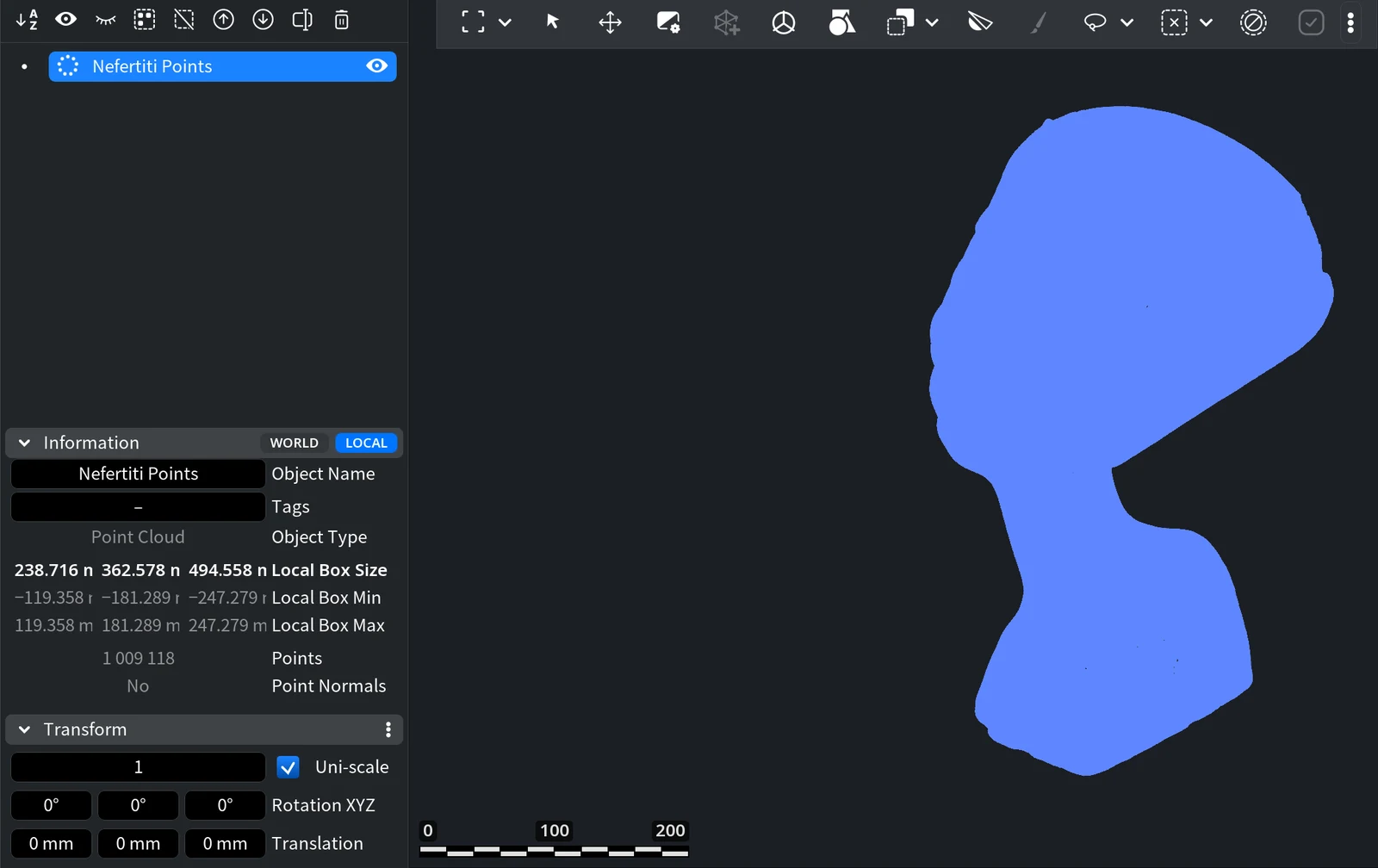
This example uses a scan of the bust of Nefertiti: one point cloud with 1 009 118 points and no normals. The cloud has no normals, so MeshInspector shows it in one flat color, without shading.
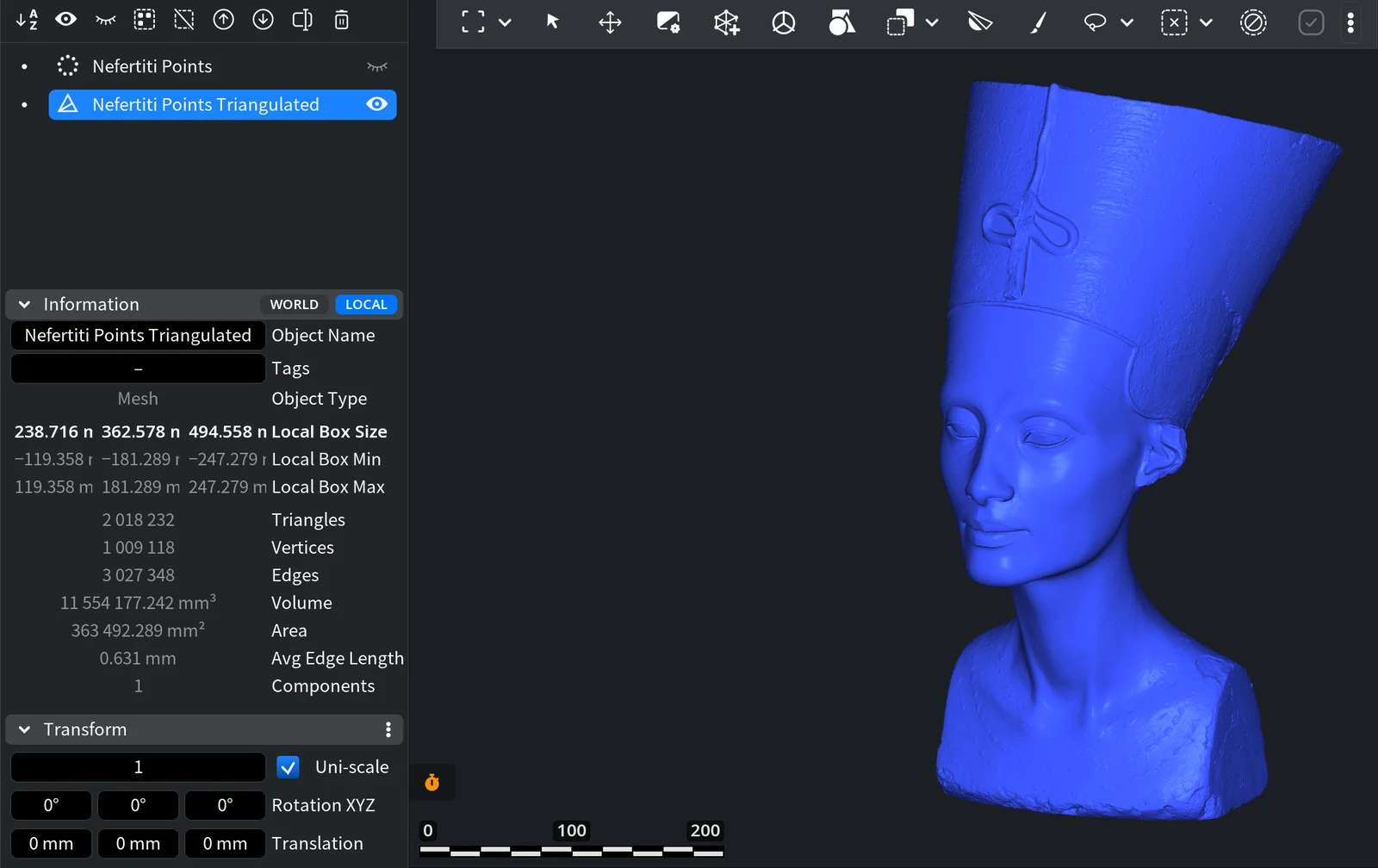
Points to Mesh with the default settings made a mesh with 1 009 118 vertices, one per point, and 2 018 232 triangles. The mesh is one piece without holes, and fine details such as the eyelids and the ornament on the crown are kept:
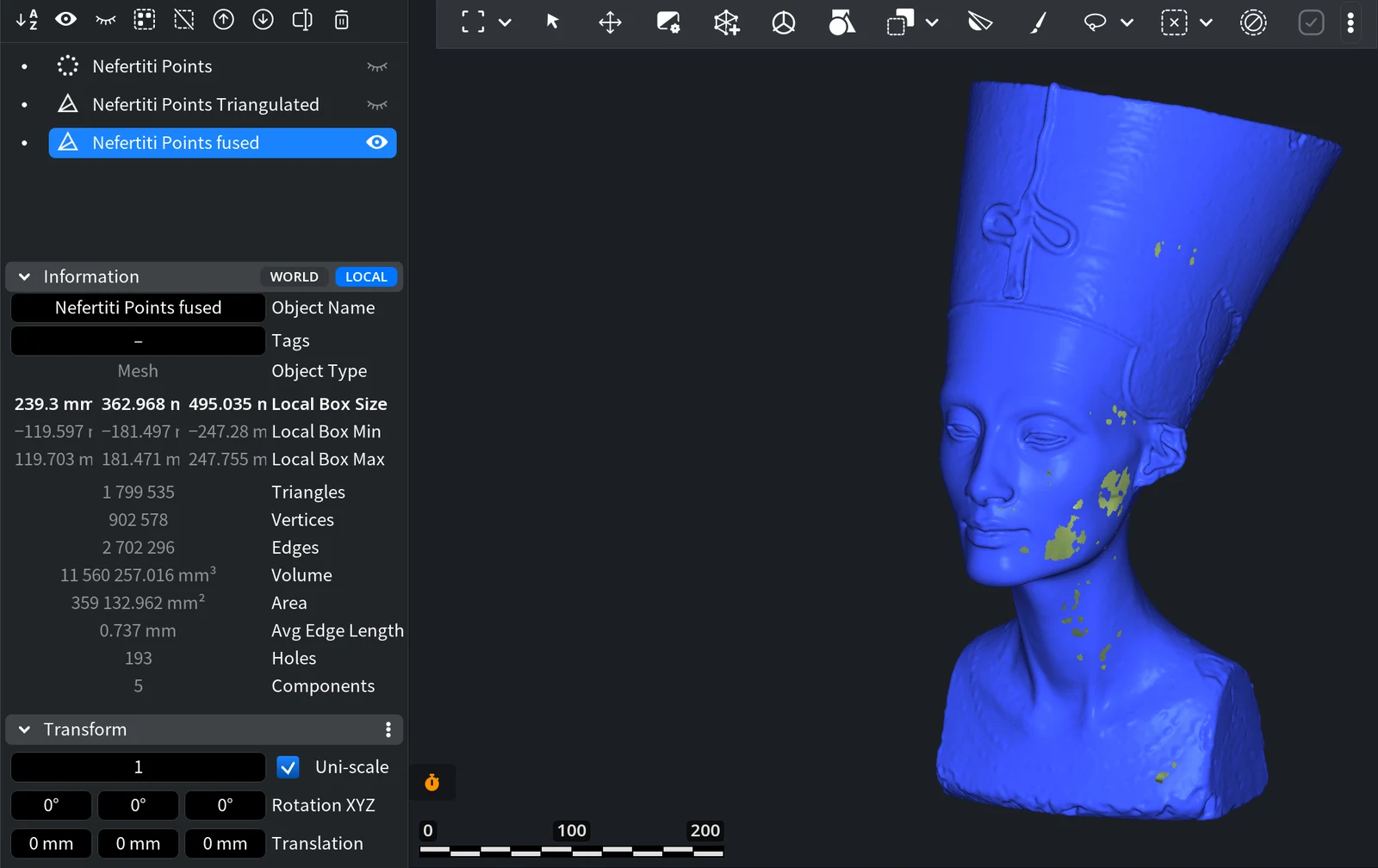
Fusion with the default settings (MeshInspector proposed a Voxel Size of 0.754 mm for this cloud) made a smoother mesh with 902 578 vertices and 1 799 535 triangles. On this clean scan, it left 193 small holes and 5 components: see the yellow spots on the cheek and neck. Fusion also took several times longer than Points to Mesh. For a clean, dense scan like this one, Points to Mesh is the better choice; Fusion pays off on noisy data.
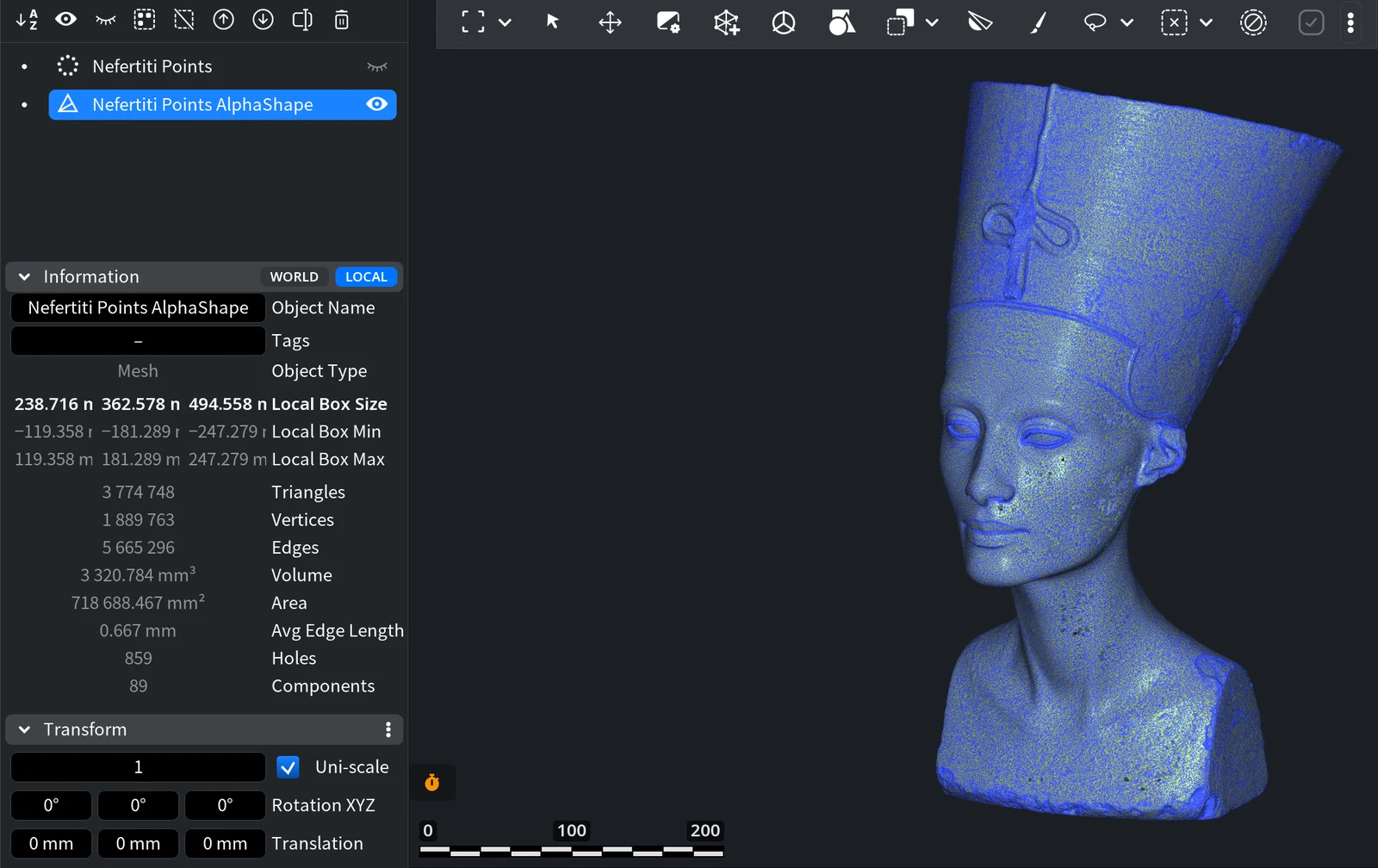
Alpha Shape with the proposed Radius of 1.29 mm also kept the details. From a distance the mesh looks closed, but it is not one clean surface: the Information panel shows 89 components and 859 holes, so it needs more repair than the Points to Mesh result.
After you build the mesh, check it in the Information panel and fix the rest with the mesh repair tools, for example Fill Holes or Simplify to make a heavy mesh lighter. When the mesh is ready, save it in the format you need: see Supported File Formats.
FAQ
Which method keeps the scan most accurate?
Points to Mesh and Alpha Shape: the vertices of their mesh lie exactly at the points of the cloud. Fusion rebuilds the surface, so it may deviate slightly from the points.
Do I need to compute normals first?
No. Points to Mesh and Fusion compute normals automatically if the cloud has none, and Alpha Shape and Terrain to Mesh do not use normals. If the cloud already has normals, make sure they are oriented consistently, or remove them.
Can I convert topographic survey data into a mesh?
Yes, with Terrain to Mesh, if the data is height data with Z pointing up. The points do not need to form a regular grid.
Which method is best for a noisy home scan?
Fusion: it averages the noise into a smooth surface. You can also smooth the cloud first with Points › Reduce Noise and then use Points to Mesh.
How do I make one mesh from several scans?
Use Scans to Mesh, or select all clouds and run Fusion, which by default fuses them into one mesh.

