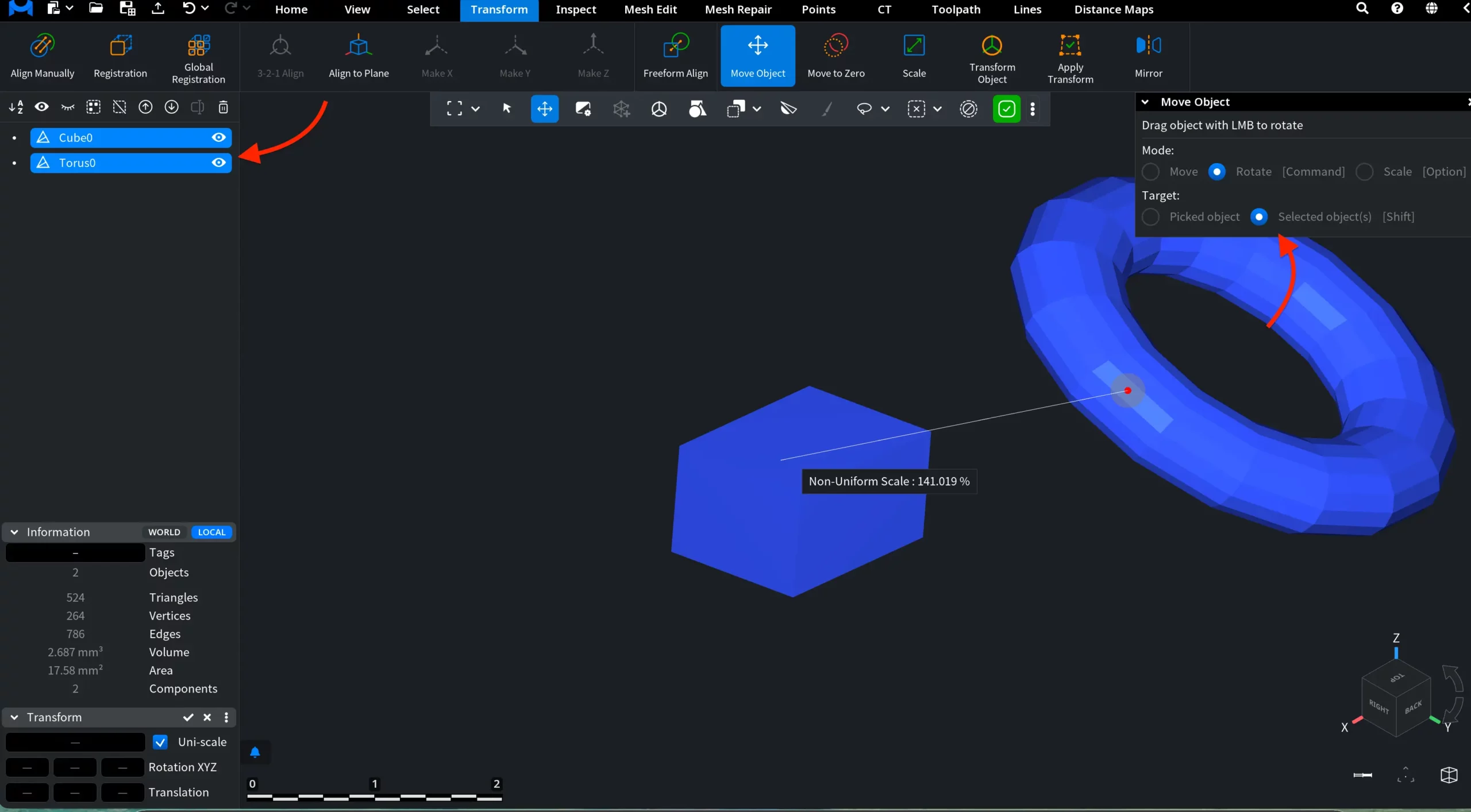
Move Object is an interactive transformation tool that allows you to move, rotate, or scale objects directly in the viewport using the mouse. It is intended for manual positioning and adjustment. To start working with it, go to the Transform tab and click Move Object.

Once the tool is activated, the Move Object panel appears, and interactive manipulation becomes available in the viewport.
Move Object: Modes
The Mode section defines how the object is transformed during mouse interaction.
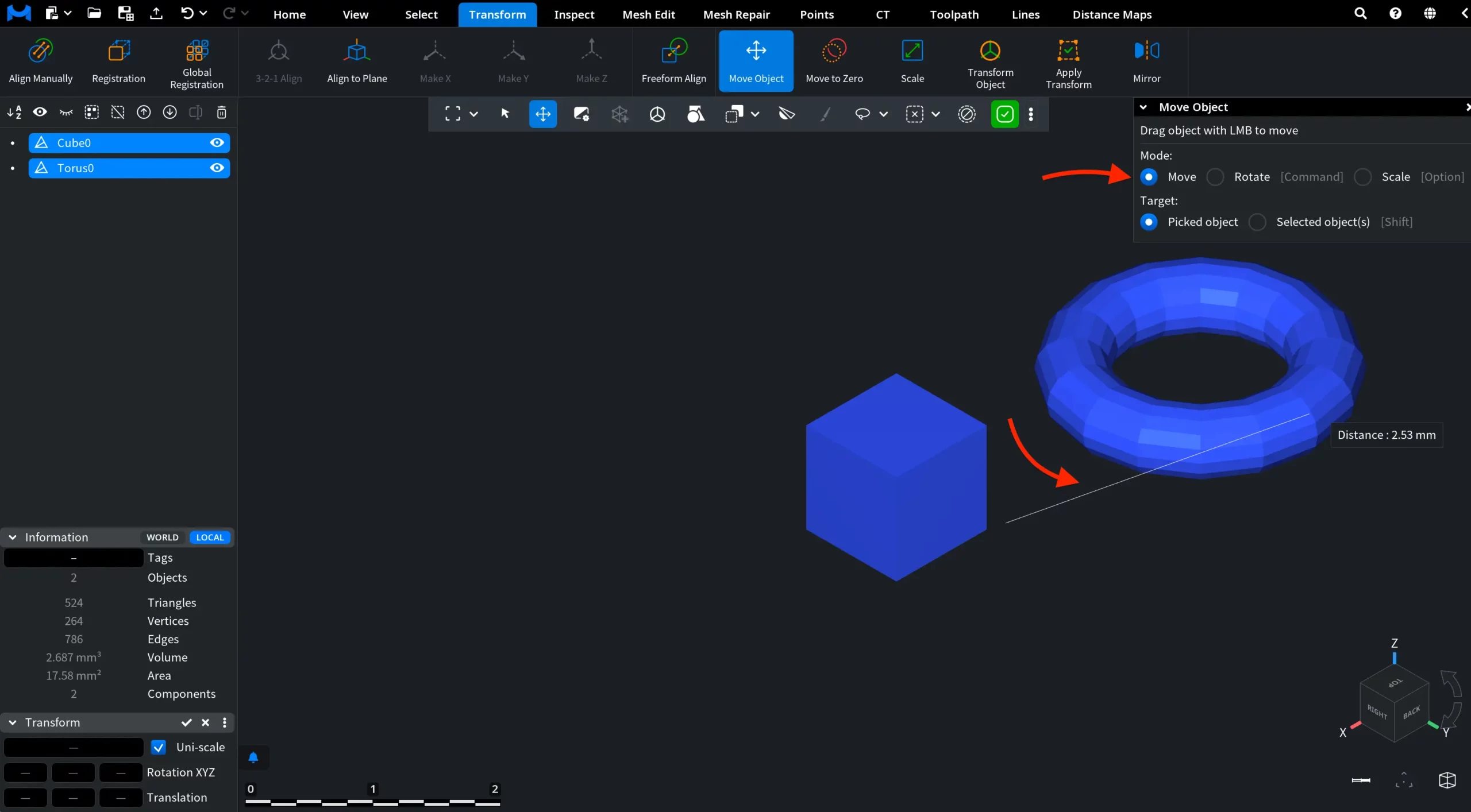
Move translates the object in 3D space. Drag the object with the left mouse button.
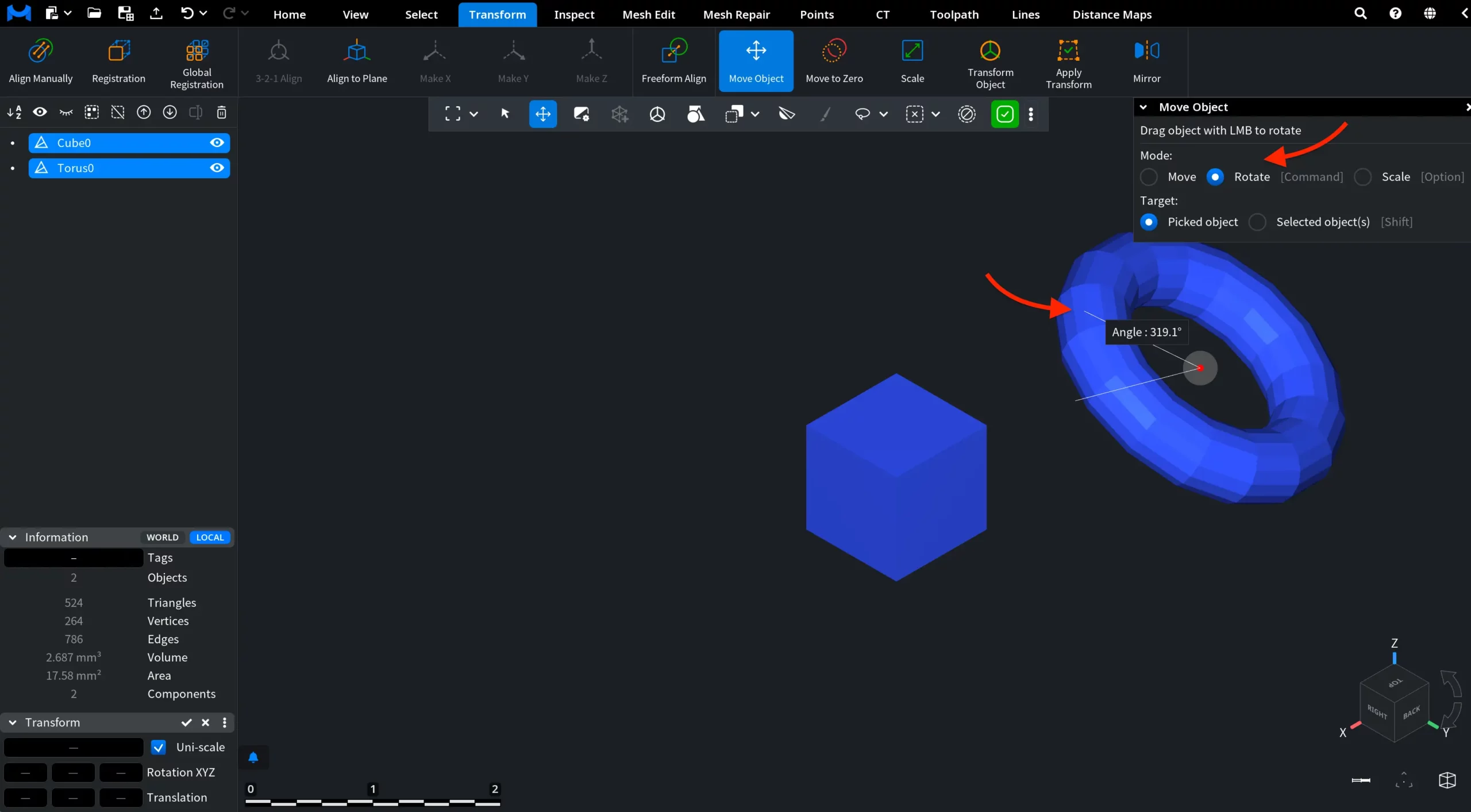
Rotate rotates the object around its pivot. Select this mode in the panel or hold Command on macOS or Ctrl on Windows while dragging with the left mouse button.
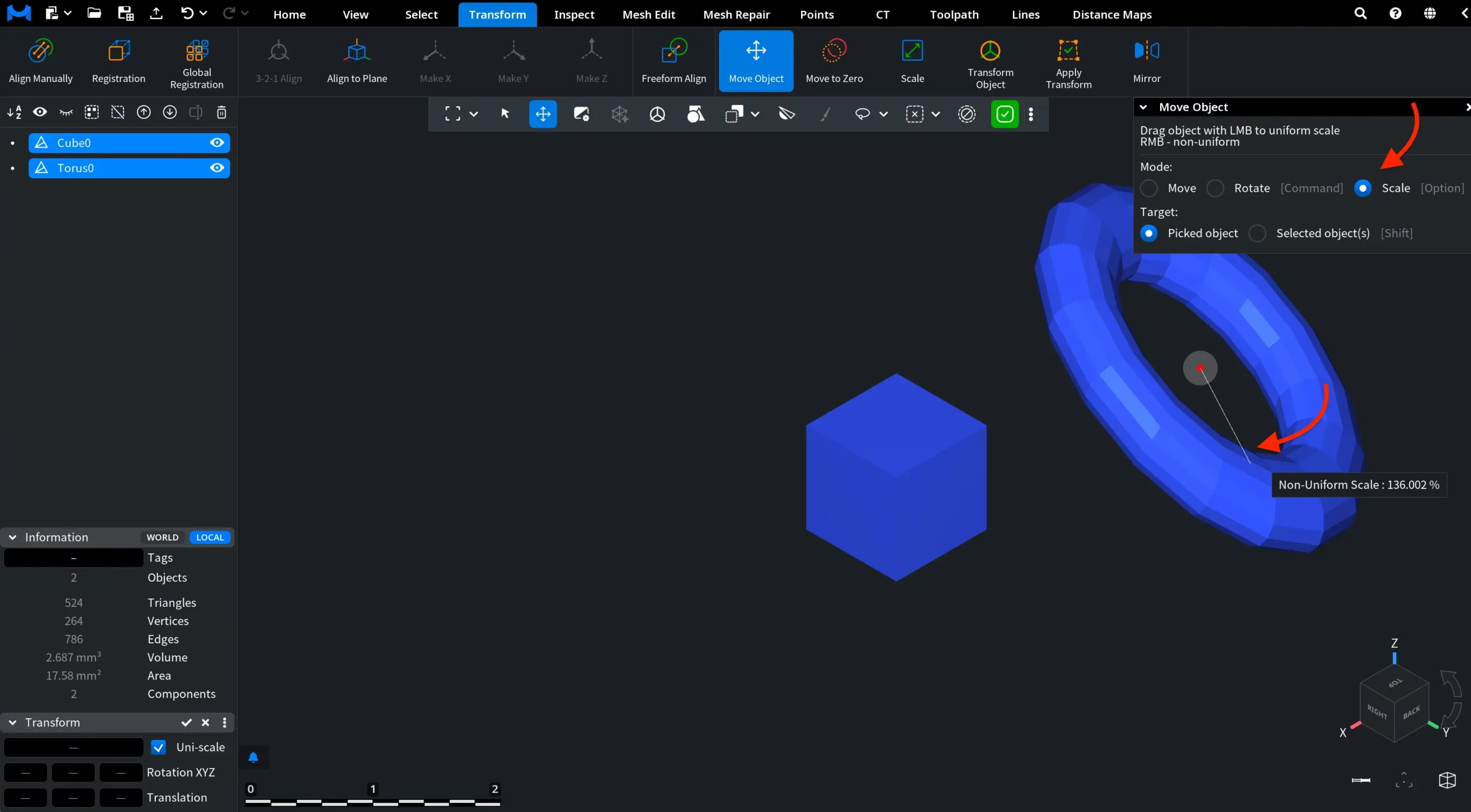
Scale changes the size of the object. Select this mode in the panel or hold Option on macOS or Alt on Windows while dragging. Use the left mouse button for uniform scaling or the right mouse button for non-uniform scaling.
Only one mode is active at a time. You can select the required mode in the Move Object panel or use the corresponding modifier key while dragging.
Move Object: Target
The Target section defines which objects are affected.
- Picked object, shown in the screenshots above, transforms the object clicked directly in the viewport.
- Selected object(s), shown in the screenshot below, transforms all currently selected objects. Select this option in the panel or hold Shift while dragging.