The Select Outliers tool, located under the Points tab in MeshInspector, allows you to automatically select points that are far from other points in a point cloud.

When you click Select Outliers, the tool is activated immediately and automatically selects and highlights the points identified as outliers using the current settings. At the same time, a dedicated panel opens, allowing you to adjust the detection settings and refine the selection. You can also click Delete to remove the selected outliers.
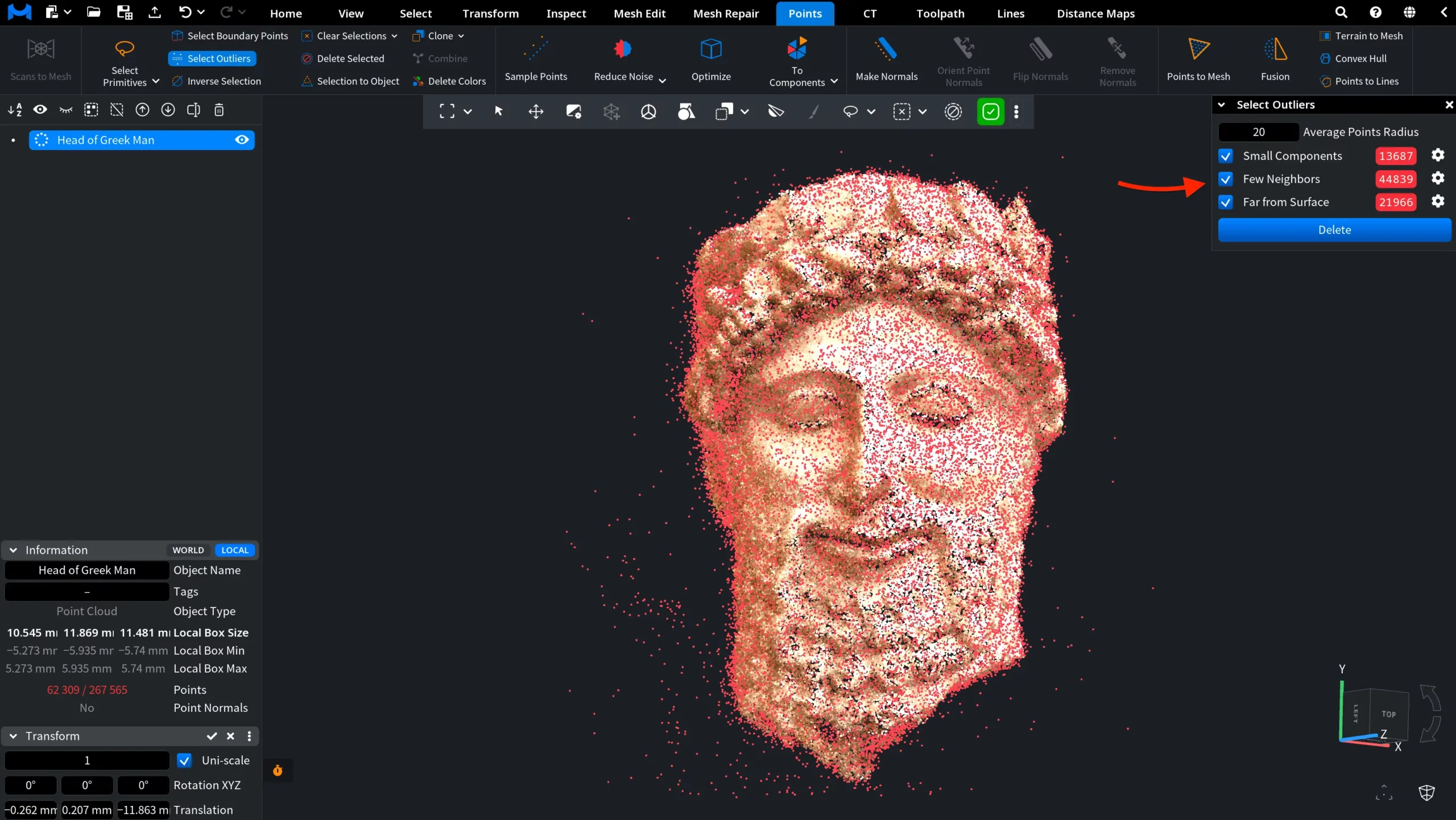
Select Outliers: Settings
Average Points Radius specifies the maximum distance between a point and the nearest point of the same component, such that a ball with this radius contains, on average, the specified number of points.
Below Average Points Radius, the panel lists three types of outliers:
- Small Components.
- Few Neighbors.
- Far from Surface.
Each type can be included or excluded from the selection using its checkbox. To change the criteria MeshInspector uses to classify points under a particular outlier type, click the gear icon next to that type.
Small Components
Small Components identifies isolated groups of points whose size does not exceed the specified threshold. Clicking the gear icon opens Small Components Settings, where:
- Max Outlier Component Size sets the maximum number of points a component can contain and still be treated as an outlier. In other words, MeshInspector searches for point groups containing this number of points or fewer.
- Apply saves the new threshold and updates the outlier selection.
- Discard closes the settings without applying the changes.
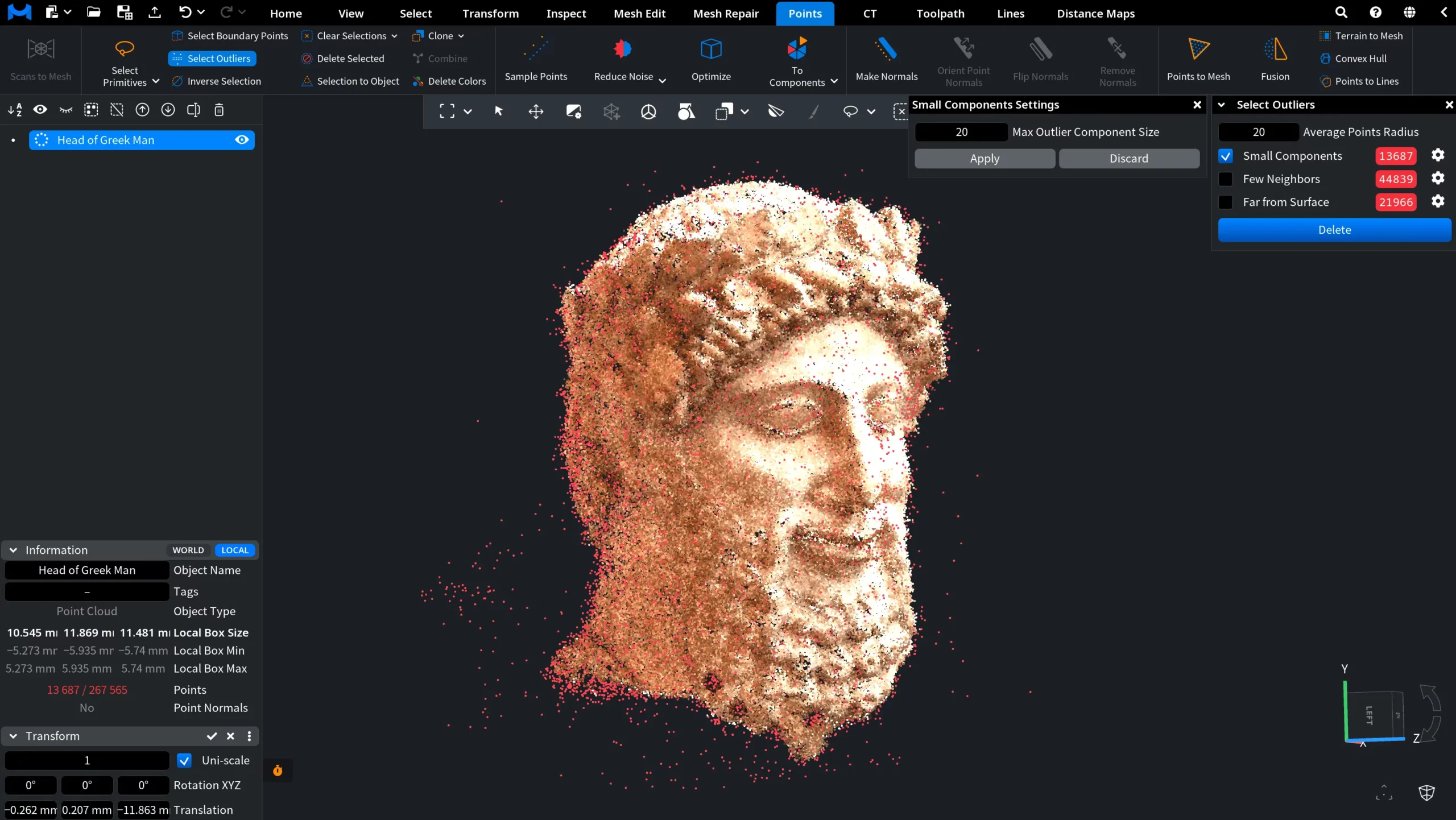
The number of points currently identified as Small Components outliers is displayed in the red field next to the option. If you change Max Outlier Component Size and click Apply, MeshInspector updates the criterion used to define a small component. As a result, the number shown in the red field can change because a different set of point groups may now qualify as outliers.
Few Neighbors
Few Neighbors identifies points that have no more than the specified number of adjacent points.
Clicking the gear icon opens Few Neighbors Settings, where:
- Max Neighbors sets the maximum number of adjacent points a point can have and still be treated as an outlier.
- The histogram shows how points are distributed by number of neighbors. Hovering over a bar displays the corresponding number of neighbors, the number of points in that group, and their share of the point cloud.
- The green vertical marker indicates the current Max Neighbors threshold. Points at or below this threshold are treated as outliers under the Few Neighbors criterion.
- Apply saves the new threshold and updates the outlier selection.
- Discard closes the settings without applying the changes.
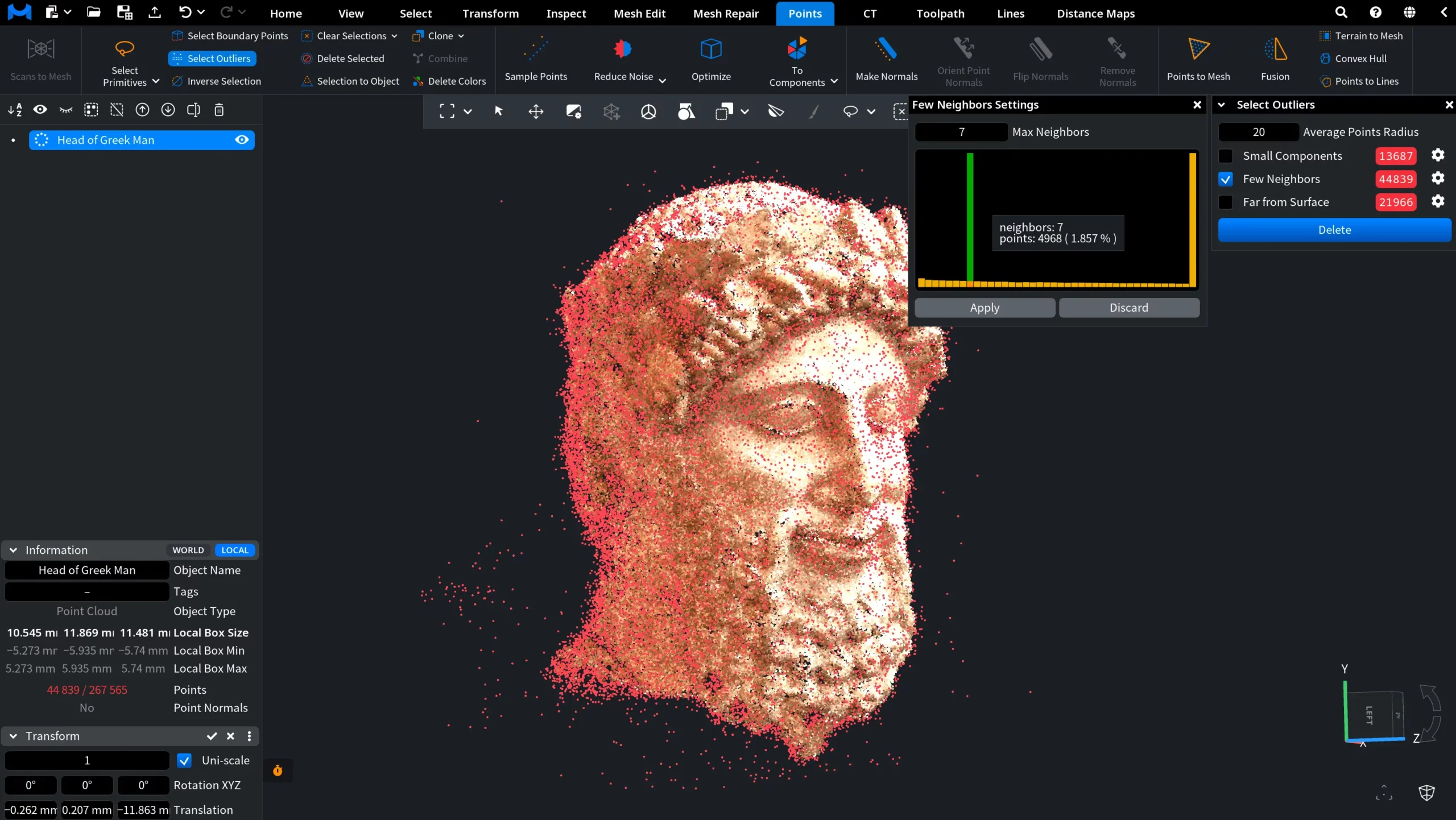
The number of points currently identified as Few Neighbors outliers is shown in the red field next to the option. If you change Max Neighbors and click Apply, the criterion changes accordingly, so the number of detected outliers can also change.
Far from Surface
Far from Surface identifies points that lie sufficiently far from the approximate local surface of the point cloud.
Clicking the gear icon opens Far from Surface Settings, where:
- Min Height Ratio sets the minimum distance from the approximate surface, expressed as a proportion of the search radius, for a point to be treated as an outlier.
- Apply saves the new threshold and updates the outlier selection.
- Discard closes the settings without applying the changes.
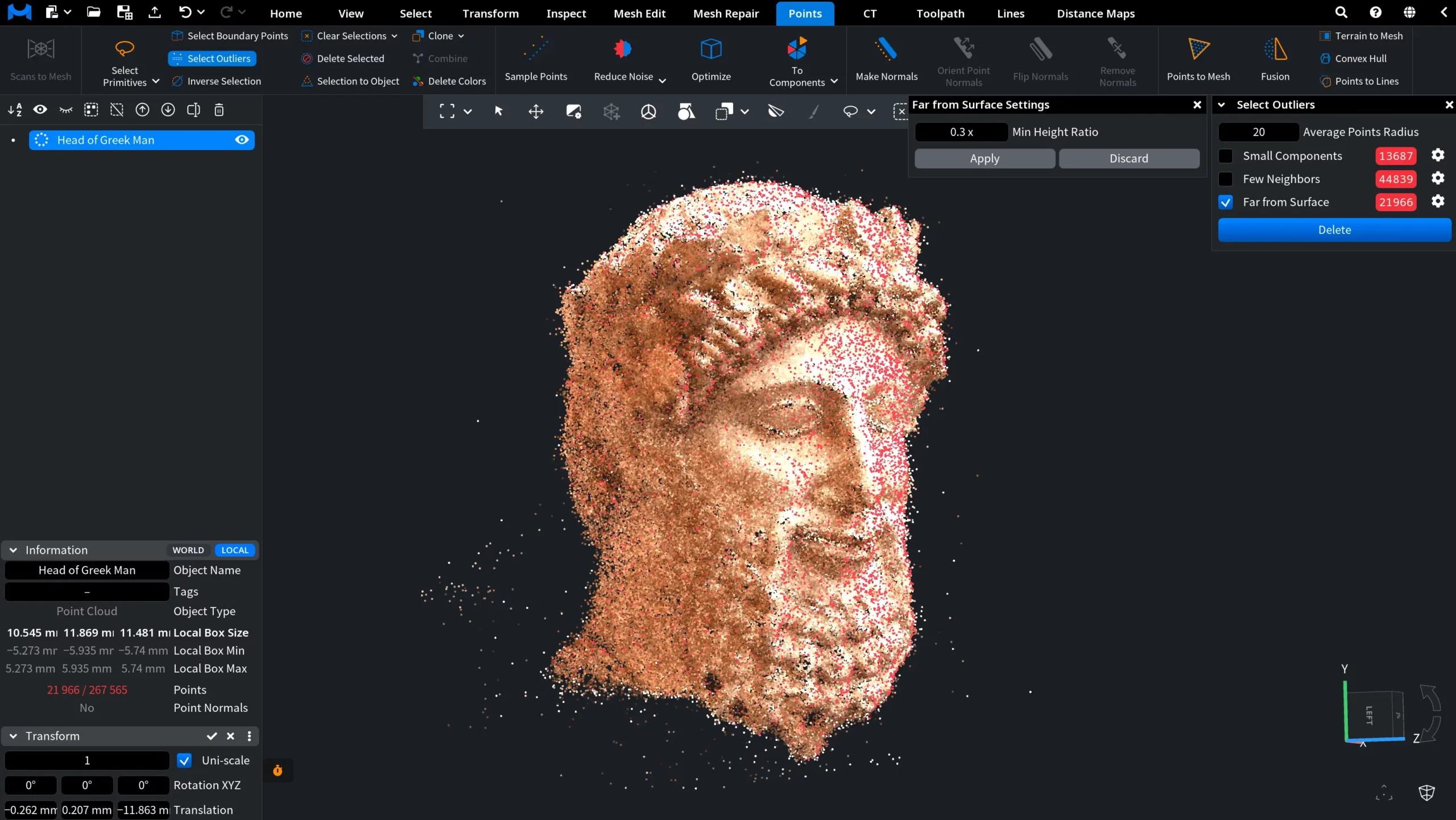
The number of points currently identified as Far from Surface outliers is displayed in the red field next to the option. If you change Min Height Ratio and click Apply, the criterion used to classify these outliers changes, so the number of detected points can change as well.
Deleting Outliers
Once you are satisfied with the selected outliers, click Delete to remove them from the point cloud. The selected points are deleted immediately, and the point cloud is updated accordingly, as shown below.
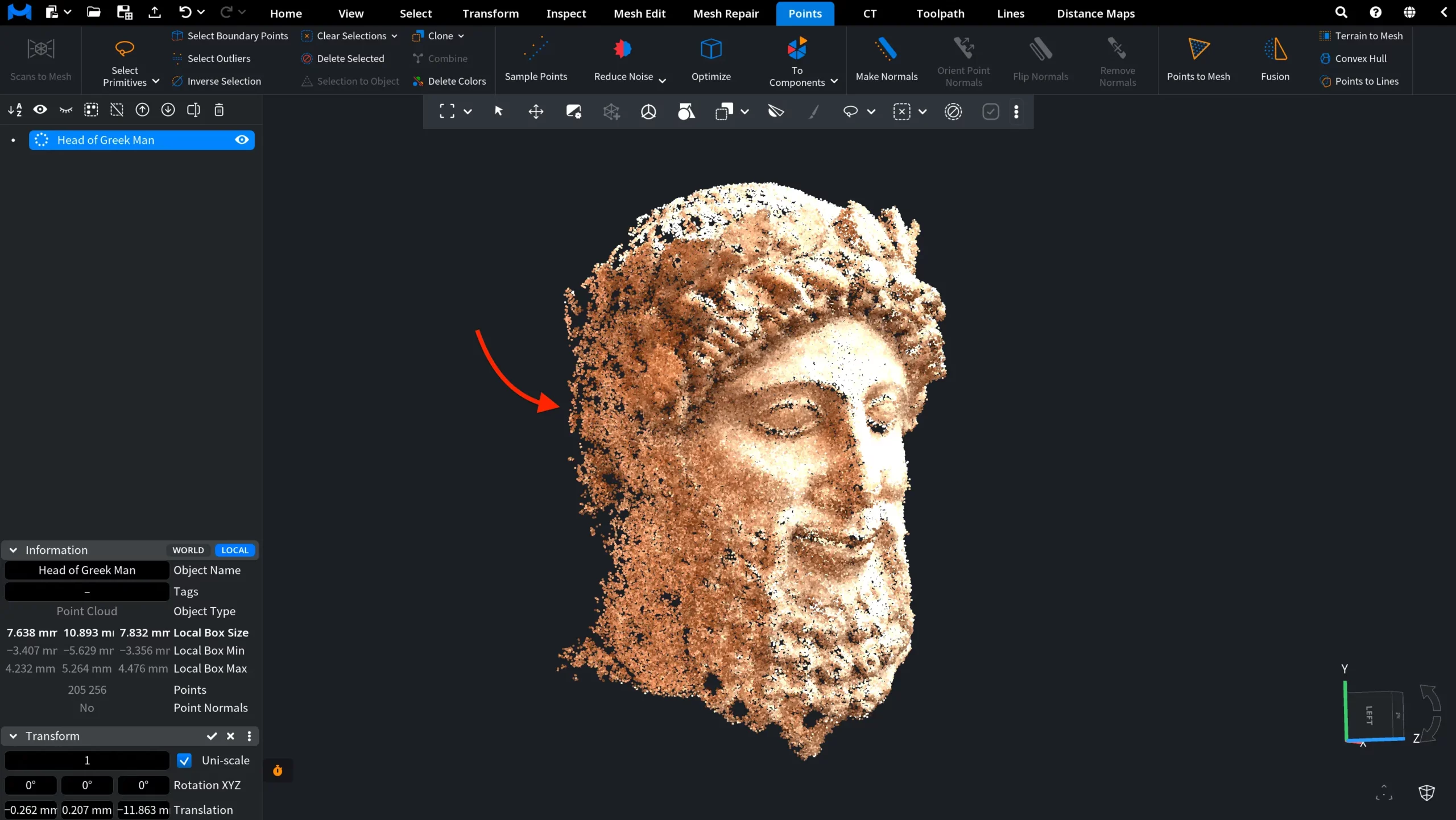
In this example, 62,309 points were selected as outliers and removed. As a result, the point cloud was reduced from 267,565 to 205,256 points.


