
A point normal is a direction stored with each point of a cloud: it shows which way the surface around the point faces. Many scans and files have points only, without normals. Make Normals computes a normal for every point of the selected point clouds, so the cloud gets proper shading and the tools that rely on surface direction get correct input.
What point normals are used for
- Shading. A cloud with normals is lit like a surface, so its shape is much easier to read in the viewport.
- Points to Mesh and Fusion use the normals of the cloud when it has them, and compute their own normals when it has none. If some normals face the wrong way, the mesh suffers, so fix them first or remove them. See Points to Mesh and Fusion.
- Scans to Mesh has a Reset Normals option, on by default: after the scans are registered and merged, it removes the normals of the merged cloud and computes new ones with the settings of its Make Normals section, which are the same as in this tool. The registration step runs before that, on the scans as they are, and its default method Point-to-Plane needs their normals: compute normals for scans that have none before you merge them. See Scans to Mesh.
- Orient Point Normals and Flip Normals work only with clouds that already have normals.
To check whether a cloud has normals, select it and look at Point Normals in the Information panel: it shows Yes or No. To see the normals in the viewport, use Inspect › Show Normals (see Show Normals).
Tools for point normals
The Points tab has four tools for point normals, side by side:
| Tool | What it does | Panel |
|---|---|---|
| Make Normals | Computes new normals for every point and chooses their side | Orientation, Nearest Neighbours, Run |
| Orient Point Normals | Makes the existing normals of neighbouring points face the same side; the direction lines stay, only their side changes | Nearest Neighbours, Run |
| Flip Normals | Reverses the normals of the selected points, or of the whole cloud | None, works at once |
| Remove Normals | Deletes the normals | None, works at once |
These tools are for point clouds. For the normals of a mesh, see Orient Mesh Normals and Flip Normals for meshes.
Make Normals
To compute normals for a point cloud:
- Select one or more point clouds in the Scene tree.
- Click Points › Make Normals.
- Choose the Orientation and, if needed, change Nearest Neighbours.
- Click Run. MeshInspector computes normals for all points of each selected cloud and closes the panel. On a cloud with a million points this can take a while.

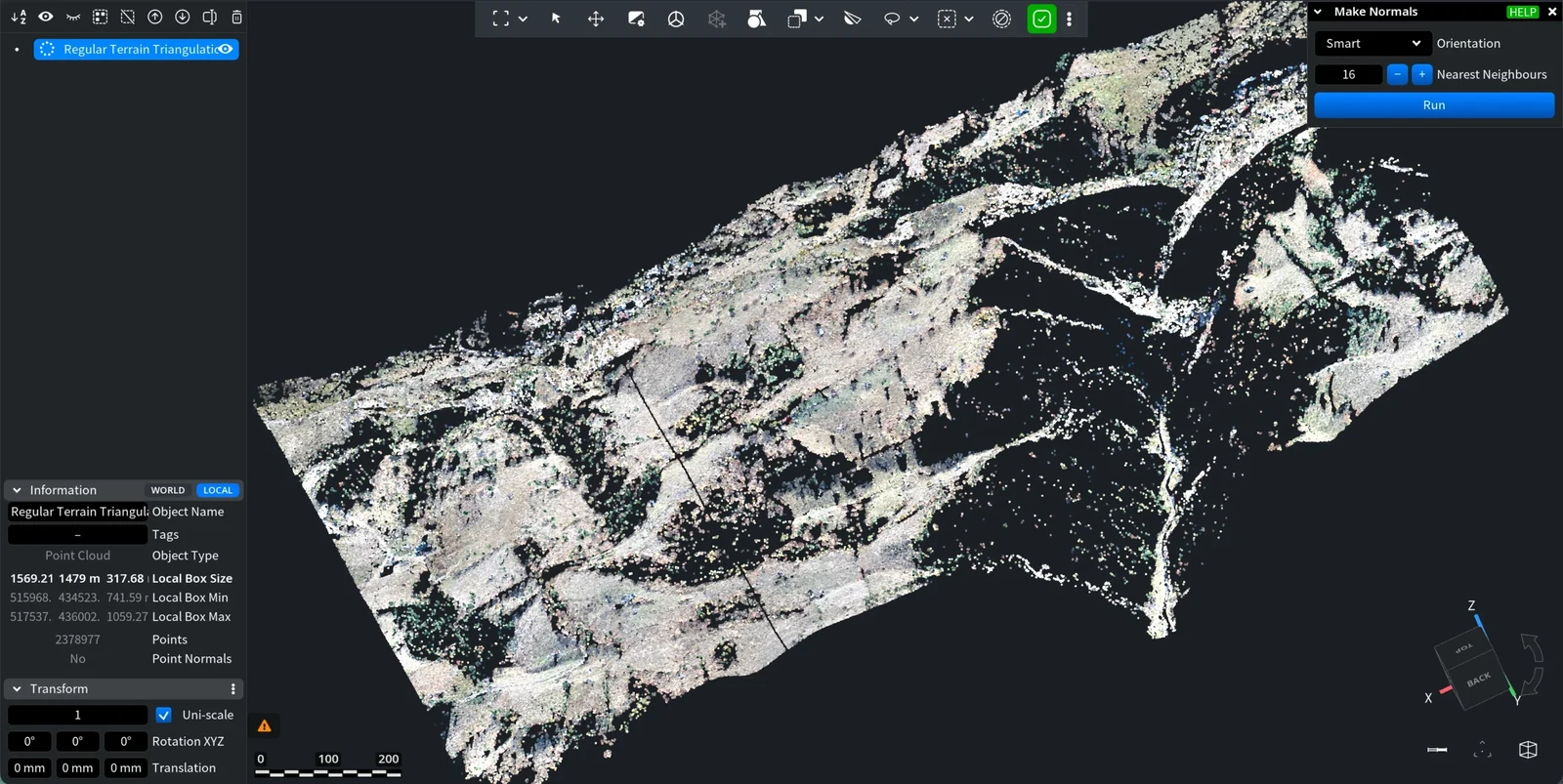
If the result is wrong, undo it with Undo (Ctrl+Z, or Cmd+Z on macOS) and run the tool again with other settings.
Settings
| Parameter | What it does | Default and tips |
|---|---|---|
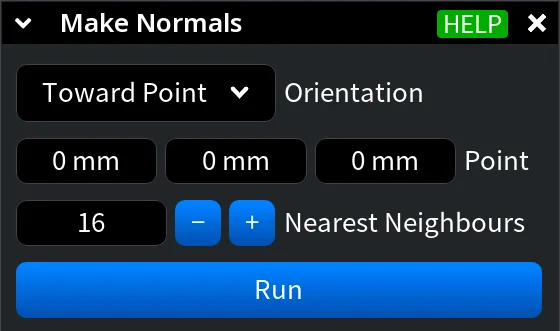
| Orientation | How MeshInspector chooses between the two opposite directions of the normal in each point: Smart, Fast or Toward Point | Smart. See which orientation to choose |
| Point | Shown only for Toward Point: the X, Y and Z of the position toward which all normals face, in the local coordinates of the point cloud | 0, 0, 0. Enter the position of the scanner, for example a LiDAR |
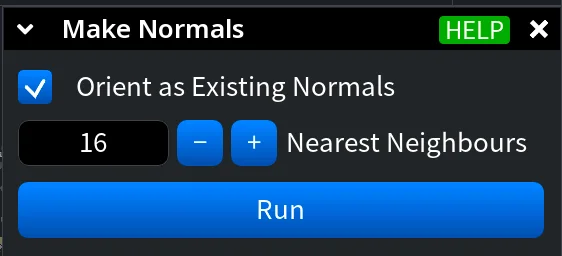
| Nearest Neighbours | How many nearest points are used to build a small local triangulation around each point; the normal is computed from it | 16, from 6 to 99. A too small value can give a poor local triangulation; a large value makes the tool slower |
| Orient as Existing Normals | Shown only if the cloud already has normals. Computes new normals, but turns each of them to the side of the old normal in the same point. While it is on, Orientation is hidden | On. Turn it off to choose a new orientation |
Which orientation to choose
A normal can face either side of the surface. The Orientation setting decides which side:
- Smart chooses the same side for the normals of nearby points. Start with it for most scans.
- Fast turns every normal away from the centre of the cloud. It is about 5 times faster than Smart and works well on closed, rounded objects. Where the surface faces the centre, the normals end up on the wrong side: in deep hollows of an object, or everywhere in a scan of a room taken from inside.
- Toward Point turns every normal toward the Point you enter. Use it for a single scan when you know where the scanner stood: the surfaces it captured faced the scanner.
If only some areas come out wrong, you do not have to start again: fix them with Orient Point Normals, or select the wrong area and use Flip Normals.
Check the result
In this example, Make Normals ran with Smart orientation and 16 Nearest Neighbours. After it, the cloud is shaded like a surface:
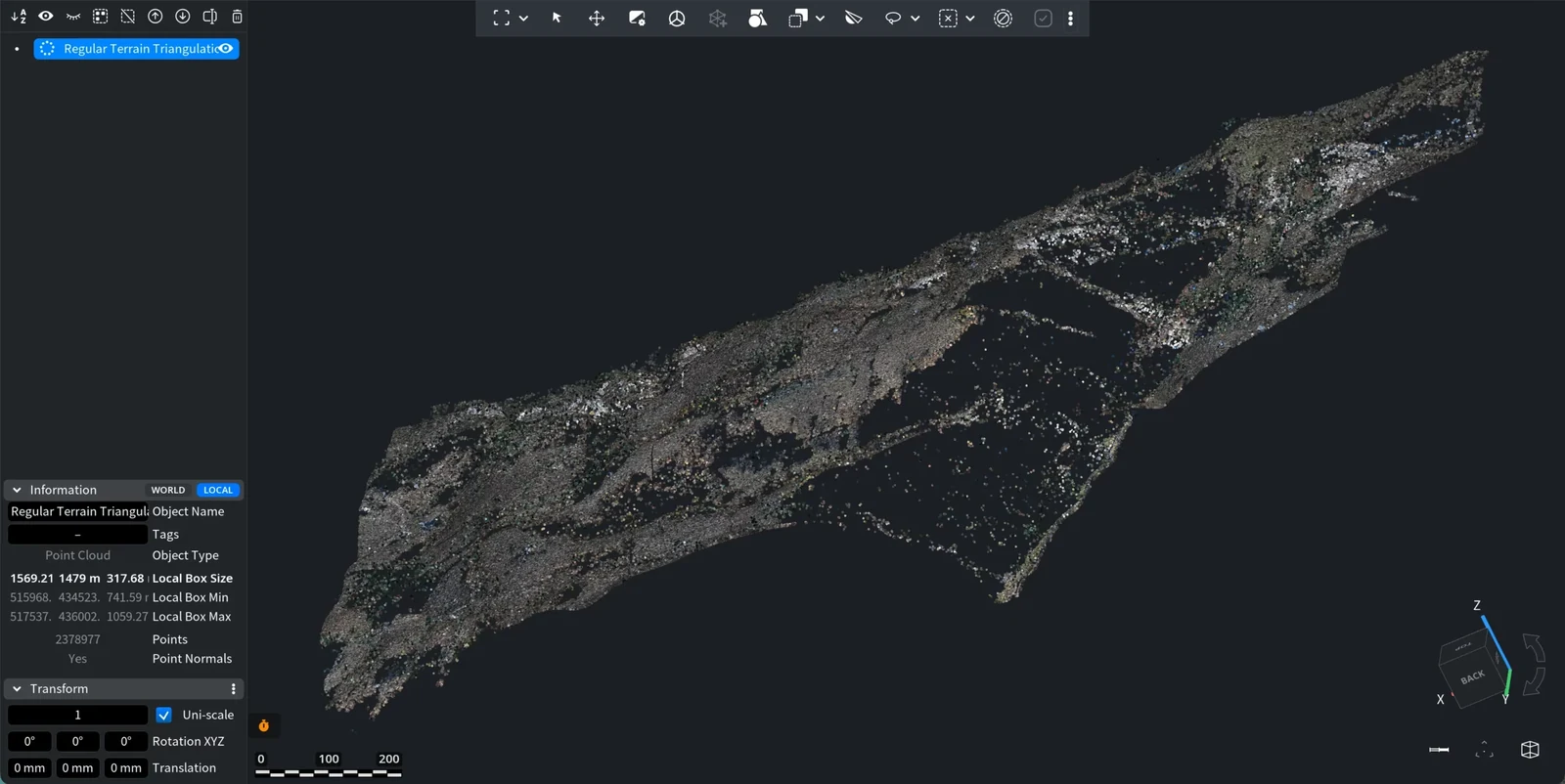
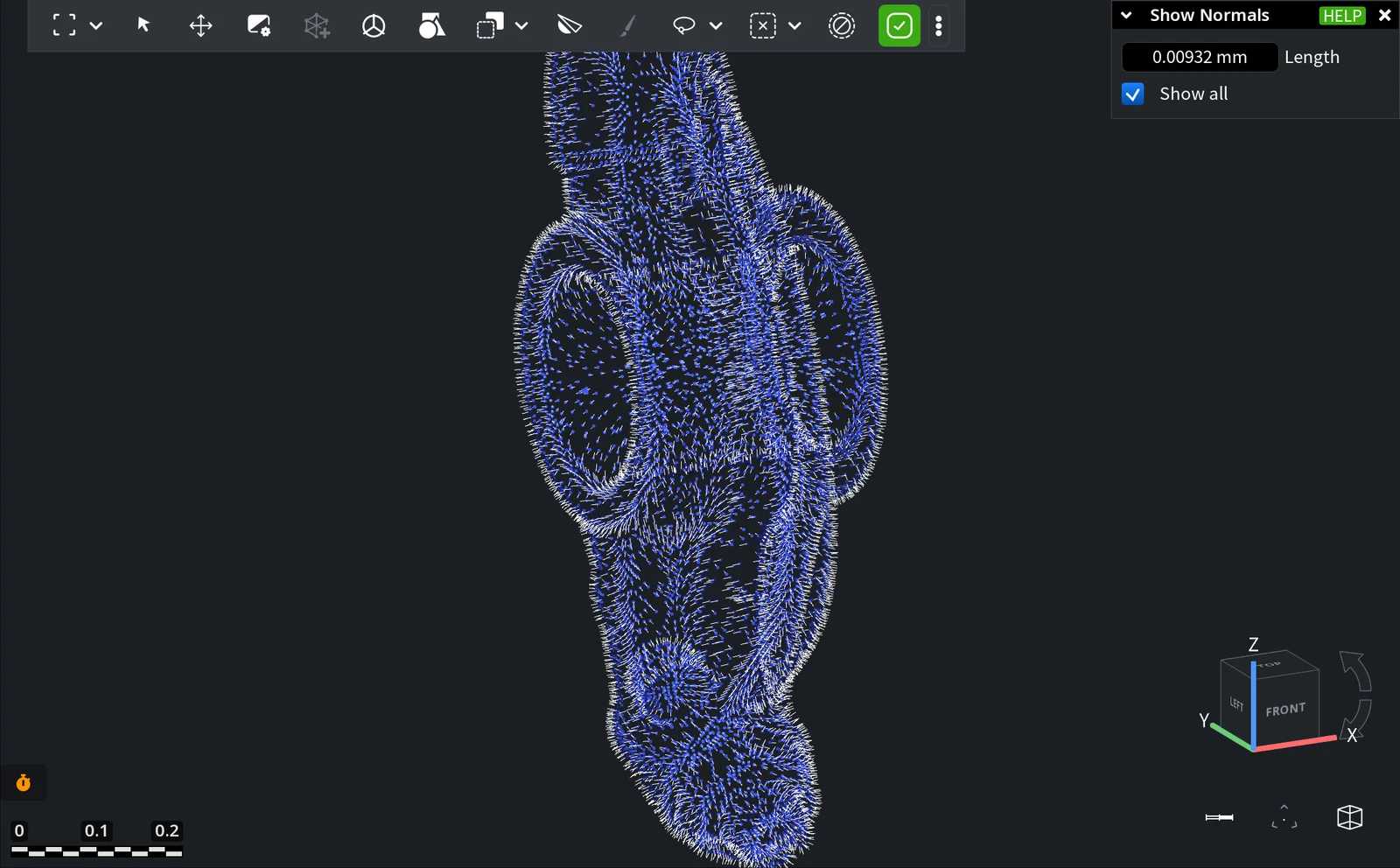
To see the normals themselves, keep the cloud selected and click Inspect › Show Normals. Each normal appears as a short line from its point:
When the cloud is ready, turn it into a mesh with Points to Mesh or Fusion.


