
Scale multiplies the size of the selected objects by a factor, the same in all three directions, so the proportions stay. You need it most often when a model or scan comes in other units: a part exported in meters looks a thousand times too small, a part in inches about 25 times too small.
How to scale an object
- Select one or more objects in the Scene tree.
- Click Transform › Scale.
- Either type a factor in the Scale field and click Apply, or click one of the buttons below it: x1000, x100, x10, x0.001, x0.01 or x0.1.

The buttons work at once: you do not need to click Apply after them. Both Apply and the buttons scale the objects, fit the view to them and close the panel. To go back, use Undo (Ctrl+Z, or Cmd+Z on macOS).
| Control | What it does | Default and tips |
|---|---|---|
| Scale | The factor by which the size is multiplied, shown with an x, for example 1 x. Values below 1 make the object smaller | 1, from 0.000001 to 1 000 000. The field shows three decimals, but uses the full value you type |
| Apply | Scales by the value of the Scale field | You can also press Enter |
| x1000, x100, x10 | Make the object 1000, 100 or 10 times larger | |
| x0.001, x0.01, x0.1 | Make the object 1000, 100 or 10 times smaller |
Convert units
| The model is in | To get millimeters, use |
|---|---|
| Meters | x1000 |
| Centimeters | x10 |
| Inches | 25.4 in the Scale field, then Apply |
There is no button for inches, so type 25.4. To convert millimeters to inches, type 0.03937 (1 / 25.4).
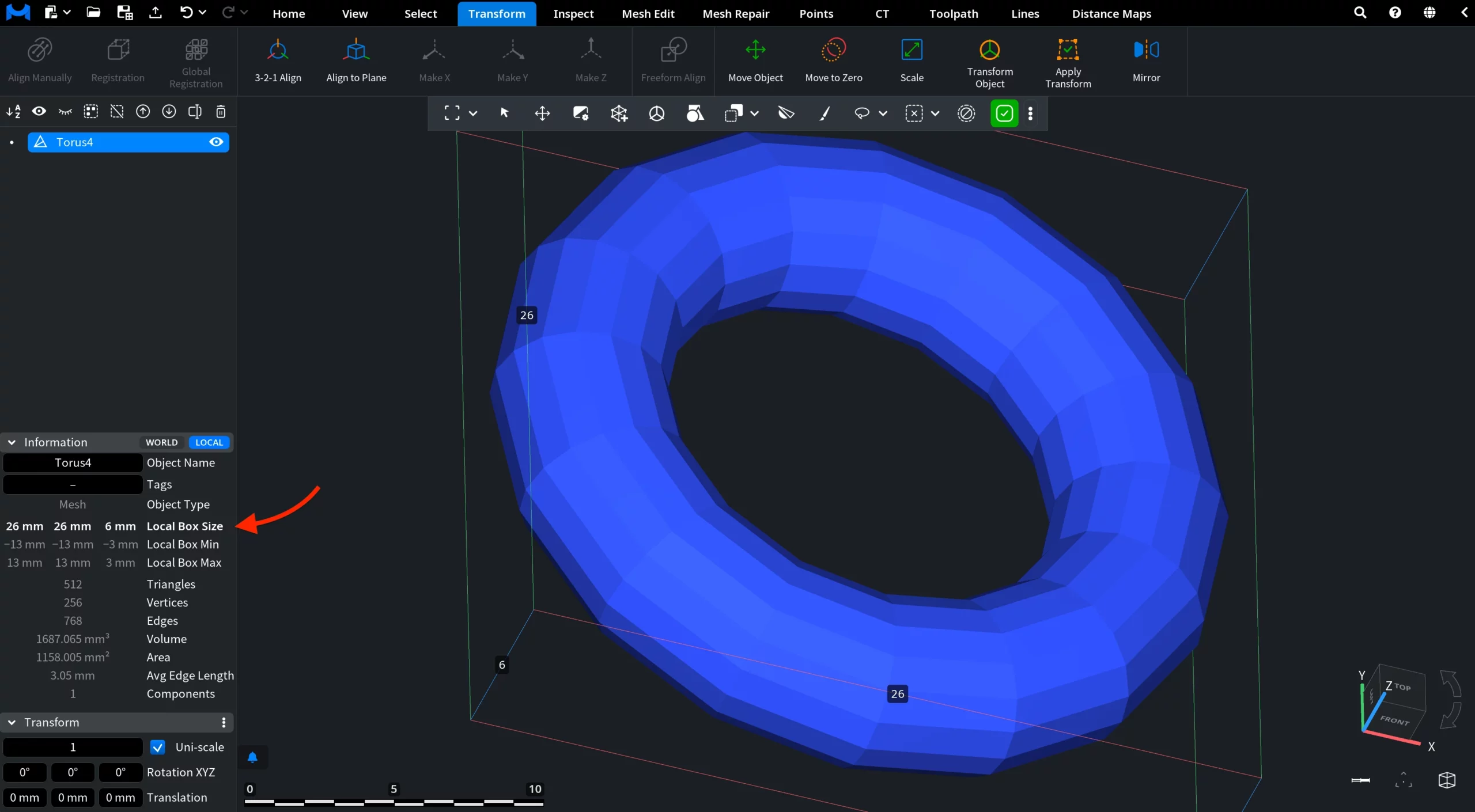
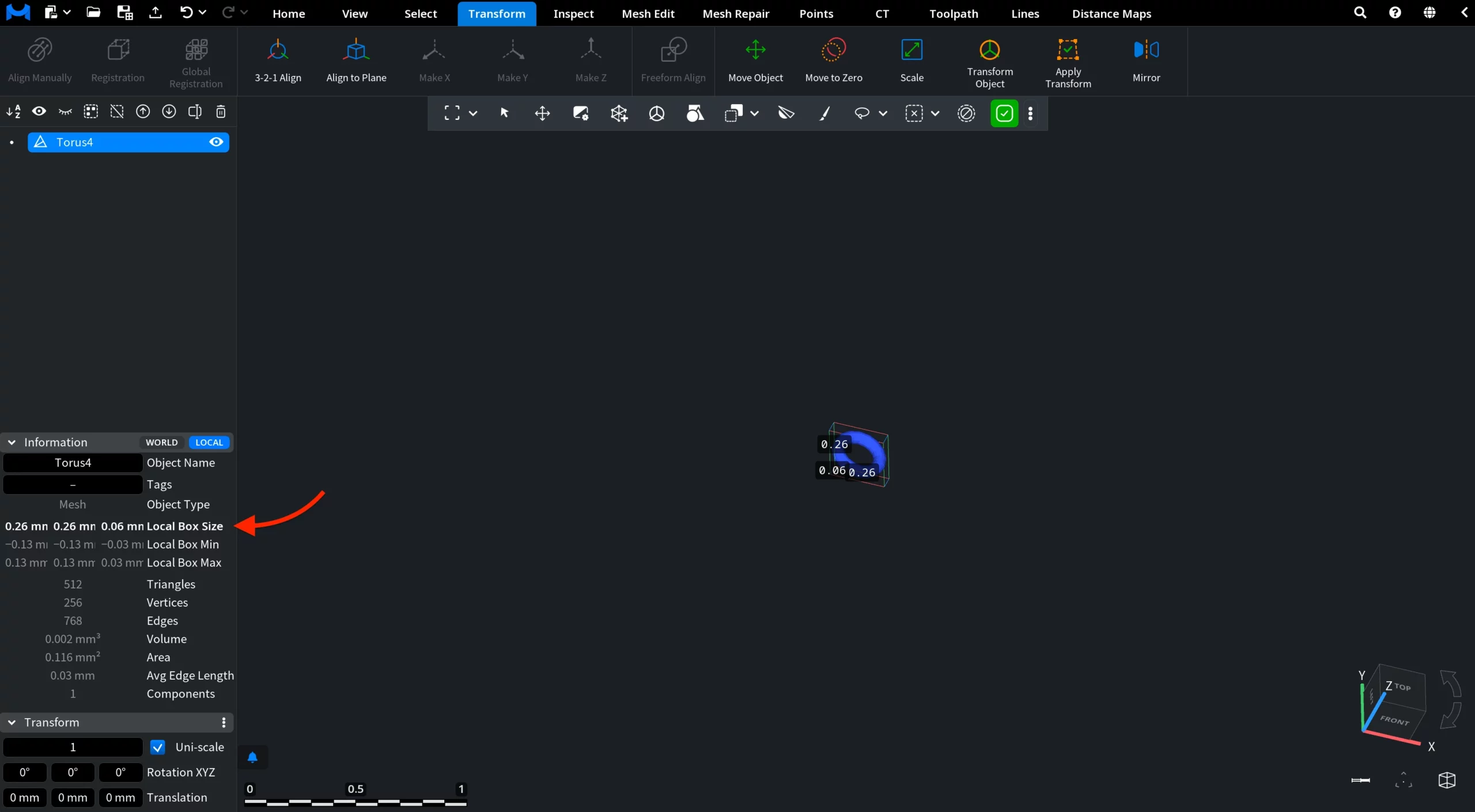
To check the size before and after, select the object and look at Local Box Size in the Information panel, or turn on Inspect › Bounding Box to see the dimensions in the viewport (see Bounding Box).
In this example, a torus with a box size of 2.6 × 2.6 × 0.6 mm became 26 × 26 × 6 mm after x10:
After x0.1 applied to the original torus, the box size is 0.26 × 0.26 × 0.06 mm:
Good to know
- Scale multiplies the coordinates of every point of the object, so it scales the object around the origin of its own coordinates, not around its centre. A part that lies far from the origin also moves. To bring it back to the origin, use Move to Zero.
- Scale uses one factor for all three directions. To stretch an object along one axis, use Transform Object.


