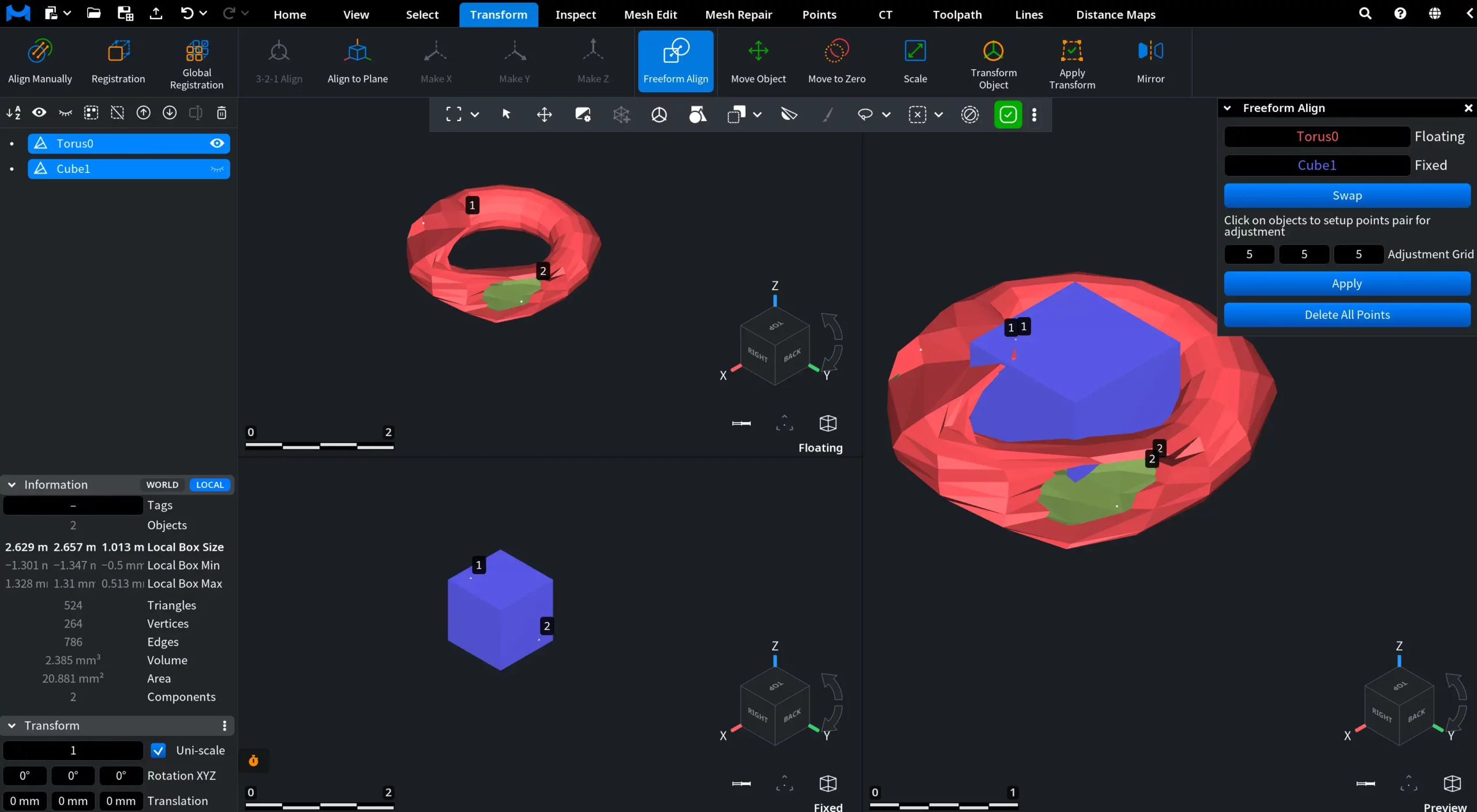
Freeform Align, located under the Transform tab, allows you to deform a floating object by matching selected points on it with corresponding points on a fixed object. This provides direct control over how the floating object is adjusted to align with the fixed object.

This tool is useful when you need to align objects manually by defining corresponding points. Once you click the tool, a dedicated panel with Freeform Align settings opens.
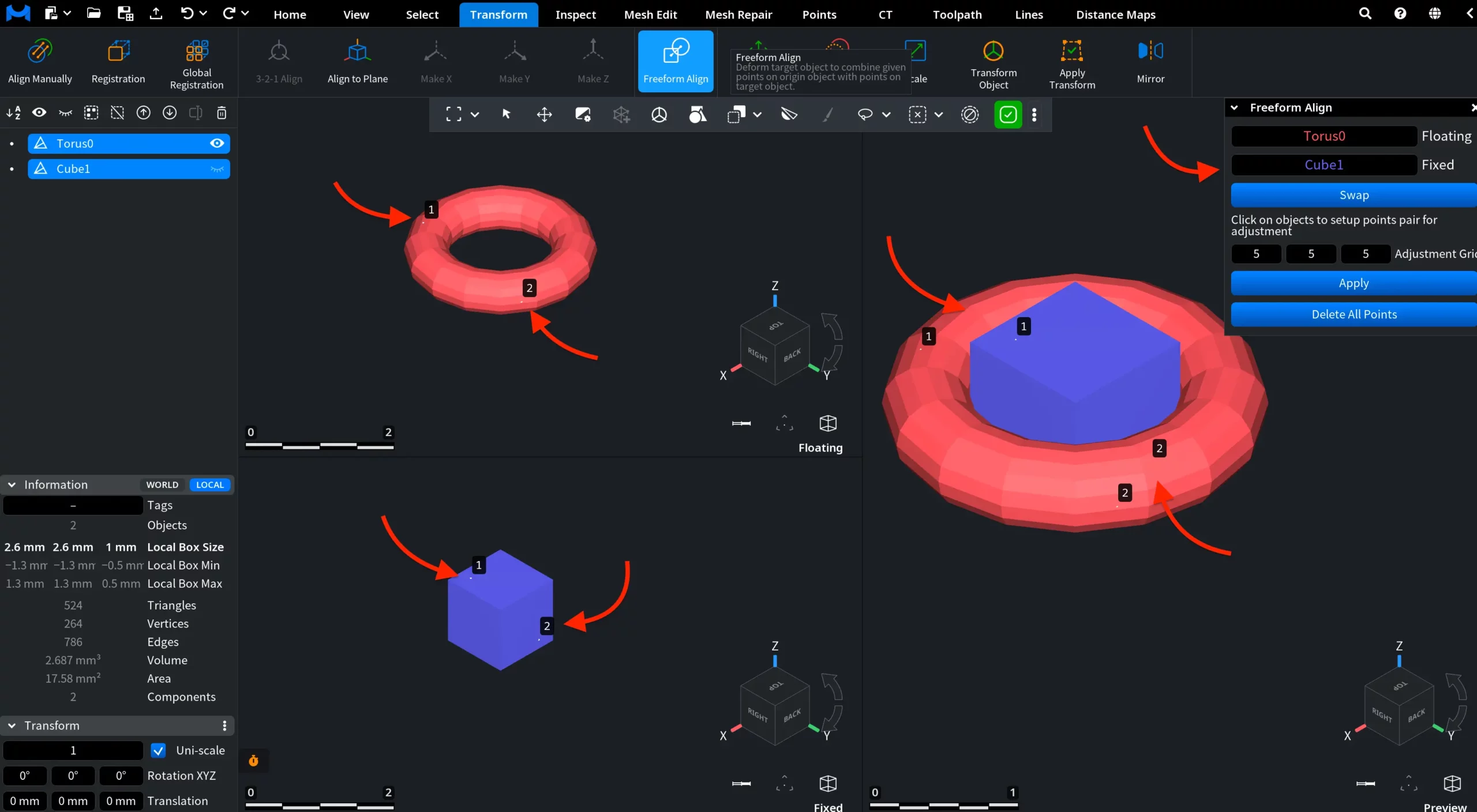
Step 1. Assign Objects and Roles
Freeform Align works with two objects:
- Floating object — the object that will be adjusted and deformed.
- Fixed object — the reference object that remains stationary.
These roles are displayed in the Freeform Align panel and can be swapped at any time using Swap.
Step 2. Create Point Pairs
Alignment is defined by manually creating point pairs:
- Click on the floating object to place a point.
- Click on the fixed object to place the corresponding point.
Each pair is automatically numbered (1, 2, 3, etc.), making it easy to identify corresponding points across objects. These numbered markers remain visible in the viewport and define the alignment relationship explicitly.
You can create multiple point pairs.
Step 3. Configure the Adjustment Grid
Use the Adjustment Grid fields to configure the grid used for the adjustment. The panel provides three values for this setting.
Step 4. Apply and Manage Freeform Alignment
- Click Apply to adjust and deform the floating object based on the currently defined point pairs and Adjustment Grid settings. The floating object is modified to bring the corresponding points together, while the fixed object remains unchanged.
- The point pairs remain visible after you click Apply and can be reused for further adjustments. To apply additional changes, click Apply again.
- Click Delete All Points to remove all point pairs.