
Alpha Shape builds a mesh from a point cloud. Imagine a ball of a given radius rolled over the points: every triangle of three points that an empty ball can touch becomes part of the mesh. The points themselves become the vertices of the mesh. One value, the Radius, decides which gaps between the points are closed. The tool does not use normals, so the cloud does not need them.
To compare Alpha Shape with the other ways to mesh a point cloud, see How to Turn Point Clouds into Mesh.
Build a mesh with Alpha Shape
- Select one point cloud in the Scene tree. Alpha Shape works with exactly one selected point cloud.
- On the Points tab, click the arrow next to Points to Mesh and choose Alpha Shape.
- Check the Radius. MeshInspector proposes a value for the selected cloud; see Choose the radius.
- To keep the original cloud, turn on Preserve Point Cloud.
- Click Apply, or press Enter.
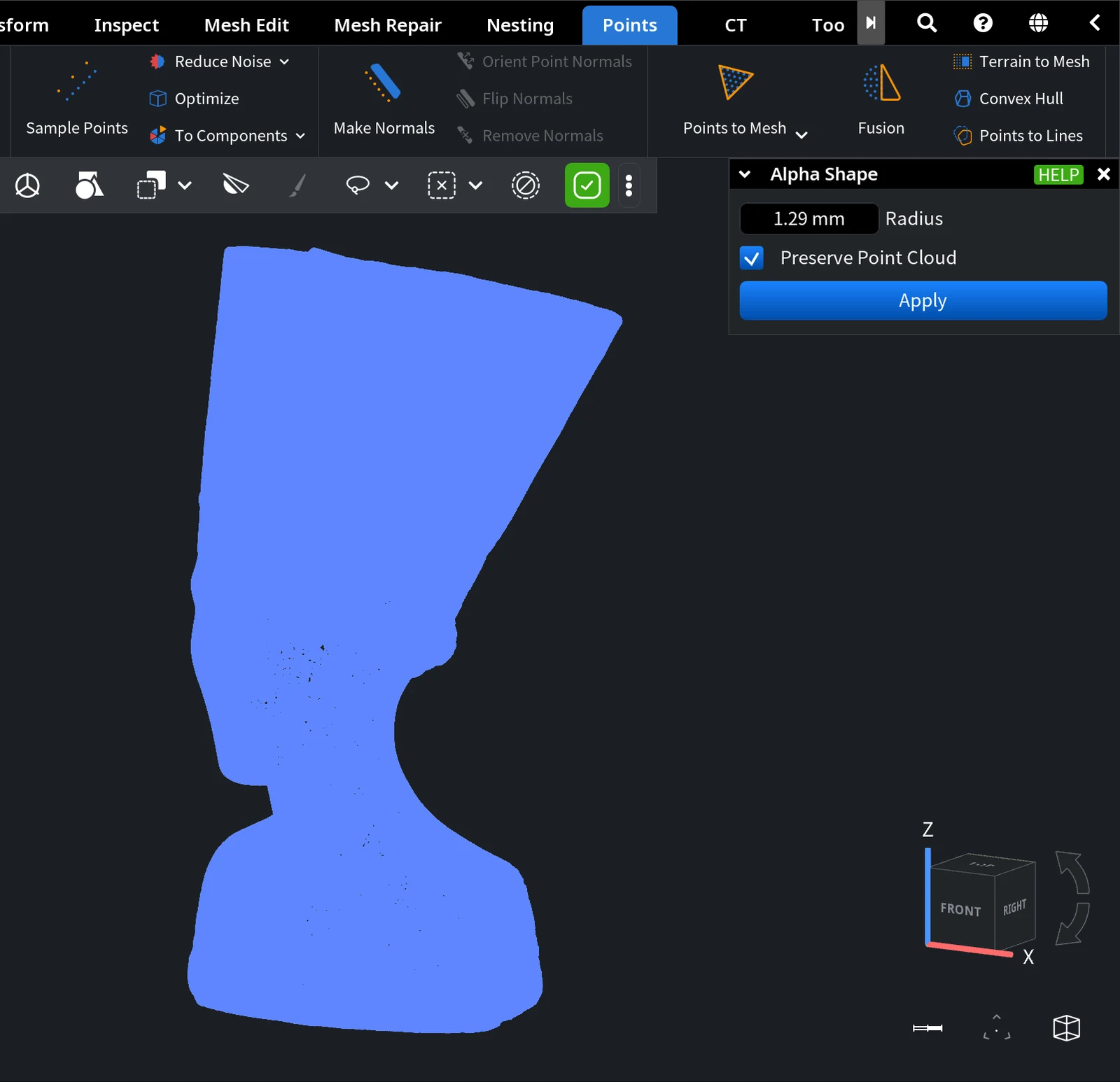
Settings
| Setting | What it does | Default |
|---|---|---|
| Radius | The radius of the ball rolled over the points: every triangle that an empty ball of this radius can touch is included in the mesh. | Computed for the selected cloud: a radius at which a ball around a point holds 16 other points on average. If you already used the tool after starting MeshInspector, your last value is kept unless it is too small or too large for the new cloud. |
| Preserve Point Cloud | Keeps the original point cloud in the scene, hidden, in addition to the mesh. | Off: the mesh replaces the cloud |
Result
- A new mesh named after the cloud with AlphaShape added, for example Nefertiti Points AlphaShape. It is selected and shown with flat shading.
- The vertices of the mesh lie at the points of the cloud. Where several pieces of the surface meet at one point, MeshInspector duplicates that point, so the mesh can have more vertices than the cloud has points.
- If the points have colors, the mesh vertices get the same colors.
- Without Preserve Point Cloud, the cloud is removed from the scene, and objects nested in it move to the new mesh. With it, the cloud stays in the scene but is hidden.
- The panel closes when the mesh is ready. To undo, press Ctrl+Z (Cmd+Z on macOS).
Choose the radius
The radius works like the size of the gaps you want to bridge:
- A small radius keeps fine details, but the ball falls through the gaps between points, so the mesh gets holes wherever the points are sparse.
- A large radius bridges wider gaps and gives a more closed surface, but it smooths over details smaller than the ball. The computation also takes longer, because every point has more neighbours to check.
Start with the proposed value. If the mesh has too many holes, increase the radius; if small details are lost, decrease it.
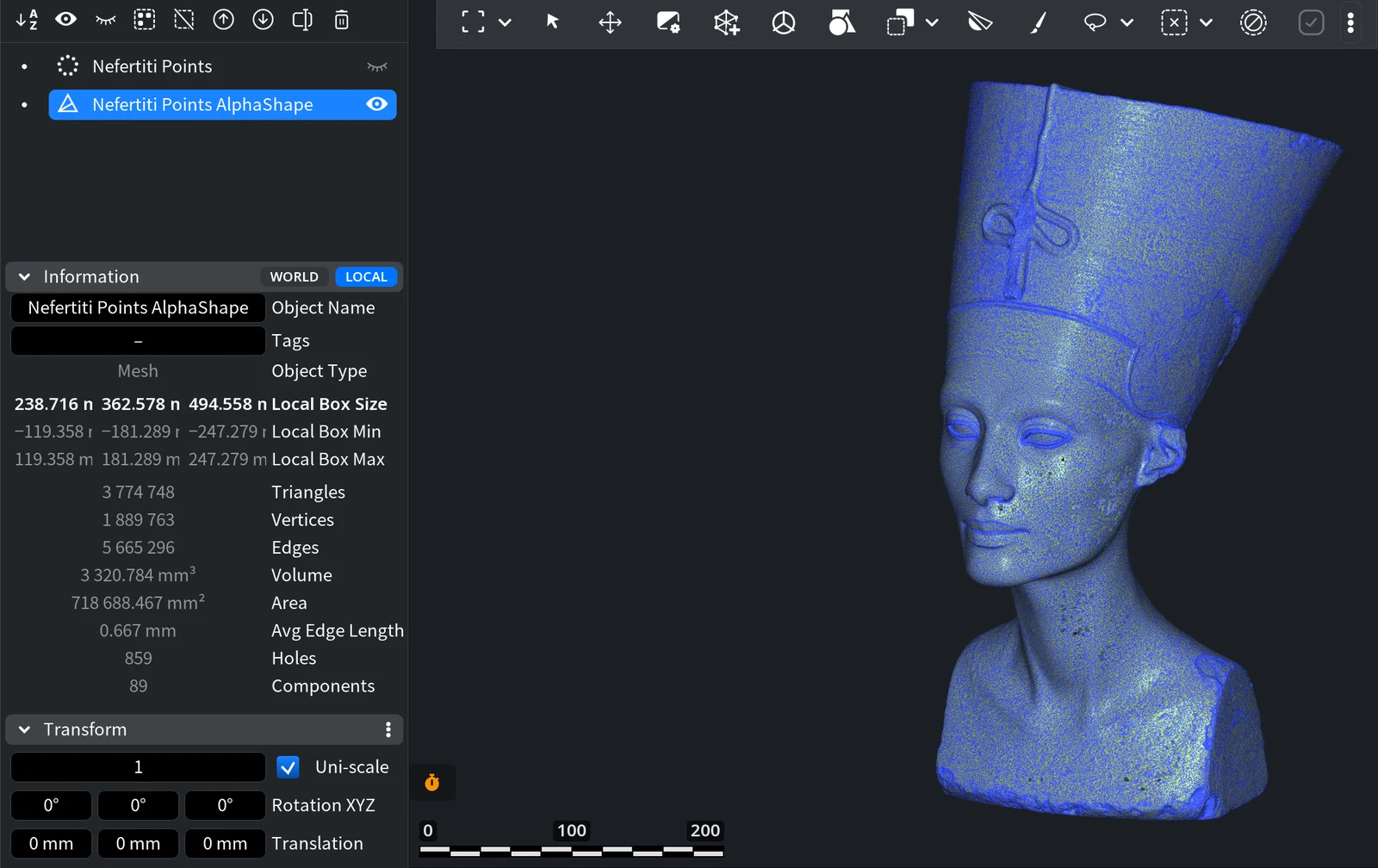
Both pictures below show the same point cloud of the bust of Nefertiti (1 009 118 points). With the proposed radius of 1.29 mm, the mesh looks closed from a distance; the Information panel shows 89 components and 859 holes. The mesh has 1 889 763 vertices, more than the cloud has points, because points where surface pieces meet were duplicated:
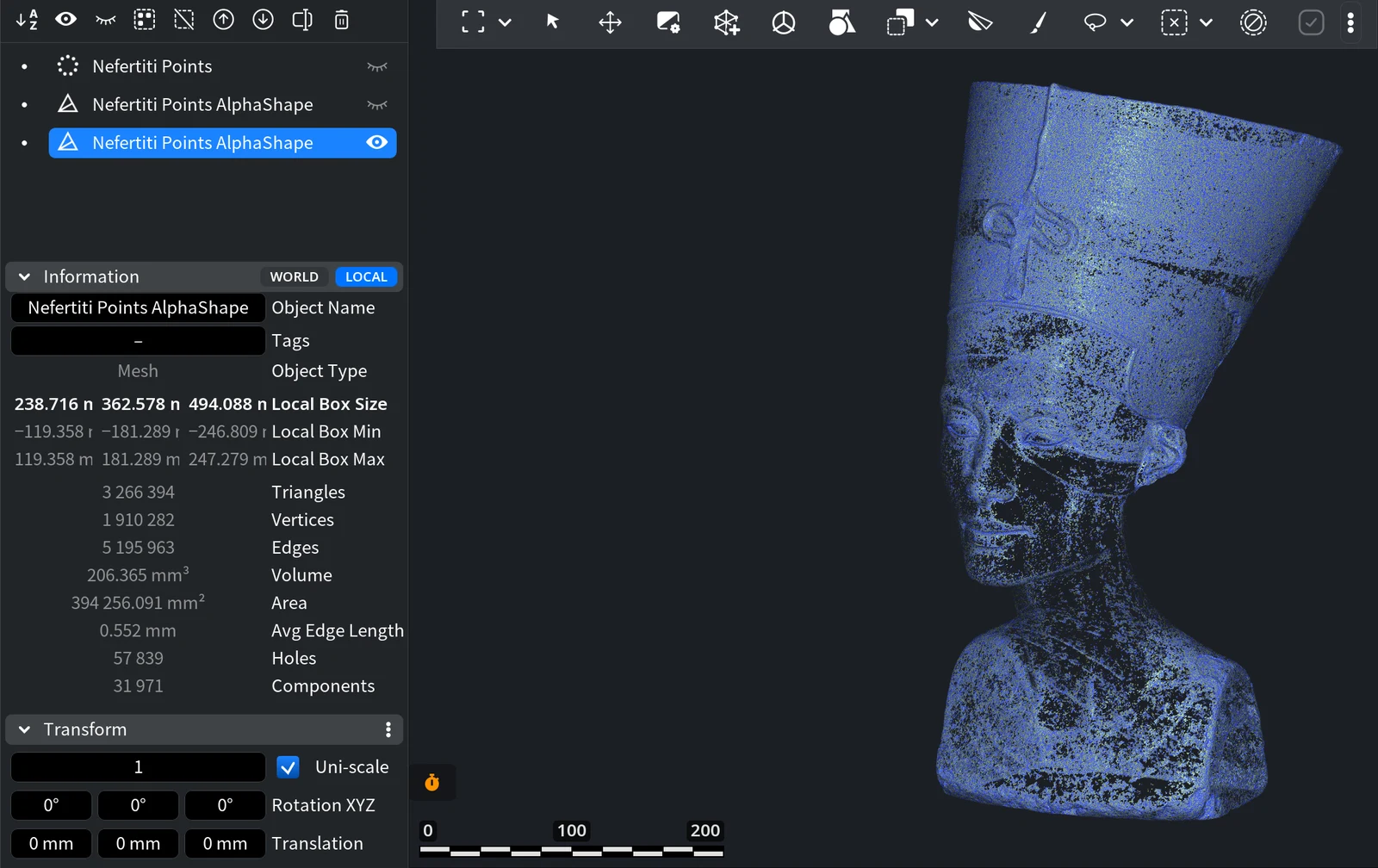
With a radius of 0.5 mm, the ball falls through many gaps: the mesh is covered with small holes (dark spots) and falls apart into 31 971 components with 57 839 holes:
After Alpha Shape
Check the new mesh in the Information panel: the Holes and Components lines show what is left to fix. Close the remaining gaps with Fill Holes, and remove small loose pieces with Keep Largest Component (see Separate Components).
If you need a mesh with all points as vertices and small holes filled automatically, try Points to Mesh. For a noisy scan, a smooth surface from Fusion is often a better start.


