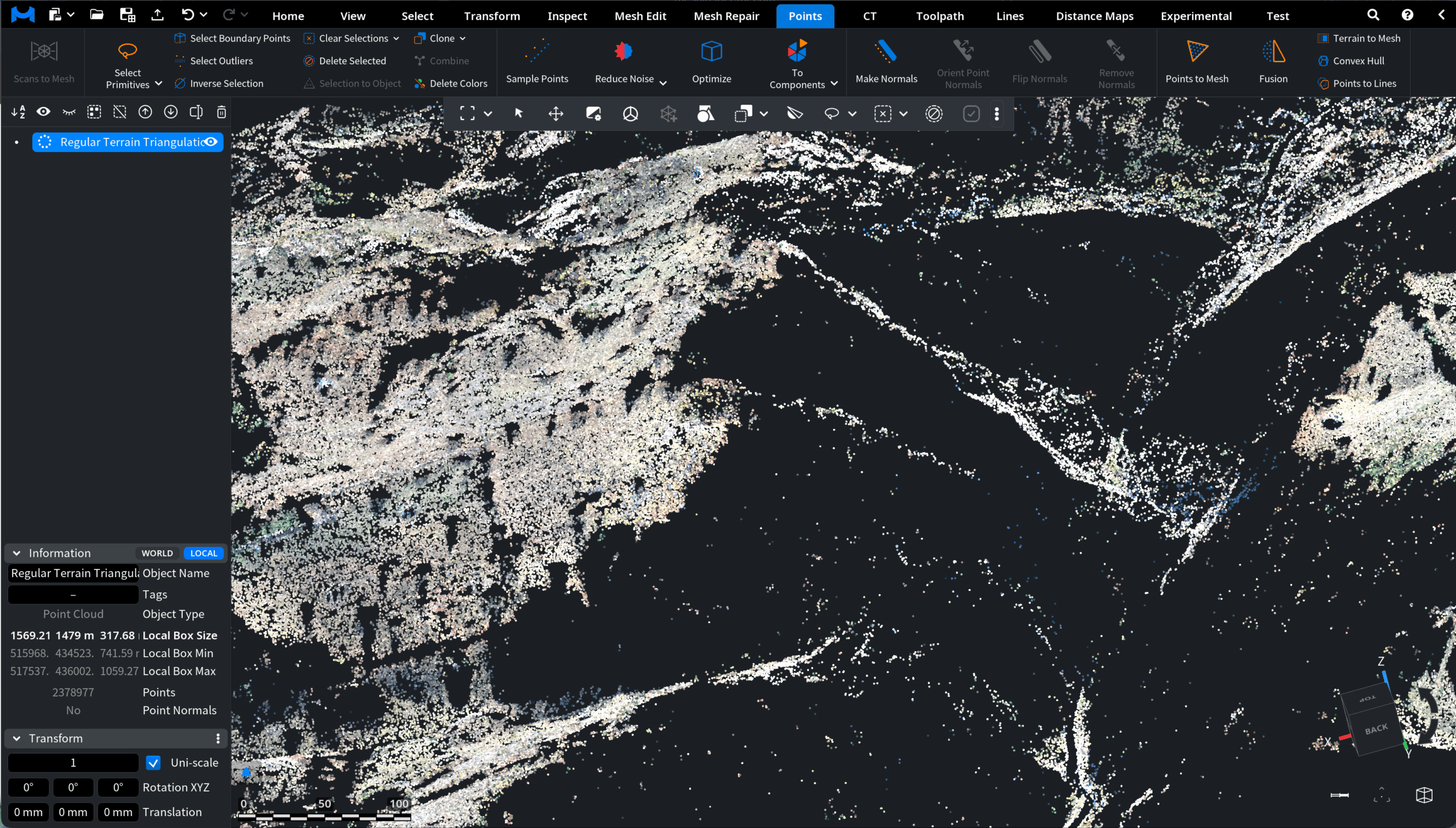
When working with point clouds, normals may sometimes need to be removed. Normals describe the local surface orientation of each point and are used for visualization and many geometry-processing operations. However, in some workflows it might be necessary to delete existing normals before recomputing or reorienting them. For this purpose, MeshInspector provides the Remove Normals tool. It removes normals from the selected point cloud.
To access this tool, open the Points tab in the top toolbar and click Remove Normals.

Clicking Remove Normals runs the operation immediately and does not open a settings panel. The tool simply removes all normals from the selected point cloud. To make the effect more illustrative, we first visualize the existing normals. For that, keep the object selected, open the Inspect tab, and click Show Normals. The normals appear in the viewport as small line segments indicating the orientation of each point.
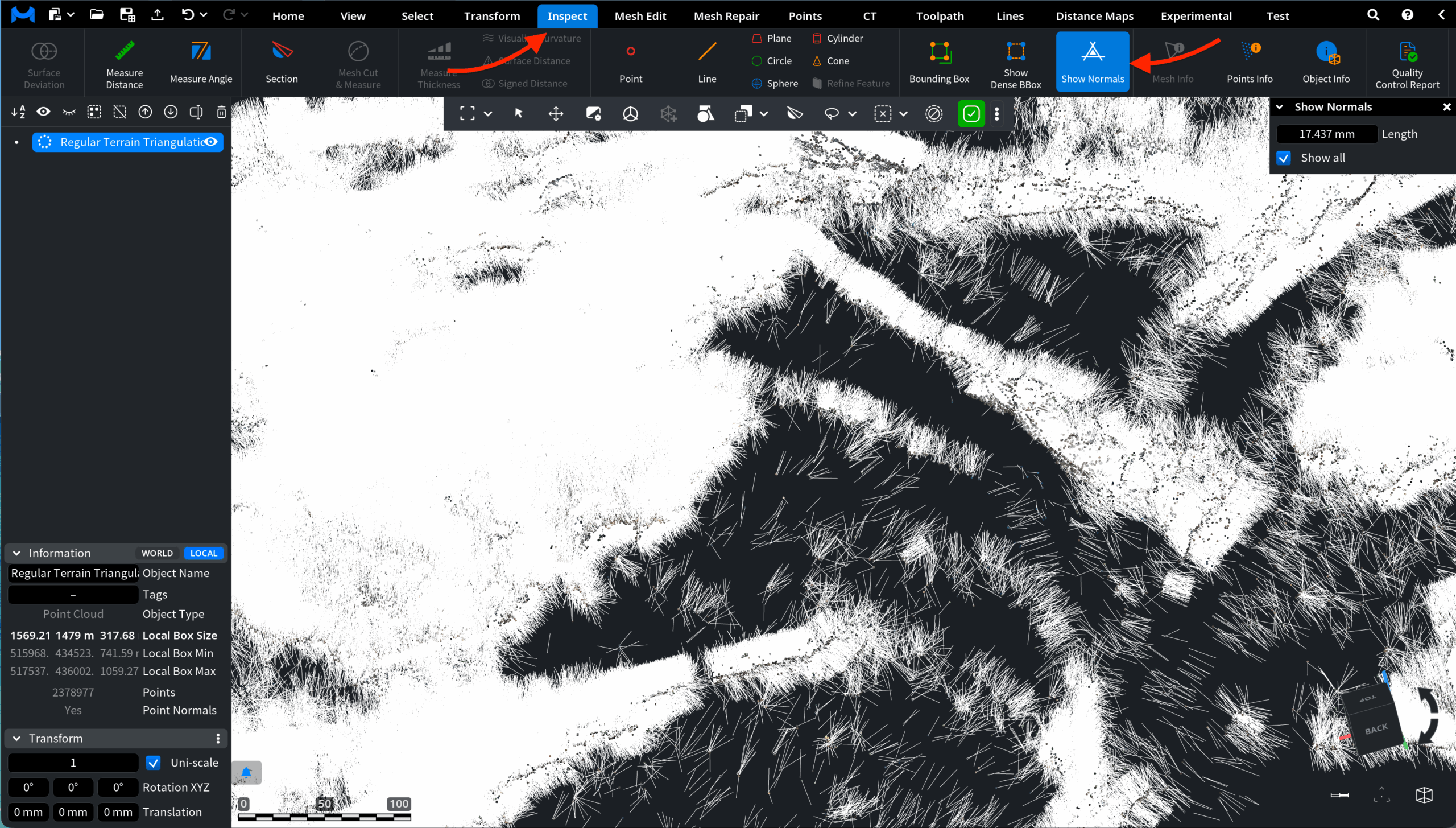
Note that you can click Remove Normals while Show Normals is still active.
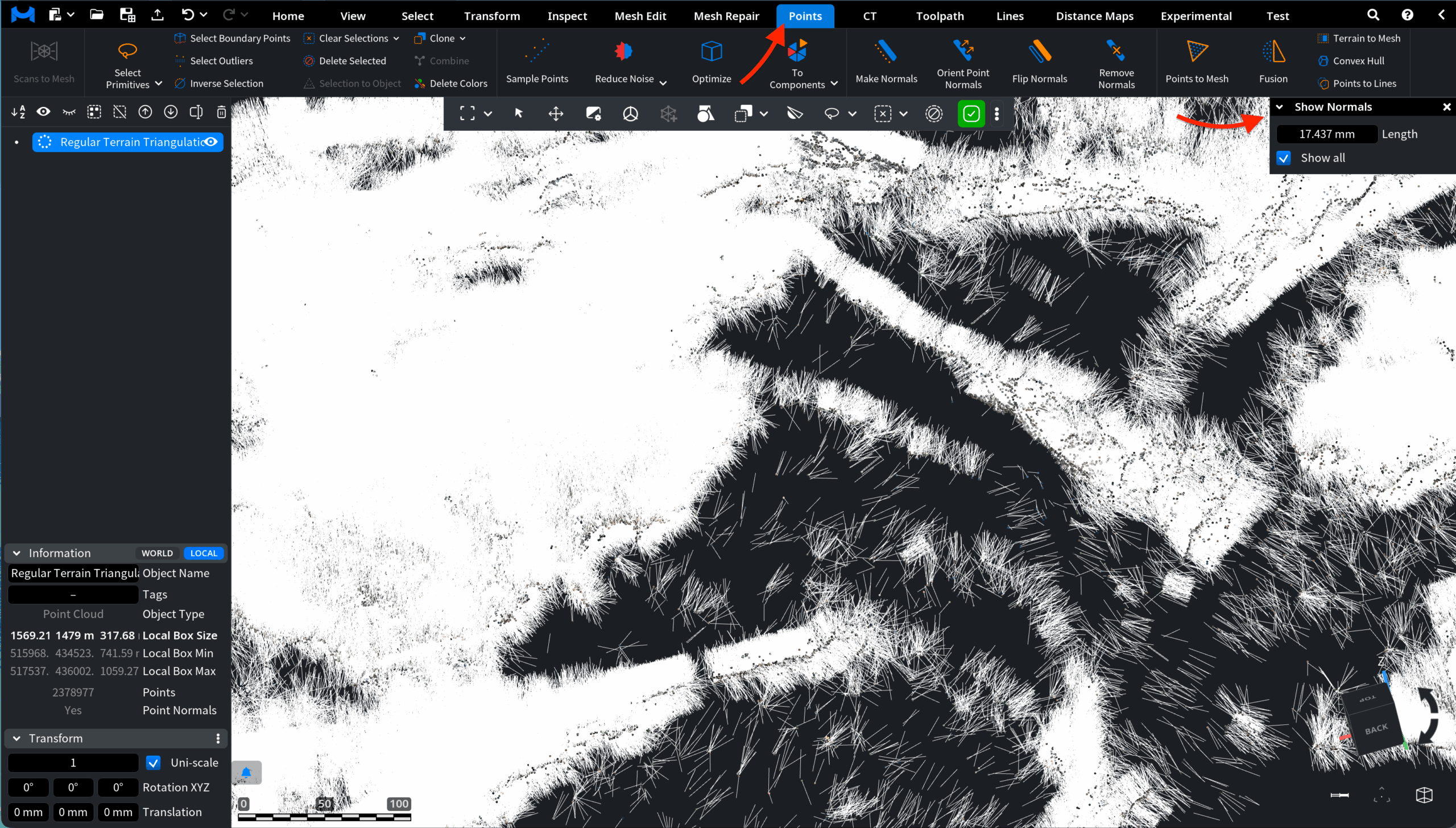
Once the operation is committed, all normals disappear.