
Sample Points picks a sparser set of points that still covers the whole cloud. Use it when a scan has more points than you need: a lighter cloud is faster to display, to clean and to turn into a mesh.
The tool is on the Points tab and works with one or more selected point clouds.

Quick recipe: thin a scan before meshing
- Select the point cloud in the Scene tree and click Points › Sample Points.
- Keep Method set to Uniform and set Spacing, the smallest distance between the points you keep. A larger value leaves fewer points.
- Set Action to Select and click Sample. The points that would stay are selected, and nothing is deleted yet.
- Look at the result. If the selected points still show the details you need, open Sample Points again, set Action to Remove Others and click Sample. If too much detail is lost, decrease Spacing and try again.
Then compute normals with Make Normals and build a mesh with Points to Mesh or Fusion. To delete stray points first, use Select Outliers.
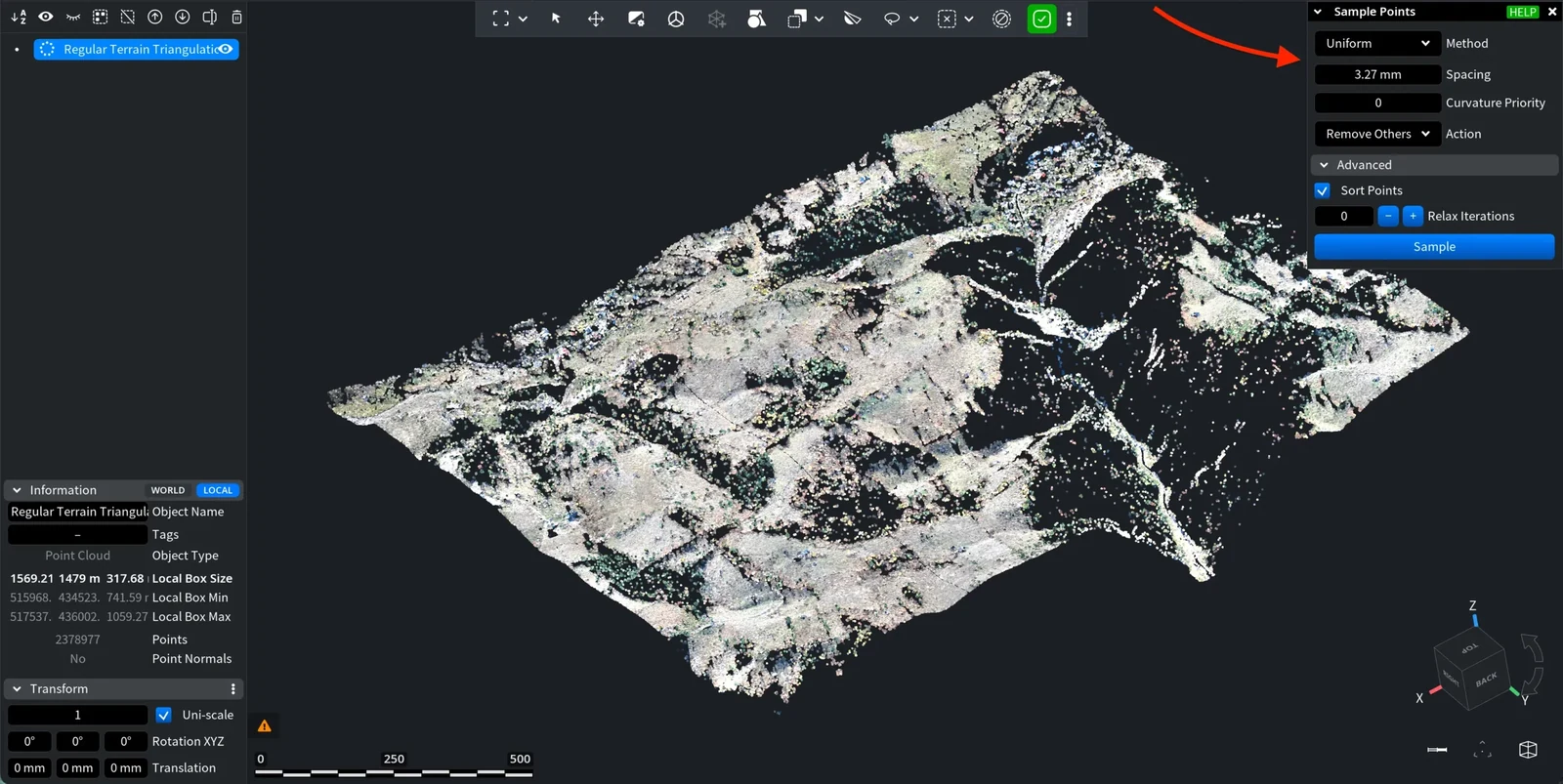
Methods and their parameters
The panel shows only the fields of the chosen Method:
| Method | How it picks points | Fields it shows |
|---|---|---|
| Uniform (default) | Keeps points so that no two kept points are closer than Spacing, while every original point stays within that distance of a kept one | Spacing, Curvature Priority, and Sort Points under Advanced |
| Grid | Divides the space into cubic cells and keeps one point per cell | Spacing (the cell size) |
| Iterative | Removes points one by one, each time the point that is closest to its neighbours (earlier removals nearby are taken into account), until the set number of points is left | Number of Samples |
| Parameter | What it does | Default |
|---|---|---|
| Spacing | For Uniform, the smallest distance between kept points on flat areas; for Grid, the size of a grid cell. A larger value keeps fewer points. | 0.15% of the diagonal of the cloud's bounding box; the tool keeps your last value if it suits the cloud |
| Number of Samples | How many points Iterative keeps | One tenth of the points of the cloud |
| Curvature Priority | From 0, the same spacing everywhere, to 1, much denser points in curved areas, where the shape changes fast. If the cloud has no normals, MeshInspector estimates them for this step. | 0 |
| Action | Select selects the kept points and changes nothing else. Remove Others deletes all other points from the cloud. | Remove Others |
Advanced
Click Advanced to open more settings:
| Parameter | What it does | Default |
|---|---|---|
| Sort Points (Uniform only) | On: the points are processed in coordinate order, which gives tighter and more even samples. Off: they are processed in the order of their numbers, which is faster. | On |
| Relax Iterations | How many times each kept point is moved toward the middle of its own area: the part of space that is closer to this point than to any other kept point. This helps to avoid keeping outliers and can make the points more even. 0 to 10. | 0 |
| Min Points In Sample | Shown when Relax Iterations is above 0. A kept point that represents fewer original points than this number is discarded, which removes isolated outliers. 1 to 1000. | 1 |
| Average Values | Shown when Relax Iterations is above 0. Instead of keeping existing points, MeshInspector computes new points, normals and colors as averages of the original ones, which gives a smoother result. The new points do not match the original ones, so Action switches to Remove Others; if you set Action back to Select, Average Values turns off. | Off |
Click Sample to run the tool. The result stays in the same object, and the panel closes. Undo (Ctrl+Z, or Cmd+Z on macOS) returns the original points.
In the example below, Action is set to Select, so MeshInspector only marks the sampled points and keeps the rest of the cloud.
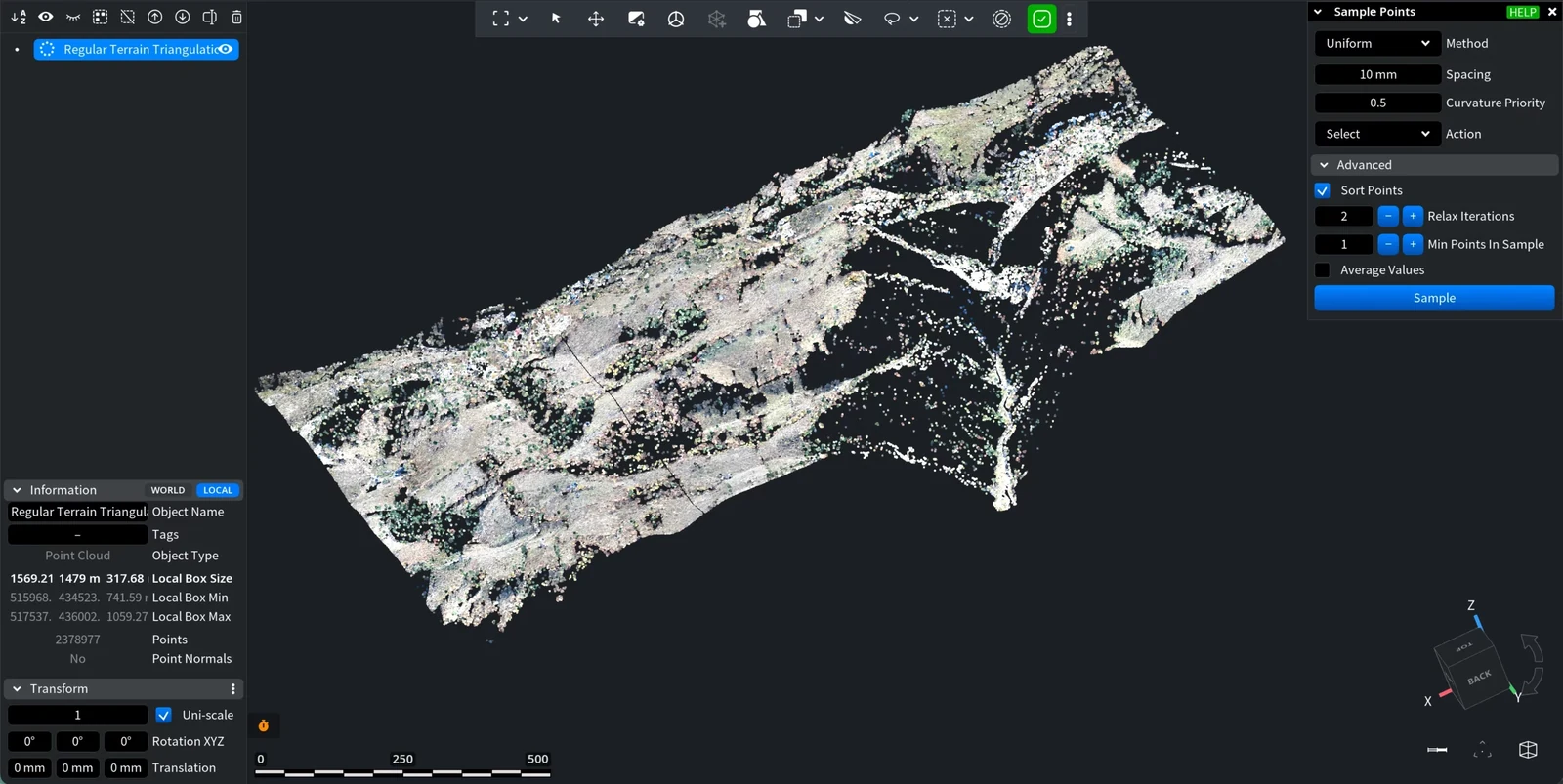
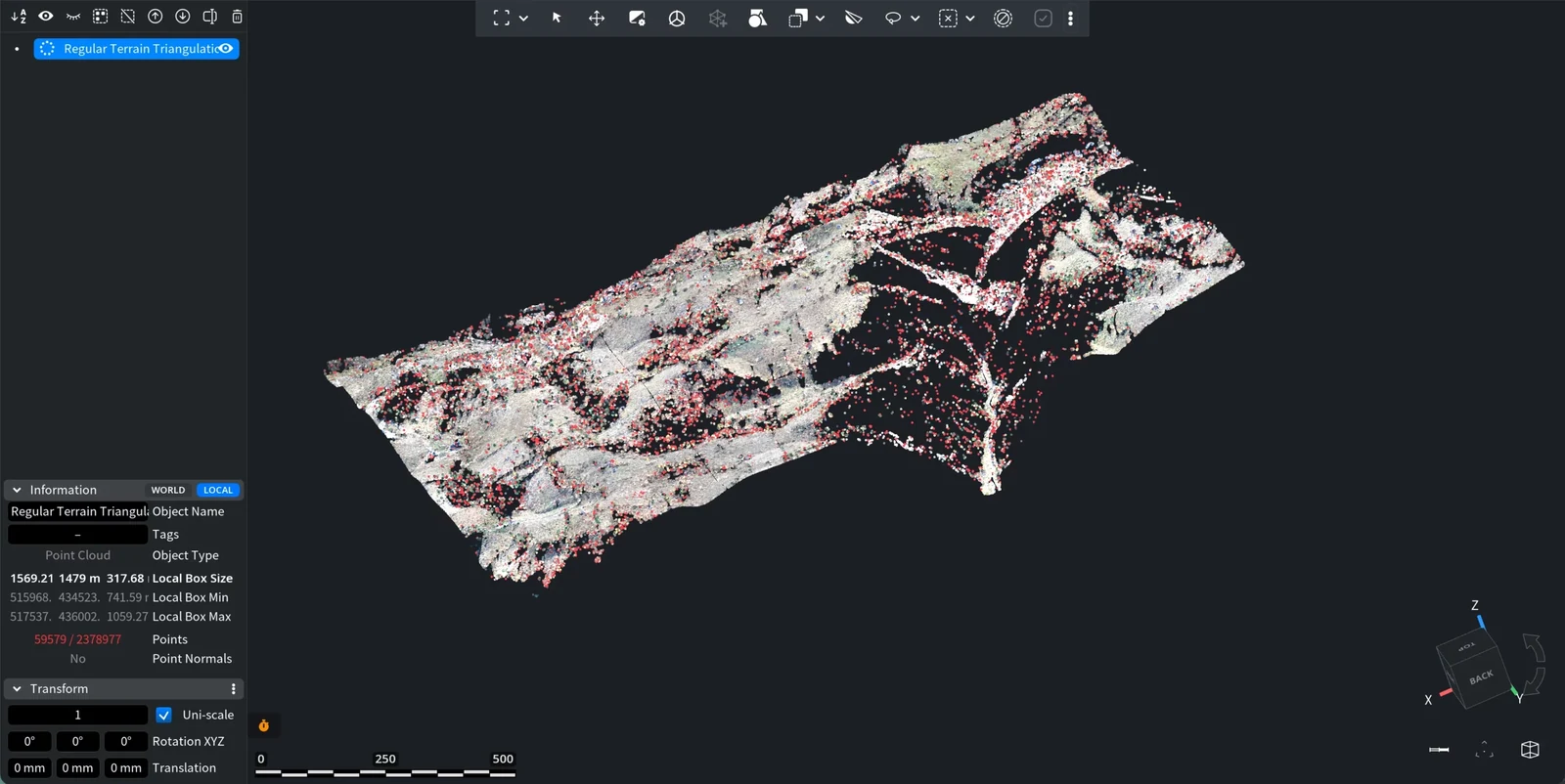
Sample Points: After Select
With Action set to Select, the sampled points become the selection of the cloud and appear in red in the viewport, so you can check how they cover the object. A previous selection of the cloud is replaced.
The Information panel in the lower-left corner shows the number of selected points in red. In this example, 59,579 points out of 2,378,977 are selected. The cloud itself has not changed yet.
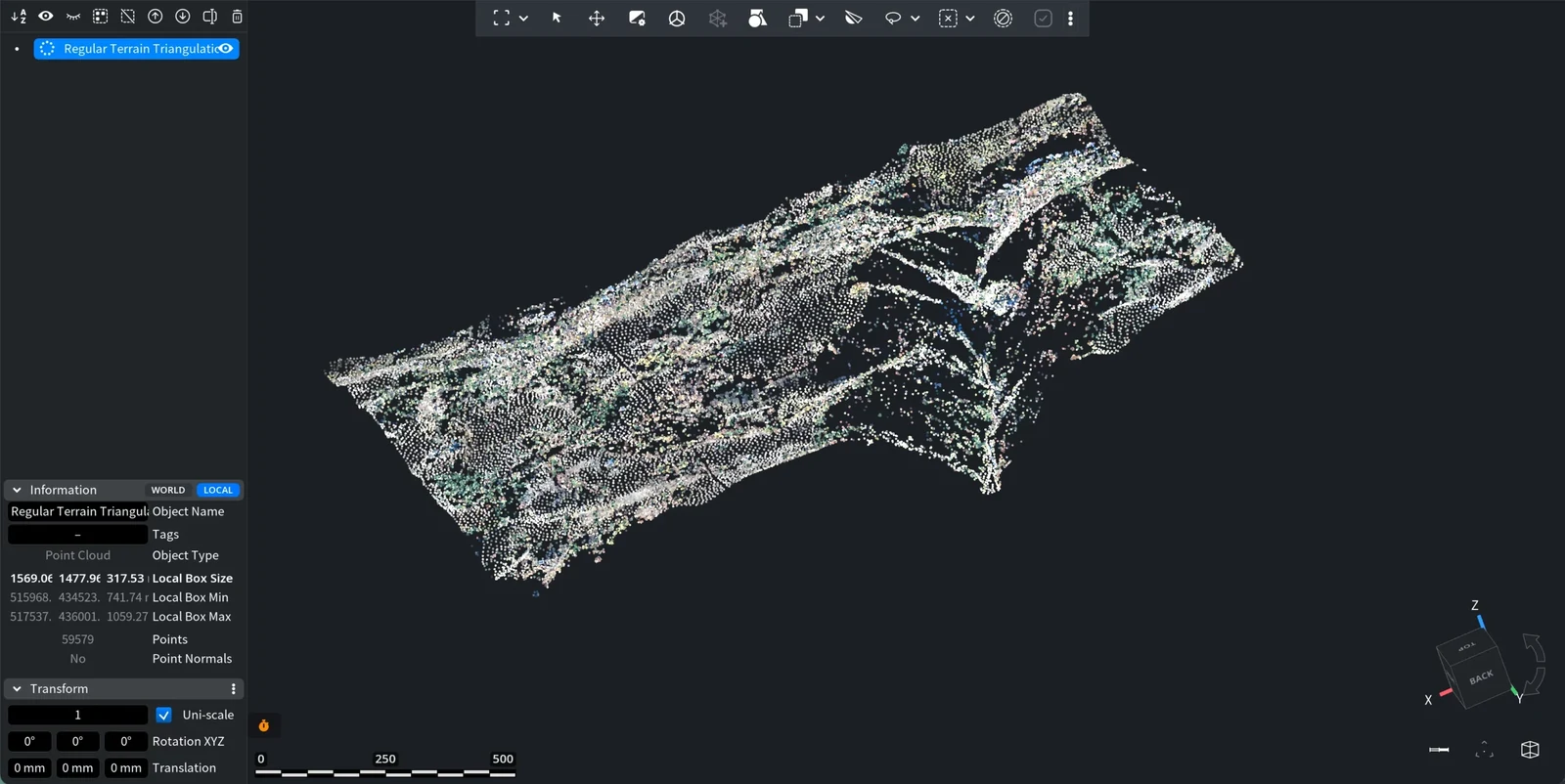
Sample Points: After Remove Others
With the same settings and Action set to Remove Others, MeshInspector deletes all points that were not sampled, and only the sampled points stay in the cloud.
For meshes, the tool that reduces the number of triangles is Simplify.


