Advice and answers from the MeshInspector Team

How the Fusion Tool Works in MeshInspector

Overview of the Fusion Tool in MeshInspector
Updated over 1 week ago

The Fusion tool, located under the Points tab, creates an approximate object mesh from a point cloud with normals. Instead of following the point positions exactly, Fusion approximates and smooths the surface, which can help produce a cleaner mesh from noisy or uneven point-cloud data.

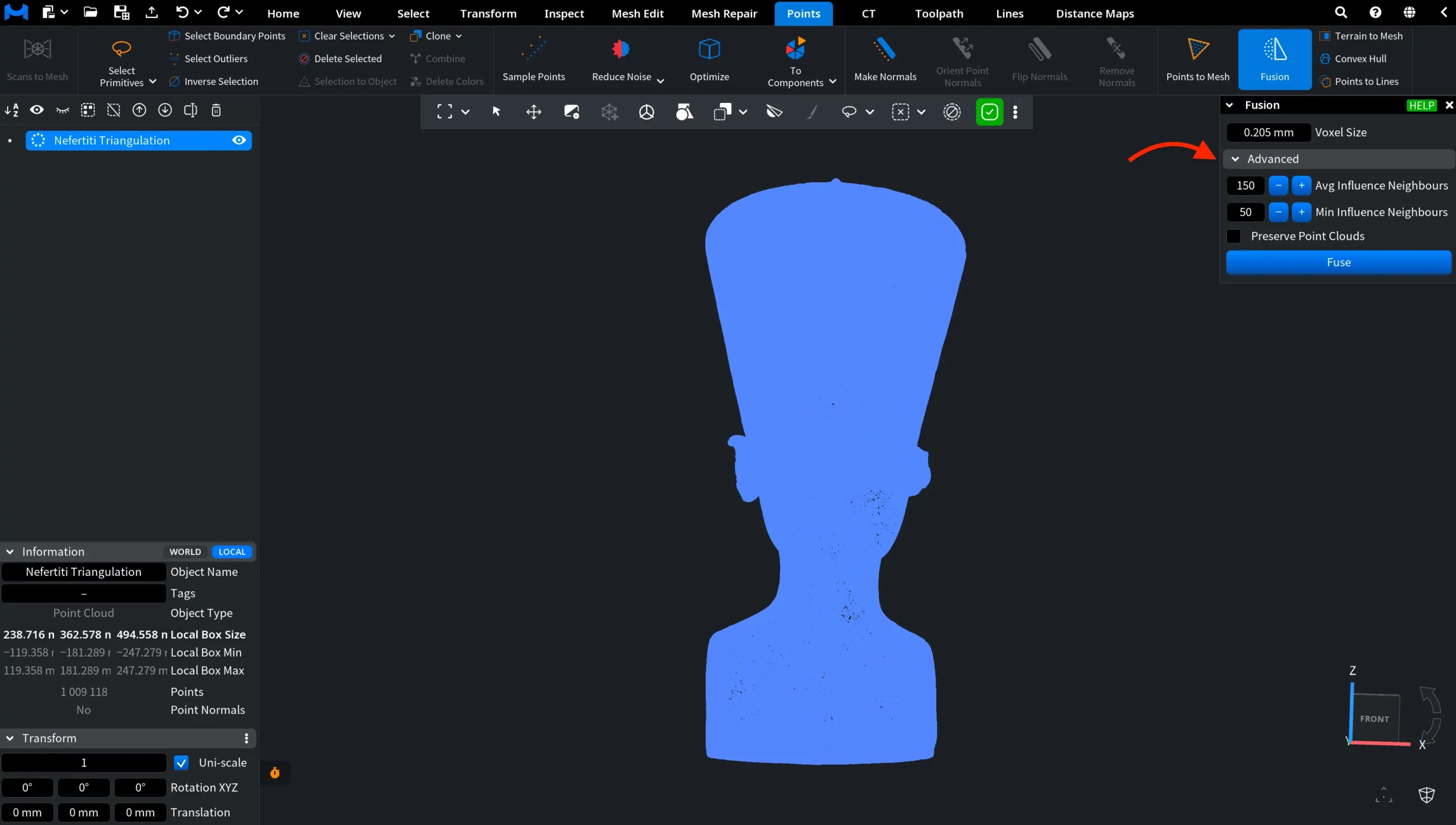
Fusion: Where to Find

Fusion: Settings

Clicking Fusion opens a dedicated panel with the following settings and controls:

  • Voxel Size sets the size of the cubic voxels used during reconstruction. Smaller voxels allow the tool to capture finer surface detail and generally produce a higher-quality result.
  • Avg Influence Neighbours, available under Advanced, controls the average number of nearby points that influence the reconstructed surface. Higher values produce a smoother surface but increase processing time.
  • Min Influence Neighbours, also under Advanced, sets the minimum amount of influence from surrounding points required for a triangle to be created. In practice, higher values require stronger support from points in close proximity before a surface is generated.
  • Preserve Point Clouds keeps the original point cloud in the scene alongside the resulting mesh. If this option is disabled, the original point cloud is not preserved after fusion.

Fusion: Panel

Finally, Fuse starts the reconstruction using the selected settings.

Fusion: Result

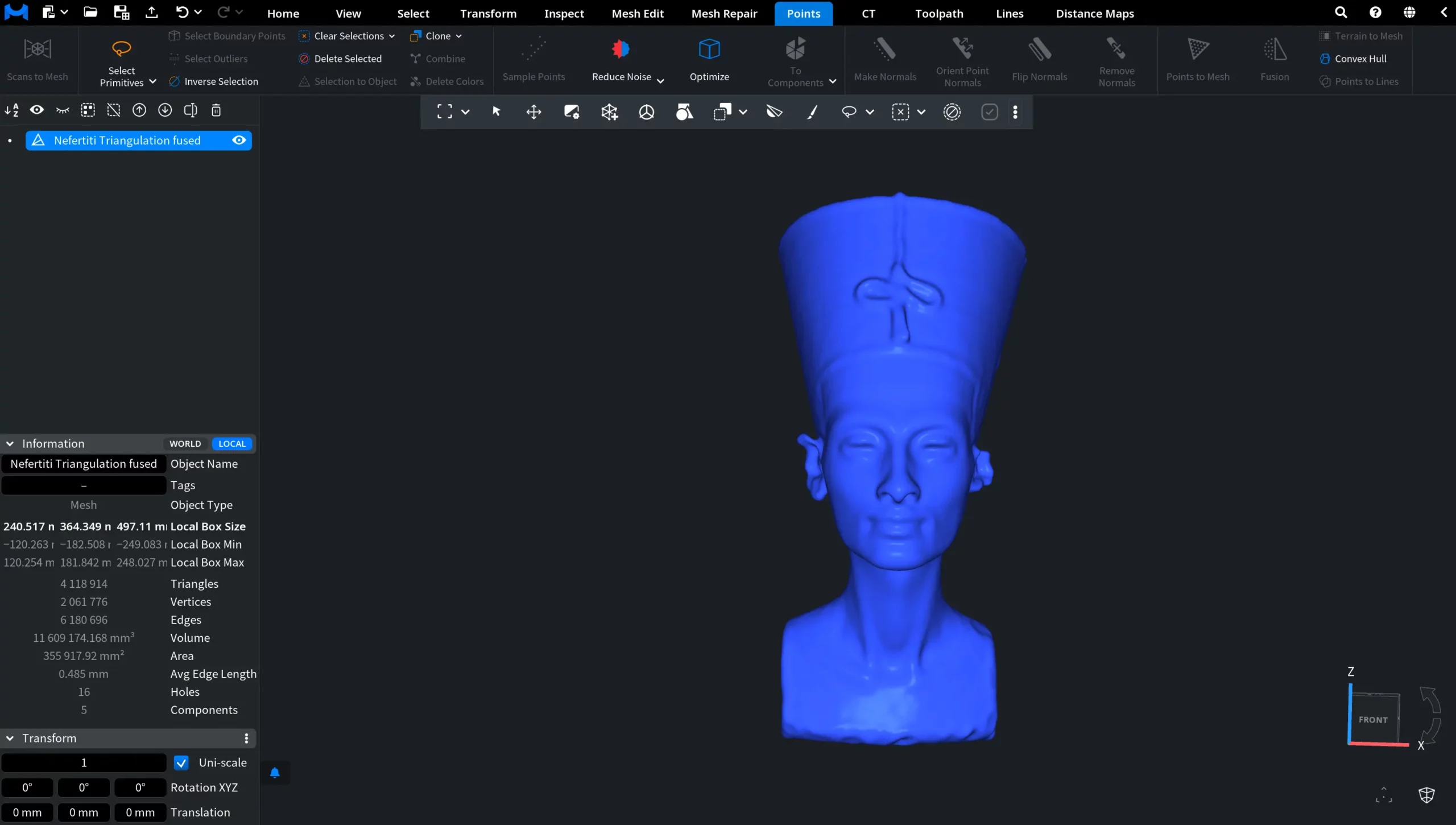
After clicking Fuse, MeshInspector generates a new mesh that approximates the shape of the original point cloud. The resulting surface is smoother and more continuous, which makes Fusion particularly useful for noisy or incomplete point-cloud data and for creating meshes that are easier to process and analyze further.


Guide to the Fusion Tool in MeshInspector

Table Of Contents