
To Components splits a point cloud into separate objects: each group of points that lies apart from the other points becomes its own point cloud. Use it when one scan holds several objects, for example several parts that were scanned together but do not touch each other, or a scan with clusters of debris that you want to look at before you delete them.
A group of points is a component when its points are close to each other and the gap to all other points is larger than the search radius. The radius comes from Average Points Radius, as in Select Outliers.
How to split a point cloud into components
- Select exactly one point cloud in the Scene tree.
- Click Points › To Components.
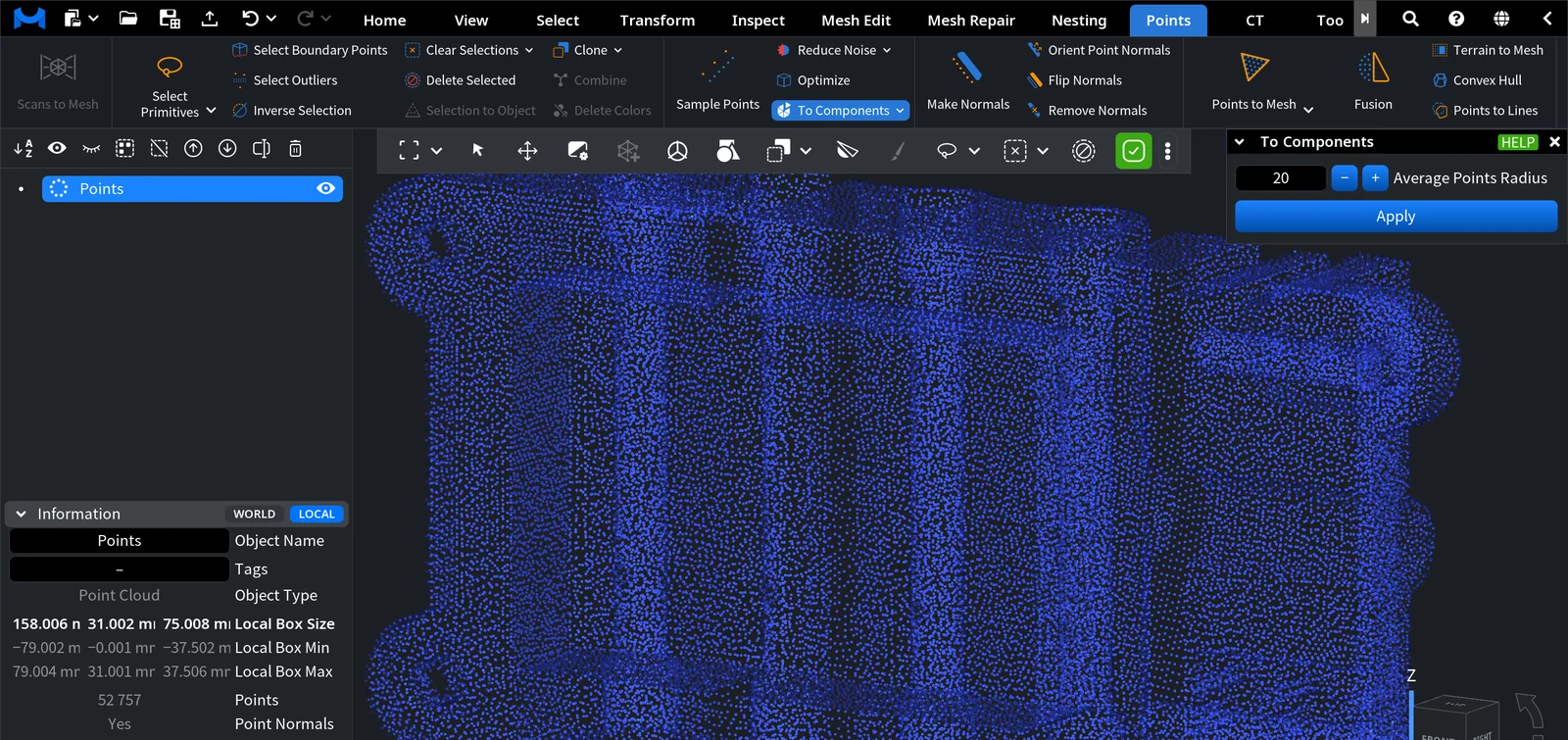
- Set Average Points Radius if needed and click Apply.
| Parameter | What it does | Default |
|---|---|---|
| Average Points Radius | The size of the neighbourhood, as a number of points: MeshInspector finds the radius of a ball that contains this many points on average. Two points belong to the same component if you can get from one to the other in steps no longer than this radius. A larger value joins more groups into one component; a smaller value splits the cloud into more parts. 1 to 100. | 20 |
What you get
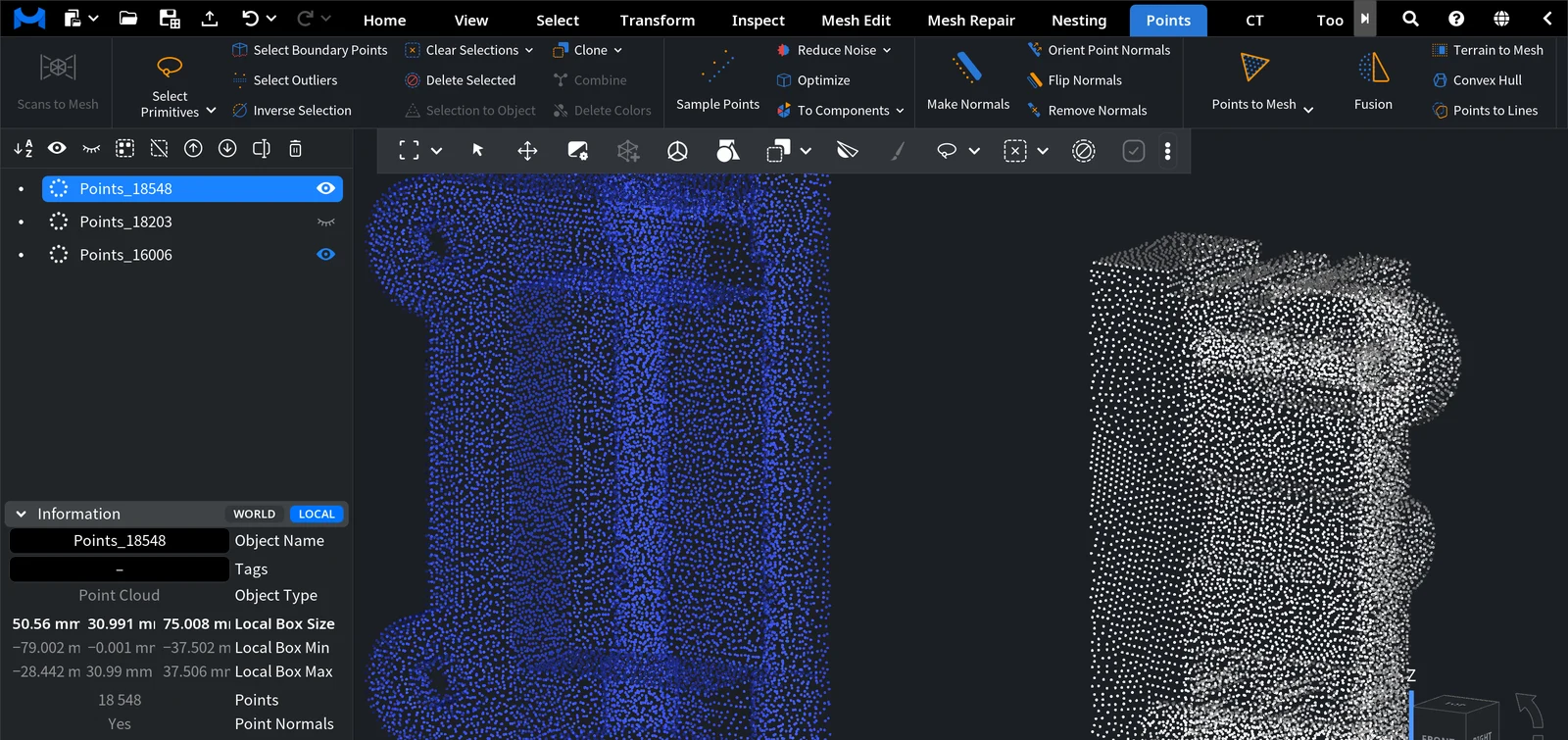
- Each component becomes a new point cloud named after the original with the number of its points added, for example
Points_18548. - The new objects are sorted by size, the largest first, and they replace the original cloud in the Scene tree. Objects that were nested in the original move into the largest part.
- The panel closes, and none of the new objects is selected: select the part you want to work with next. Undo (Ctrl+Z, or Cmd+Z on macOS) returns the original cloud.
In the example below, two narrow slices of points were deleted from a scan of a part, so the cloud of 52,757 points had three separate pieces. With the default Average Points Radius, To Components made three objects: Points_18548, Points_18203 and Points_16006. The middle piece is hidden to show the gaps.
To Components makes at most 100 objects. If the cloud has more components, MeshInspector puts several components into each object and shows a message with the largest number of components per object. To split such an object further, select it and run To Components again.
To Components, Force Components or Select Outliers
- To Components splits the cloud where there are gaps between the points, so each part is a real piece of the scan.
- Force Components, in the drop-down list of To Components, cuts the cloud into a set number of parts by the order of the points, whatever their position.
- To delete small separate clusters without making objects from them, use the Small Components check of Select Outliers.
For meshes, use Mesh Repair › To Components: see Separate Mesh Components.


