Move to Zero, located under the Transform tab, repositions the selected item at the global origin (0, 0, 0).

Depending on the selected item, the tool can produce two effects.
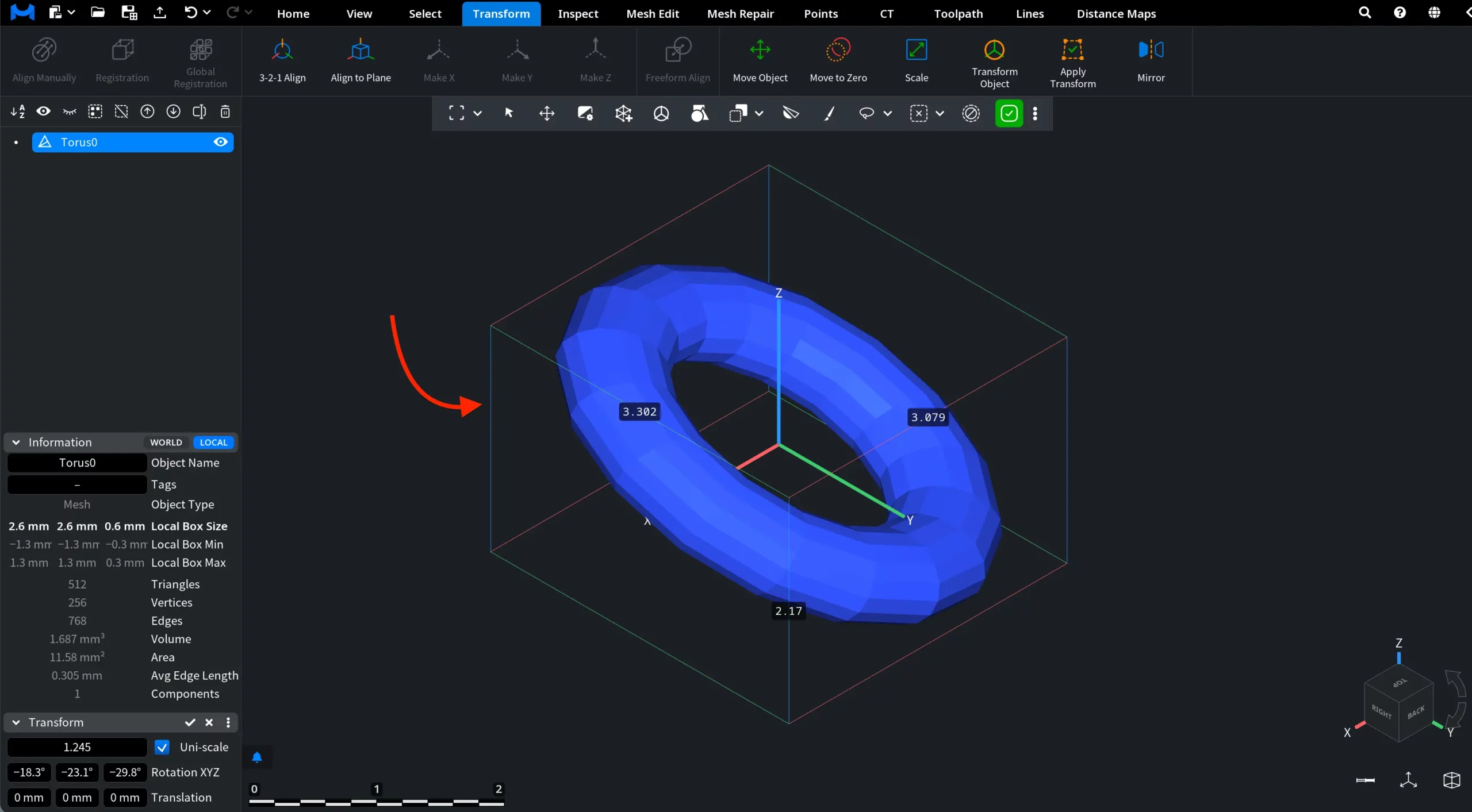
If a mesh or point cloud is selected, the tool moves the center of its bounding box to the scene origin. In the example below, Toggle Global Basis under the View tab was activated for clarity, together with Bounding Box under the Inspect tab.
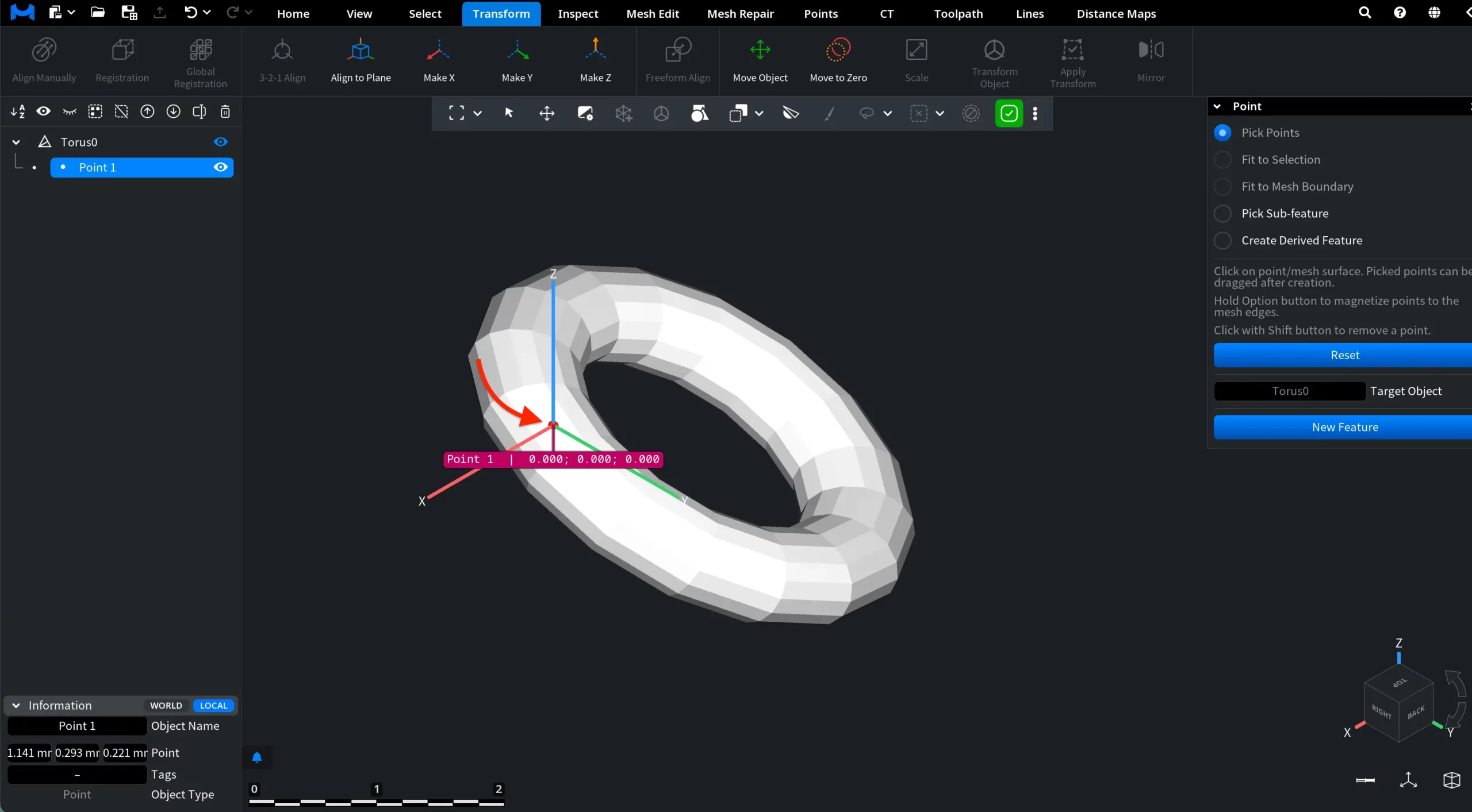
If a feature, such as a point or plane, is selected, the tool moves the parent object so that the feature itself is positioned at the origin. In this example, we first created a point using Point under the Inspect tab, then enabled Toggle Global Basis and clicked Move to Zero.
This command is useful for quickly normalizing an object's position, preparing models for alignment, or resetting model placement before further transformations.