The Mesh to Voxels tool is available under the Mesh Edit tab. It converts a triangle-based mesh into a voxel representation. Instead of a surface defined by faces and edges, the resulting object consists of volumetric elements (voxels) generated from the selected mesh. These voxels approximate the original geometry within a discrete 3D grid structure.

Wrapping up, this transformation replaces continuous surface representation with a volume-based representation. This might be useful for volumetric analysis, simulation workflows, structural processing, or preparation for further voxel-based operations.
Mesh to Voxels Settings
After clicking Mesh to Voxels, a dedicated control panel opens on the right side of the interface. This panel allows you to configure how the voxel representation will be generated. Together, several parameters control voxel size, volume interpretation, and distance field behavior.
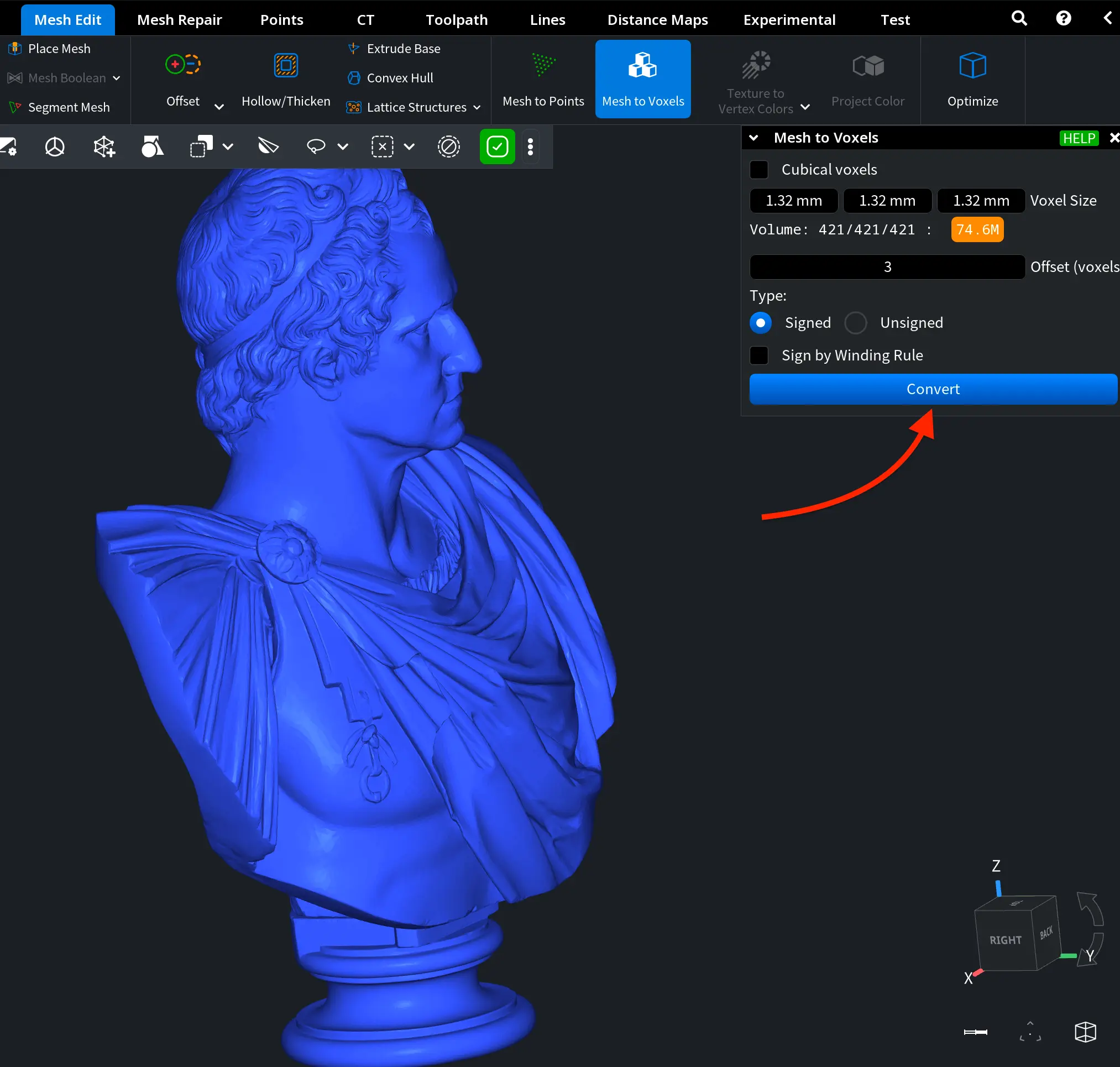
The following parameters can be configured before committing the transformation by clicking Convert. The panel also displays indicators that update automatically based on the selected voxel size:
- Cubical Voxels. When Cubical voxels is enabled, each voxel has equal width, height, and depth. In this case, a single Voxel Size value defines the resolution of the voxel grid. If Cubical voxels is disabled, independent dimensions can be specified for width, height, and depth. This allows non-uniform voxel scaling along different axes. Smaller voxel sizes produce higher resolution and more accurate geometry approximation, while larger values result in a coarser and lighter representation.
- Volume. The Volume indicator displays the resolution of the voxel grid and the total number of generated voxels. As voxel size decreases, the total voxel count increases significantly. This parameter provides you with immediate feedback about computational complexity and memory usage.
- Offset. The Offset parameter controls how far the voxel field extends relative to the original mesh surface. Voxels located within the specified offset distance from the input mesh are filled using exact distance values. Voxels beyond this range are assigned distance values with positive or negative offsets. Increasing the offset expands the volumetric region around the mesh, which may be useful for simulation or distance-based processing.
- Type determines how voxel distances are stored. If you choose Signed, your voxels will be filled with signed distance values relative to the input mesh. Negative values represent the interior of the mesh, while positive values represent the exterior. If you opt for Unsigned, your voxels will store absolute distance values without distinguishing between inside and outside regions.
- Sign by Winding Rule. When enabled, this setting ensures that the sign of the distance is determined using the generalized winding rule. If the mesh contains holes, this option is automatically forced on to ensure correct inside–outside classification.
Mesh to Voxels: Examples
After you click Convert, MeshInspector generates a voxelized object based on the selected mesh and the configured voxel parameters. We performed two tests using different voxel size settings to illustrate how resolution affects the resulting volumetric representation.
Baseline Scenario
In the example shown below, the voxel representation was generated using the following settings:
- Cubical voxels is enabled
- Voxel Size is 1.3 mm
- Offset is set to 3 voxels
- Type is Signed
As a result, the mesh was converted into a structured voxel grid with uniform cubic elements. The selected voxel size (1.3 mm) provides a balanced resolution that preserves the overall geometric shape while maintaining reasonable computational complexity.
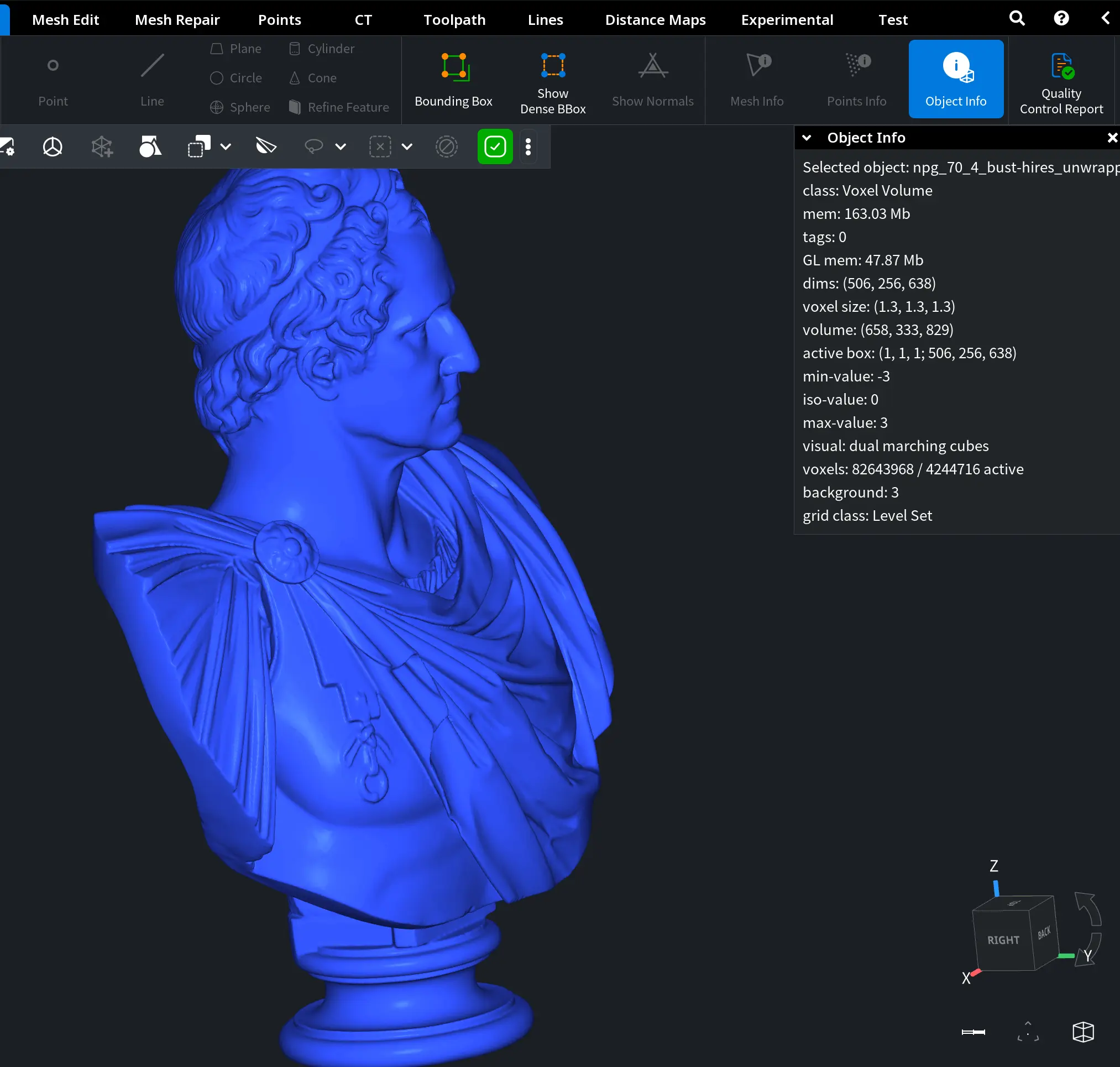
According to Object Info (you can find this tool under the Inspect tab):
- Grid dimensions: 506 × 256 × 638
- Total volume resolution: 658 × 333 × 829
- Total voxels: 82,643,968 (4,244,716 active)
- Grid class: Level Set
Because the Signed type is selected, voxels store signed distance values relative to the input mesh. Negative values correspond to the interior of the object, while positive values represent the exterior. This allows correct inside–outside classification and enables further volumetric processing.
As a result, our baseline configuration produced a clean and accurate volumetric approximation of the original mesh, with sufficient resolution for analysis (while keeping memory usage within a reasonable and manageable range).
Coarser Resolution
In the next example, the voxel representation was generated using the following settings:
- Cubical voxels is enabled
- Voxel Size is now 5 mm
- Offset is still set to 3 voxels
- Type is Signed
Compared to the baseline configuration, increasing the voxel size to 5 mm significantly reduces the resolution of the voxel grid.
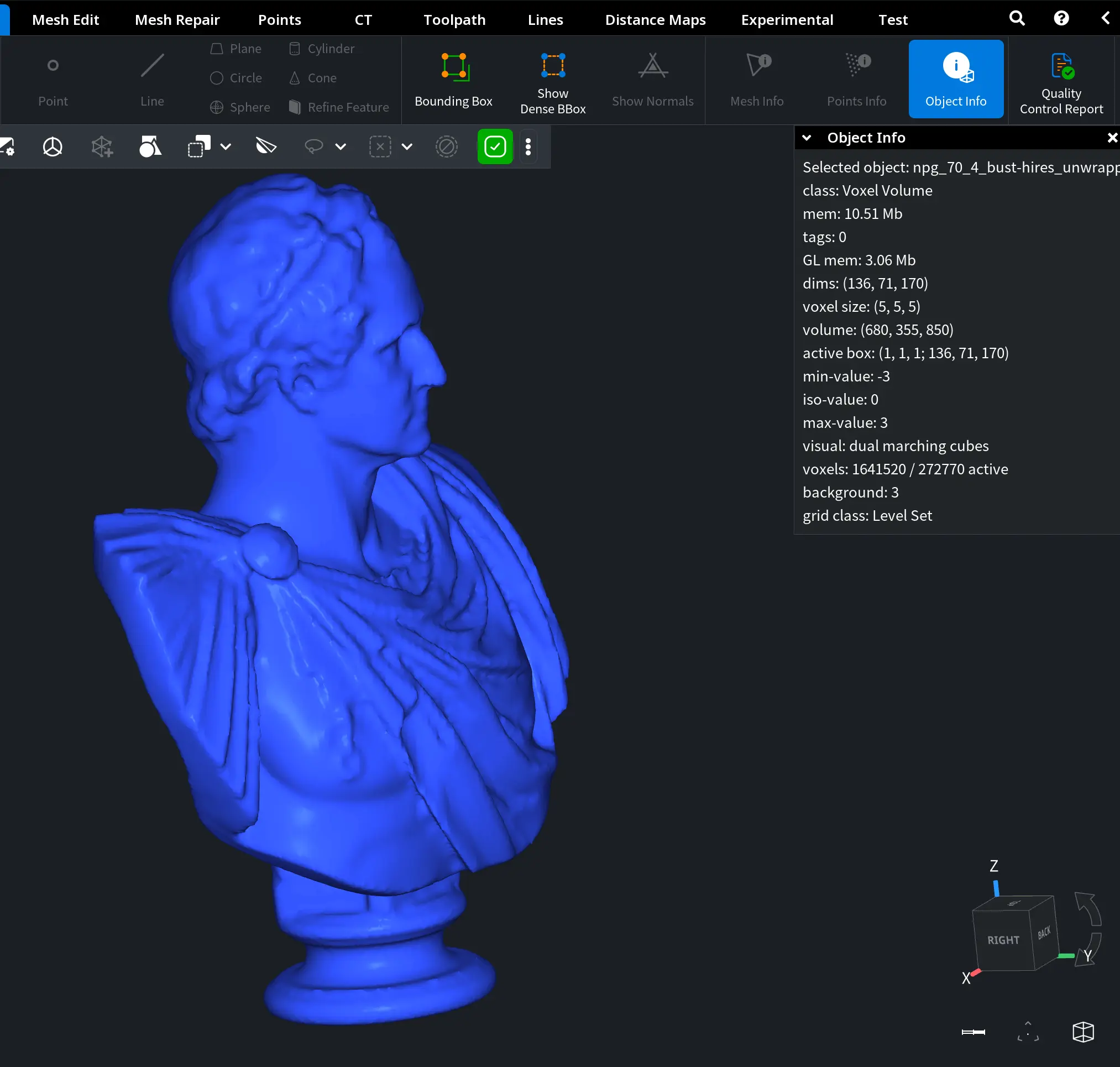
According to our Object Info panel:
- Grid dimensions: 136 × 71 × 170
- Total volume resolution: 680 × 355 × 850
- Total voxels: 164,152 (27,270 active)
- Grid class: Level Set
The model becomes visibly smoother and less detailed. Fine geometric features, e.g., small folds and surface variations, are simplified due to the larger voxel size. The surface approximation appears coarser while subtle curvature transitions are less precisely represented.
However, the overall silhouette and primary structural form of the bust remain clearly identifiable.
Because the Signed type remains selected, inside–outside classification is still preserved. The difference lies entirely in geometric resolution, not in distance interpretation.
Overall, this configuration produces a significantly lighter volumetric representation, reducing memory usage and sacrificing some fine surface detail concurrently.