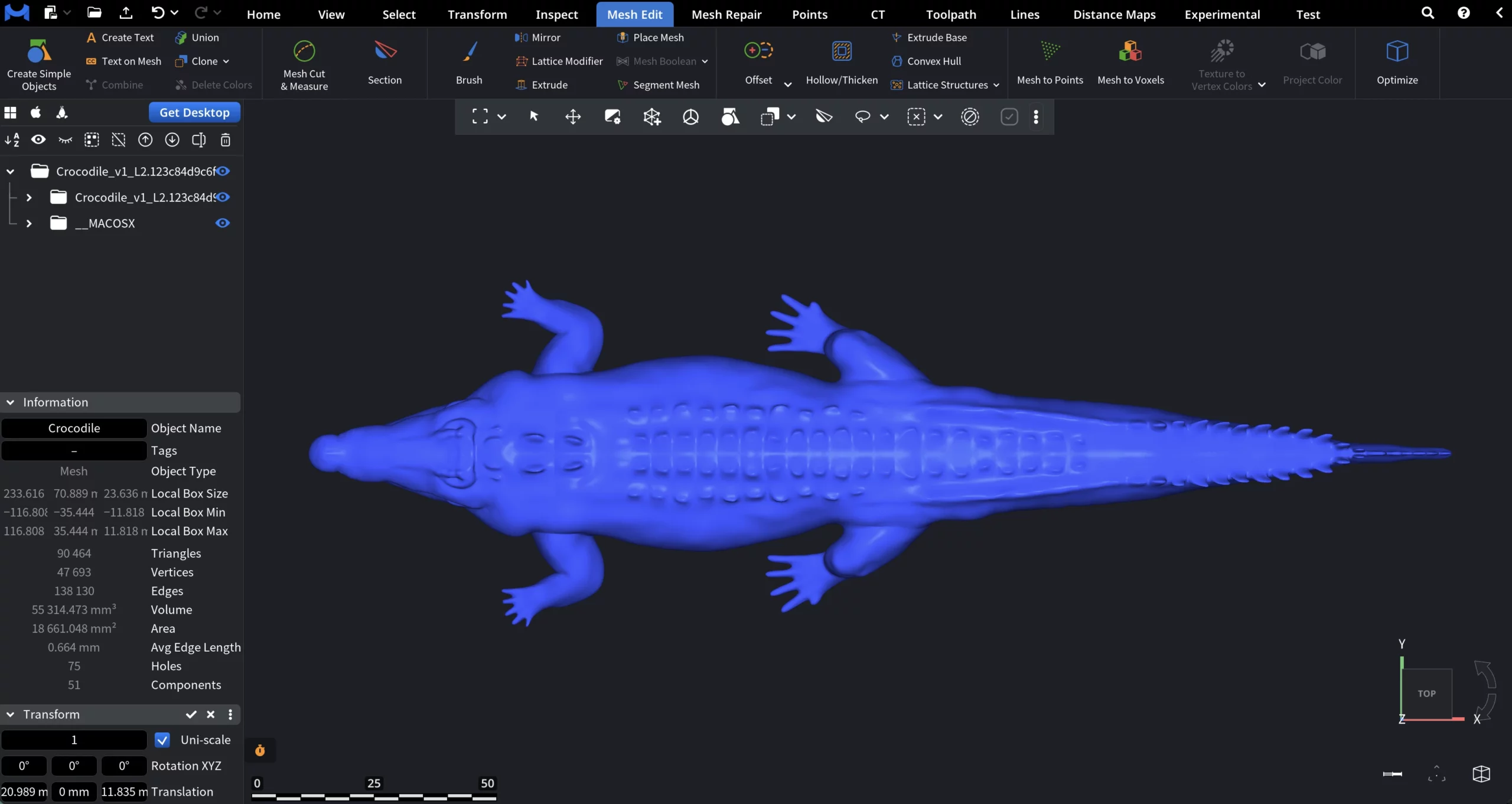
The Delete Colors tool removes color information from the selected object while preserving its geometry. That is, after applying this operation:
- The object remains unchanged in terms of shape
- All color data is removed

This tool works with both meshes and point clouds, provided that the file format supports color information. A full overview of supported file formats and their capabilities can be found in the Supported File Formats article.
MeshInspector currently supports colors in the following mesh formats:
- OBJ
- STP
- CTM
- 3MF
- PLY
- GLTF
Color support is available for the following point cloud formats:
- ASC
- E57
- LAS
- LAZ
- PTS
- PLY
Delete Colors: An Example
In the screenshot below, you can see that we have an object that matches the conditions: in this case, an OBJ file uploaded as an archive with colors and textures. Thus, Delete Colors is active.
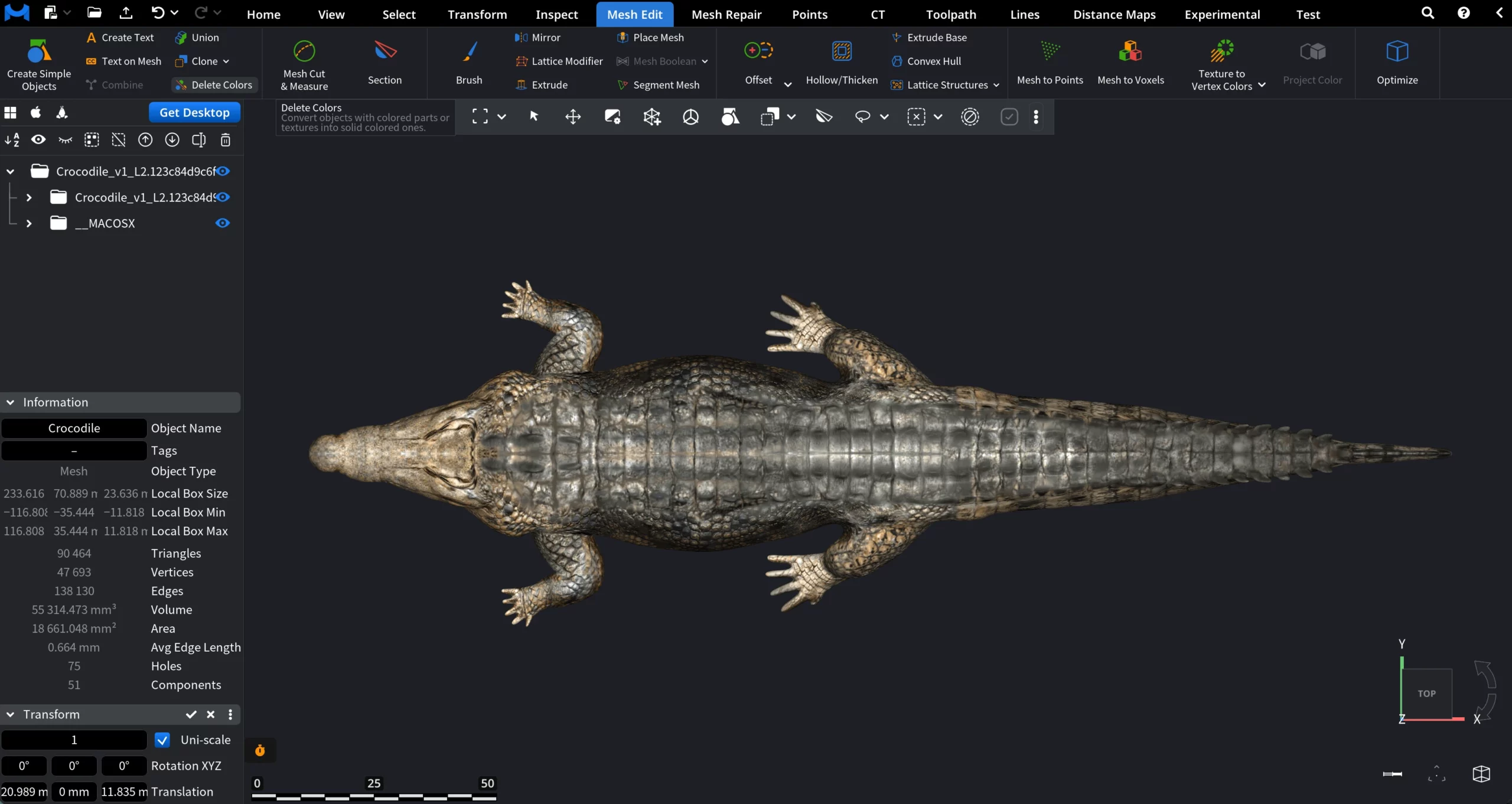
After applying Delete Colors, the object is displayed as a uniform single-color mesh, with only its geometric structure preserved.