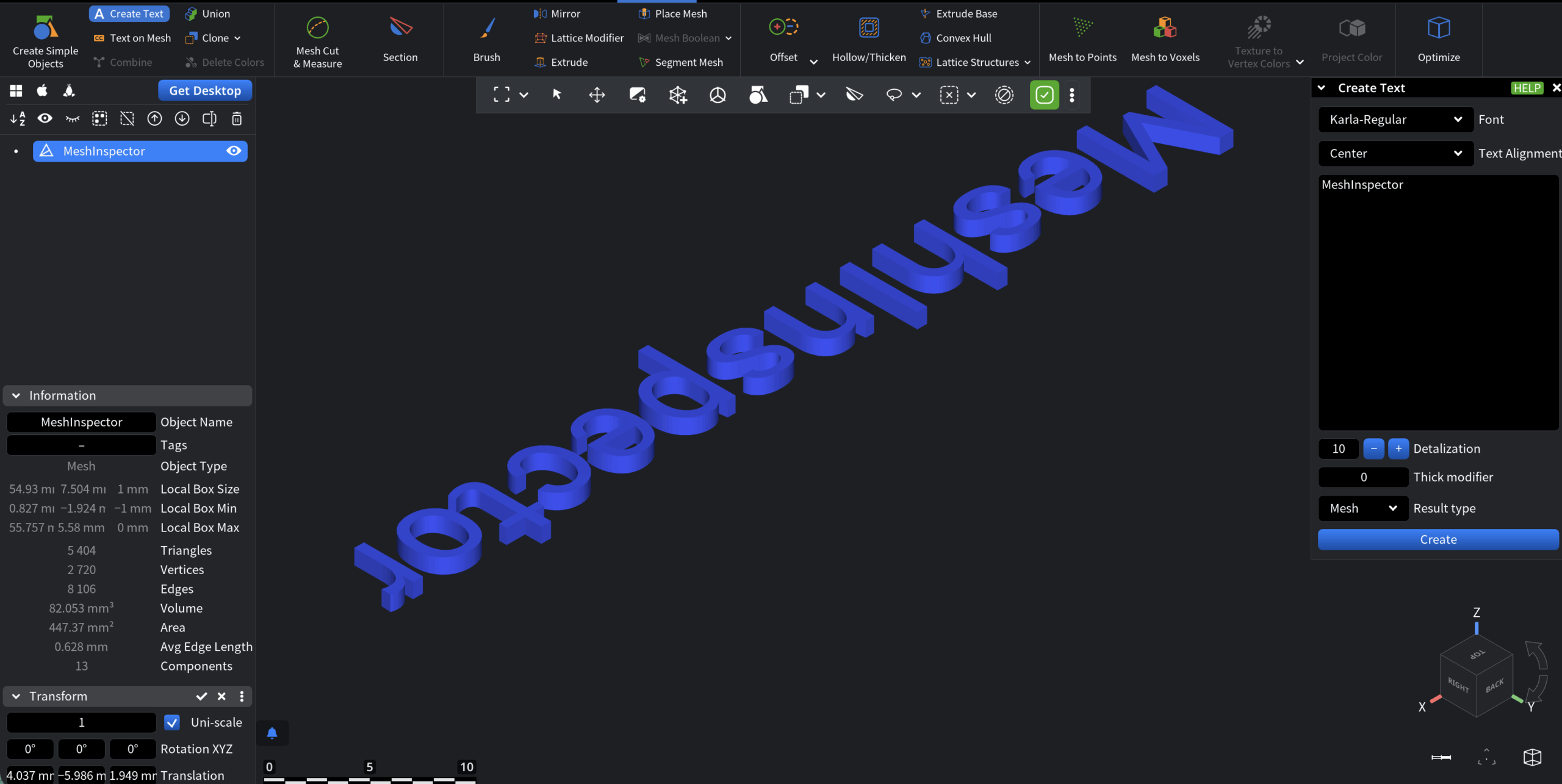
MeshInspector allows users to create text both as mesh geometry and as line-based geometry. This is useful when, for example, you want to create objects with company names, slogans, etc., for subsequent use. To activate the tool, go to Mesh Edit and click Create Text.

When Create Text is active, the dedicated panel provides you with a range of options.
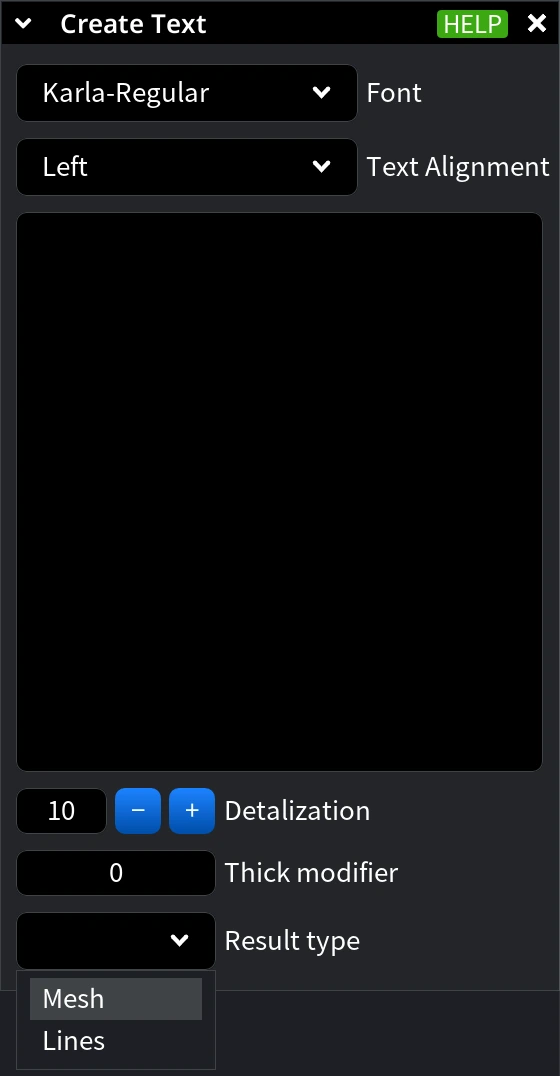
Font defines the font used to generate the text geometry. MeshInspector supports multiple built-in fonts, which differ in shape complexity and readability:
- Cuisine-Regular
- DroidSans
- Karla-Regular (Default)
- ProggyClean
- ProggyTiny
- Roboto-Medium
Text Alignment controls how the text is aligned relative to its anchor point:
- Left
- Center
- Right
This affects how the text is positioned when placed in the scene.
Text Field. Here, you enter the actual text content that will be generated.
Detalization controls the geometric resolution of the text outlines. Higher values result in smoother characters but increase the number of vertices and triangles.
Thick Modifier defines the thickness of the generated text. This parameter is applied in units of the base text height and is used to turn flat text into volumetric geometry.
Result Type determines how the text is created:
- Mesh generates solid 3D text geometry.
- Lines creates text as line-based geometry suitable for construction, measurement, or further processing.
Create finalizes the text and adds it to the scene as a separate object.
In this example, we create the following mesh-based text: MeshInspector.