
Hollow/Thicken converts any mesh into a closed mesh with two surfaces shifted in opposite directions from the original one. Use it to give an open surface, such as a scanned patch, a real thickness, or to hollow out a closed model by adding an inner wall.
The tool works directly on the vertices, without voxels: it makes a mirrored copy of the surface, moves the original along the normals by Outside Offset and the copy in the opposite direction by Inside Offset. If the mesh is open, the boundaries of the two surfaces are stitched together, so the result is closed.

How to use Hollow/Thicken
- Select one or more meshes in the Scene tree.
- Click Mesh Edit › Hollow/Thicken.
- Enter Outside Offset and Inside Offset and, if needed, change Normals Trust.
- Click Apply (or press Enter). The result replaces the mesh of the same object and the panel closes. To get the original back, use Undo (Ctrl+Z, or Cmd+Z on macOS).
| Parameter | What it does | Default |
|---|---|---|
| Outside Offset | The distance by which the surface moves in the direction of the normals. | 0 mm |
| Inside Offset | The distance by which the mirrored copy moves in the opposite direction to the normals. | 0 mm |
| Normals Trust | Controls how much the shift directions are smoothed, from 1% to 100%. Lower values smooth the directions more. Higher values move the vertices closer to their own normals, but make self-intersections more likely. | 10% |
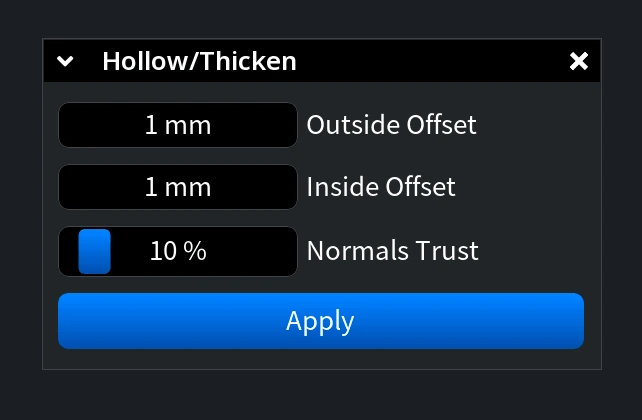
The thickness of the result is the sum of Outside Offset and Inside Offset.
Thicken an open surface
In this example, an open wavy surface was cloned first to keep the original as a reference (the copy is hidden for now). Then Hollow/Thicken was applied with an Outside Offset of 2 mm and an Inside Offset of 0.5 mm.
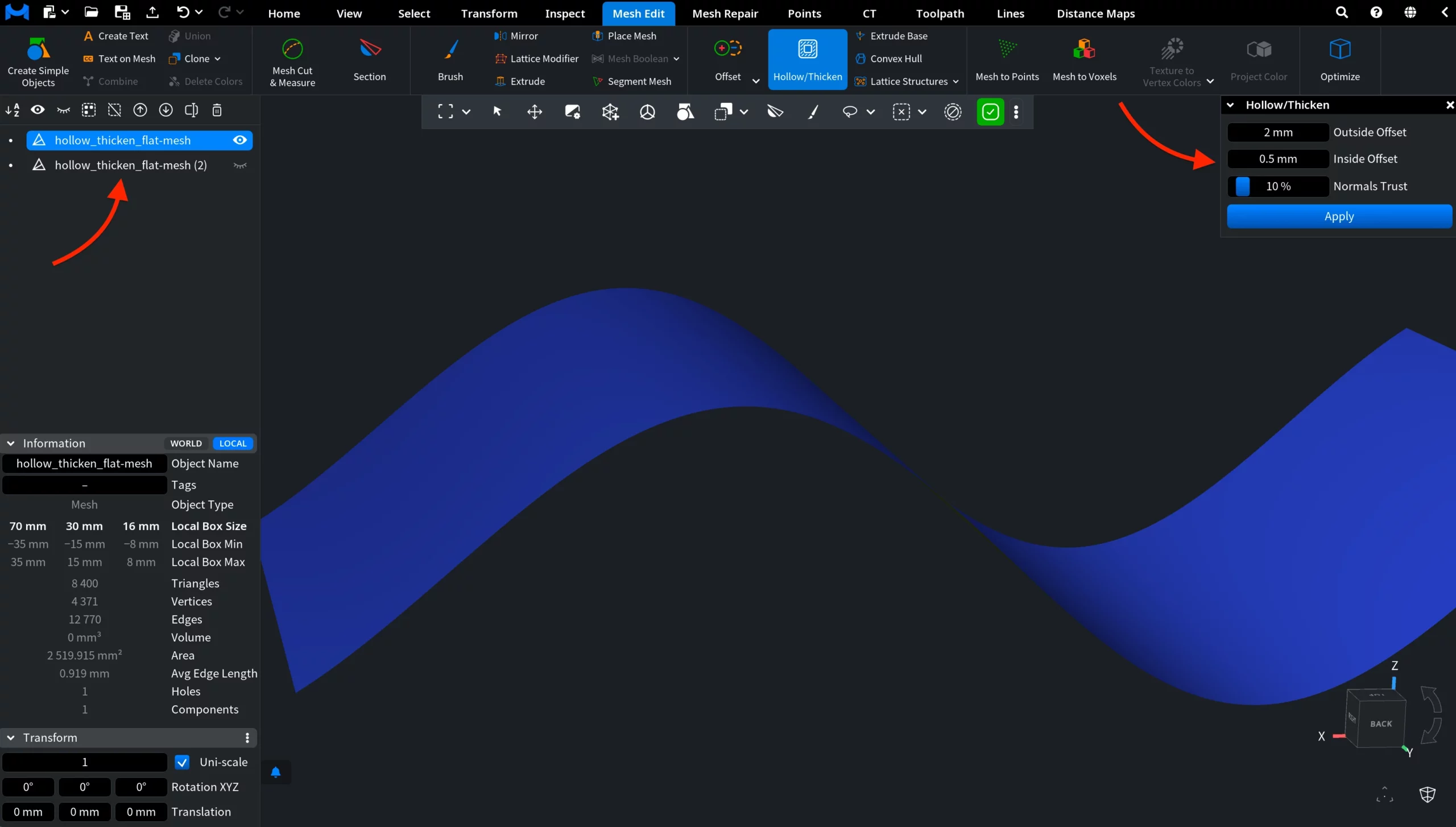
After Apply, the surface becomes a closed mesh: two offset surfaces connected along their boundaries. With the reference copy shown again, you can compare the result with the original.
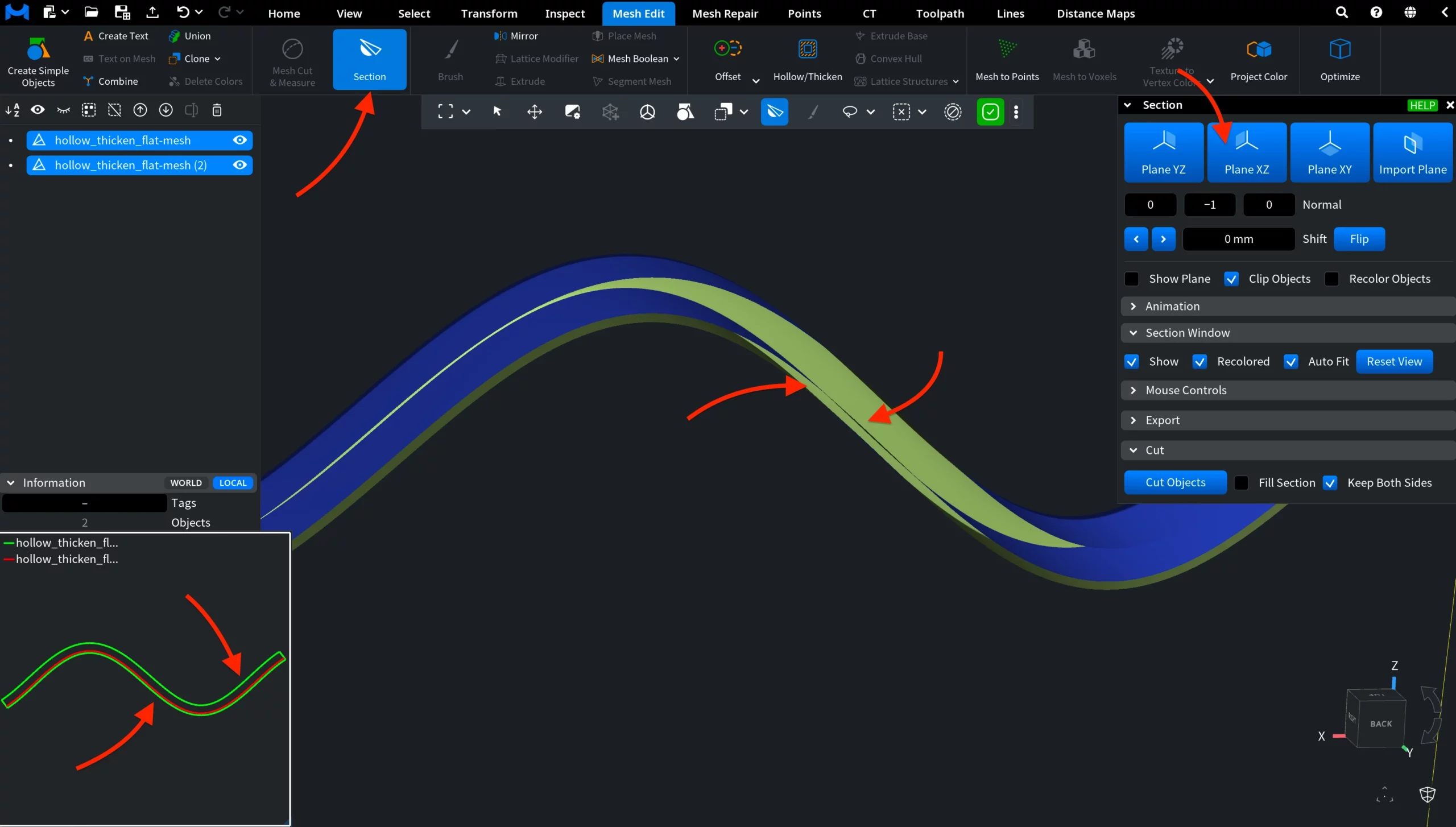
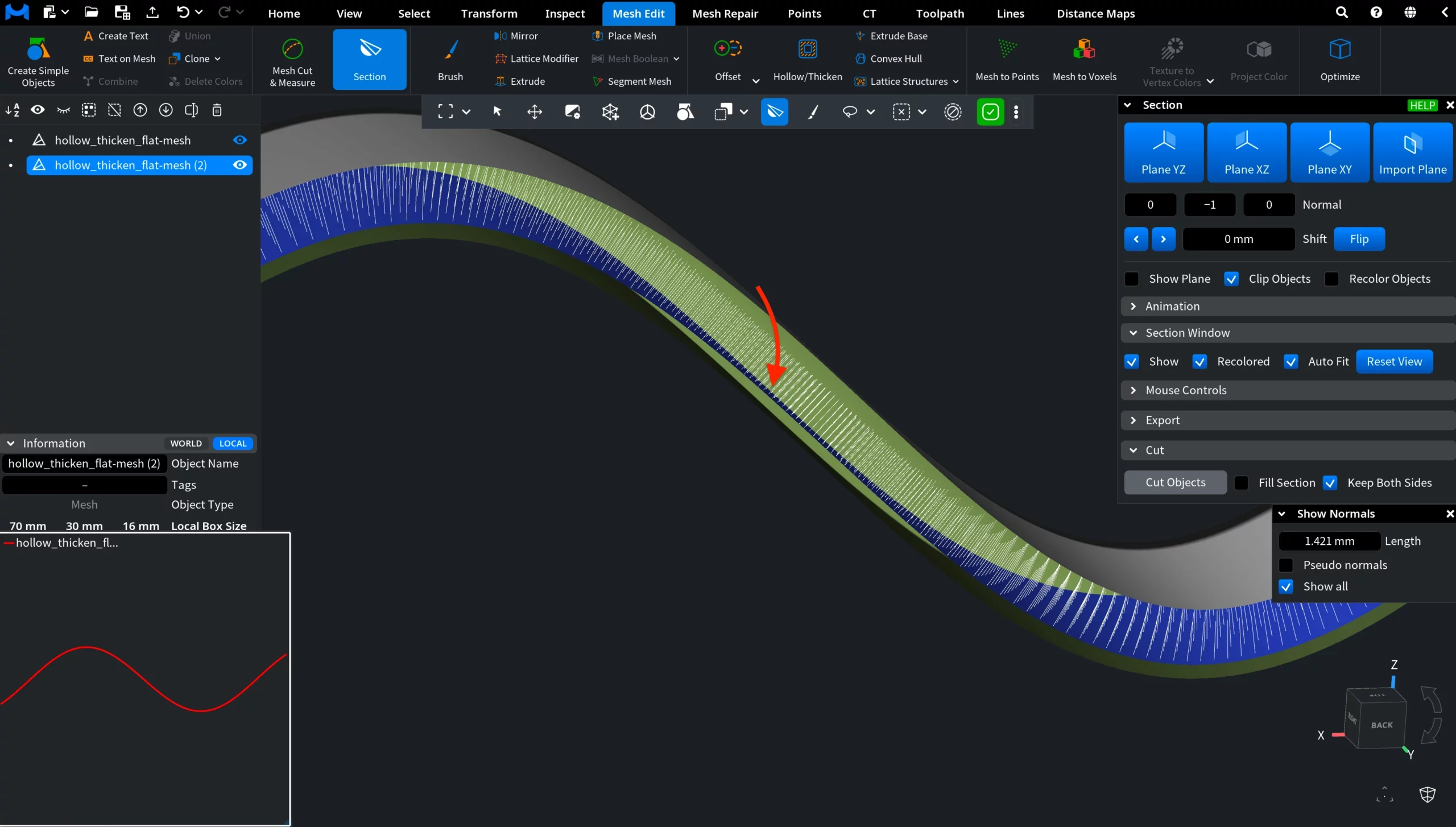
Mesh Edit › Section shows that the new mesh extends on both sides of the original surface: 2 mm in the direction of the normals and 0.5 mm in the opposite direction. Inspect › Show Normals on the reference copy shows which side is the outside.
Hollow out a closed model
On a closed mesh, the mirrored copy becomes a second, inner shell with the opposite orientation, so the model gets a cavity. Set Outside Offset to 0 to keep the outer surface in place, and set Inside Offset to the wall thickness you need.
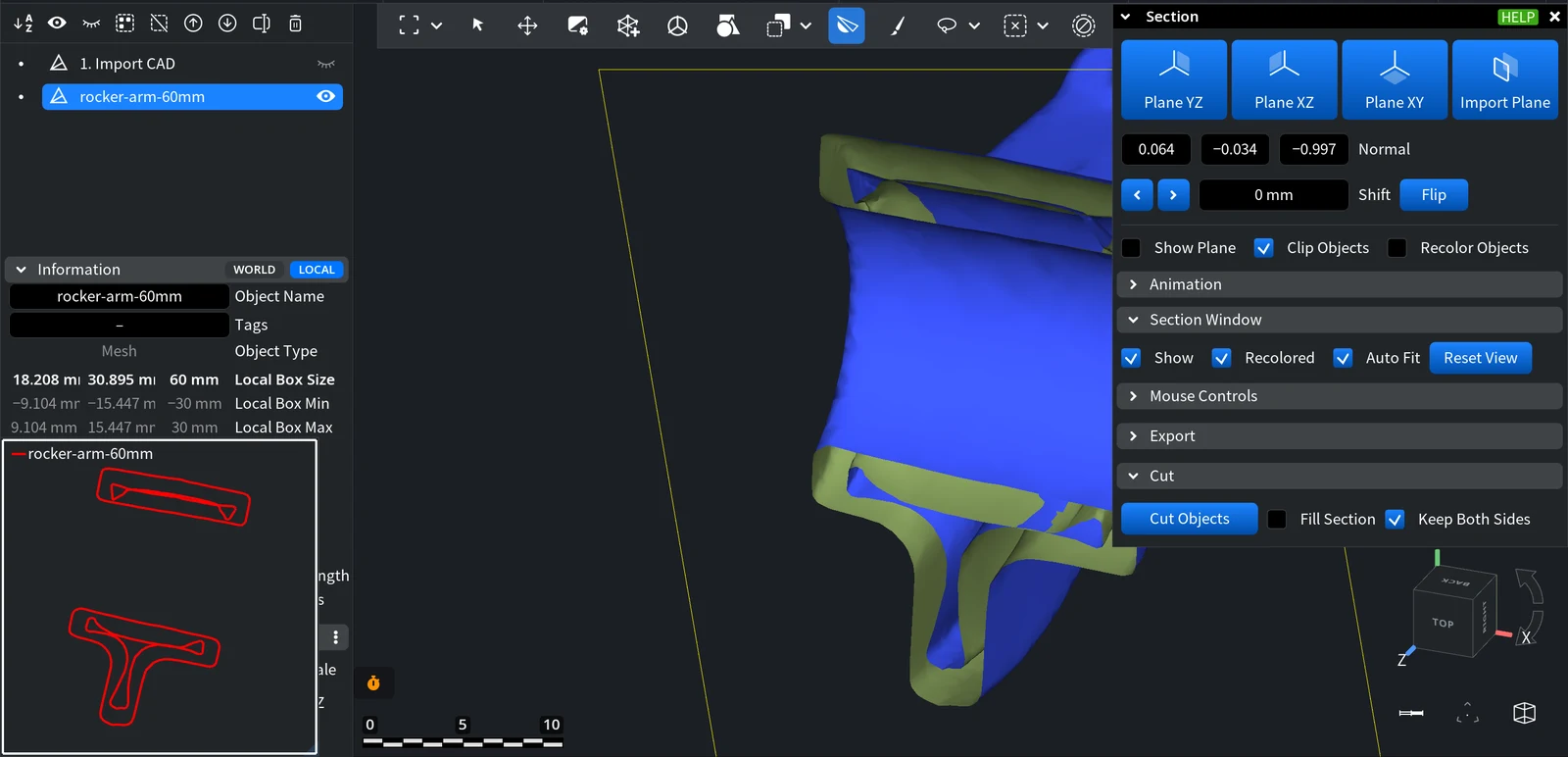
In this example, a rocker arm part 60 mm long was hollowed out with Outside Offset 0 mm and Inside Offset 2 mm. The section window shows two contours in each cut, the outer surface and the wall of the cavity, and the number of triangles doubled.
A hollow mesh with two shells is what the Inner filling mode of Lattice Structures needs: on this part, Lattice Structures opened with Filling Mode set to Inner.
The inner copy is shifted along the normals, so where the part is thinner than twice the Inside Offset, it can cross itself or the outer wall. Check the result before printing, for example with Section or Mesh Repair › Mesh Healer. In this example, the lattice preview stopped with the message Bad contour on 117 mesh B faces, probably mesh A has self-intersections on contours lying on these faces, a sign of such self-intersections.
Hollow/Thicken or Offset › Thickening
Mesh Edit › Offset in the Thickening mode also creates an object with two bounding surfaces: a positive Value adds a layer outside, a negative Value hollows the model. The two tools differ in how they build the new surface:
| Hollow/Thicken | Offset › Thickening | |
|---|---|---|
| How it works | Moves the vertices of the surface and its copy along the normals | Builds the new surface on a voxel grid |
| Triangles of the result | The original triangles twice | The original surface plus a new surface built from voxels; its detail depends on Resolution |
| Offset on both sides at once | Yes: Outside Offset and Inside Offset | No: one side per run |
| Self-intersections | Possible where the part is thinner than twice the offset | Less likely, because the new surface is rebuilt from voxels |
Use Hollow/Thicken for a quick result that keeps the original triangles, and Offset › Thickening when the model has thin parts or sharp concave areas where shifted vertices would collide.


