
Loads from YouTube (Google) when you press Play
Project Color copies the colors of one mesh onto another mesh of the same shape: vertex colors, a texture or triangle colors. A typical case is a colored scan and a copy of it without colors, for example a copy you repaired, remeshed or simplified. The two meshes may have different triangles; they only need to lie in the same place.

Project colors from one mesh to another
- Make sure the two meshes overlap in the scene, in the same global coordinates. If they do not, align them first, for example with Align Manually.
- Select exactly two meshes in the Scene tree. With any other selection the button is unavailable, and its tooltip says Select exactly two Meshes.
- Click Mesh Edit › Project Color. The Project Color panel opens.
- Check the names: Origin (in red) is the mesh that gives the colors, Target (in blue) is the mesh that receives them. If they are the wrong way round, click Swap.
- Click Apply.
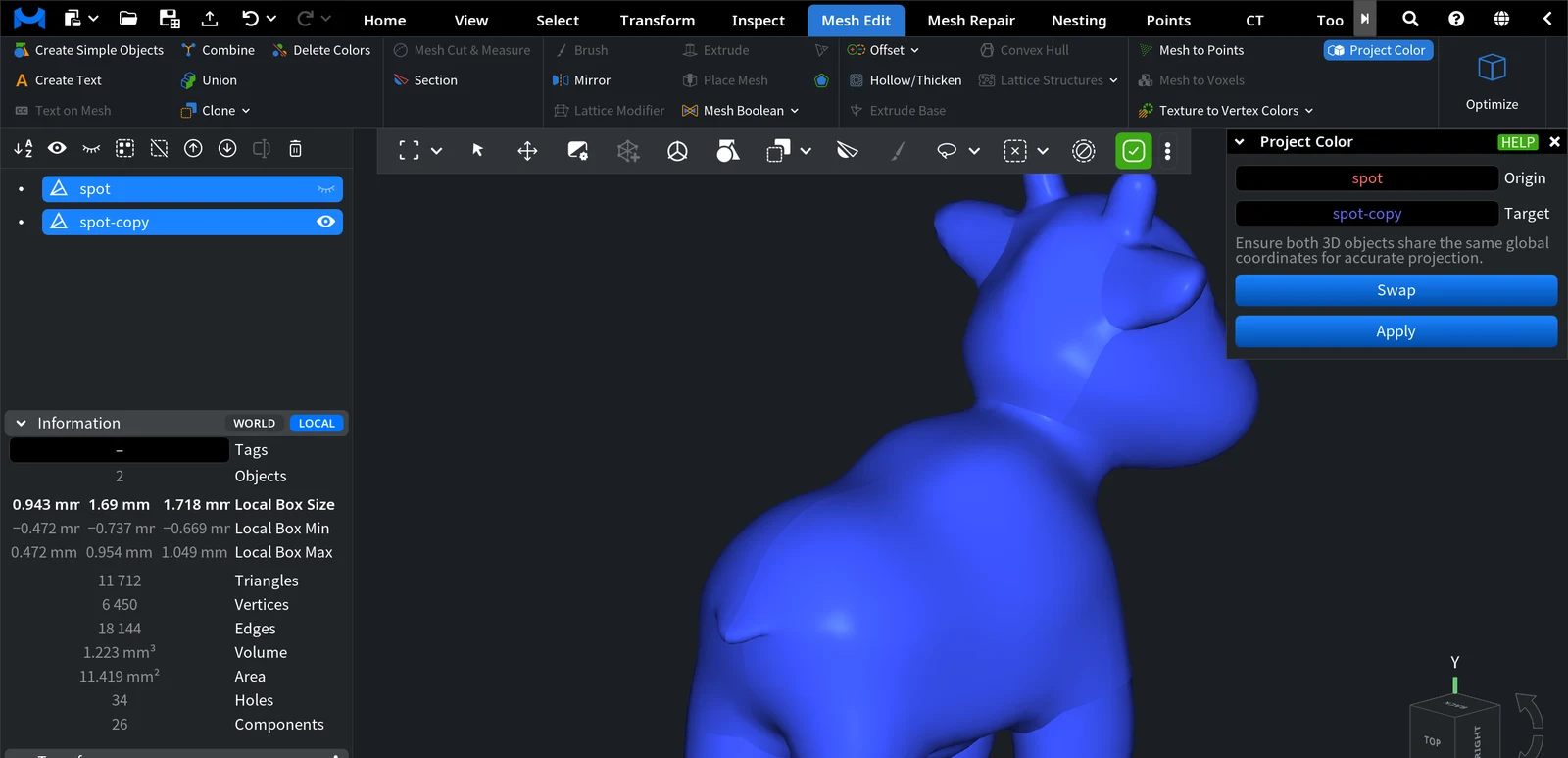
The panel reminds you: Ensure both 3D objects share the same global coordinates for accurate projection. The vertices and triangles of the Target are projected onto the Origin and take the colors found there, so a shift between the meshes shifts the colors.
Apply is unavailable when the Origin has no colors: no texture, no vertex colors and no triangle colors.
The result
The Target gets the colors of the Origin in the same form: a texture stays a texture, vertex colors stay vertex colors. The geometry of the Target does not change, and the Origin stays as it was. Both meshes remain in the scene; hide the Origin to see the result.
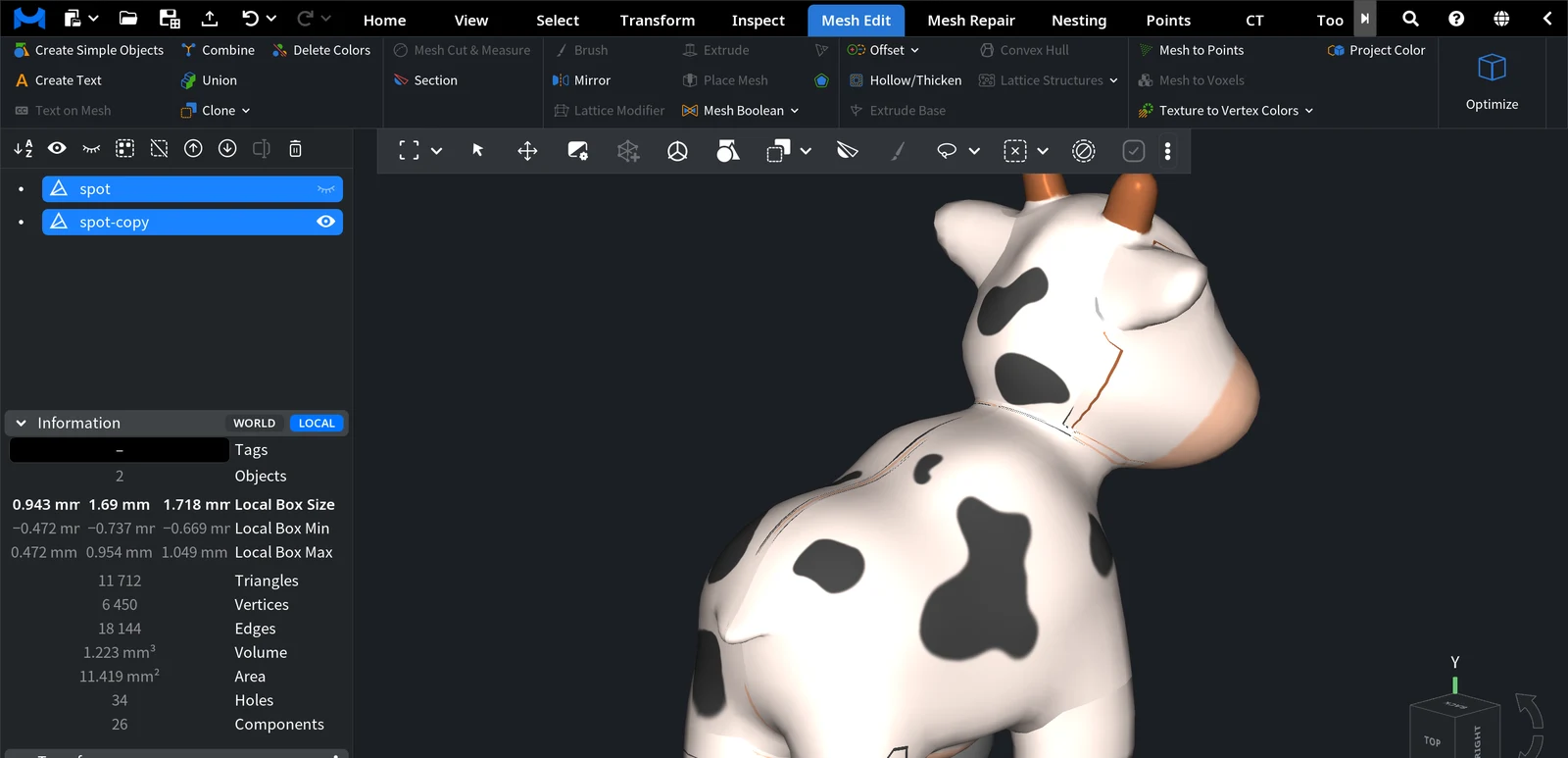
To undo the projection, use Undo (Ctrl+Z, or Cmd+Z on macOS). To turn the projected texture into vertex colors, use Texture to Vertex Colors; to remove colors from a mesh, use Delete Colors.


