
Loads from YouTube (Google) when you press Play
Mesh to Voxels turns a mesh into a voxel volume: a 3D grid in which every voxel stores its distance to the surface of the mesh. Use it when you want to process the model with voxel tools, the same tools that work with CT data: change the iso-surface with Change ISO, combine volumes with Binary Operations, or look at the values in slices.
Convert a mesh to voxels
- Select exactly one mesh in the Scene tree.
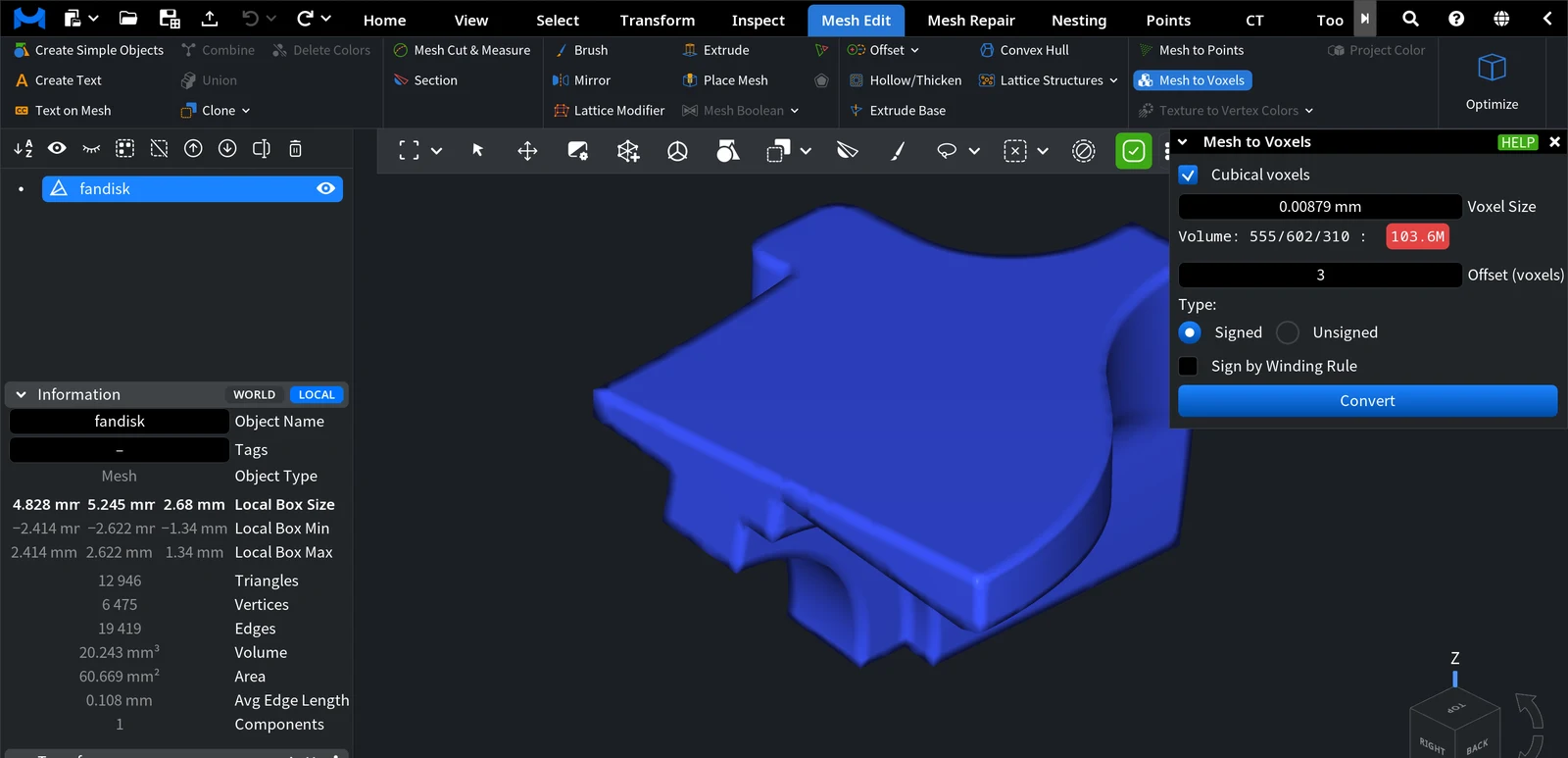
- Click Mesh Edit › Mesh to Voxels. The Mesh to Voxels panel opens.
- Set the Voxel Size and check the Volume line under it (see below).
- Choose the Type and click Convert.
| Parameter | What it does | Default / tip |
|---|---|---|
| Cubical voxels | Each voxel has the same width, height and depth. Turn it off to set three sizes, one per axis. | On |
| Voxel Size | The size of each voxel. The smaller the size, the more detail and the bigger the volume. | About 100 million voxels in the box of the model (see below) |
| Volume | Not a setting: the size of the grid in voxels along X, Y and Z, and the total number of voxels. | Green below 10 million, orange from 10 million, red from 100 million |
| Offset (voxels) | Voxels not farther than this number of voxels from the mesh get exact distances; voxels farther away get plus or minus this value. | 3 |
| Type: Signed | Distances are negative inside the mesh and positive outside. | Default for a closed mesh |
| Type: Unsigned | Distances are absolute values, without inside or outside. | Default for a mesh with holes |
| Sign by Winding Rule | Shown with Signed. Decides inside and outside by the generalized winding rule, which also works for a mesh with holes. | Off; always on if the mesh has holes |
For a mesh with holes (an open mesh), the panel selects Unsigned. If you choose Signed for such a mesh, Sign by Winding Rule is always on and cannot be turned off.
Choose the voxel size
The default Voxel Size gives fine detail but a heavy volume: on the 4.8 mm CAD part above it is 0.00879 mm, and the Volume line shows a grid of 555 × 602 × 310 voxels, 103.6 million in total, in red. A volume of this size takes a lot of memory and time. Increase the Voxel Size until the indicator is green or orange, and keep it smaller than the smallest detail you need.
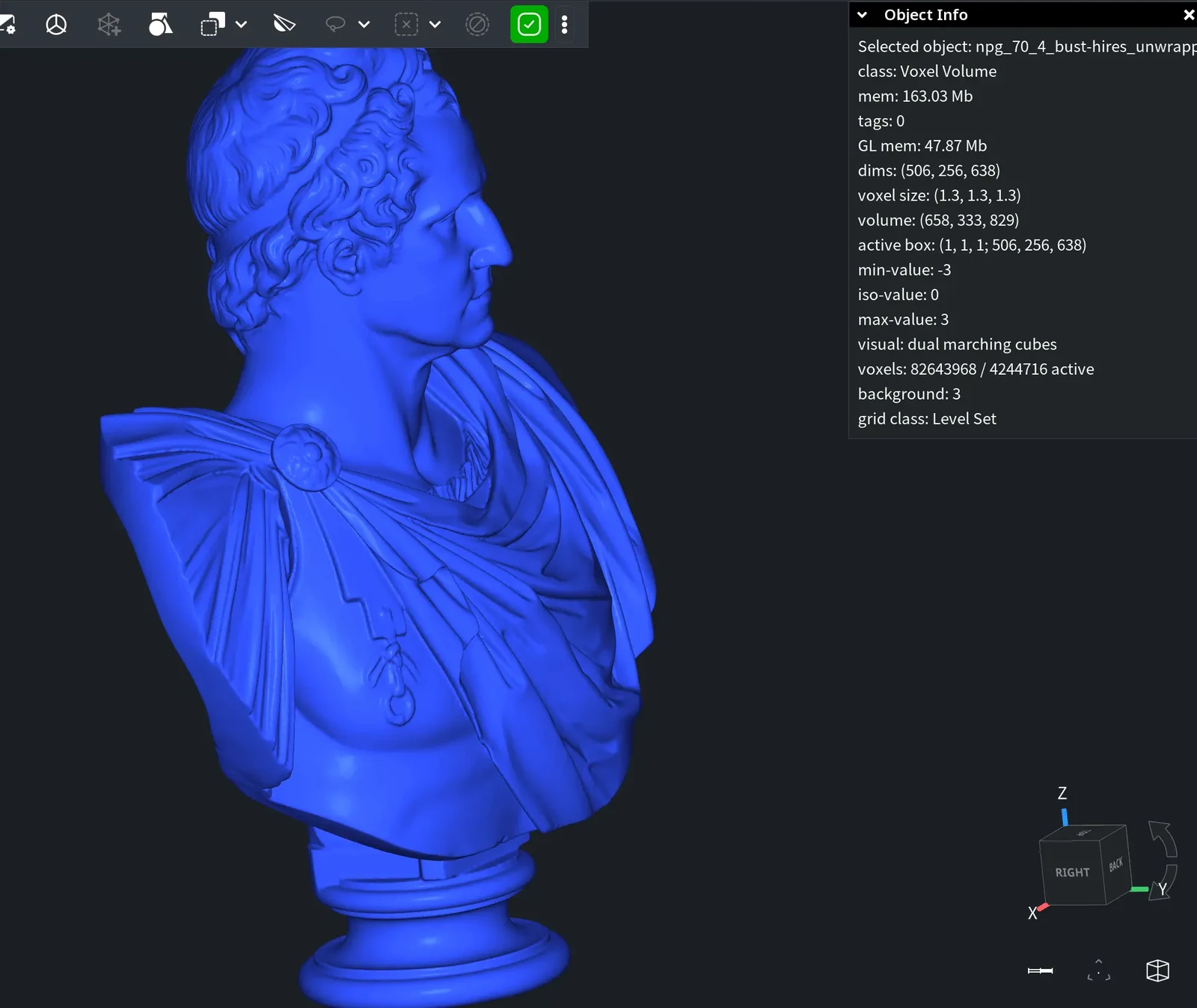
The voxel size is the resolution of the result. With 1.3 mm voxels, a large bust keeps its folds and fine shapes:
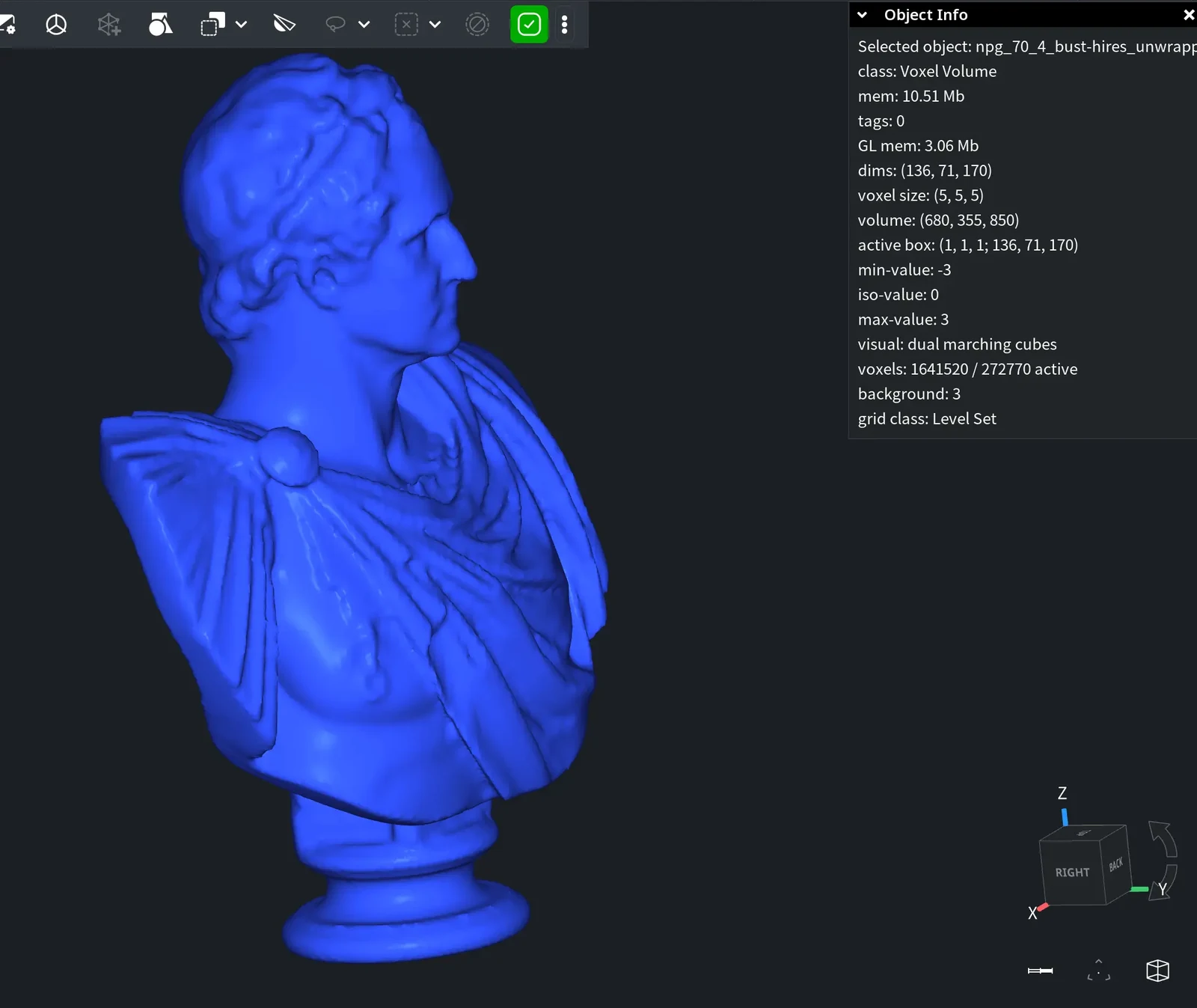
With 5 mm voxels, the same bust becomes much lighter, but small folds and sharp transitions are smoothed out:
What you get
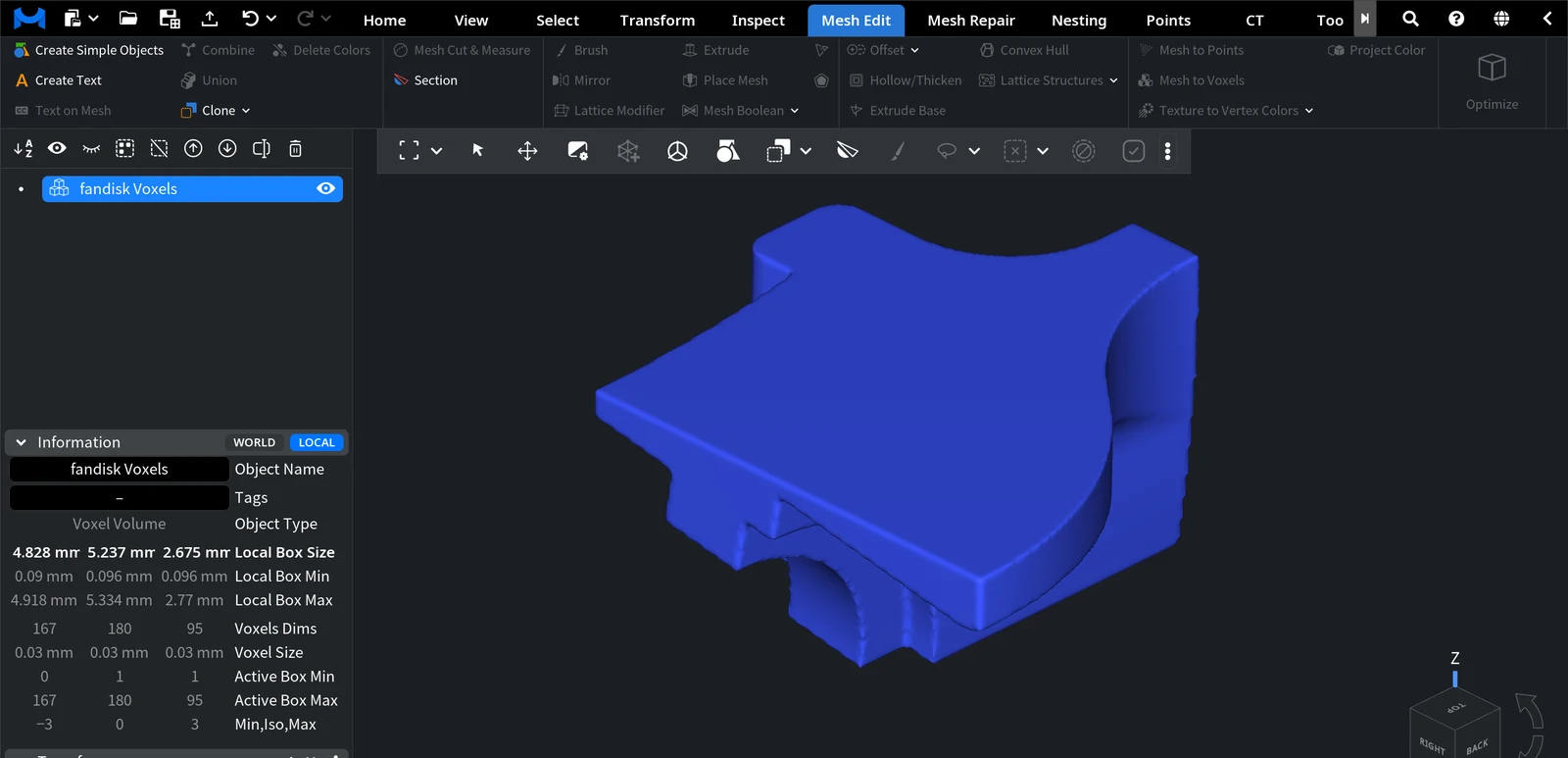
The mesh is replaced by a voxel volume named after it plus Voxels (for example, fandisk Voxels), and the panel closes. MeshInspector shows the volume as its iso-surface: at the value 0 for Signed, at half of the Offset for Unsigned. The Information panel shows the grid size in Voxels Dims and the Voxel Size. To get the mesh back, use Undo (Ctrl+Z, or Cmd+Z on macOS); to keep it as well, make a copy with Clone first.
Most tools of the Mesh Edit tab work only with meshes; the voxel tools are on the CT tab. To set which iso-surface the volume shows, use Change ISO. To get a mesh back from the volume, for example after voxel operations, see How to convert voxel to mesh.


