
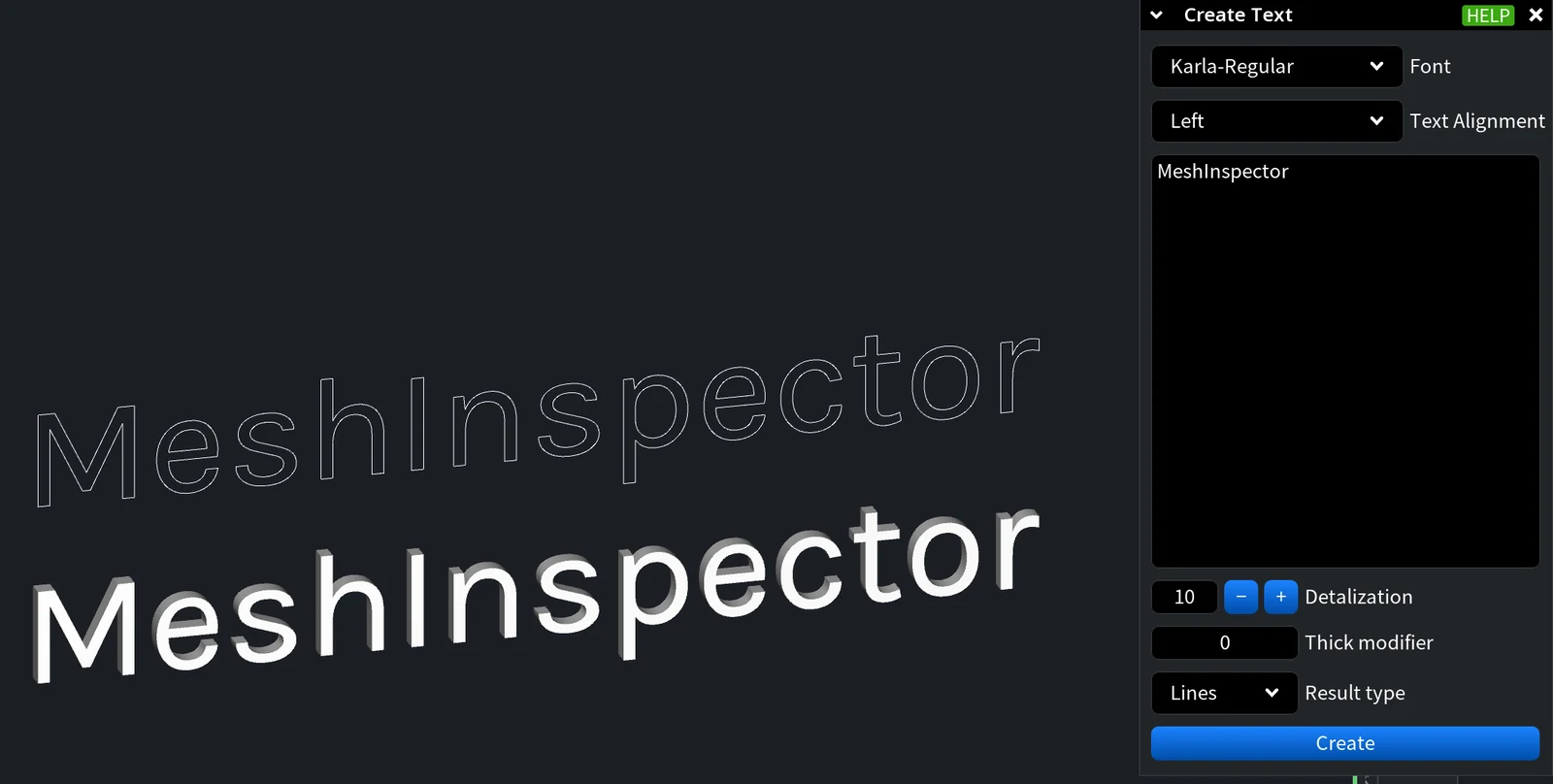
Create Text turns a line or several lines of text into a new object: a solid 3D mesh or outline lines. Use it for labels, serial numbers or a company name that you then place on a part, or as a separate object for printing.
To put text straight onto the surface of an existing mesh, use Text on Mesh instead.
You find the tool in Mesh Edit › Create Text.

Create Text Step by Step
- Go to Mesh Edit › Create Text. The Create Text panel opens.
- Choose the Font and the Text Alignment.
- Type the text in the large field. The text can have several lines.
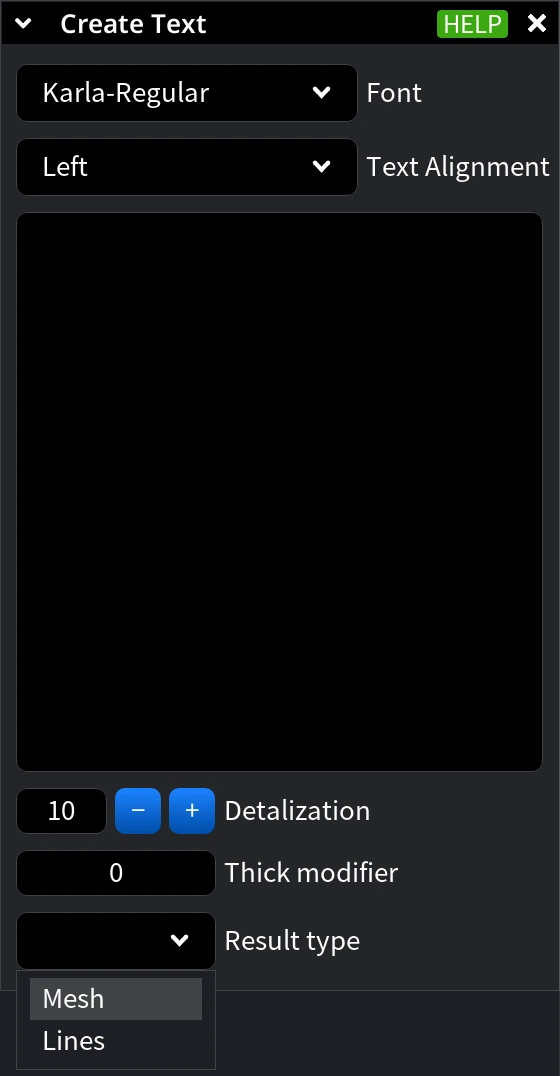
- Set Detalization, Thick modifier and Result type (see the table below).
- Click Create. The button appears as soon as the field contains text.
The new object appears in the Scene tree under the name of the text, and the panel stays open, so you can create the next text right away.
Panel Settings
| Setting | What it does | Default |
|---|---|---|
| Font | One of six built-in fonts: Cousine-Regular, DroidSans, Karla-Regular, ProggyClean, ProggyTiny, Roboto-Medium. | Karla-Regular |
| Text Alignment | Left, Center or Right: how the lines of a multi-line text line up with each other. | Left |
| Text field | The text to create. It can have several lines. | Empty |
| Detalization | How finely the curves of the letters are approximated, from 2 to 15. Higher values give smoother letters and more triangles. | 10 |
| Thick modifier | Changes the stroke thickness of the letters, in units of the base text height. 0 keeps the strokes of the font as they are. Non-zero values take longer to compute. | 0 |
| Result type | Mesh creates a closed solid mesh of the letters. Lines creates the outlines of the letters as a lines object. | Mesh |
Size and Position of the Result
The text is created at the origin of the scene, flat in the XY plane and facing +Z. A mesh text is a closed solid 1 scene unit thick. For example, the word MeshInspector in Karla-Regular with the default settings is about 55 units long, 7.5 units high (with the tail of the letter p) and 1 unit thick.
To fit the text to your part:
- Scale it to the size you need with Transform Object.
- Put it on the surface with Place Mesh.
- Join it with the part, or cut it into the part, with Mesh Boolean.


