

Loads from YouTube (Google) when you press Play
A Boolean operation builds a new mesh from two meshes: their union, their common part, or one minus the other. Use it to cut a hole or a pocket in a part, join a connector to a model, or keep only the part of a model that lies inside a box.
Mesh Boolean or Voxel Boolean
MeshInspector has two Boolean tools on the Mesh Edit tab. Mesh Boolean is a button; Voxel Boolean is in its drop-down list (click the arrow next to Mesh Boolean). Both work with exactly two selected meshes.
| Mesh Boolean | Voxel Boolean | |
|---|---|---|
| How it works | Cuts the two surfaces along their intersection lines and keeps the original triangles where possible | Converts both meshes to voxels, combines the volumes, and builds a new mesh |
| Accuracy | Exact: sharp edges and flat faces stay as they were | Within about one voxel: sharp edges become slightly rounded |
| Input meshes | Two meshes, preferably closed; self-intersections on the cut lines block the operation | Both meshes must be closed (have no holes) |
| Operations | Union, Intersection, Difference A-B and B-A, and four Inside/Outside variants | Union, Intersection, Difference A-B |
| Use it for | CAD parts and clean models | Scans and models with self-intersections that Mesh Boolean cannot cut |
Start with Mesh Boolean. If it reports bad contours, repair the meshes first (see When Mesh Boolean fails) or switch to Voxel Boolean.
Which operation do I need
In the Mesh Boolean panel, one selected mesh is Object A (red) and the other is Object B (blue). The panel shows each operation as a row with one or two buttons:
| Row | Button | Result | Example |
|---|---|---|---|
| Union | A ∪ B | One closed mesh covering both volumes | Join a connector or a base to a part |
| Intersection | A ∩ B | Only the volume that A and B share | Keep the part of a model that lies inside a box |
| Difference | A - B | A with the volume of B removed | Cut a hole with a cylinder, a slot with a box |
| Difference | B - A | B with the volume of A removed | Make a cavity of a part's shape in a block |
| Inside | ∈ A / ∈ B | The surface of A that lies inside B (or of B inside A), as an open piece | Get the cut-out patch of a surface |
| Outside | ∉ A / ∉ B | The surface of A that lies outside B (or of B outside A), as an open piece | Trim a surface by a closed body |
Union, Intersection and Difference give a closed mesh when both inputs are closed. Inside and Outside return only a piece of one surface, so the result has an open boundary along the cut.
To unite more than two meshes in one step, use Mesh Edit › Union; to put objects into one object without changing their geometry, use Combine. Both are explained in Combine and Union.
Getting Started with Boolean Operations
- Open or create the two meshes. A tool body such as a cylinder, a box or a sphere is quickest to make with Create Simple Objects.
- Place the tool body where it must cut or join the part, for example with Transform Object.
- Select both meshes in the Scene tree: click the first one, then Ctrl+click (Cmd+click on macOS) the second one. Shift+click selects a range of objects.
- Click Mesh Edit › Mesh Boolean, or the arrow next to it and then Voxel Boolean.
Object A is the selected object that is higher in the Scene tree, not the one you clicked first. In Mesh Boolean the order hardly matters, because both directions have buttons (A - B and B - A, ∈ A and ∈ B). Voxel Boolean subtracts only A - B, so it has a Swap button.
Using Mesh Boolean Operations
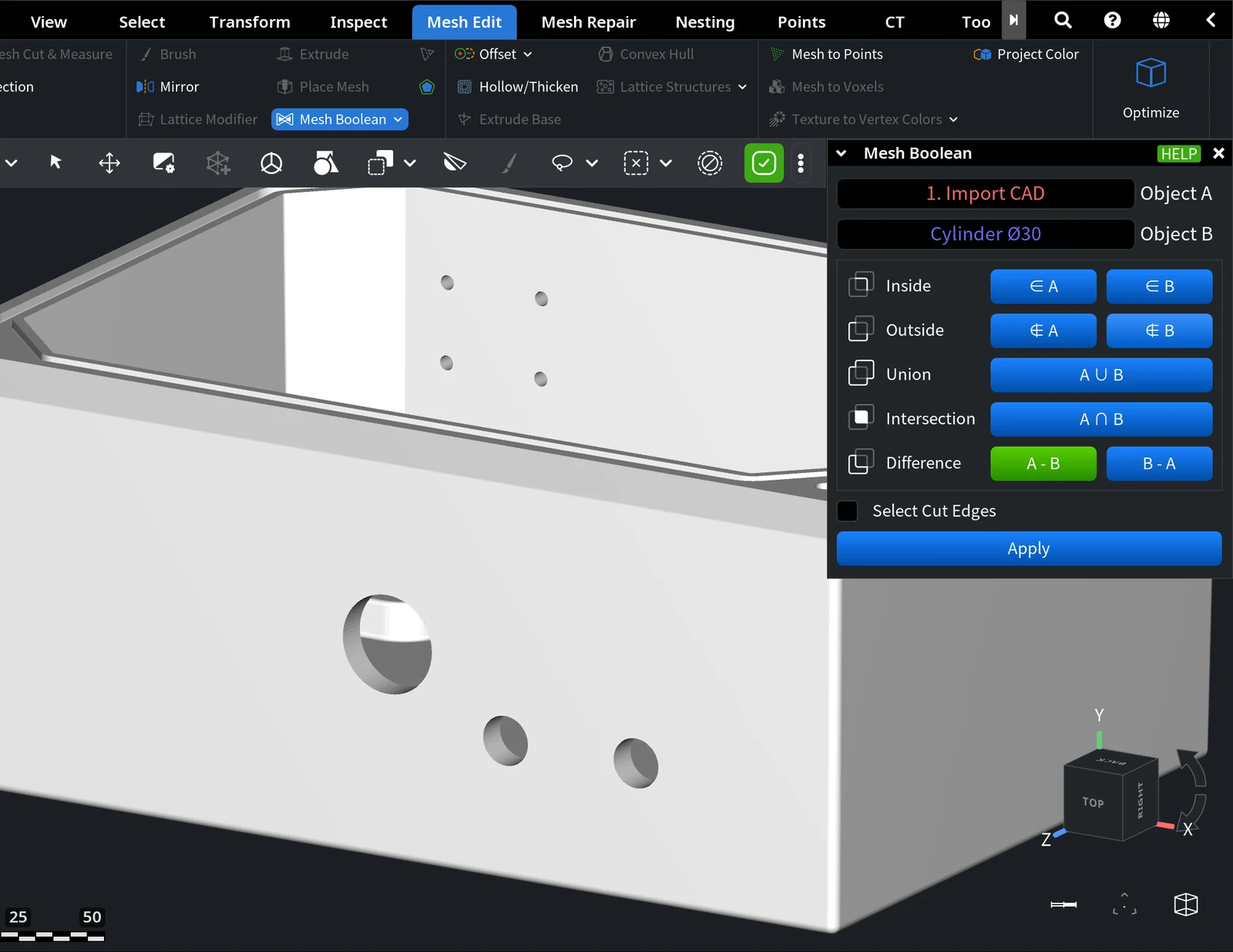
When the panel opens, MeshInspector computes where the two meshes intersect and colors Object A red and Object B blue.
- Click the button of the operation you need. The result appears in the viewport as a preview, and the two input meshes are hidden. Click another button to compare results.
- Optionally, turn on Select Cut Edges: it selects the edges of the result that lie along the cut with the other mesh. It is off by default.
- Click Apply. The button stays inactive until you pick an operation.
After Apply, the panel closes and the result is added to the Scene tree as a new selected object. Its name shows the operation, for example 1. Import CAD - Cylinder Ø30 for A - B. The input meshes stay in the scene, hidden and unselected, so you can show them again or delete them. If you close the panel without Apply, nothing changes.
When Mesh Boolean fails
Mesh Boolean needs clean intersection lines. If a mesh has self-intersections where the two surfaces cross, the panel shows an error such as "Bad contour on … faces from mesh A, probably mesh B has self-intersections on contours lying on these faces", and the buttons of the operations that need that mesh become inactive. If neither mesh can be cut, the panel closes.
What to do:
- Find and fix the self-intersections with Mesh Healer, then run Mesh Boolean again.
- Or use Voxel Boolean, which does not depend on the triangles of the input meshes.
Holes are a quieter problem. For Union, Intersection and Difference, both meshes should be closed: a mesh with holes can give a wrong result without any error. Sometimes MeshInspector shows the warning "Some contours are not closed", but not always. Close the holes with Mesh Healer first, and check the preview before you click Apply.
Voxel Boolean
Voxel Boolean converts both meshes into voxel volumes, unites, intersects or subtracts the volumes, and converts the result back into a mesh. It handles self-intersecting and overlapping geometry, but the new mesh only approximates the original surfaces, and the work takes longer than Mesh Boolean.
Both meshes must be closed. If one of them has holes, the Voxel Boolean button is inactive and its tooltip says "Both meshes must be closed (have no holes)". Close the holes first, for example with Mesh Healer.
| Parameter | What it does | Default and tips |
|---|---|---|
| Object A, Object B | The two selected meshes (A red, B blue) | Swap exchanges them, so A - B subtracts the other way |
| Voxel Size | Size of one voxel: the precision of the result | Set from the size of the larger mesh. For the 311 mm housing below it starts at 0.124 mm, the smallest value the field allows. A smaller voxel keeps more detail but takes longer and gives more triangles |
| Leave only largest | Keeps only the largest piece of the result and deletes the small ones | Off |
| Union A ∪ B, Intersection A ∩ B, Difference A - B | Run the operation | There is no preview: the result is added at once |
The result is added to the Scene tree as a new object named Union, Intersection or Difference. The input meshes stay visible and selected, and the panel stays open, so you can try another voxel size or operation. Hide the inputs to see the result.
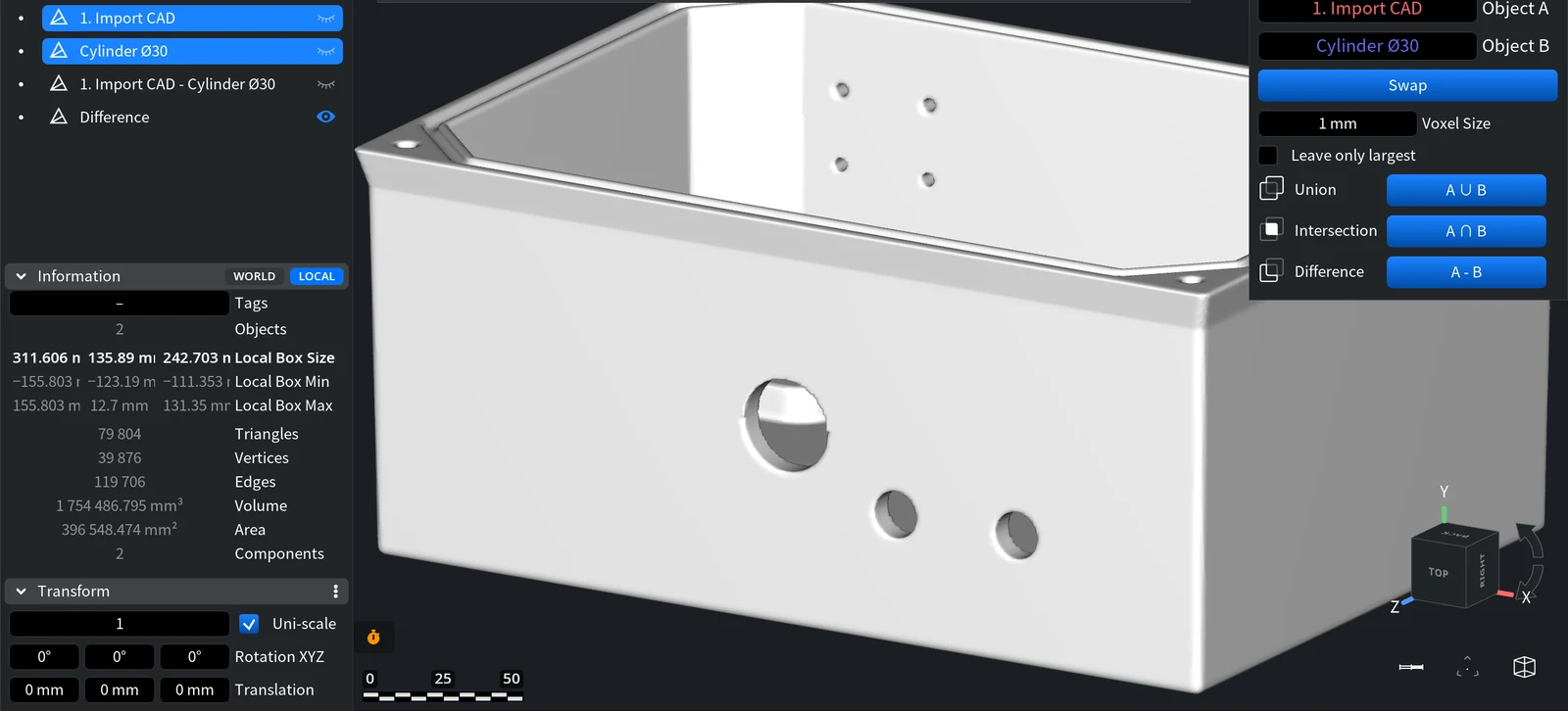
Compare the edges with the Mesh Boolean result in the example below: with a 1 mm voxel the hole and the outer edges are slightly rounded. For a CAD part, prefer Mesh Boolean; use Voxel Boolean when the meshes are too messy to cut exactly.
Example: cut a hole in a part
This example cuts a round hole with a diameter of 30 mm through the front wall of a CAD housing (1. Import CAD.stl, 311 × 136 × 223 mm).
-
Open the housing. Click Mesh Edit › Create Simple Objects, choose Use Parameters and Cylinder. Set Diameter 0 and Diameter 1 to 30 mm and Length to 40 mm, and set Center to a point on the wall (here x = 0 mm, y = −55 mm, z = 111.35 mm). Turn on Show Preview to check the position, then click Create. The cylinder axis is the Z axis, so it crosses the front wall of this housing.
-
In the Scene tree, select the housing and the cylinder. The housing is higher in the tree, so it becomes Object A.
-
Click Mesh Edit › Mesh Boolean, then A - B in the Difference row. The preview shows the housing with the hole.
-
Click Apply. The new object
1. Import CAD - Cylinder Ø30is a single closed mesh with the hole; the housing and the cylinder are hidden in the Scene tree.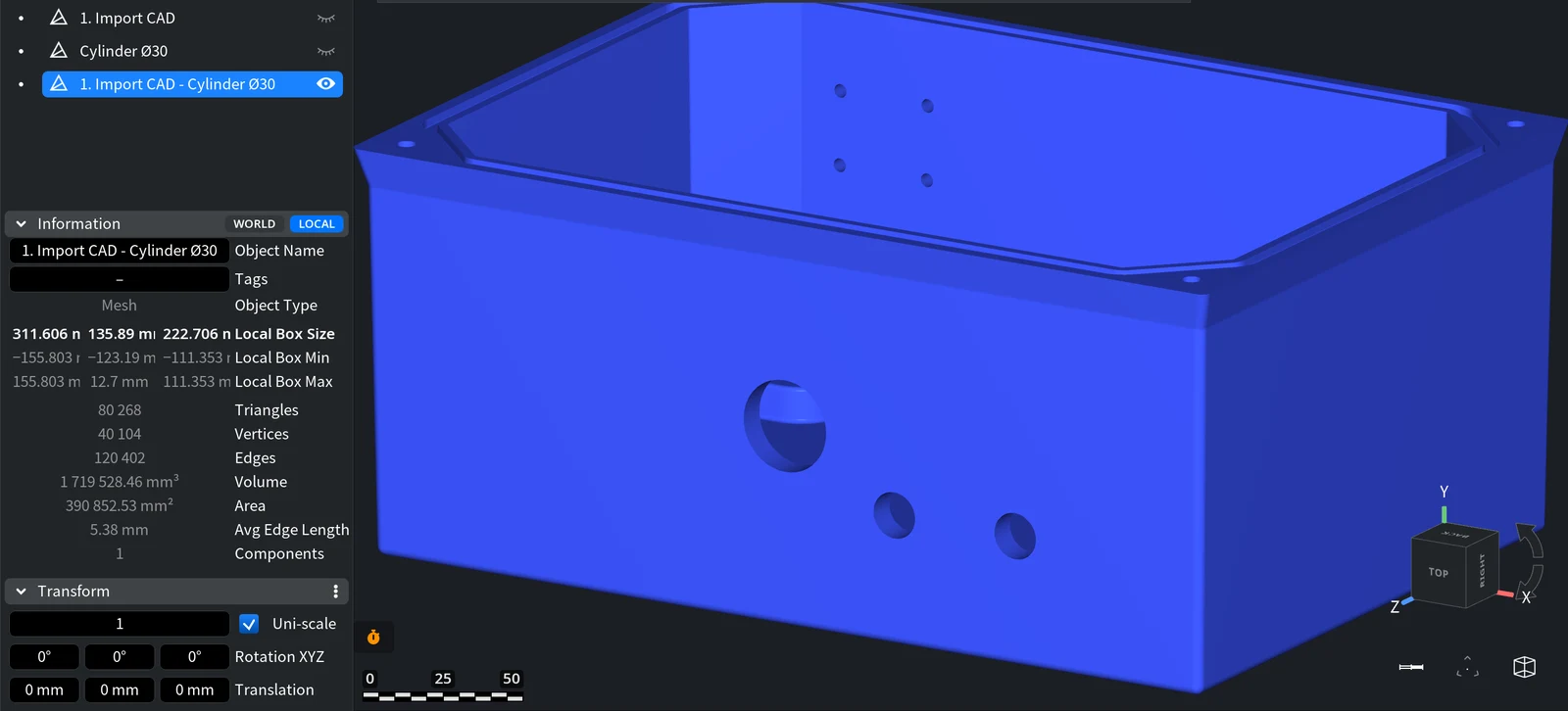
To check the result, cut the part with Mesh Edit › Section or look at the Information panel: the result has one component. To add a boss or a connector instead of a hole, place the second body so it overlaps the part and use A ∪ B. To place ready-made connectors on a surface, see Place Mesh.
Conclusion
- Select exactly two meshes, then use Mesh Edit › Mesh Boolean for an exact result or Voxel Boolean for meshes with self-intersections.
- A ∪ B joins, A ∩ B keeps the common volume, A - B and B - A subtract; Inside and Outside return a piece of one surface.
- Mesh Boolean shows a preview and adds the result with Apply, hiding the inputs. Voxel Boolean needs closed meshes and adds the result at once, keeping the inputs visible.
If you have questions, write to support@meshinspector.com.


