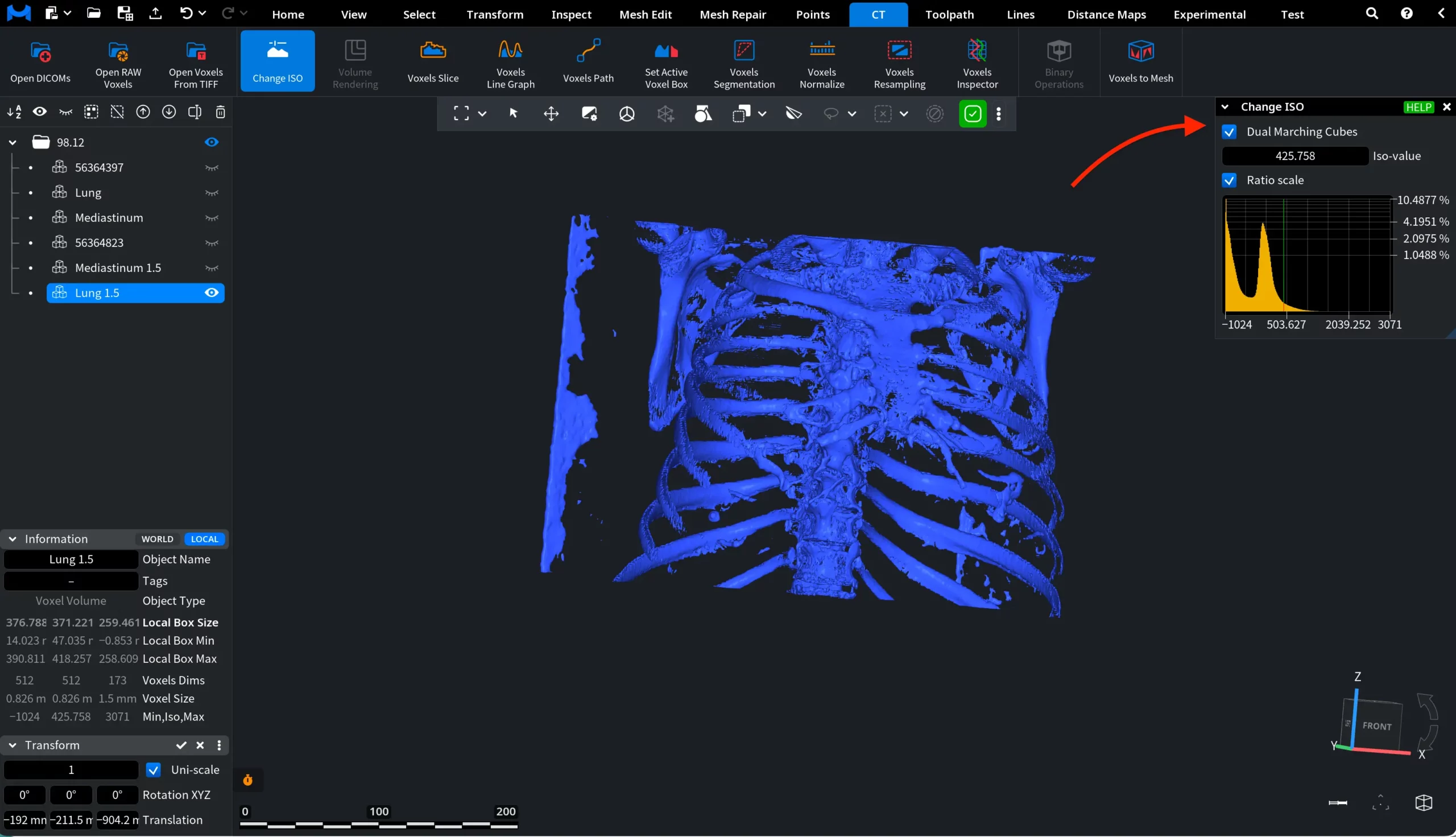
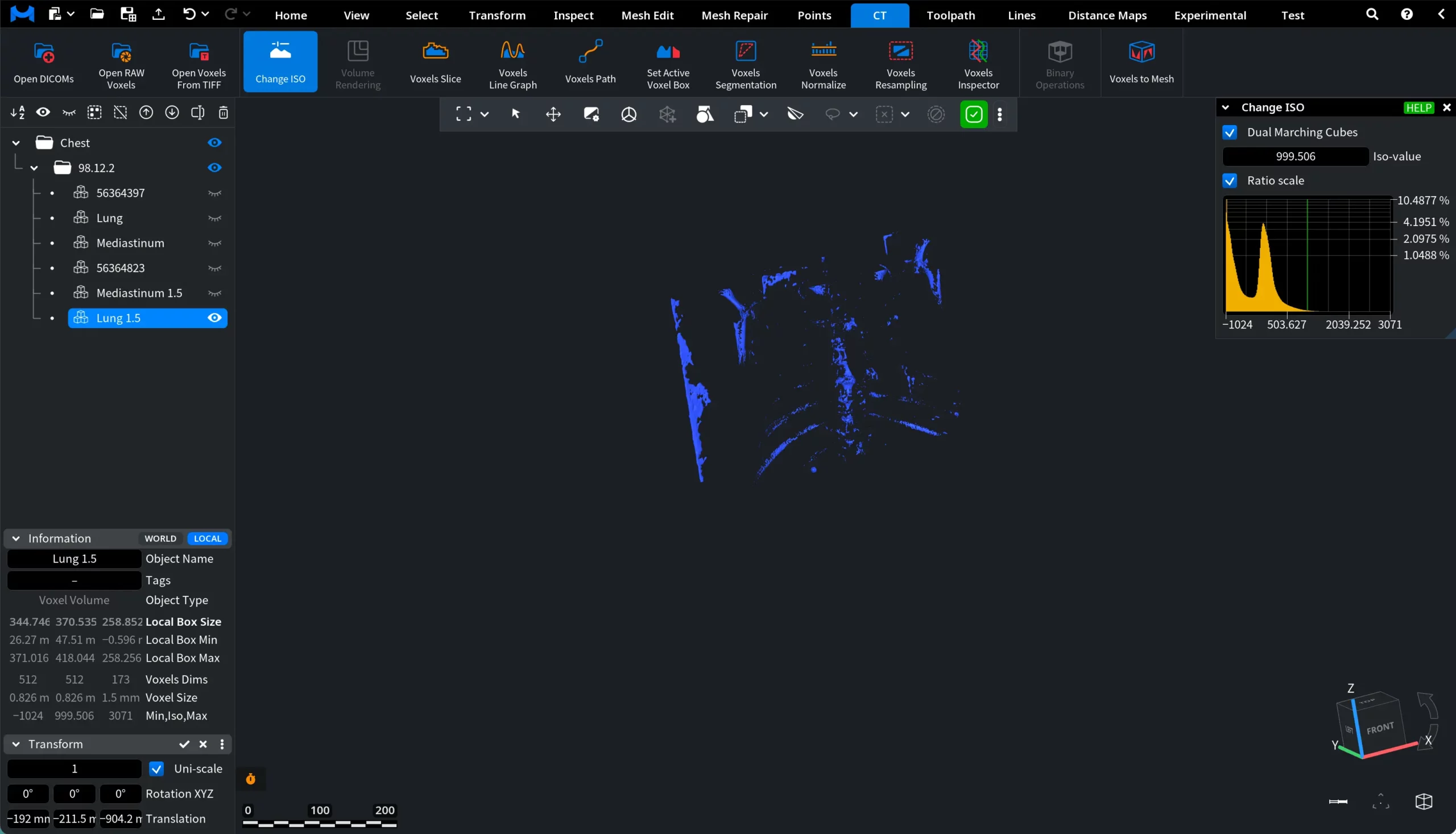
When working with voxel data, the visible surface of the object depends on the ISO value used to generate the iso-surface. In some cases, the default surface may not accurately represent the structure you want to analyze. You may need to adjust the iso-value to reveal internal features, remove noise, or obtain a clearer surface representation. MeshInspector provides the Change ISO tool for this purpose. It allows you to select the iso-surface that represents the voxel object on the screen and choose the method used to construct the iso-surface.
To find this tool, open the CT tab on the top toolbar and click Change ISO.
Clicking Change ISO opens a dedicated settings panel. All changes you make are applied immediately as you modify the parameters, allowing you to see how the iso-surface updates in real time. The panel contains several controls that help you adjust how the iso-surface is generated from the voxel data.
Change ISO: Settings and Controls
Dual Marching Cubes defines which algorithm is used to construct the iso-surface. When Dual Marching Cubes is enabled, the iso-surface is generated using the Dual Marching Cubes algorithm. When this option is disabled, the iso-surface is constructed using the standard Marching Cubes algorithm. The Dual Marching Cubes method often produces smoother and more accurate surfaces, especially when working with complex voxel data.
Iso-value defines the threshold used to construct the iso-surface from the voxel data. Changing this value shifts the surface position inside the voxel volume. As a result, different structures of the scanned object may become visible. You can adjust the iso-value in several ways:
Drag the slider to change the value interactively and immediately see how the surface updates;
Enter a specific number in the field to set an exact iso-value.
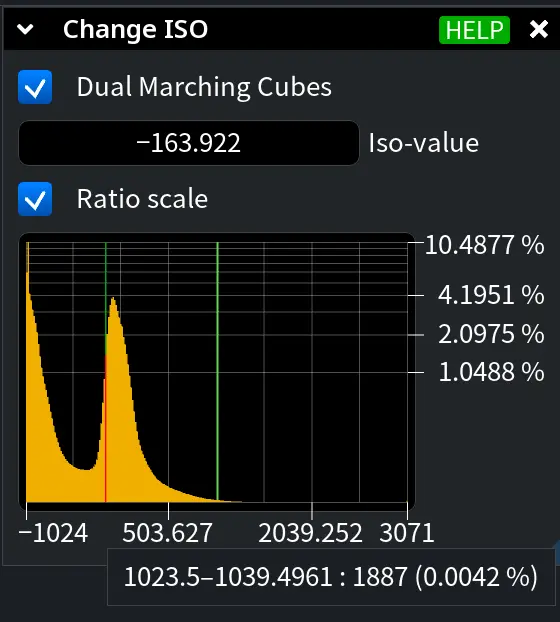
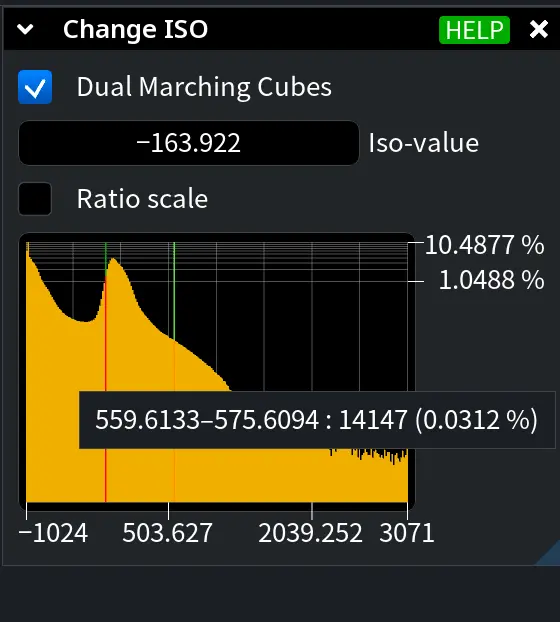
Ratio scale controls how the voxel intensity histogram is displayed.
When Ratio scale is enabled, the histogram shows the relative distribution of voxel values. The vertical axis is displayed in percentages, which makes the histogram independent of the total number of voxels in the dataset.
When Ratio scale is disabled, the histogram shows the absolute voxel counts for each intensity range. In this case, the histogram scale depends on the total number of voxels in the volume.
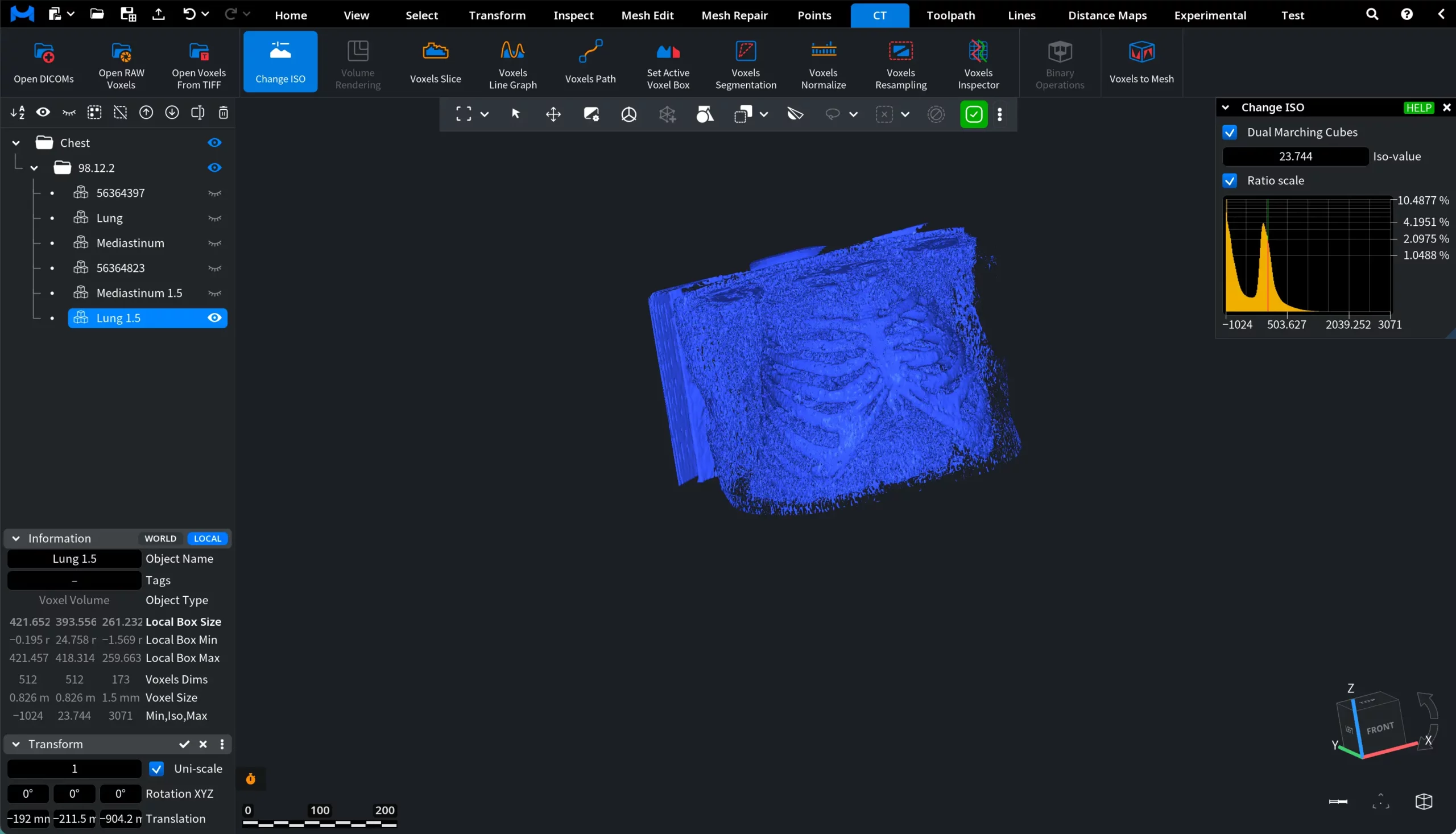
For example, the screenshots below show the results with a lower and higher iso-value.