
Loads from YouTube (Google) when you press Play
Voxels Segmentation cuts one structure out of a voxel volume and turns it into a mesh; its tooltip reads "Show and create volumes segments from voxel image." You mark a few voxels that belong to the structure (inside seeds) and a few that do not (outside seeds) on a slice, and the tool finds the boundary between them. Use it when one iso-value in Change ISO cannot separate the structure from its neighbours, for example one tooth from the jaw or one part from parts that touch it.
Open the Tool
- Select exactly one voxel object in the Scene tree (see Voxels).
- Click CT › Voxels Segmentation.
Two windows open: the tool panel and a Slice window with the image of the current slice. A semi-transparent plane in the 3D view shows where this slice is in the volume. You draw the seeds in the Slice window.
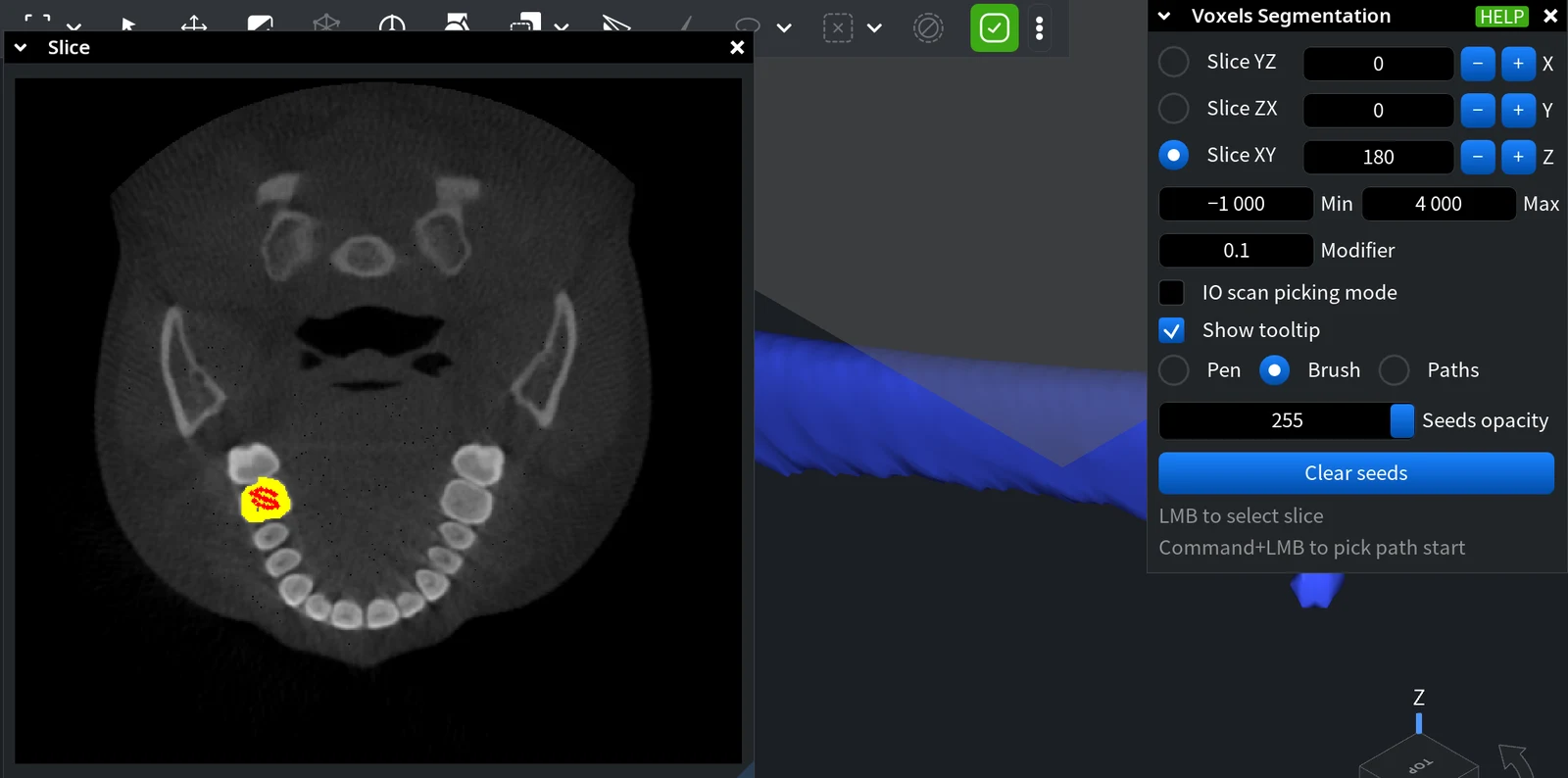
Panel
| Control | What it does | Default |
|---|---|---|
| Slice YZ / Slice ZX / Slice XY | The orientation of the slice; the X, Y or Z field next to it is the number of the slice along that axis | Slice XY, slice 0 |
| Min, Max | The contrast of the slice image: values at Min and below are black, at Max and above white. They do not change the segmentation | The full value range of the volume |
| Modifier | How the boundary is placed: higher values make it follow stronger jumps in voxel values, lower values make it smoother | 0.1 |
| IO scan picking mode | Takes seeds from mesh objects in the 3D view; see IO Scan Picking Mode | Off |
| Show tooltip | A tooltip over the Slice window with the voxel coordinates, its Density (value) and the key hints | On |
| Seeds opacity | The opacity of the seeds and of the segment on the slice image, 0–255; display only | 255 |
| Clear seeds | Removes all seeds | — |
Pen, Brush and Paths
- Pen (default) marks the voxel under the cursor; hold the right mouse button and drag to draw a line of seeds.
- Brush marks a small round spot of 13 voxels on the slice around the cursor, which is faster for large areas.
- Paths makes inside seeds for you: right-click the start and the end of the structure on the slice, and the tool traces paths between them through the volume, uses them as inside seeds and runs the segmentation at once. Switching to Paths clears the seeds you have drawn.
Mouse and Keys
In the Slice window:
| Action | Result |
|---|---|
| Right mouse button, hold and drag | Inside seeds: this belongs to the structure |
| Ctrl + right mouse button (Cmd on macOS) | Outside seeds: this does not belong |
| Left click | Moves the other two slice orientations to the clicked voxel |
| Mouse wheel | Changes Modifier by 0.01 |
| Enter | Segments: shows a preview |
| Shift+Enter | Accepts the result and clears the seeds |
In the 3D view, a left click on the volume moves the slice to the clicked point, and Ctrl + left click (Cmd on macOS) picks the path start and end as with Paths. The tooltip calls inside seeds "tooth seed" and outside seeds "non tooth seed": the tool was first made for dental scans, but it works on any volume.
Segment a Structure
-
Move to a slice that crosses the structure, using the slice number or a click on the volume in the 3D view.
-
Draw inside seeds (right mouse button) in the structure, on several slices if it is long: the tool looks for the segment only within 25 voxels around the inside seeds.
-
Draw outside seeds (Ctrl or Cmd + right mouse button) where the structure touches its neighbours, so that the segment does not leak into them.
-
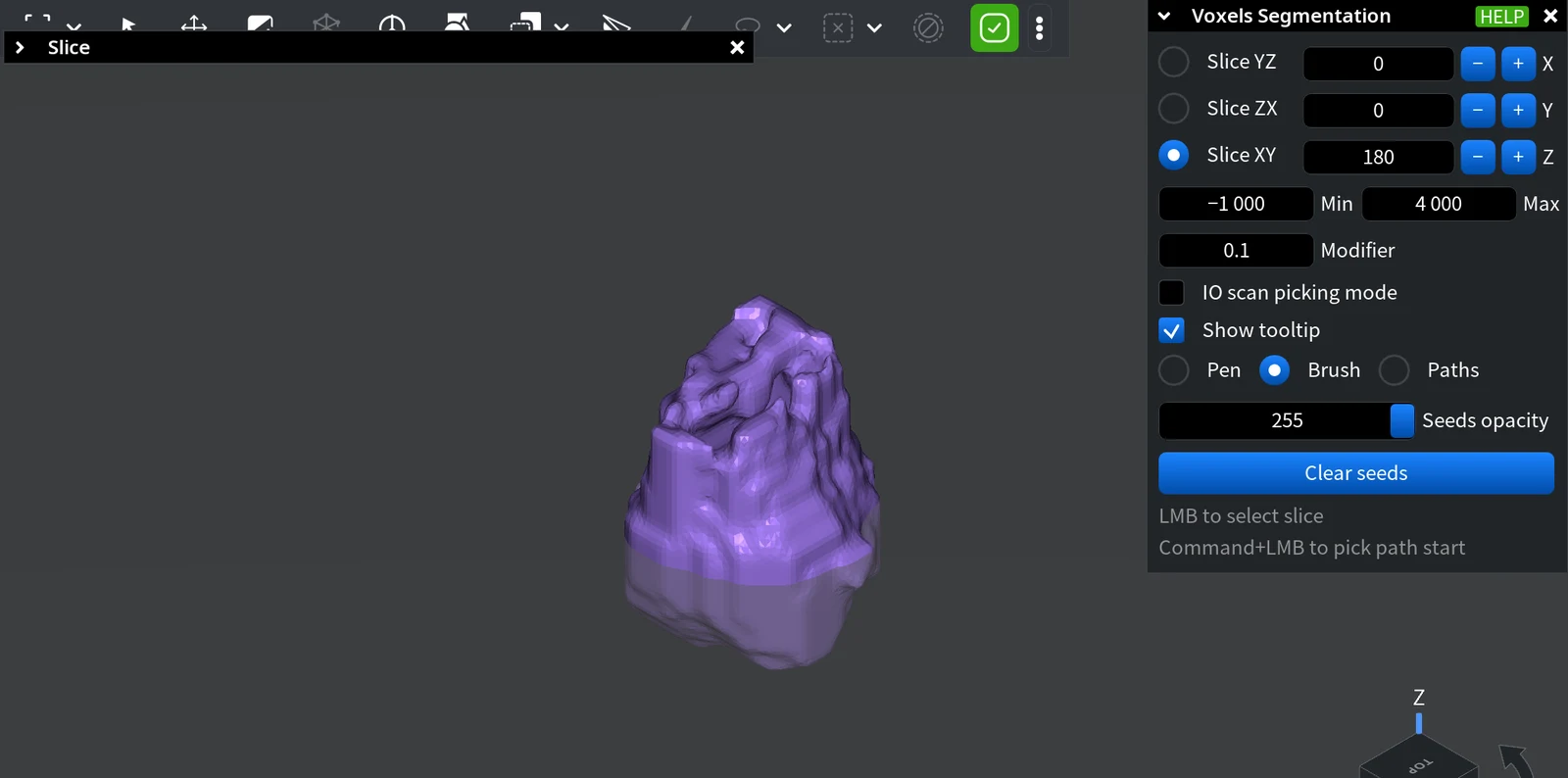
With the cursor over the Slice window, press Enter. The segment is shown on the slice, and a purple preview mesh appears in the 3D view.
-
If the segment leaks or misses parts, add seeds or change Modifier and press Enter again.
-
Press Shift+Enter, still over the Slice window, to accept. The preview becomes a mesh object named Result Mesh in the Scene tree, and the seeds are cleared, so you can segment the next structure.
If you close the tool before Shift+Enter, the preview is discarded. Enter without inside seeds shows the error No seeds presented.
IO Scan Picking Mode
This mode is for dental cases where an intraoral (IO) scan of the teeth is aligned with the CT volume and split into one mesh per tooth crown. With IO scan picking mode on, the volume surface is shown as a wireframe, and the panel hints change to "LMB IO crown to add inside seeds" and "Ctrl+LMB IO crown to add outside seeds":
- A left click on a crown mesh fills the inner part of that crown (the crown shrunk to 70% around its center) with inside seeds and shows the Slice YZ through its center.
- Ctrl + left click (Cmd on macOS) on a mesh fills the whole mesh with outside seeds.
- If the crown objects are named by FDI tooth numbers (11 to 48), a click on one crown also adds the neighbouring teeth and the opposing teeth found in the scene by these names as outside seeds.
Then press Enter over the Slice window as usual: the segment is computed in the CT volume from these seeds, and Shift+Enter accepts it.


