
Set Active Voxel Box limits a voxel volume to a box of voxels; its tooltip reads "Set area (box) for work on voxels." Use it when you need only part of a large CT scan, such as one bone or one defect: MeshInspector then builds the iso-surface only inside the box, which is faster, and Voxels to Mesh converts only that part. You can also copy the box into a separate, smaller volume. What a voxel volume is: Voxels.
Set the Box
- Select one voxel volume in the Scene tree.
- Click CT › Set Active Voxel Box. A box with round handles appears around the volume, and the panel opens.
- Drag the handles in the viewport, or type the values in the panel.
- Click Apply. The panel closes.
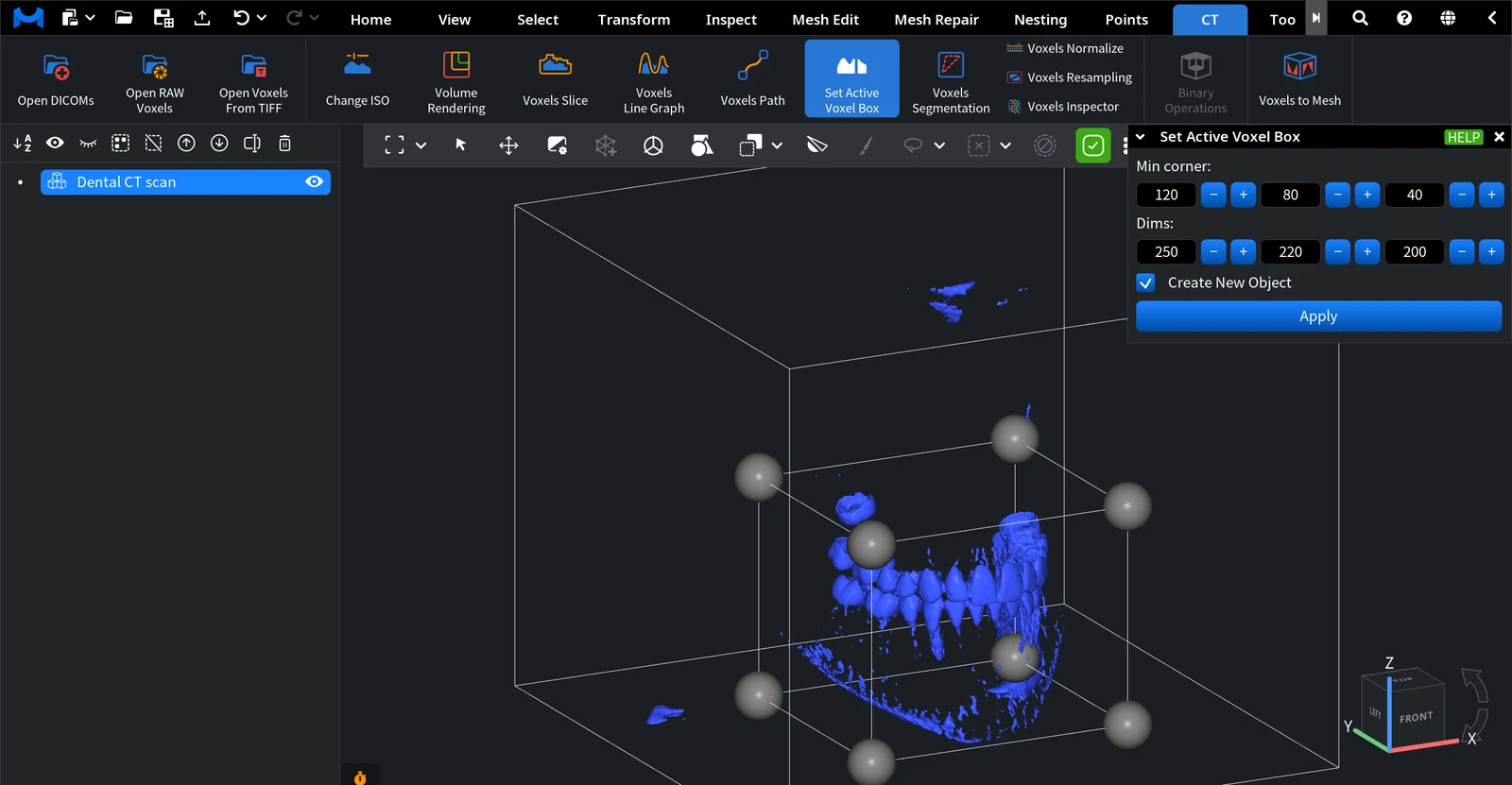
| Control | What it does | Default |
|---|---|---|
| Min corner | The X, Y and Z index of the box corner nearest to the volume origin, in voxels (0 is the first voxel) | The current active box |
| Dims | The size of the box along X, Y and Z, in voxels, counted from Min corner | The current active box |
| Create New Object | Off: Apply limits the selected volume to the box. On: Apply copies the box into a new volume | Off |
The values are voxel counts, not millimeters. To get the size in scene units, multiply them by the Voxel Size shown in the Information panel.
Result
- Create New Object off. The voxels outside the box become inactive and the iso-surface is rebuilt inside the box only. The data outside the box is kept. The Information panel shows the box as Active Box Min and Active Box Max, and Voxels Slice can highlight inactive voxels in red (Show Inactive Voxels).
- Create New Object on. A new volume named after the original with Cropped added (for example Dental CT scan Cropped) appears in the same place, with the same voxel size and iso value. The original volume does not change.
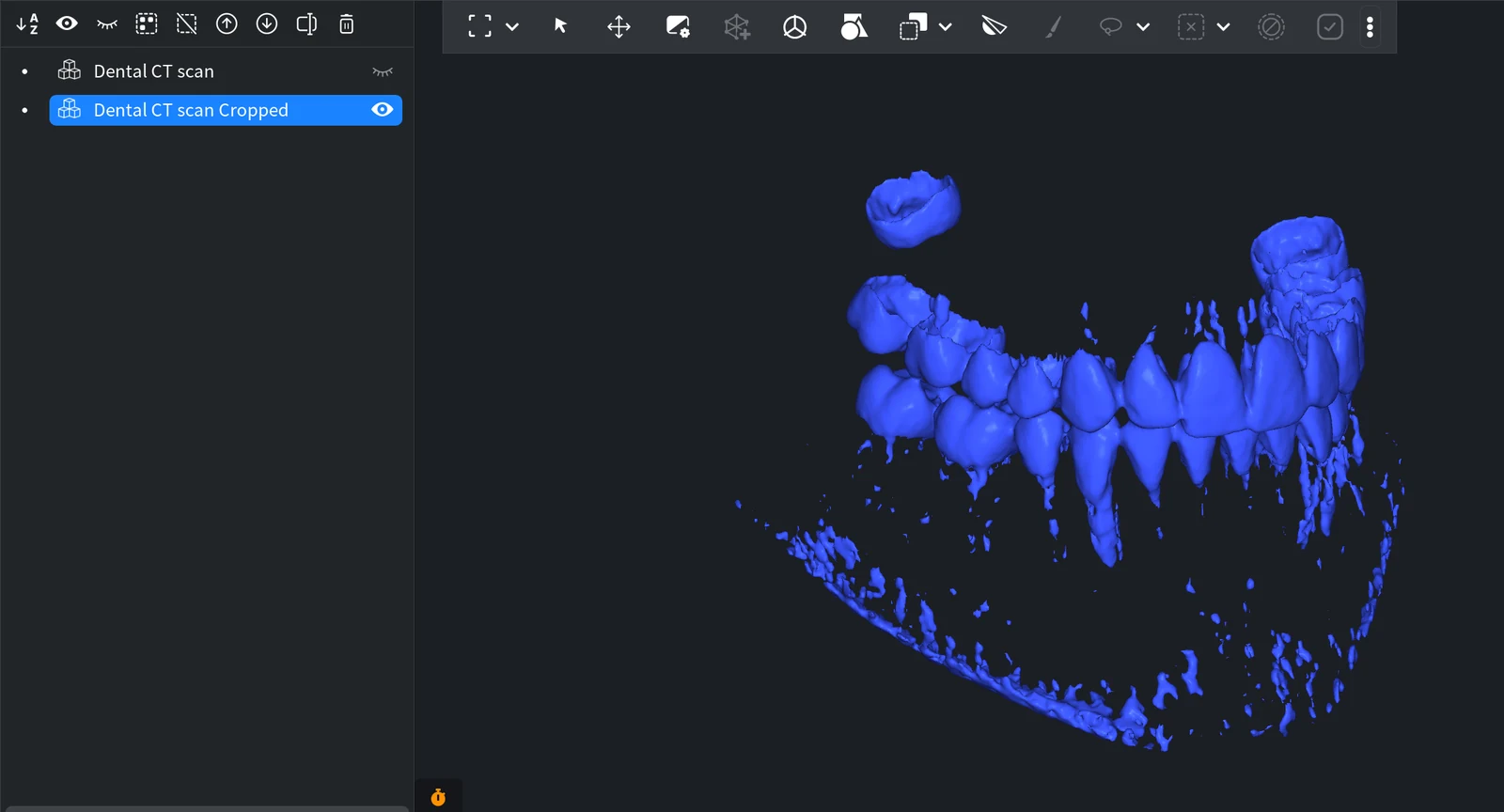
To undo either result, press Ctrl+Z (Cmd+Z on macOS). To make the whole volume active again later, open the tool, set Min corner to 0, 0, 0 and Dims to the Voxels Dims of the volume (see Information), and click Apply.
Use Case: Convert Only Part of a Scan
- Open the scan, for example with Open DICOMs.
- Set the box around the region you need and click Apply.
- Set the surface with Change ISO and click CT › Voxels to Mesh: the mesh contains only the part inside the box. Details: How to Convert Voxels to Mesh.
To make the whole volume lighter instead of cutting it, use a larger voxel with Voxels Resampling.


