
Voxels Resampling rebuilds a voxel volume with a new voxel size; its tooltip reads "Resample voxels to fit the given scale." The volume keeps its physical size: only the number of voxels changes. Use it to:
- Make the voxels cubical. In many CT scans the distance between slices is larger than the pixel size within a slice, so the voxels are not cubes.
- Make a large volume lighter. A voxel twice as large along each axis gives eight times fewer voxels, so the volume needs less memory and tools such as Voxels to Mesh work faster.
Resample a Volume
- Select one voxel volume in the Scene tree. The tool works with exactly one volume.
- Click CT › Voxels Resampling.
- Enter the new voxel size in the New field(s).
- Click Apply. The panel closes.
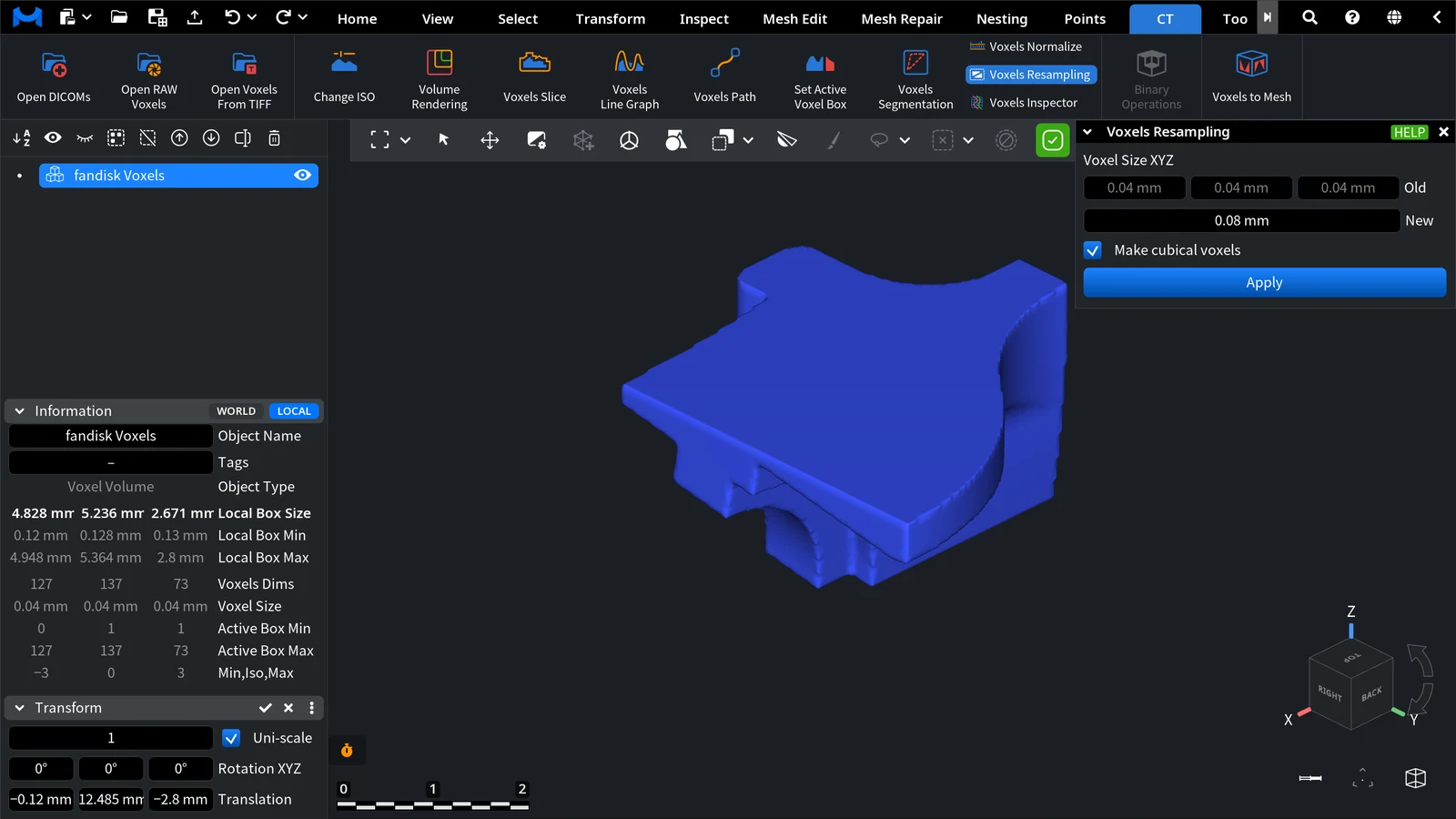
| Control | What it does | Default |
|---|---|---|
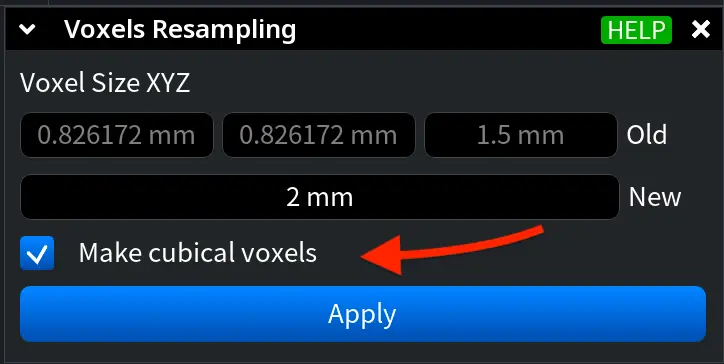
| Voxel Size XYZ, Old | The current voxel size along X, Y and Z (read-only) | — |
| New | The new voxel size in scene units: one field for all axes when Make cubical voxels is on, three fields (X, Y, Z) when it is off | The current size |
| Make cubical voxels | Use the same voxel size along X, Y and Z | On if the current voxels are cubes, otherwise off |
Apply is unavailable while the new size equals the old one; its tooltip then says "New voxel size is same as old one." The new size can range from 0.1% of the diagonal of the volume to its smallest side.
Result
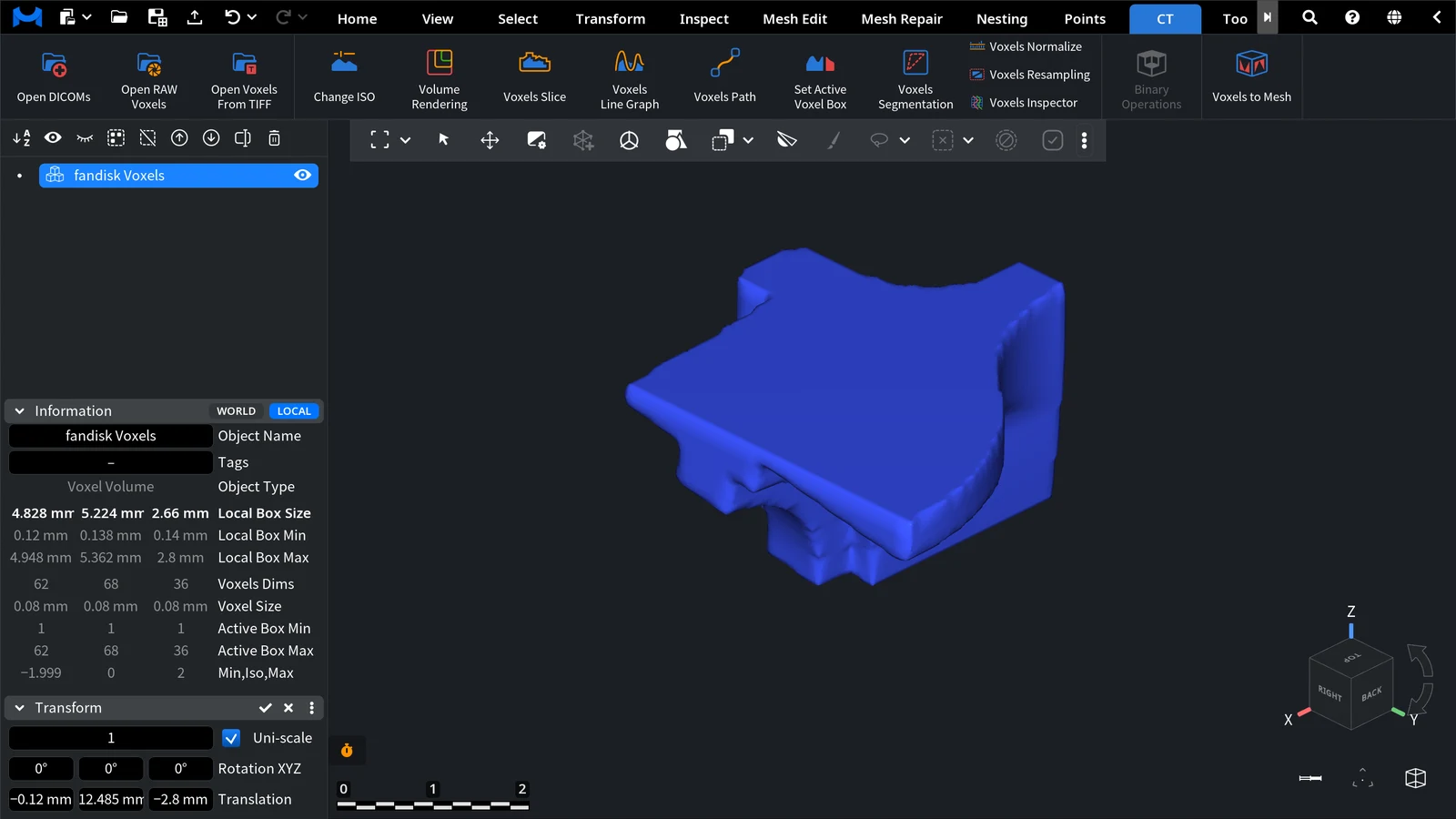
The selected volume changes in place; no copy is made. The Voxel Size and Voxels Dims in the Information panel show the new values, and the iso-surface is rebuilt.
- A larger voxel keeps the overall shape but loses details smaller than the new voxel.
- A smaller voxel gives more voxels, but their values are interpolated from the original ones: it adds no new detail.
To return to the original volume, press Ctrl+Z (Cmd+Z on macOS).
To cut a large scan down to the region you need instead, use Set Active Voxel Box.


