


To open a CT scan or another voxel volume, use the three buttons of the Open group on the CT tab: Open DICOMs for a DICOM series, Open RAW Voxels for a .raw file and Open Voxels From TIFF for a stack of TIFF images. What a voxel volume is and what you can do with it: Voxels.

| Your data | How to open it |
|---|---|
| A folder with one or more DICOM series (.dcm files) | CT › Open DICOMs |
| A .raw or .bin file with voxel values and no header | CT › Open RAW Voxels |
| A folder of TIFF images, one image per slice | CT › Open Voxels From TIFF |
| An OpenVDB (.vdb) or Micro CT (.gav) volume, or a .raw file named by the pattern below | Home › Open Files |
If you open a single DICOM slice with Open Files, MeshInspector shows "Please use Open Directory for loading multi-file DICOM volumes." Open the folder with Open DICOMs instead.
Open DICOMs
- Click CT › Open DICOMs.
- Select the folder with the DICOM files, not the files themselves, and click Open.
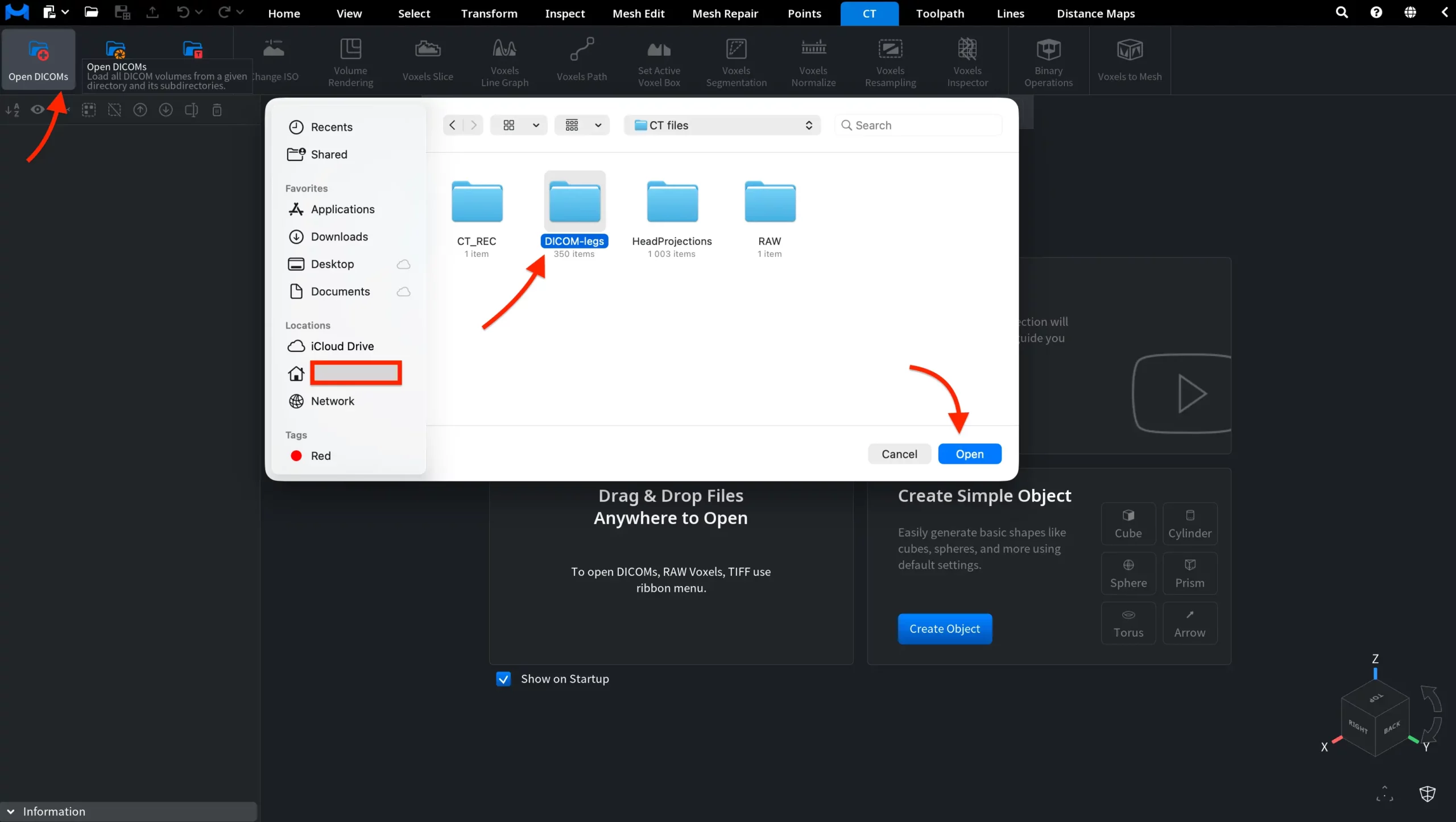
MeshInspector searches the folder and all its subfolders and loads every DICOM series it finds as a voxel volume. The voxel size is read from the files. If you select the folder that holds the files, the volume appears directly in the Scene tree:
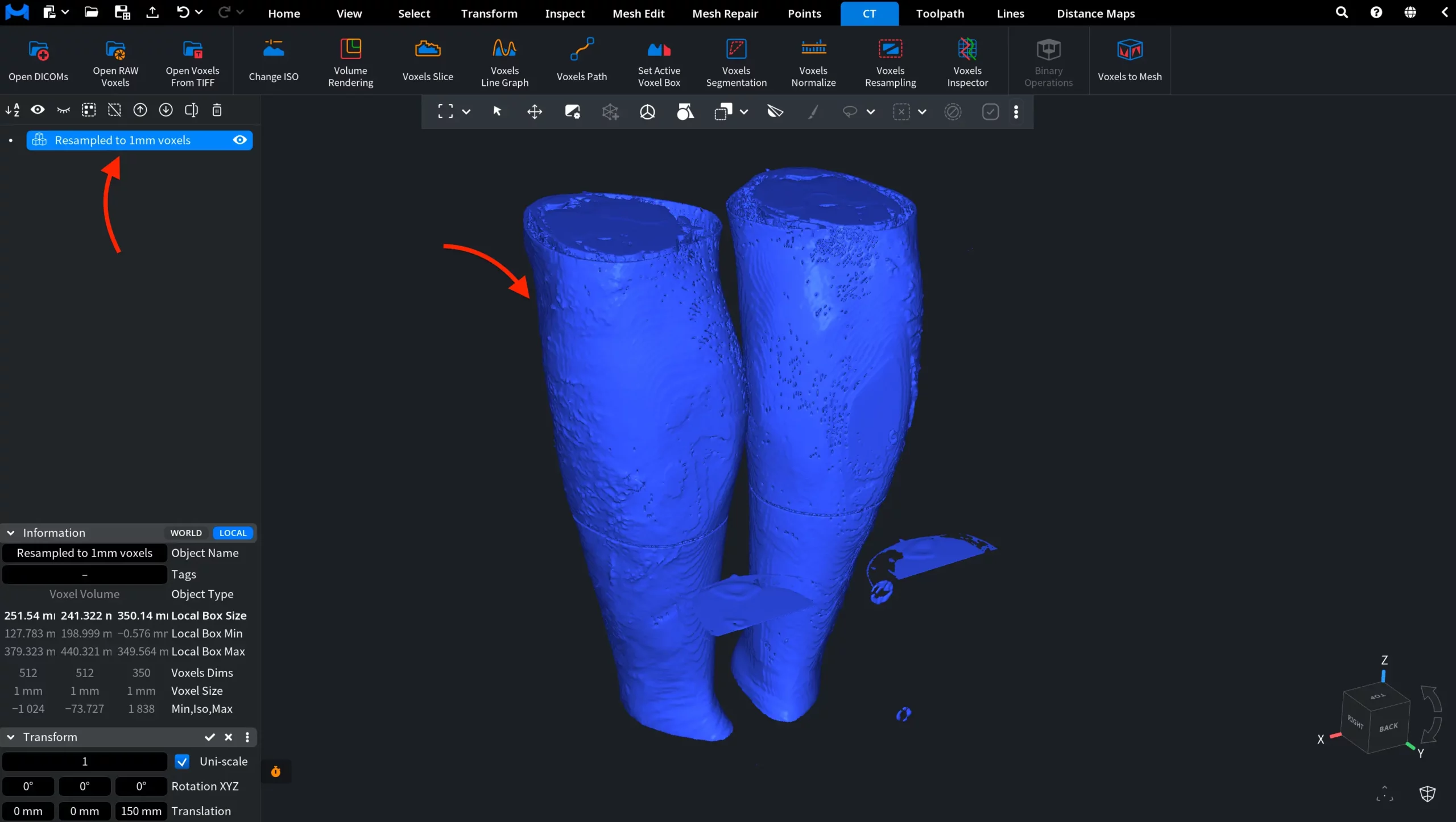
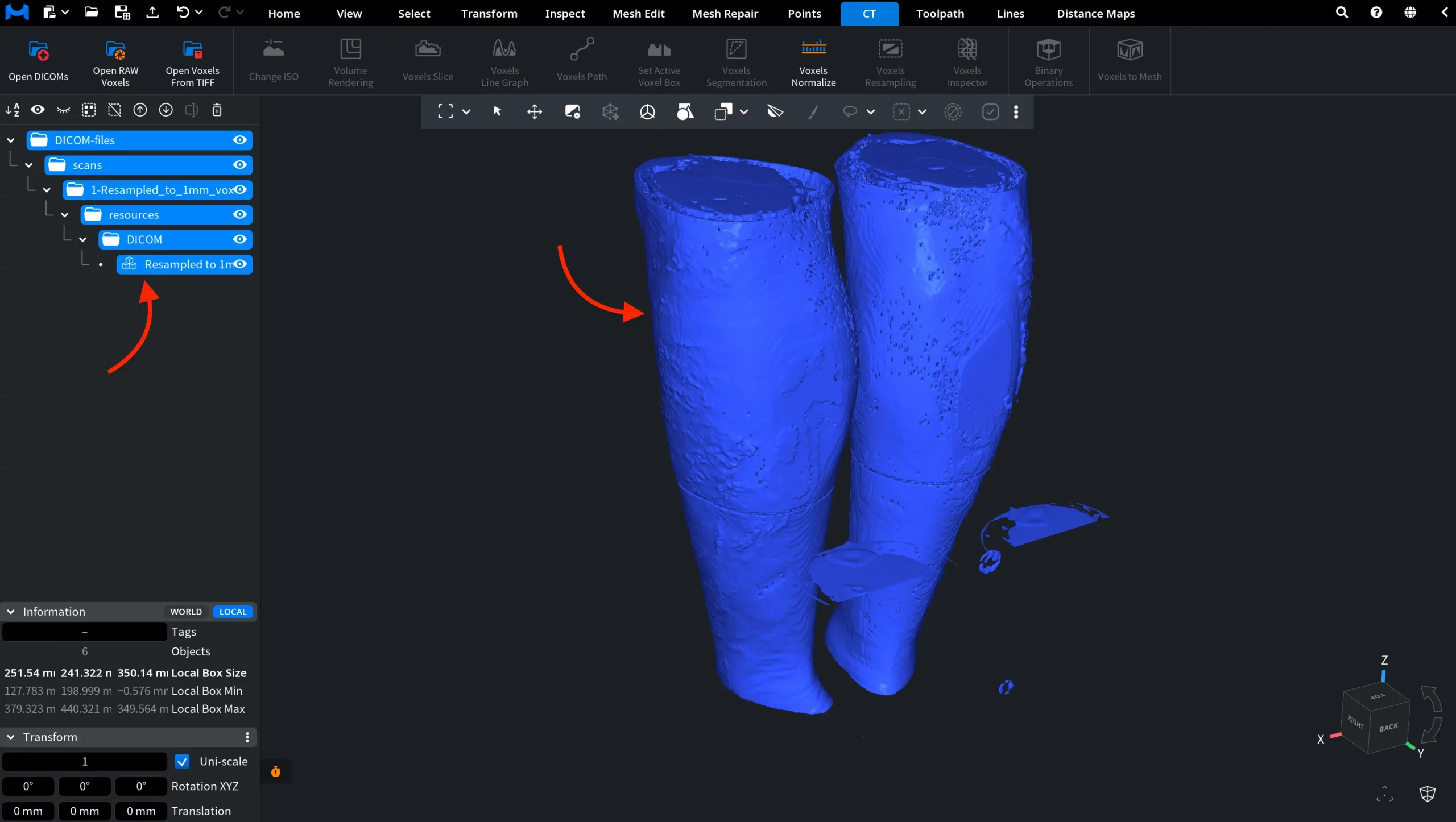
If you select a parent folder, the Scene tree repeats the folder structure as groups, with each volume inside the folder where its files were found. Folders without DICOM files are left out; if there are none at all, MeshInspector shows "Could not find any DICOM files."
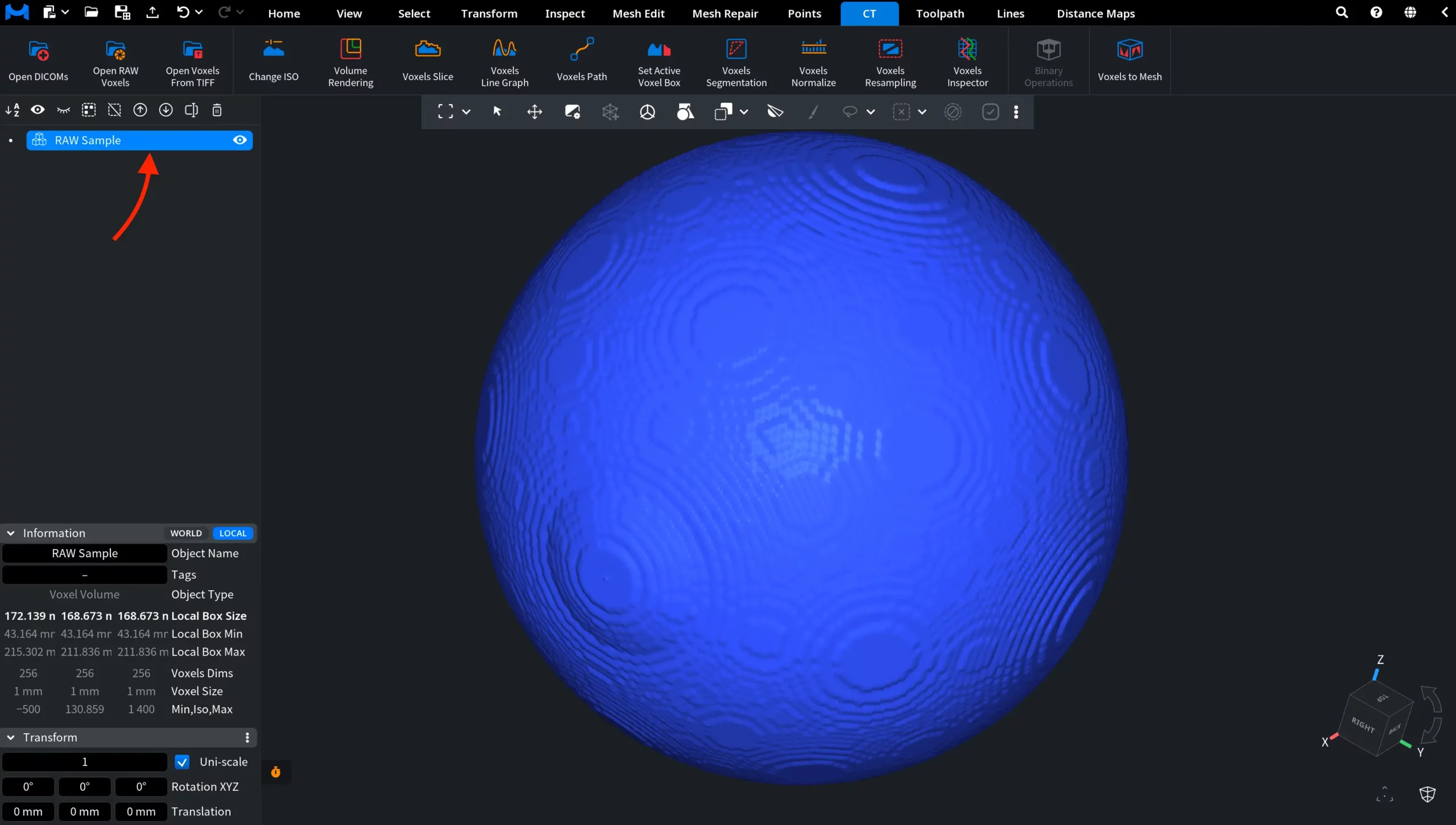
Open RAW Voxels
A RAW file holds only the voxel values, so MeshInspector needs to know the size of the volume and the type of the values.
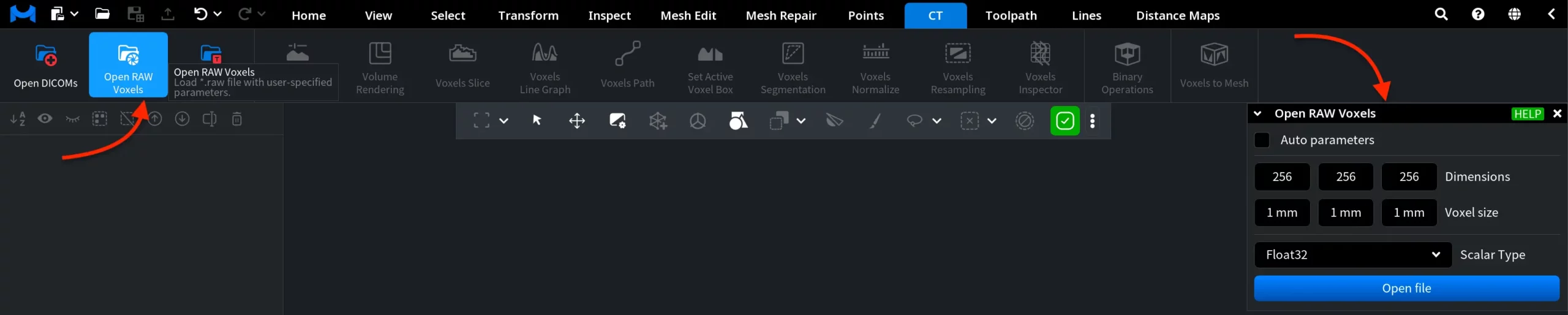
- Click CT › Open RAW Voxels.
- Enter the parameters of the file, or turn on Auto parameters.
- Click Open file, select the .raw or .bin file and click Open.
| Parameter | What it does | Default |
|---|---|---|
| Auto parameters | Reads the parameters from the file name instead of the fields below, which are then hidden | Off |
| Dimensions | The number of voxels along X, Y and Z | 256, 256, 256 |
| Voxel size | The size of one voxel along X, Y and Z, in scene units | 1, 1, 1 |
| Scalar Type | The type of one value: UInt8, Int8, UInt16, Int16, UInt32, Int32, UInt64, Int64, Float32, Float64 or 4 x Float32 | Float32 |
Take the dimensions, voxel size and data type from the documentation of the scanner or of the program that wrote the file. The volume gets the name of the file.
File Name Pattern for Auto Parameters
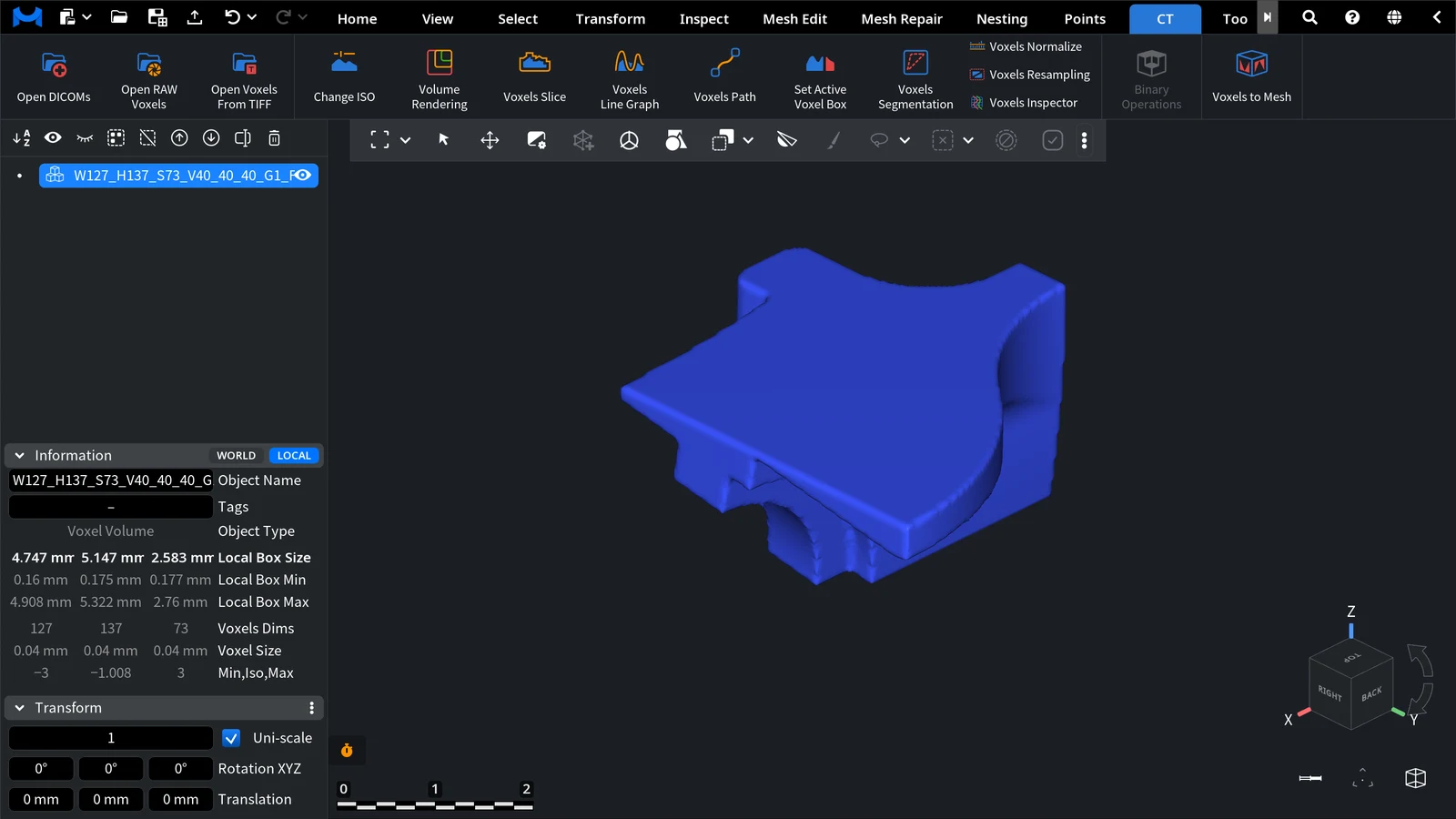
Auto parameters reads a name like the one MeshInspector itself writes when you export a volume to .raw, for example W127_H137_S73_V40_40_40_G1_F fandisk.raw:
| Part | Meaning |
|---|---|
W127_H137_S73 |
The number of voxels along X, Y and Z |
V40_40_40 |
The voxel size along X, Y and Z in thousandths of a scene unit: 40 is 0.04 mm when the scene works in millimeters. One value followed by _F (V40_F) means cubical voxels |
G1 |
1 for a distance (level set) volume, 0 for an ordinary volume |
F |
The end of the parameters; anything after it is the name |
With Auto parameters the values are always read as Float32.
Open Voxels From TIFF
Use it for a volume stored as a set of TIFF images, one image per slice. It works in the desktop app only.

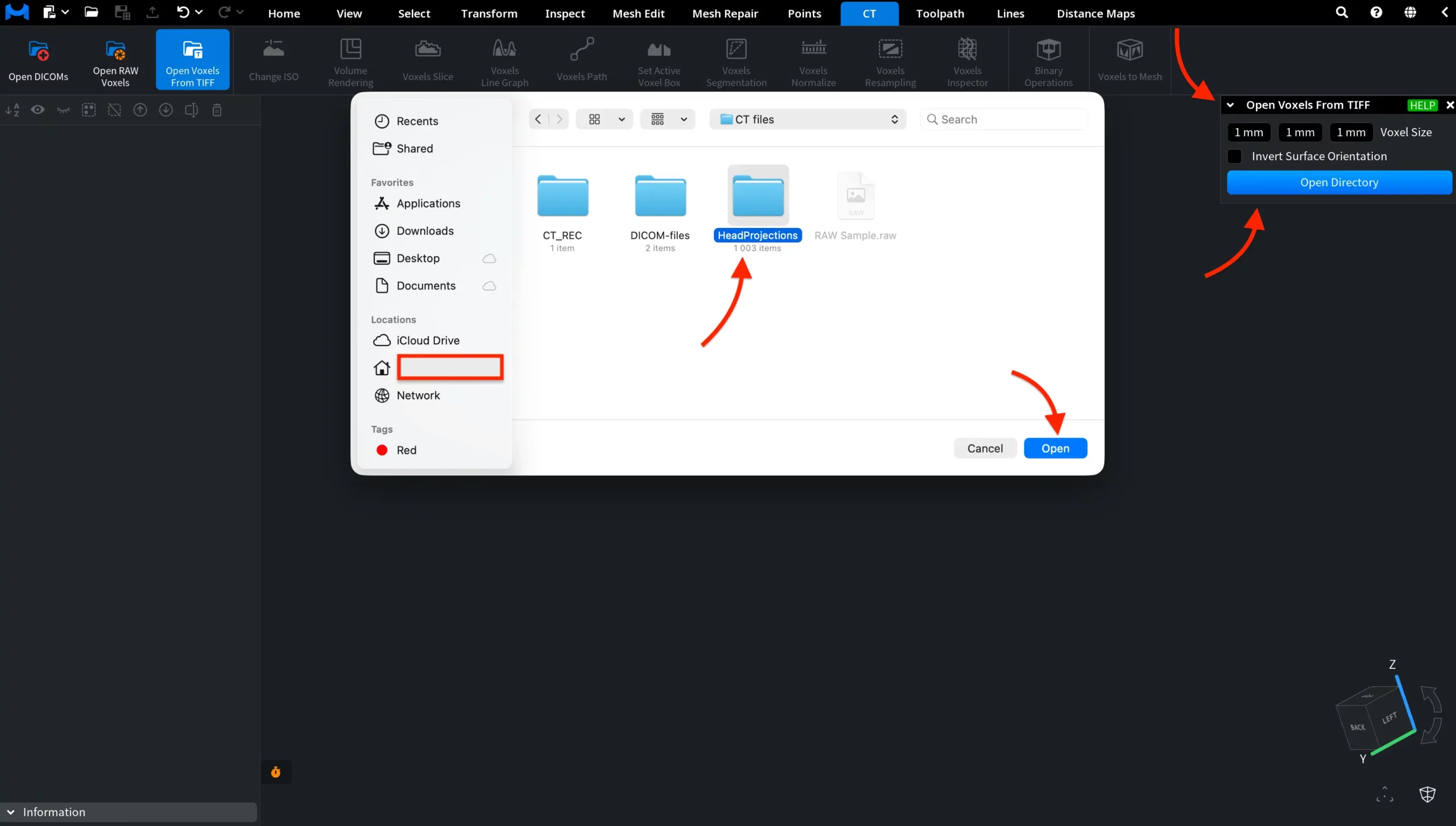
- Click CT › Open Voxels From TIFF.
- Set Voxel Size: the images do not store it.
- If the values of your images are distances rather than densities, turn on Invert Surface Orientation.
- Click Open Directory, select the folder with the images and click Open.
| Parameter | What it does | Default |
|---|---|---|
| Voxel Size | The size of one voxel along X, Y and Z, in scene units (0.001 to 1000) | 1, 1, 1 |
| Invert Surface Orientation | Off: higher values are inside the object, as in a CT scan. On: lower values are inside, as in a distance volume | Off |
The folder must contain at least two TIFF images of the same size and type; they are stacked in the order of their file names. The volume gets the name of the folder.
After Opening
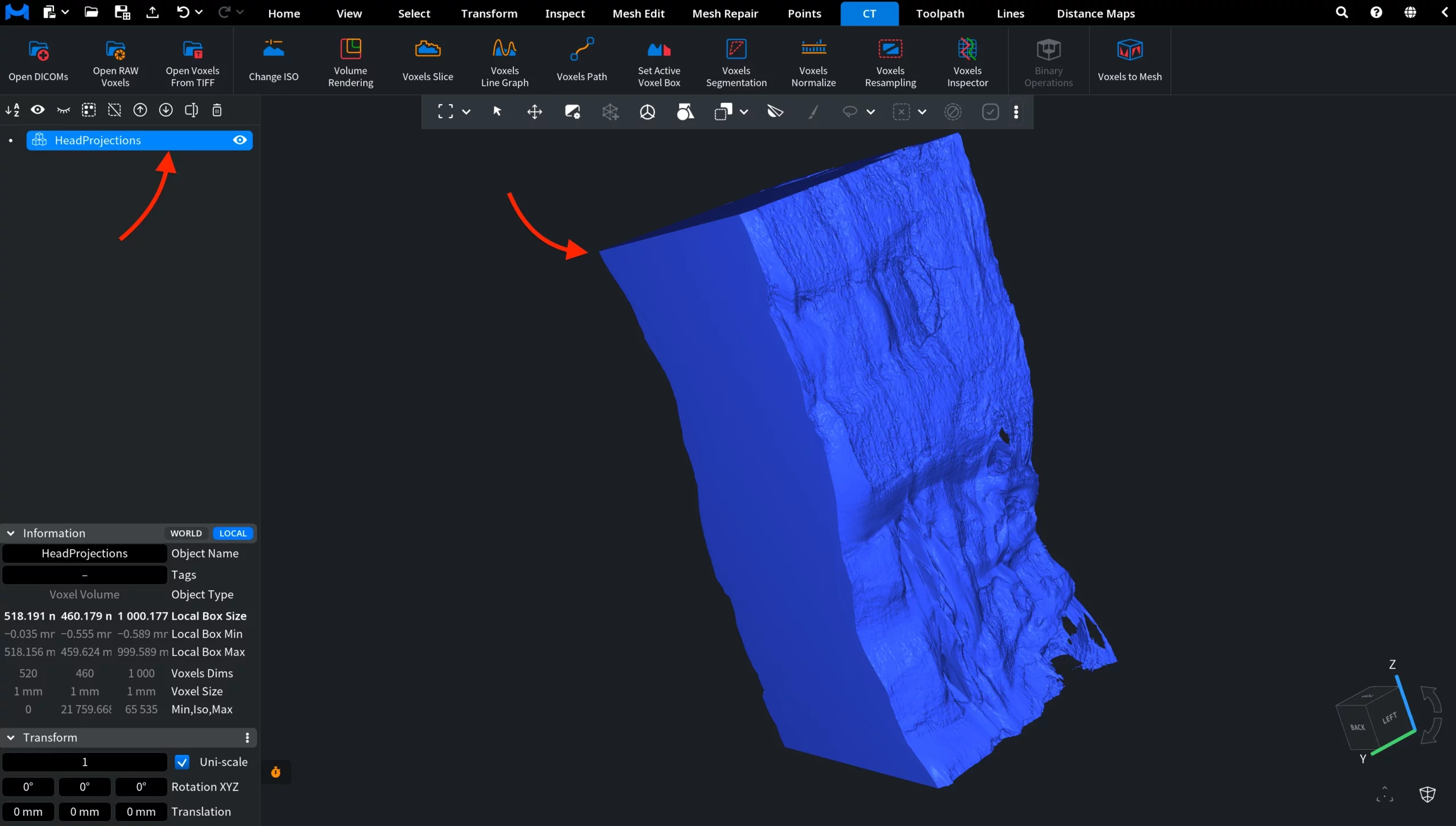
The new volume is selected and shown as an iso-surface. Check its Voxels Dims, Voxel Size and Min, Iso, Max in the Information panel. Then:
- choose the surface to show with Change ISO, or look inside the volume with Volume Rendering and Voxels Slice;
- turn the volume into a mesh: How to Convert Voxels to Mesh.


