CT and MRI scanners measure a value, such as density, at every point of a 3D grid. MeshInspector keeps such data as a voxel volume and has a separate CT tab to view, analyze and edit it and to turn it into a mesh. This guide shows where volumes come from, which tool of the CT tab does what, and the usual workflows.
Voxel Volumes
A voxel volume is a regular 3D grid of small cubes (voxels), each holding one value. The viewport shows it as an iso-surface: the surface through the voxels whose value equals the iso-value. More in Voxels.
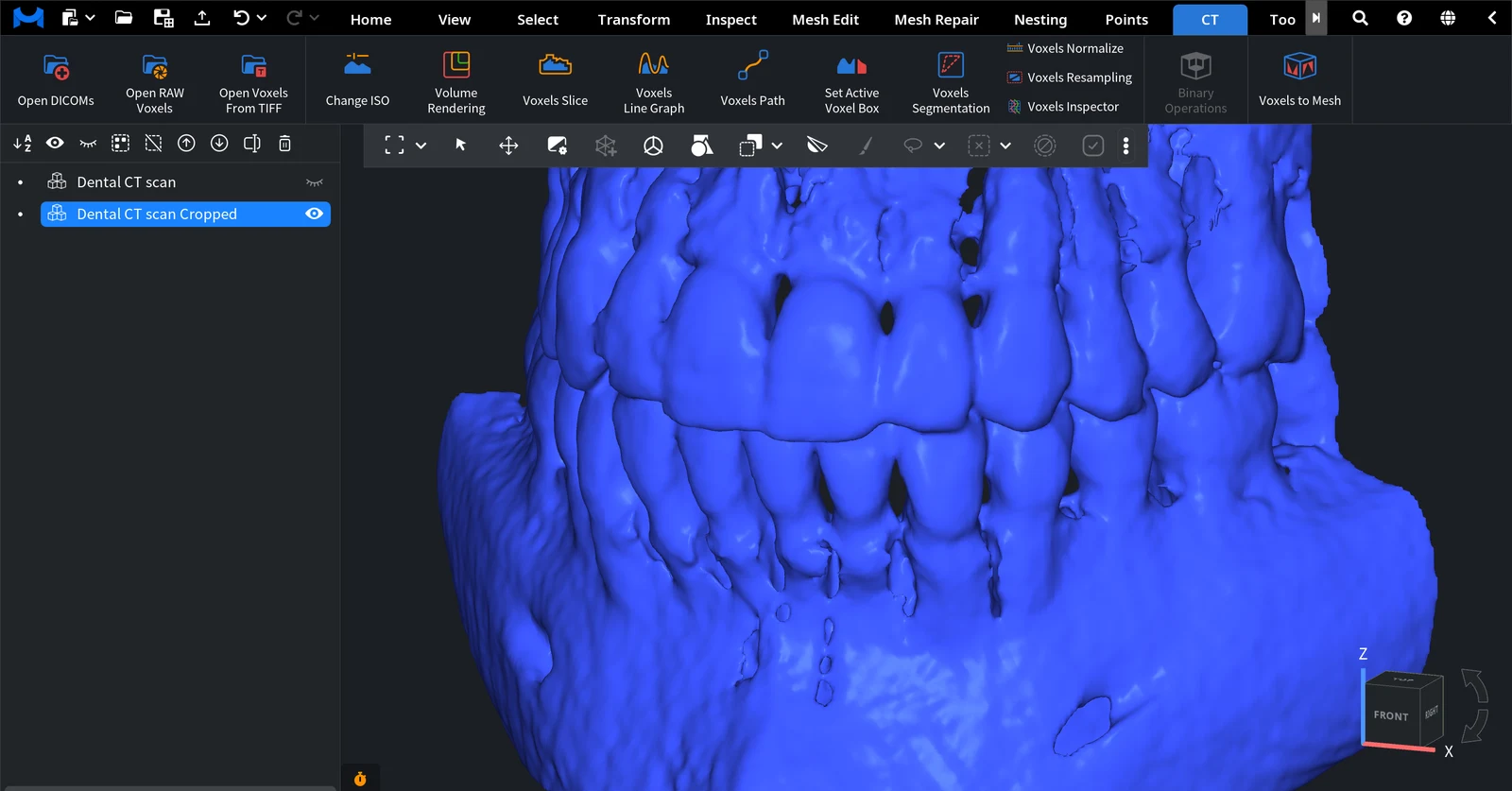
Where Volumes Come From
| Source | Tool |
|---|---|
| A folder with a DICOM series (CT, MRI) | CT › Open DICOMs |
| A RAW file; you enter its parameters | CT › Open RAW Voxels |
| A set of TIFF images | CT › Open Voxels From TIFF |
| A mesh | Mesh Edit › Mesh to Voxels (guide) |
| A lines object | Lines › Lines to Voxels (guide) |
The three Open tools are described in Open DICOMs, RAW and TIFF voxels.
The CT Tab at a Glance
| I want to… | Tool |
|---|---|
| Choose which surface represents the volume | Change ISO |
| See the inside of the volume, colored by value | Volume Rendering |
| Look at one slice of the volume as an image | Voxels Slice |
| See a graph of the values along a line | Voxels Line Graph |
| Find the optimal path between two voxels | Voxels Path |
| Limit the work to a box inside the volume | Set Active Voxel Box |
| Find and create segments of the volume | Voxels Segmentation |
| Bring the values of the selected volumes to one range | Voxels Normalize |
| Change the voxel size | Voxels Resampling |
| Fit a mesh to the voxel gradient at sub-voxel precision | Voxels Inspector |
| Combine two volumes voxel by voxel (Union, Intersection, Difference) | Binary Operations |
| Turn the volume into a mesh | Voxels to Mesh |
Most tools work on one selected volume; Binary Operations needs two. Change ISO is not available while Volume Rendering is on for the volume, and Volume Rendering is not available while Change ISO is open.
Recipe: From a CT Scan to a Printable Mesh
- Open the scan with CT › Open DICOMs (select the folder).
- Open CT › Change ISO and set the Iso-value so that the surface shows the structure you need.
- Run CT › Voxels to Mesh: Simple Conversion for speed, Smart Conversion for a more precise surface.
- Repair the mesh with Mesh Healer and save it as STL (Exporting Objects).
All steps with the settings: How to convert voxel to mesh.
Recipe: Work on a Region Only
A scan often holds much more than the part you need. Set an active box first, and the iso-surface is rebuilt only inside it:
- Select the volume and open CT › Set Active Voxel Box. Set the box around the region you need.
- Then convert it with Voxels to Mesh: the mesh covers only the box, because the tool copies the iso-surface.
Recipe: Compare or Combine Two Volumes
- Open or make both volumes. If two CT scans have different value ranges, select both and bring them to the same range with CT › Voxels Normalize.
- Select the two volumes and open CT › Binary Operations.
- Choose the operation and run it. Volumes made with Mesh to Voxels offer Union, Intersection and Difference. Both volumes must be of the same kind.
- Turn the result into a mesh with Voxels to Mesh, or compare meshes made from both volumes with Inspect › Surface Deviation.


