When working with voxel volumes, it is often necessary to inspect the internal structure of the data layer by layer. That is, instead of viewing the entire volume at once, you may want to examine a specific cross-section. MeshInspector provides the Voxels Slice tool to display and analyze individual slices of a voxel volume along the main coordinate planes. This allows you to inspect internal anatomical or structural details and understand how voxel values change throughout the dataset. To find this tool, open the CT tab on the top toolbar and click Voxels Slice. The tool becomes active when a voxel volume is selected in the Scene tree. Once activated, a slicing plane appears in the scene, allowing you to view the voxel data along one of the principal axes.

Voxels Slice Settings
When the tool is activated, two panels appear on the right side of the interface:
- Voxels Slice, where you control the slicing parameters;
- Slice preview, which displays the current cross-section of the voxel volume.
The Voxels Slice panel allows you to select the slicing direction, adjust the slice position, control voxel visibility, and export slices. The Slice preview shows the corresponding 2D CT slice extracted from the voxel volume, helping you examine the internal structure of the dataset while navigating through the slices.

Slice YZ / Slice ZX / Slice XY
These options define the orientation of the slicing plane.
- Slice YZ creates a slice perpendicular to the X axis.
- Slice ZX creates a slice perpendicular to the Y axis.
- Slice XY creates a slice perpendicular to the Z axis.
The numeric field next to each option controls the slice position inside the voxel volume. Increasing or decreasing this value moves the slicing plane through the dataset. As the slice position changes, the corresponding cross-section is displayed in the Slice preview window.
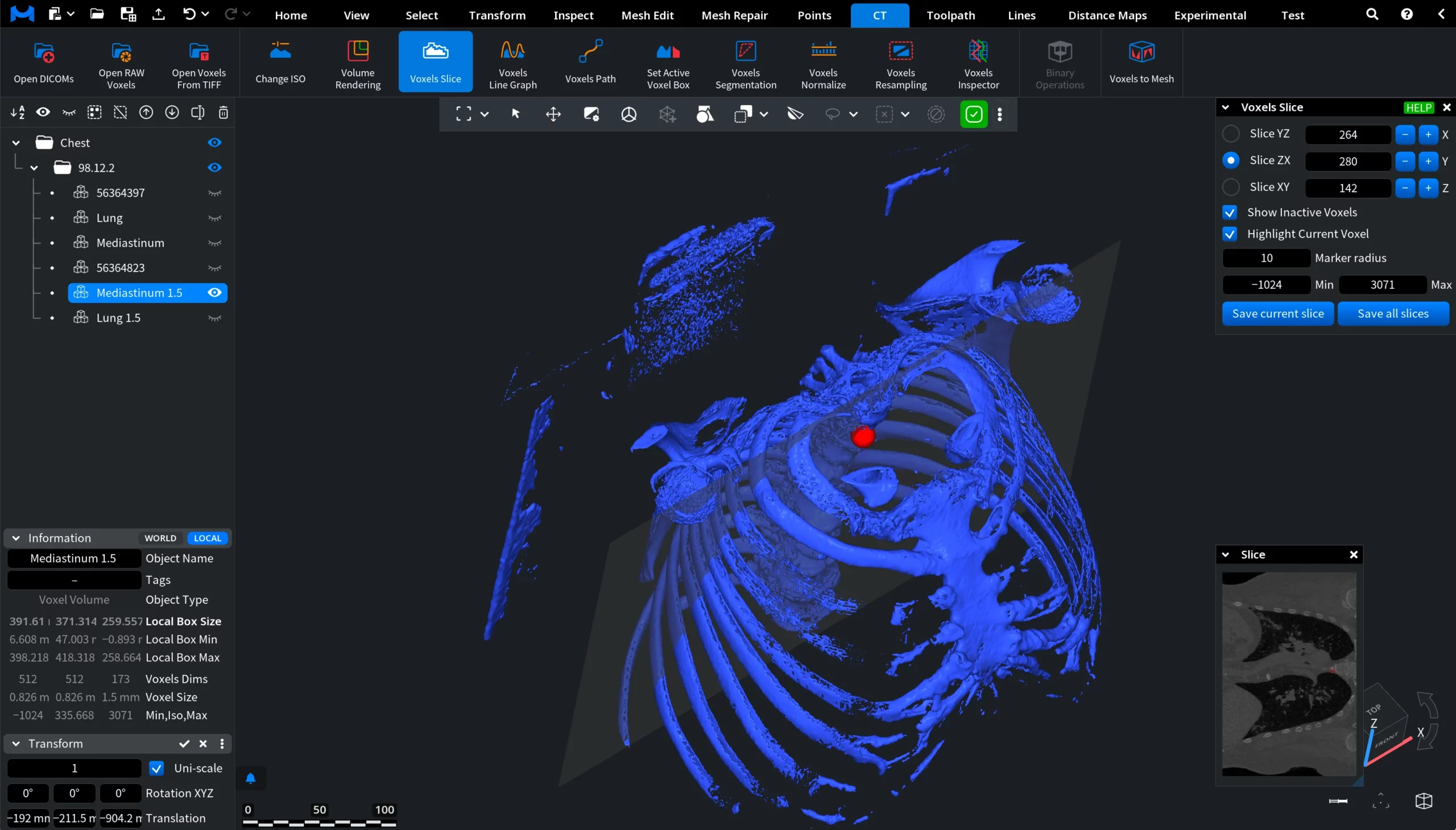
Show Inactive Voxels
When it is enabled, voxels whose values fall outside the selected Min–Max range are highlighted in red color.
Highlight Current Voxel
When it is enabled, the voxel currently selected in the slice is highlighted with a red marker.
The marker appears:
- In the 3D scene, where it is displayed as a red sphere;
- In the slice preview, where the same voxel location is marked.
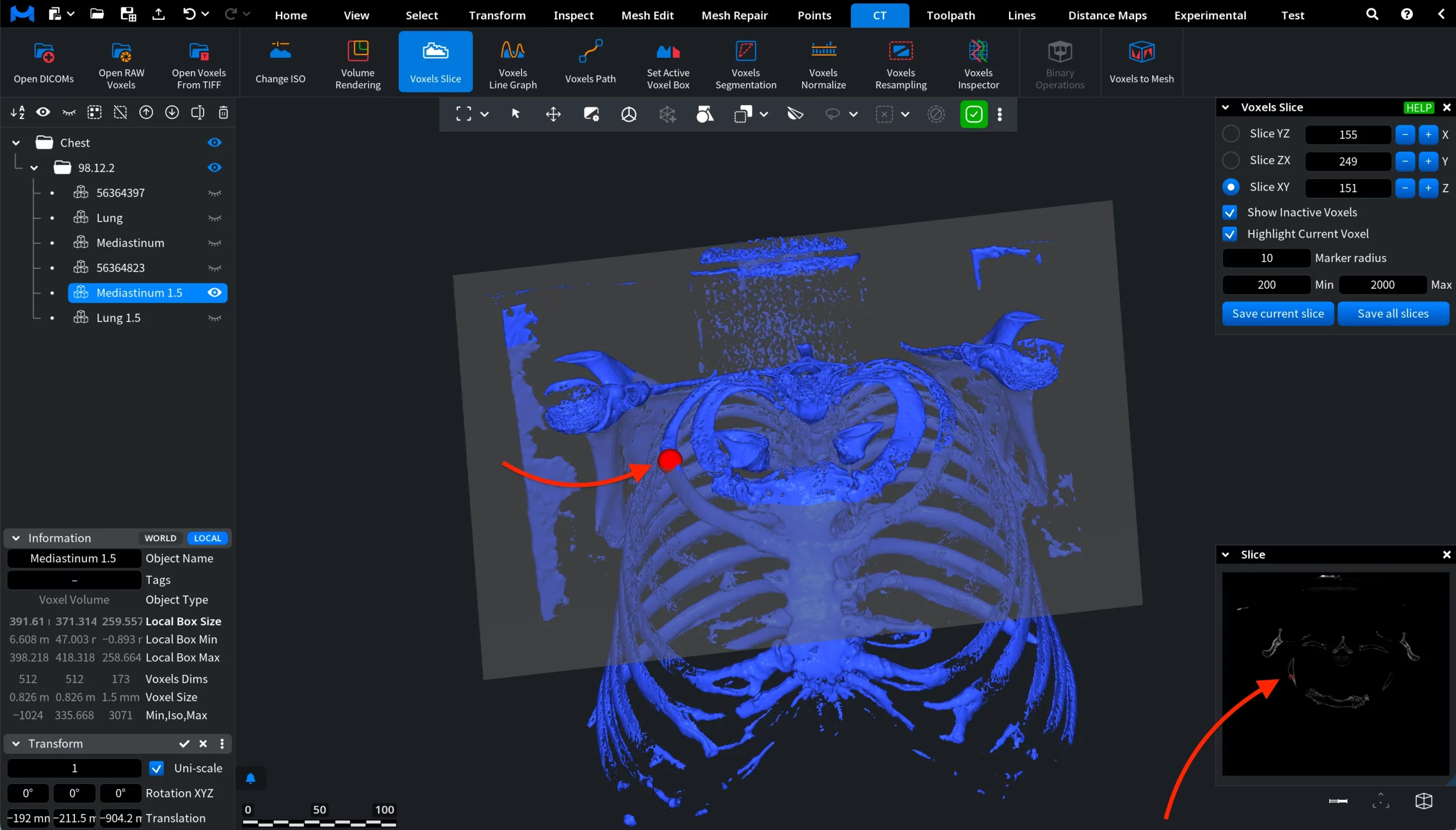
Clicking a different position on the model or on the slice moves the marker to the corresponding voxel in the volume.
Marker Radius controls the size of the red marker used to highlight the currently selected voxel. Increasing this value makes the marker easier to see in the 3D scene and in the slice preview, which can be useful when working with large voxel volumes. Decreasing the value makes the marker smaller and more precise.
Min / Max define the voxel value range used for slice visualization.
Save Current Slice exports the currently displayed slice from the voxel volume.
Save All Slices exports all slices of the voxel volume along the currently selected slicing axis.
How the Voxels Slice Tool Works