MeshInspector provides two commands for working with multiple objects: Combine and Union. These operations perform different types of actions: grouping objects in the first case and merging geometry in the second.
You can find them under the Mesh Edit tab.

Combine
The Combine option joins selected objects into a single object without modifying their geometry. No Boolean operation, welding, or topology modification is performed. Intersections and internal faces are preserved. In the screenshot below, two intersecting cubes are selected for combination.
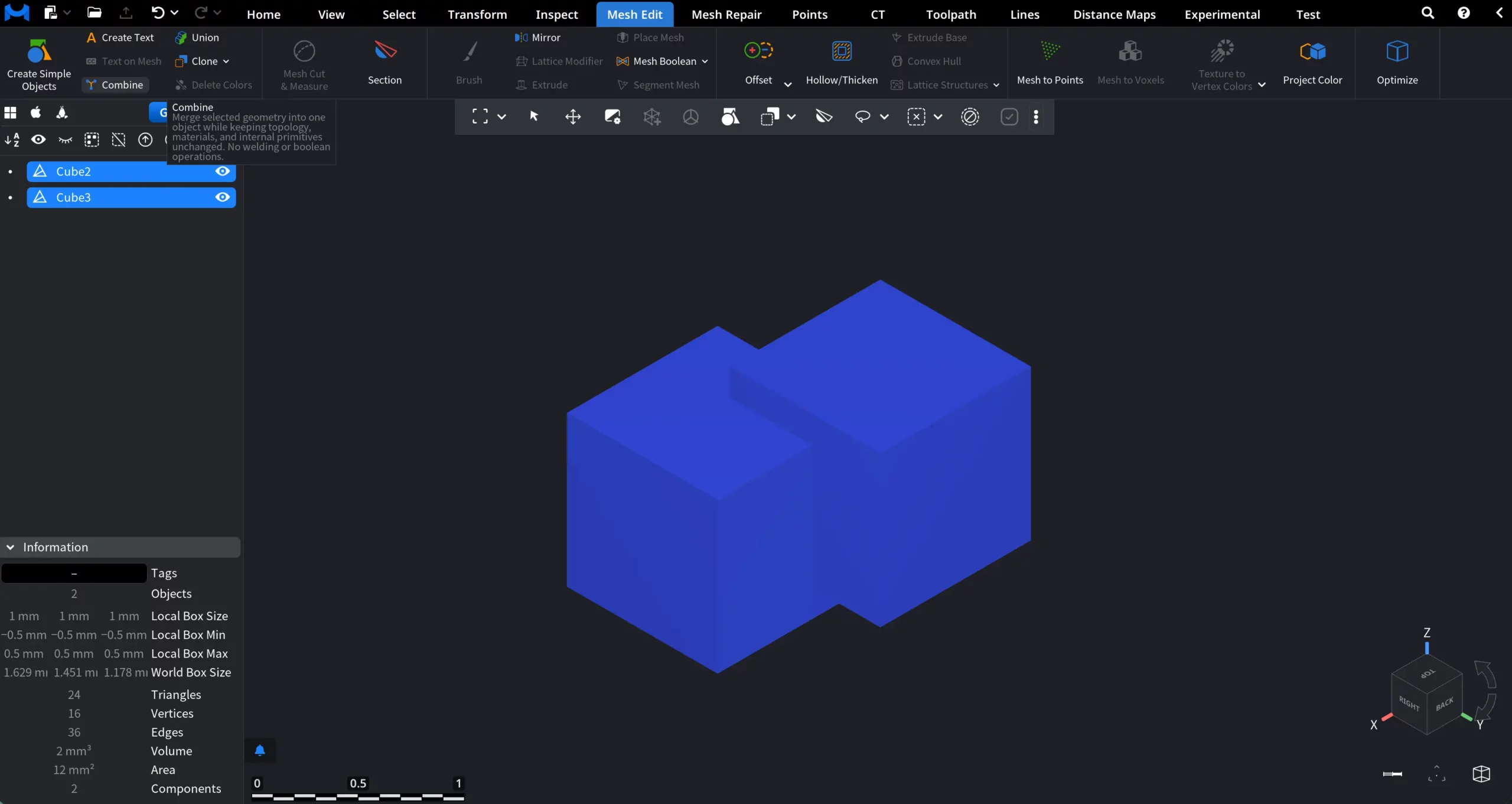
We click on Combine. The new combined object can be seen in the Scene Tree. If you click on Object Info under Inspect, you will see that this resulting object still contains two separate components.
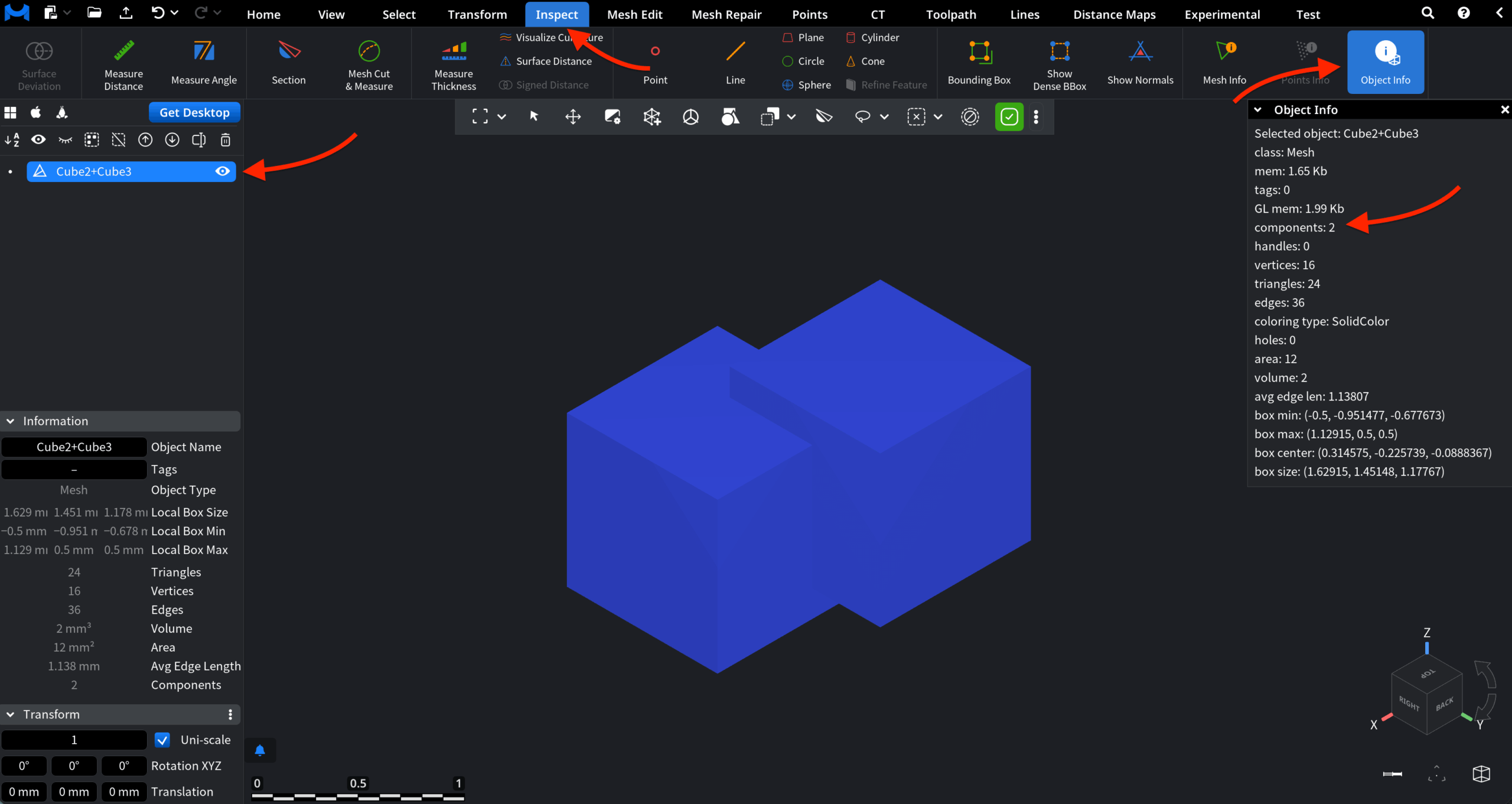
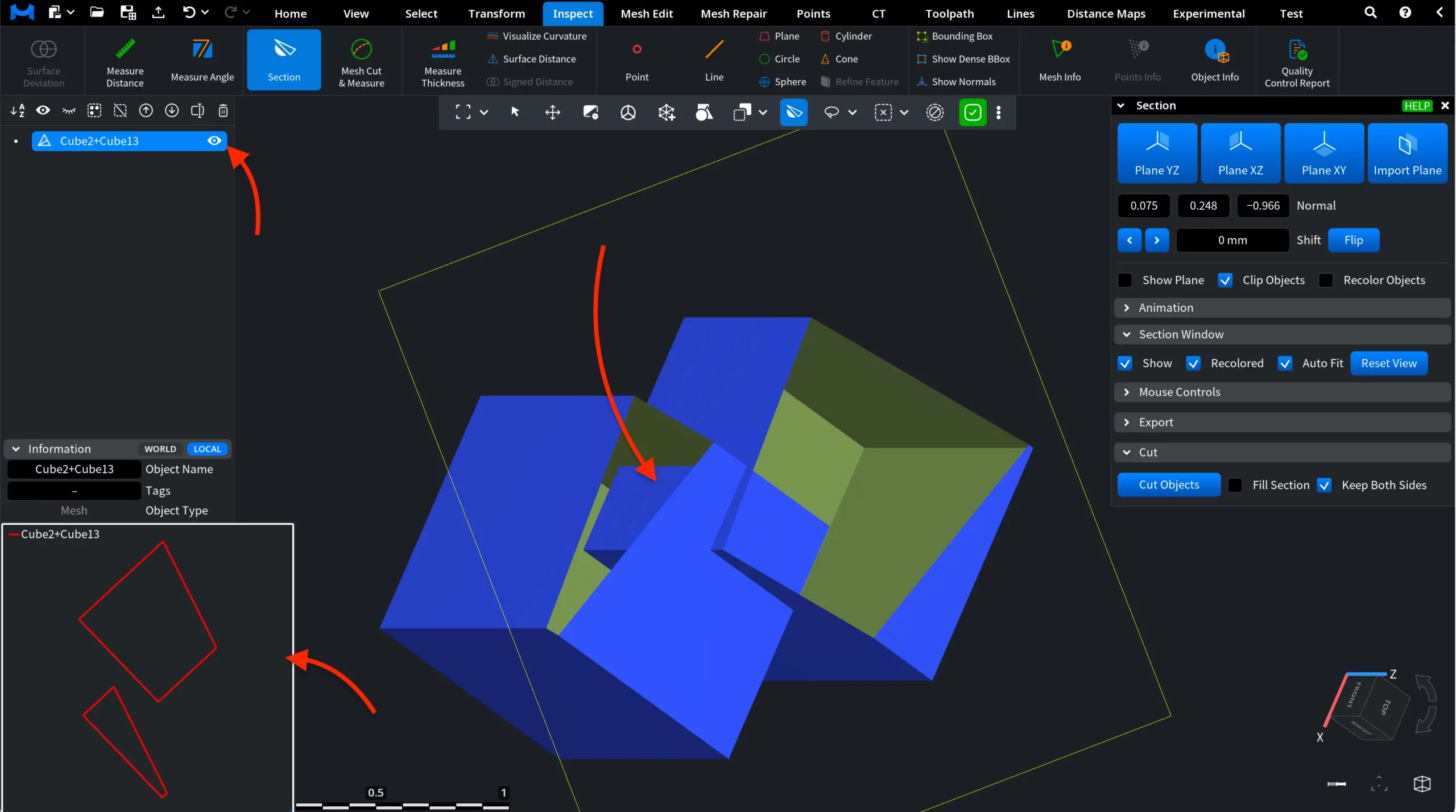
To better understand the result, we apply the Section tool to inspect the combined object internally. As shown in the screenshot, the two cubes intersect, but their internal faces remain intact. The objects have simply been placed within a single object without modifying their geometry.
In the cross-section view, the outlines reveal two independent shapes rather than a single merged volume. This confirms that the Combine tool does not modify geometry or remove intersections. Each original object remains a separate mesh component within the combined object.
Union
The Union tool, applicable to meshes only, performs a Boolean Union operation on the selected meshes, combining them into a single mesh with resolved intersections and a unified outer surface. Unlike Combine, Union modifies geometry: overlapping regions are merged, internal faces are removed, and intersections are automatically resolved.
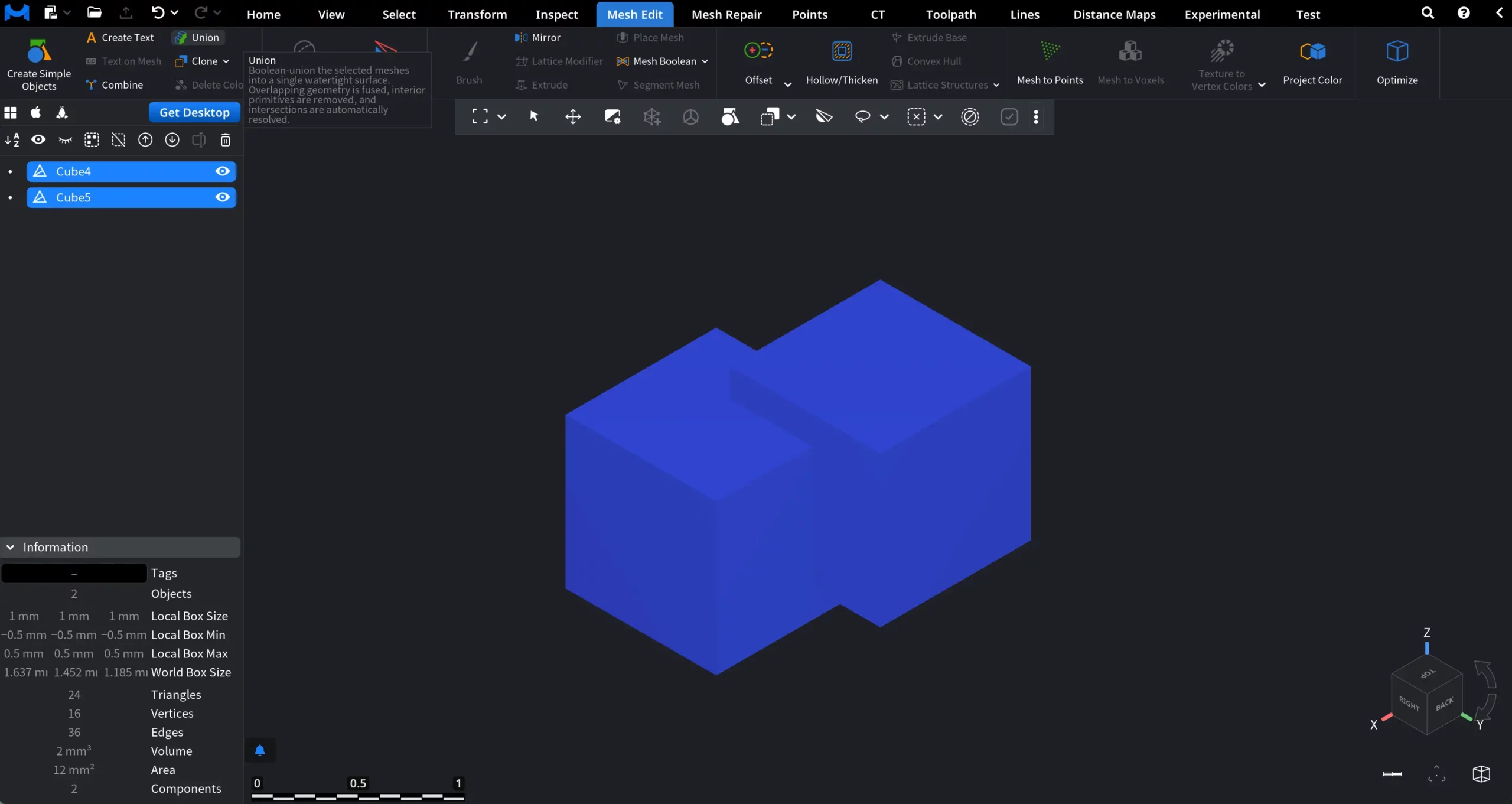
We select the meshes we want to apply Union to and click on Union. Then, a dedicated Union panel appears.
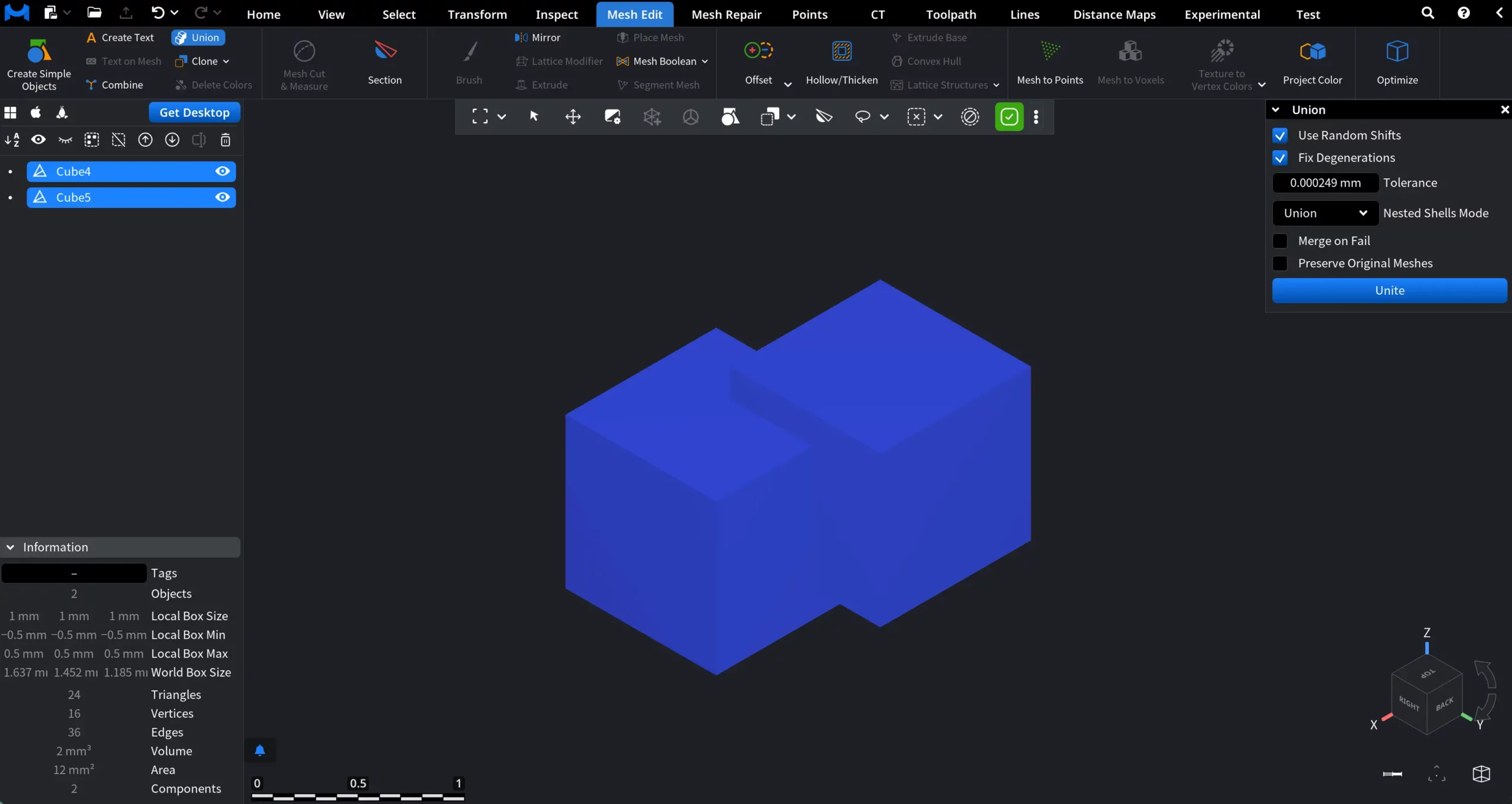
Available options are:
Use Random Shifts applies a random shift to each input mesh to prevent degenerations on coincident surfaces.
Fix Degenerations attempts to fix degenerations after each Boolean step to prevent Boolean failures caused by a high number of degenerated faces.
Tolerance defines the maximum allowed random shift in each direction and the maximum allowed deviation when fixing degenerations.
Nested Shells Mode controls how nested meshes (shells fully contained within other shells) are handled:
- Remove separates nested meshes and removes them. Use this if input meshes are single-component.
- Merge merges nested meshes. Useful when input meshes are components of a single object.
- Union does not separate components and performs union on all input meshes. Works slower than Remove and Merge but returns valid results if input meshes contain multiple components.
Merge on Fail. If the Boolean operation fails for any reason, combines shells instead of raising an error.
Preserve Original Meshes keeps the original input meshes in the scene in addition to the resulting united mesh.
Click Unite to execute the Boolean Union with the selected settings.
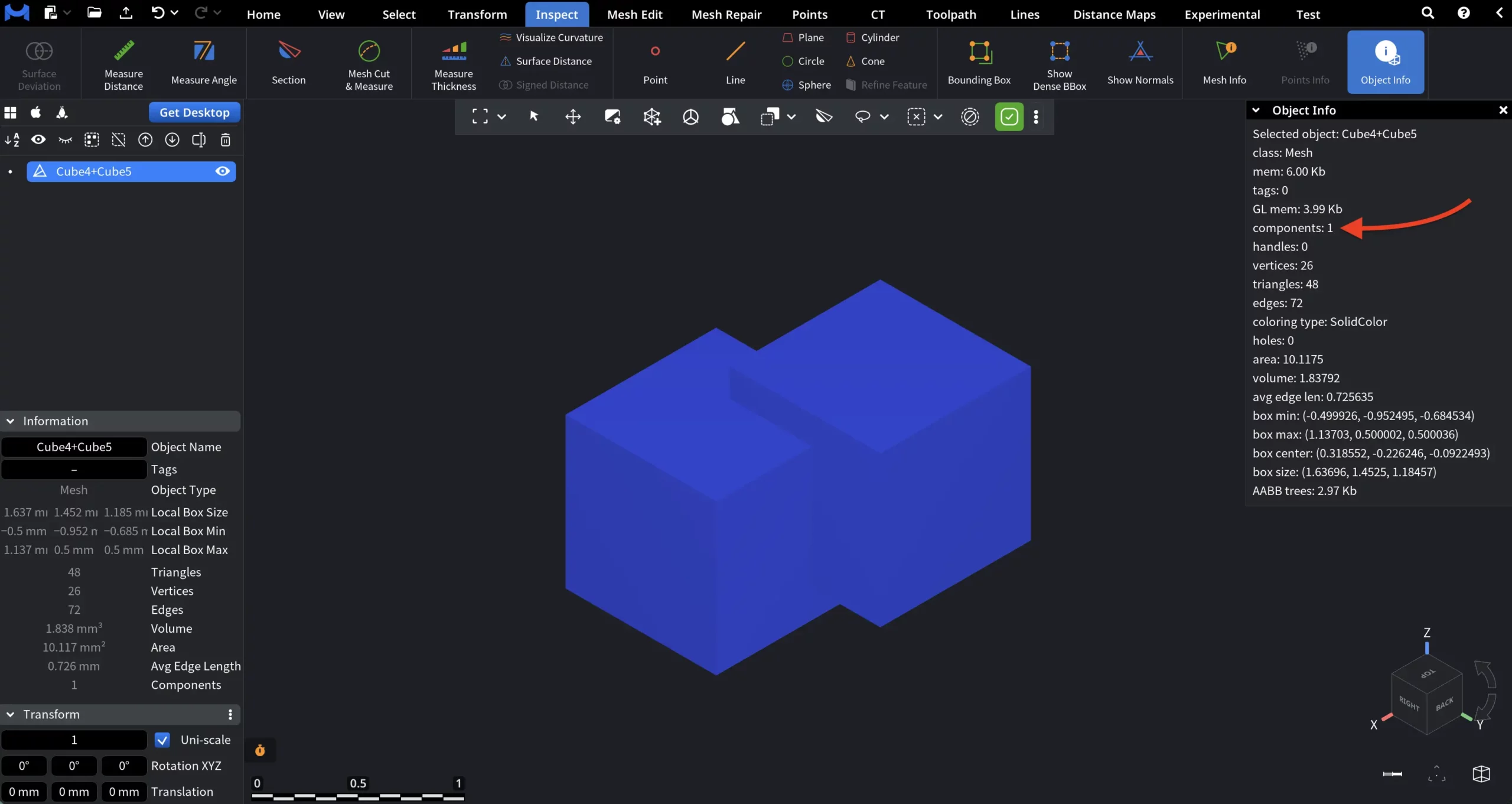
Having run a Boolean Union operation, we can see in the Object Info panel that there is one component only.
To examine the result, we once again apply the Section tool. As shown in the screenshot, the internal geometry that previously existed between the cubes is no longer present. The intersecting regions have been resolved, and the resulting mesh forms a single continuous volume.
In the cross-section view, the outlines now form one unified shape rather than two separate ones. This indicates that the overlapping parts of the meshes have been merged and the internal faces removed.
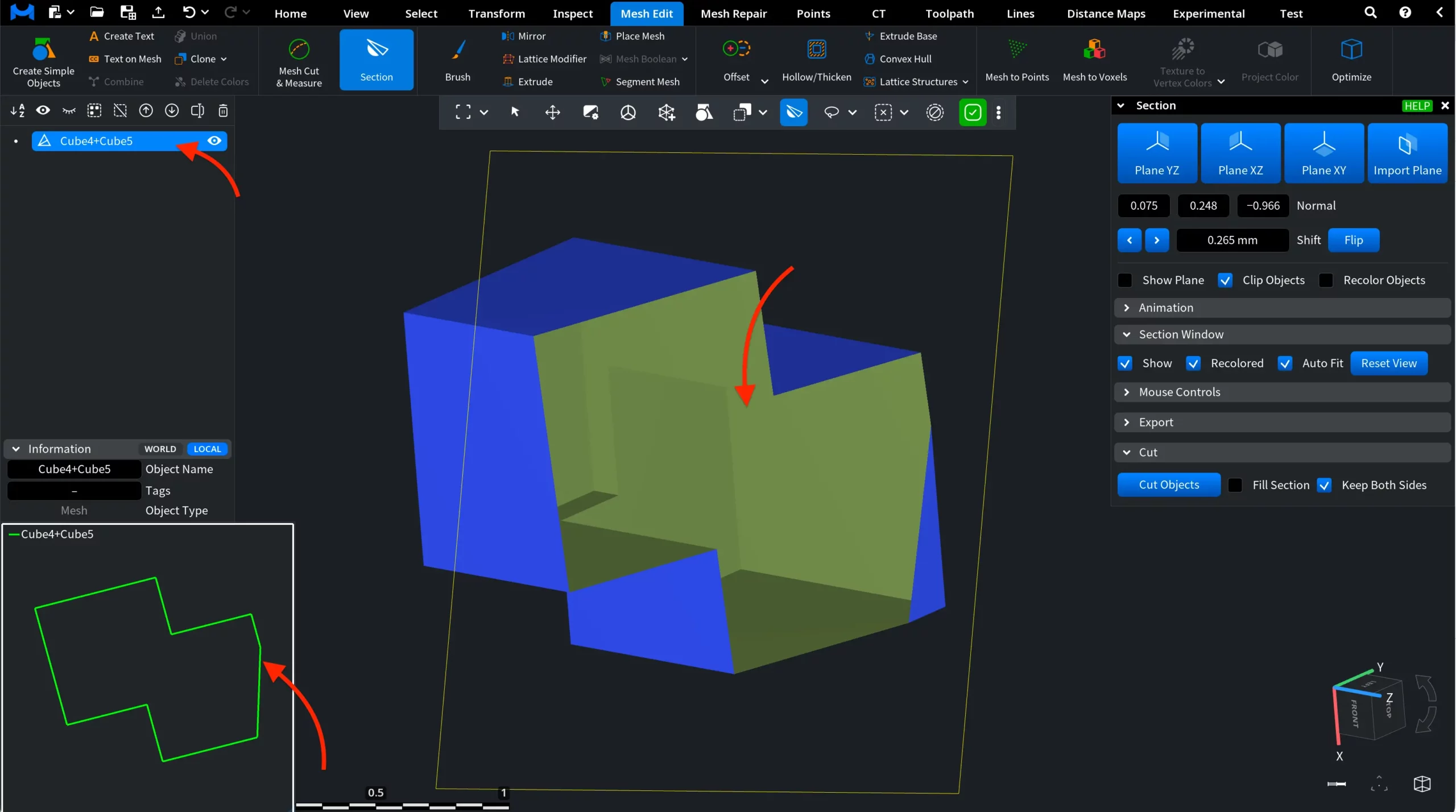
As an outcome, the object now consists of a single mesh component with a continuous outer surface. This confirms that Union performs a true Boolean operation, unlike Combine, which only groups objects without modifying their geometry.