The Hollow/Thicken tool, located under the Mesh Edit tab, converts a mesh into a closed mesh by creating two offset surfaces on opposite sides of the original geometry. This allows you to create a hollow object or add thickness to a mesh.

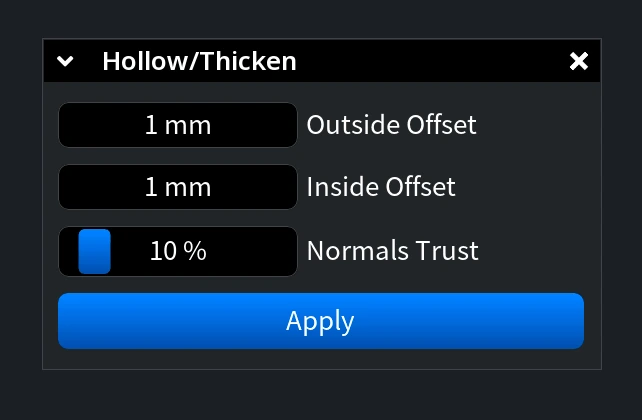
Clicking Hollow/Thicken opens a dedicated panel with the following settings and controls:
- Outside Offset sets the distance by which the outer surface is shifted in the direction of the mesh normals.
- Inside Offset sets the distance by which the inner surface is shifted in the opposite direction to the mesh normals.
- Normals Trust controls normal smoothing when generating the offset surfaces. Lower values apply more smoothing, while 10% is the default smoothing value.
- Apply generates the resulting hollow/thickened mesh using the specified settings.
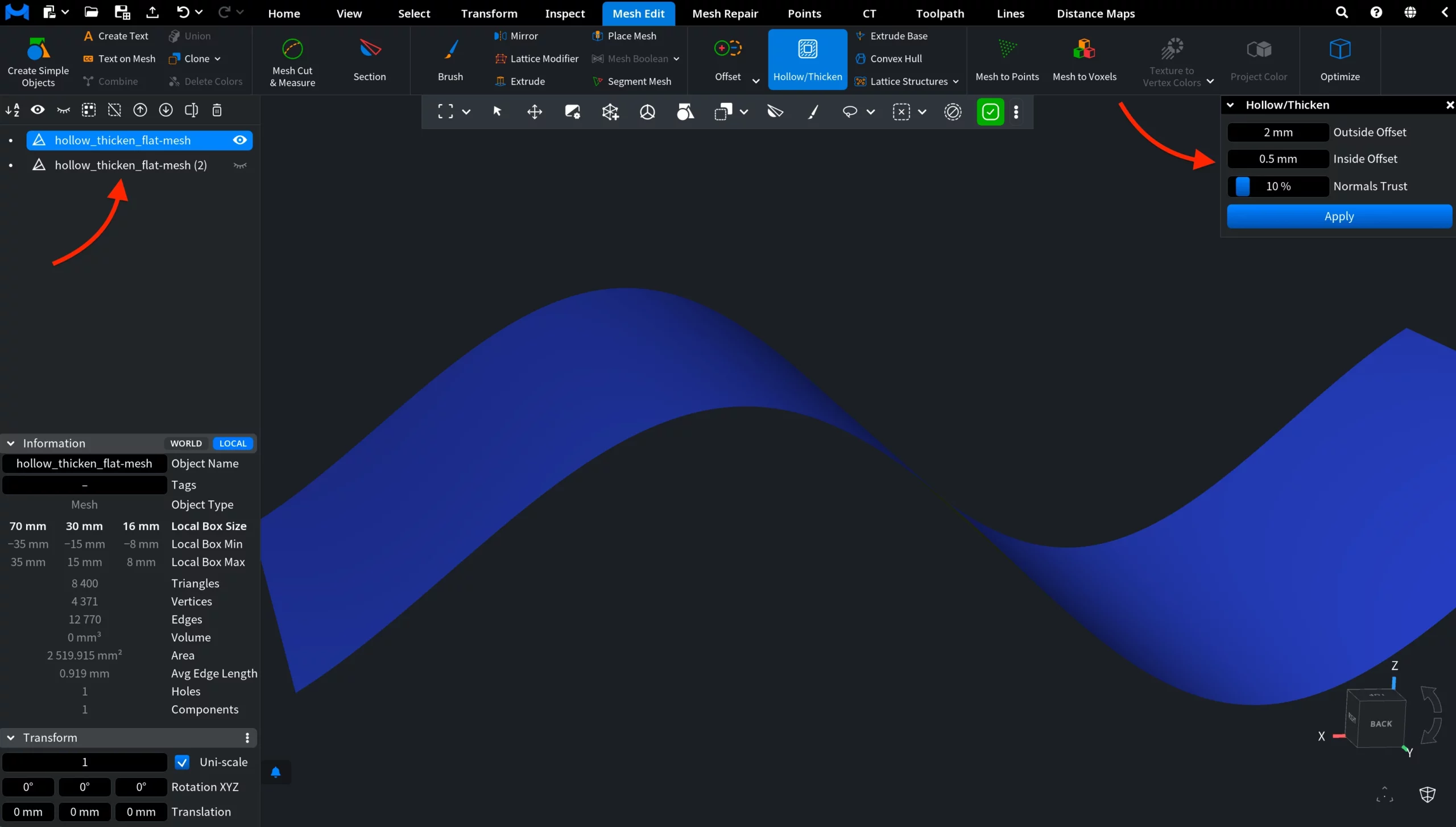
To make the effect of Hollow/Thicken easier to see, we first uploaded an open wavy mesh surface and cloned it to retain the original surface as a reference. For now, the reference copy is hidden. We are going to apply an Outside Offset of 2 mm and an Inside Offset of 0.5 mm.
After clicking Apply, the original mesh is replaced by a closed mesh formed by two offset surfaces connected along their boundaries. We then made the cloned reference mesh visible again to compare the result with the original geometry.
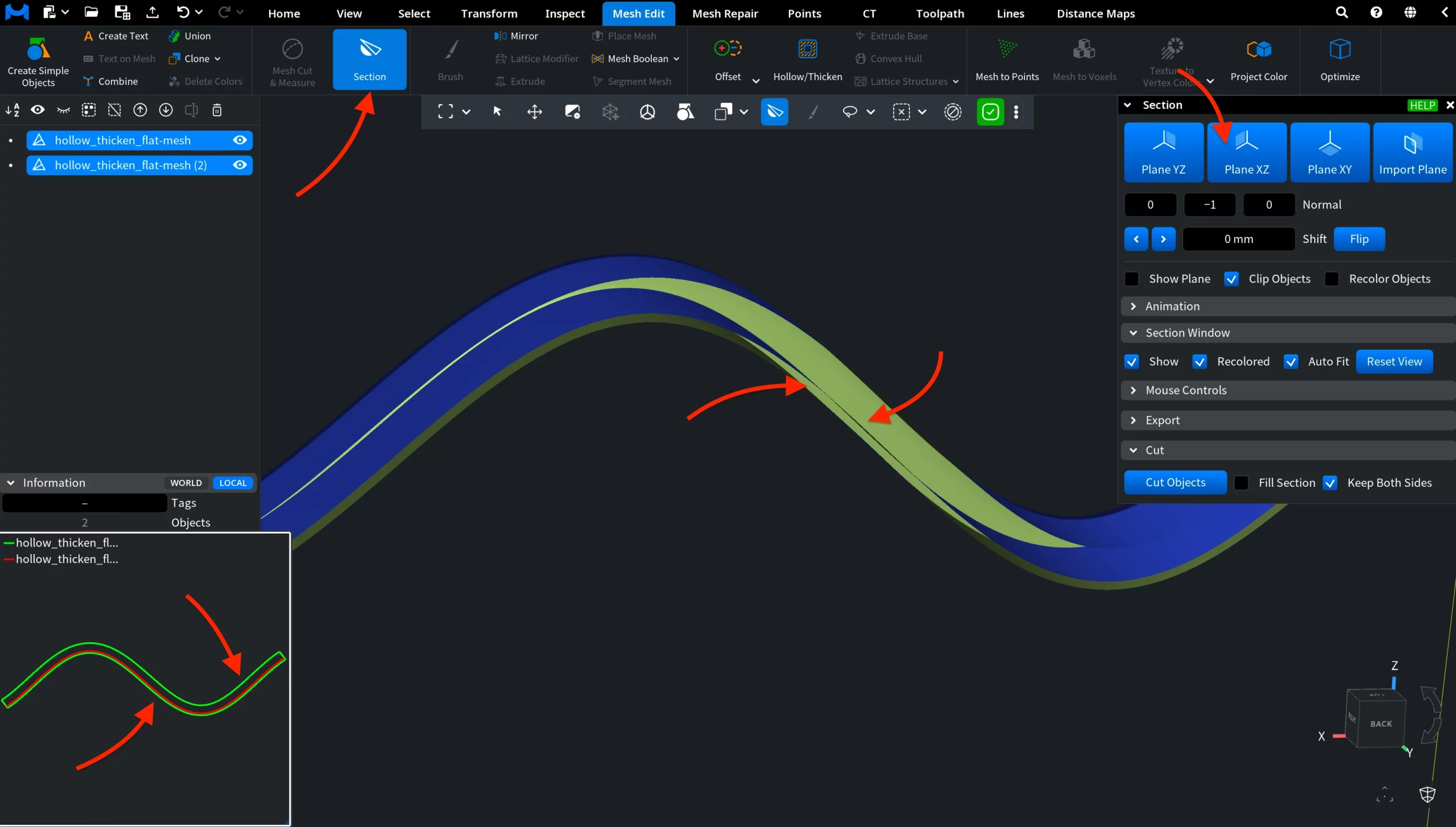
To make the difference easier to inspect, we also activated Section under the Mesh Edit tab. In the cross-section, you can clearly see that the new mesh extends on both sides of the original surface: 2 mm outward in the direction of the normals and 0.5 mm inward in the opposite direction.
To make the offset directions even clearer, we enabled Show Normals under the Inspect tab for the reference copy.
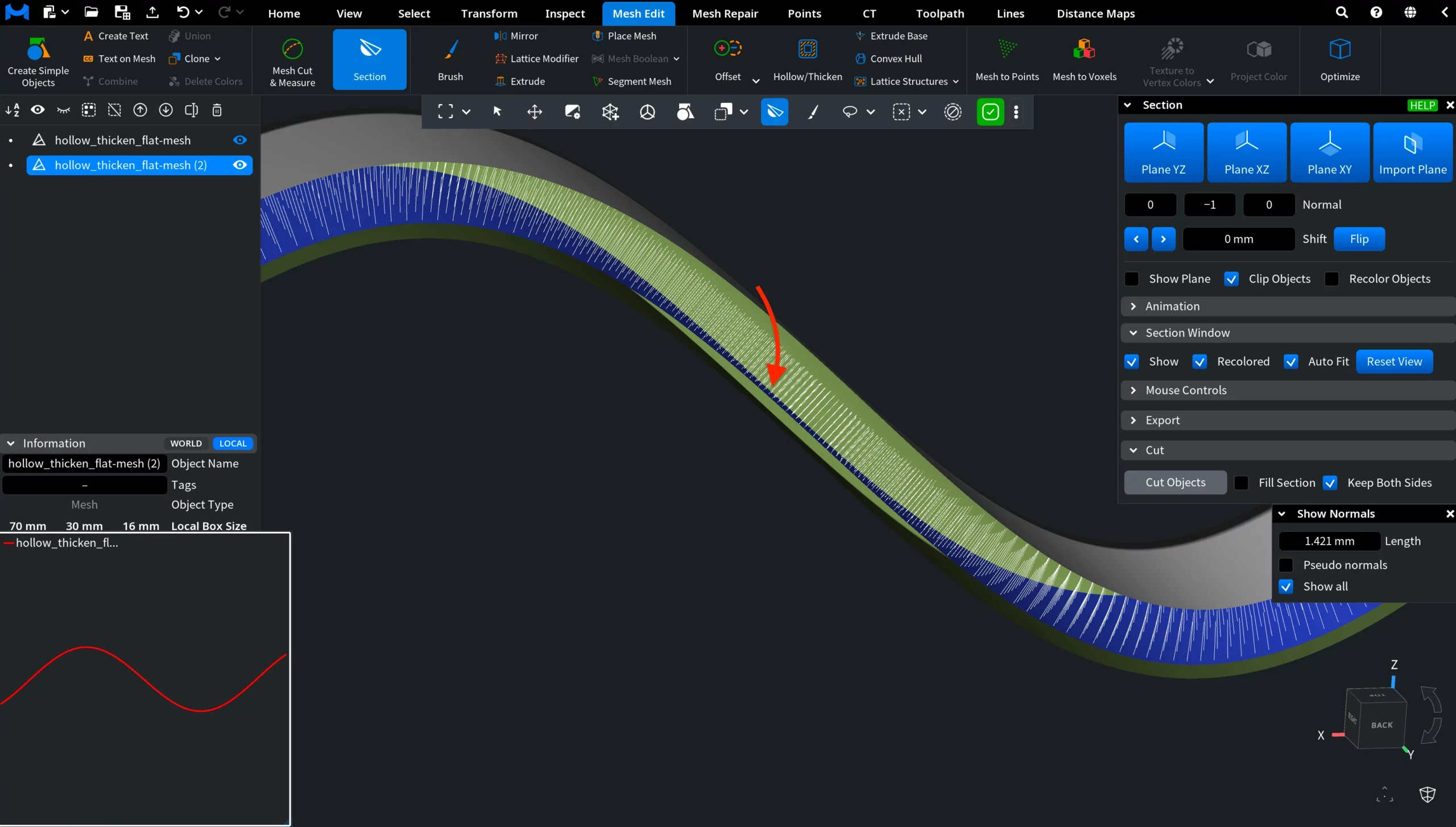
The displayed normals indicate the outward direction of the original surface, making it easier to see how the Outside Offset follows the normals while the Inside Offset extends in the opposite direction.
How the Hollow/Thicken Tool Works in MeshInspector