The Select Boundary Points tool, located under the Points tab in MeshInspector, allows you to automatically identify and select points that lie on the boundaries of a point cloud. It analyzes the local neighborhood around each point to determine whether that point belongs to an open edge or boundary.

Clicking Select Boundary Points opens a dedicated panel with the following settings and controls:
- Nearest Neighbours specifies the number of nearest neighboring points used to build the local triangulation. A value that is too low can produce suboptimal triangulation and additional holes, while a very high value increases computational complexity and can reduce performance. Enter a value directly or use the – and + buttons to adjust it.
- Angle sets the minimum angle between neighboring points for them to be treated as belonging to a boundary. Enter the required angle directly or use the – and + buttons.
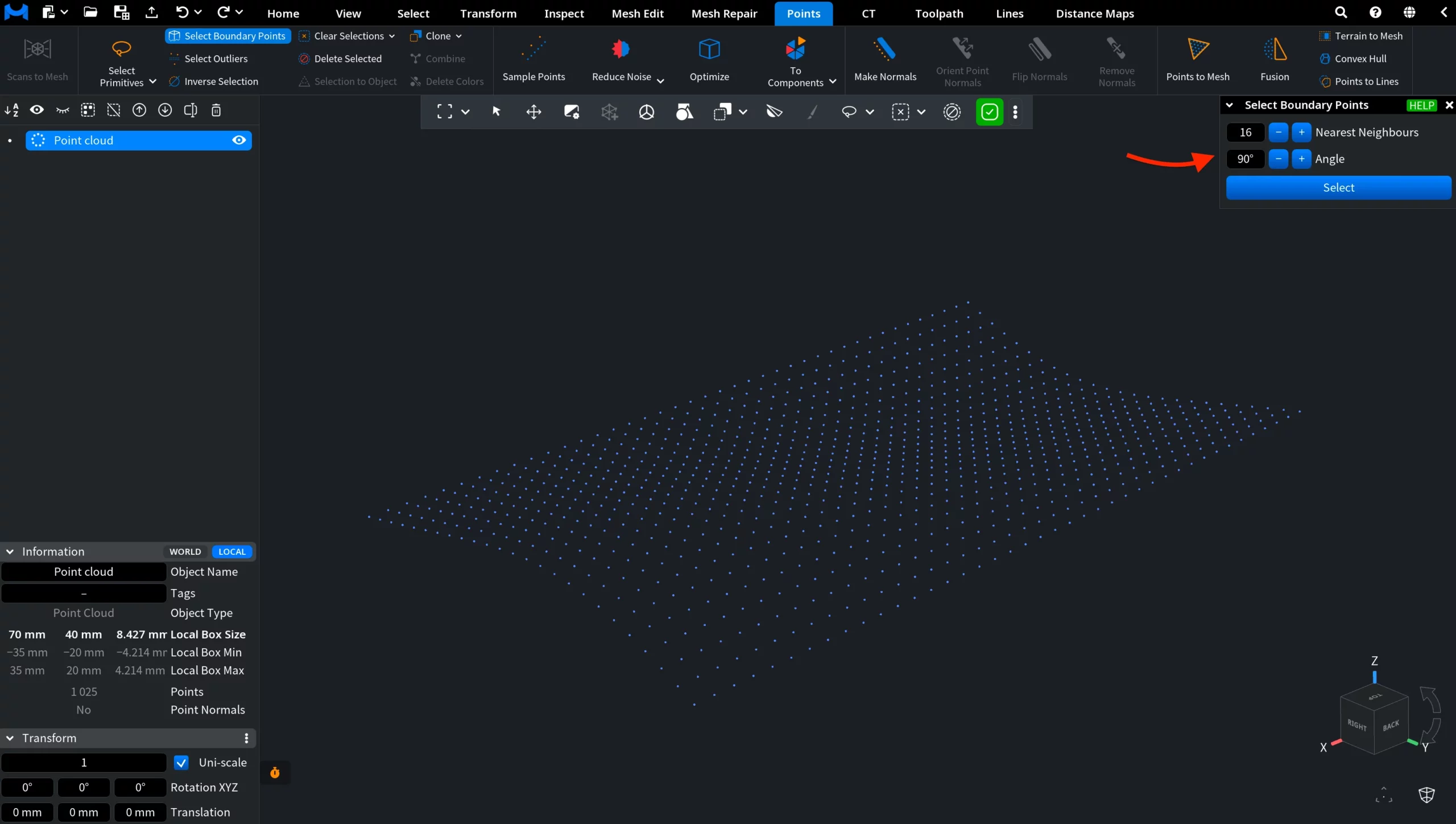
Select analyzes the point cloud using the specified settings and selects the detected boundary points.
Below, you can see the result produced using MeshInspector’s default settings: 16 Nearest Neighbours and an Angle of 90°.
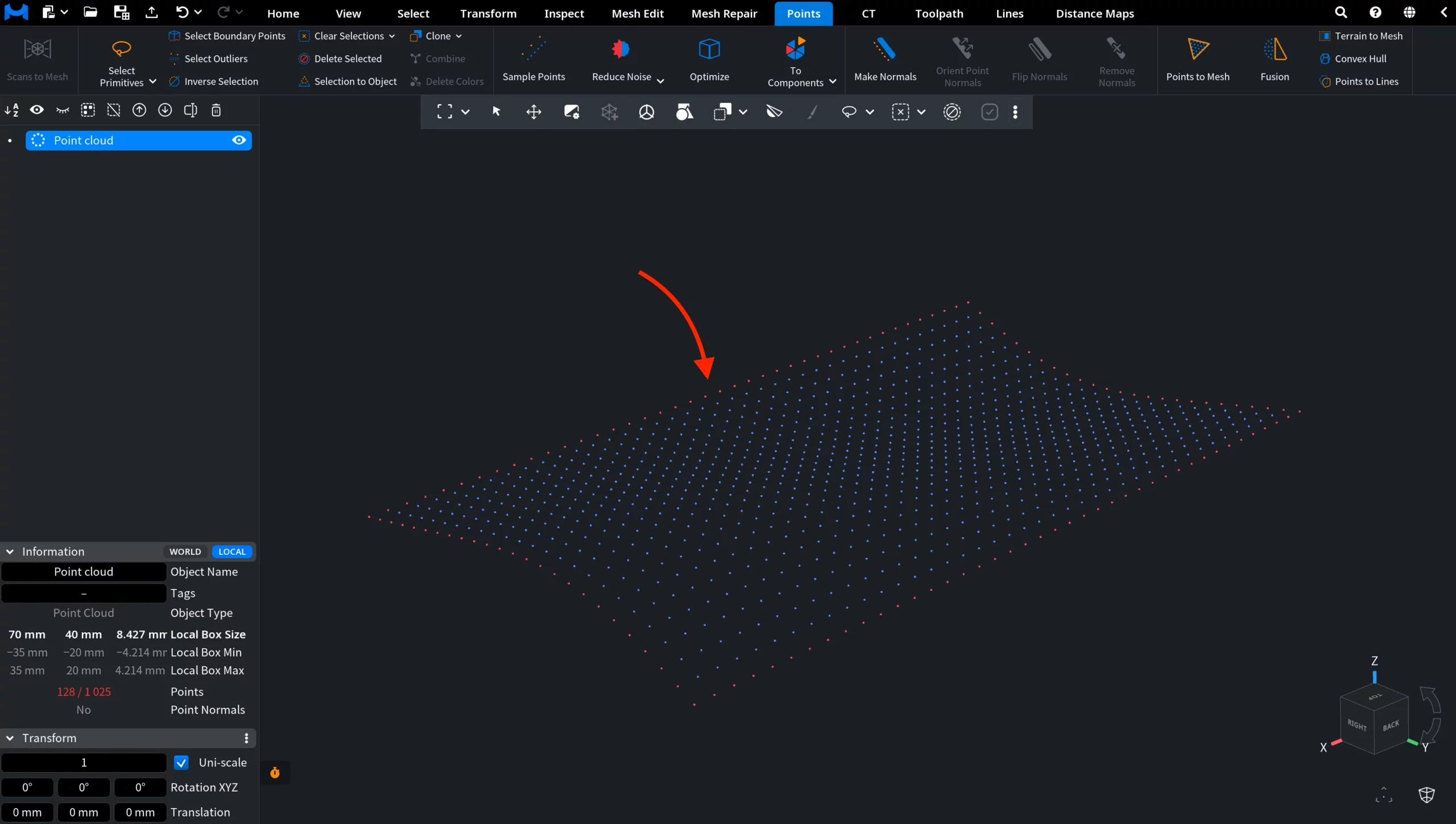
After clicking Select, the detected boundary points are highlighted in red. In this example, the tool selected 128 out of 1,025 points, tracing the outer perimeter of the point cloud while leaving the interior points unselected.
To show how the settings affect the result, we also tested the same point cloud with 16 Nearest Neighbours and an Angle of 45°.
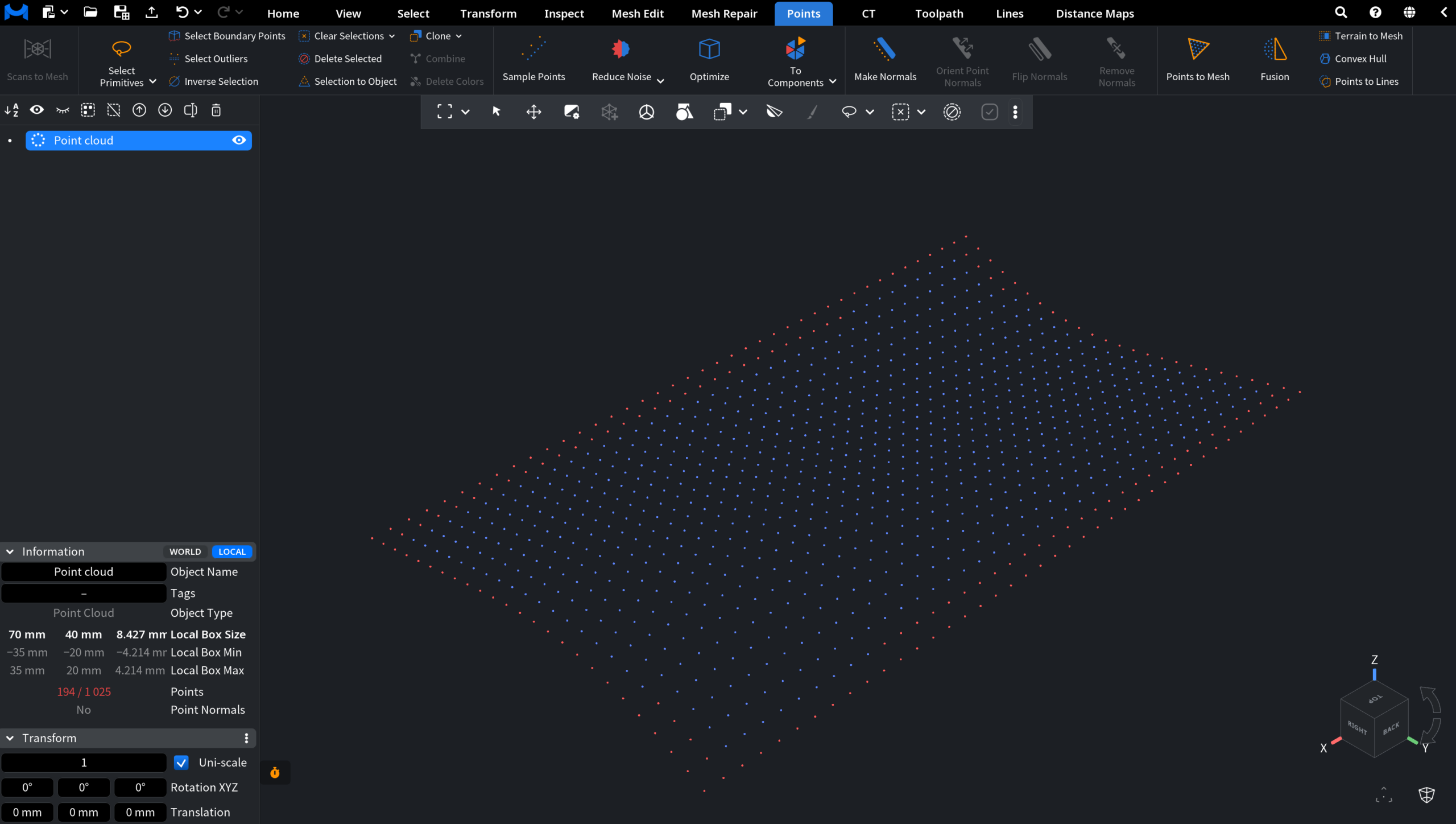
Compared with the default 90° angle, the 45° setting produced a more permissive selection in this example: MeshInspector selected 194 out of 1,025 points instead of 128, extending the selection farther inward from the outer boundary.