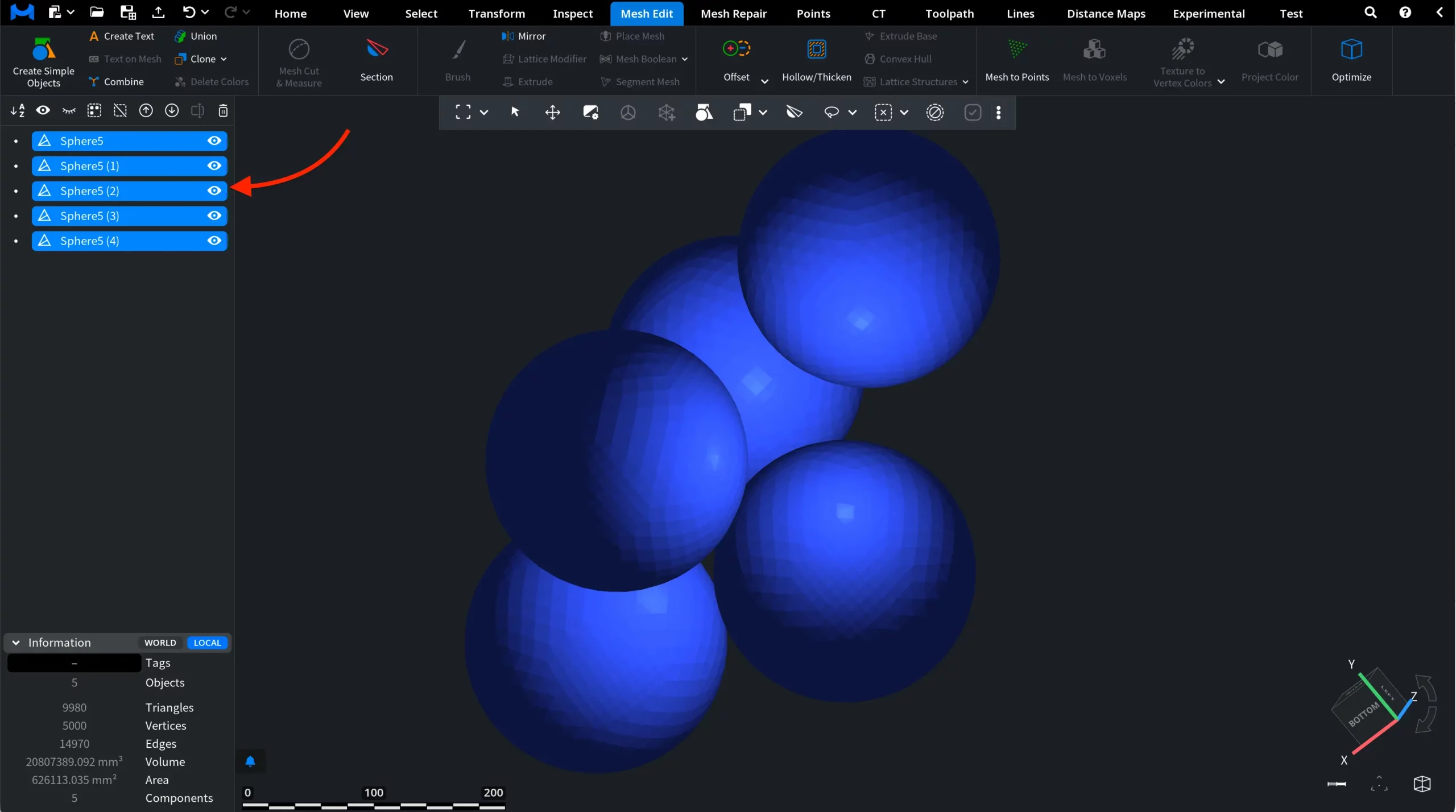
This guide explains how users can create copies of objects in MeshInspector.
Clone
The Clone tool creates duplicates of the selected object(s). Each clone is an independent copy with the same geometry and properties as the original. This tool can be found under the Mesh Edit tab.

Alternatively, you can select the object(s) of interest in the Scene Tree, right-click them, and then click Clone.
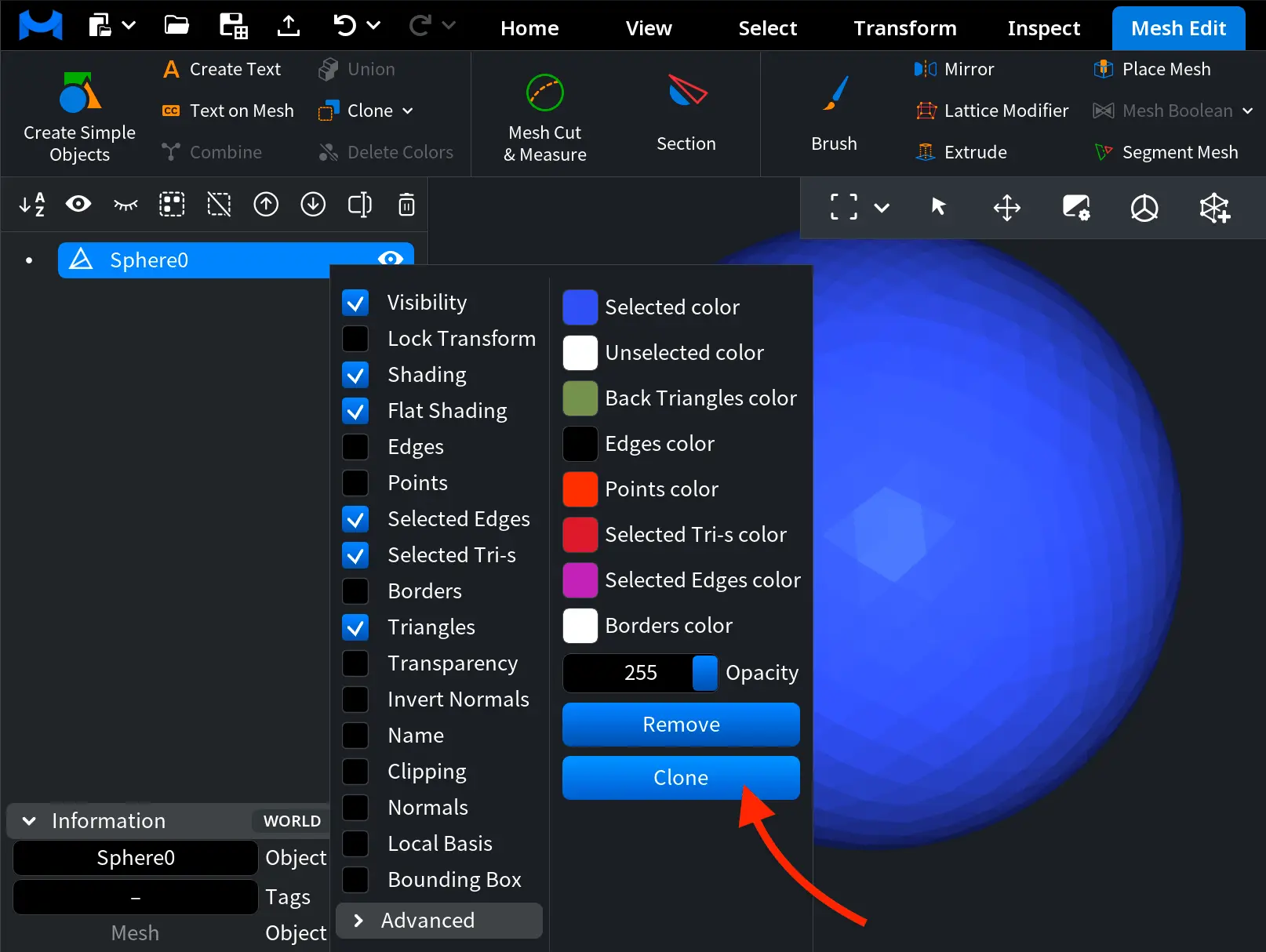
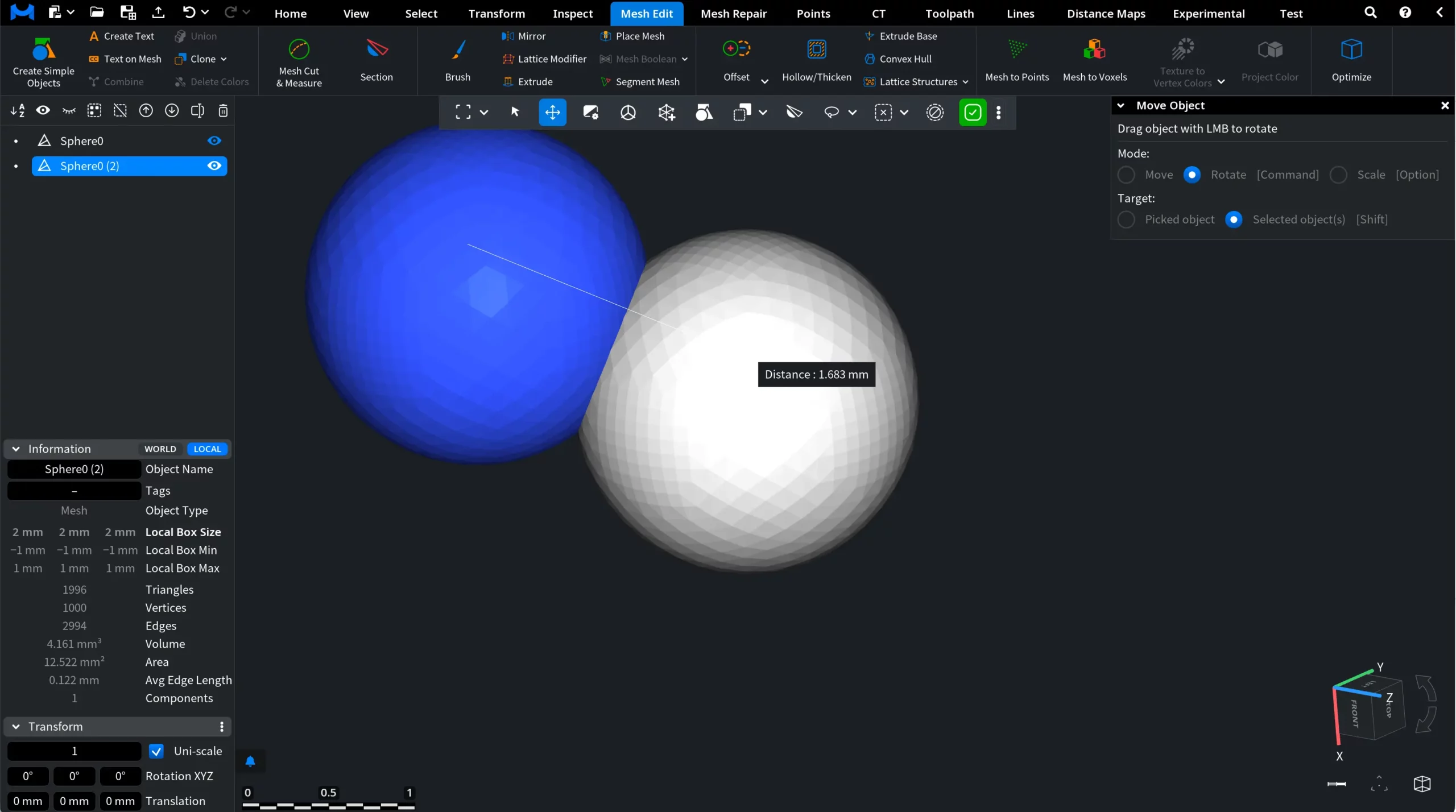
Note that the new object will be created in the same place in the viewport as the original. To view both objects, you will need to move one of them, as shown below.
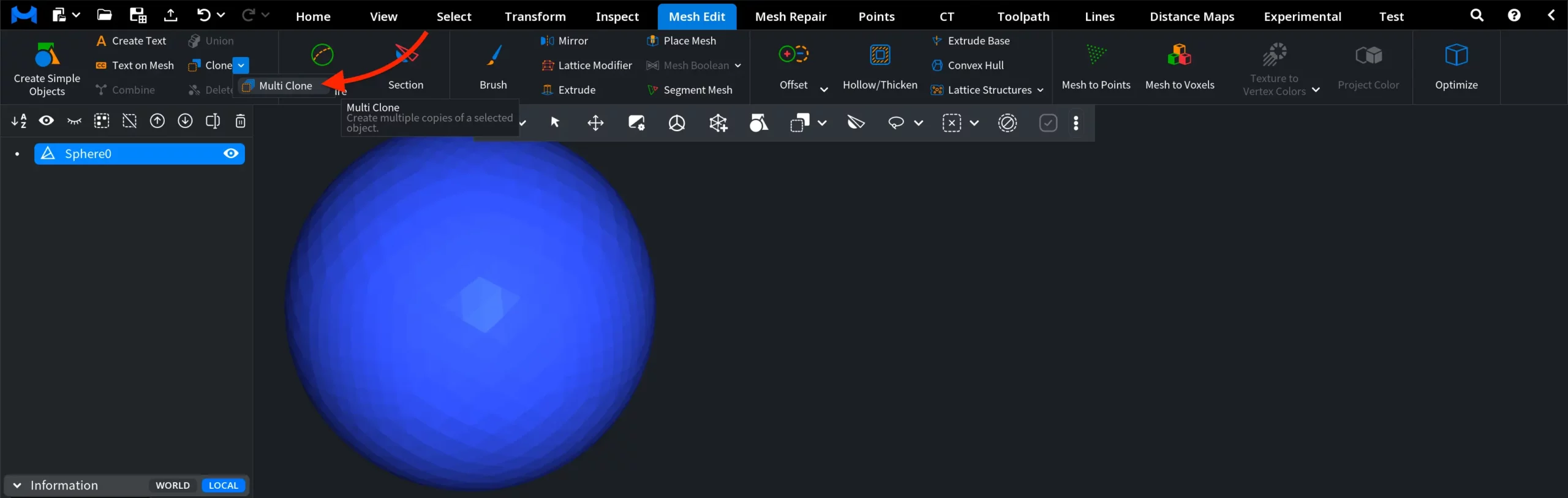
Multi Clone
Multi Clone creates multiple copies of the selected object in a single operation, with full control over their positioning and rotation. To use Multi Clone, click the Clone dropdown in the Create Simple Objects panel and select Multi Clone.
The Multi Clone panel opens, allowing you to define how the copies are generated. Available options include:
- Copies defines how many duplicates of the selected object will be created.
- Translation specifies the offset applied to each successive copy along the X, Y, and Z axes.
- Rotation Pivot sets the pivot point around which each copy is rotated.
- Rotation Angles defines the rotation applied to each copy around the pivot, expressed in degrees for each axis.
- Reset sets all Multi Clone parameters to zero.
- Show Preview displays a live preview of the generated copies in the viewport without applying them.
- Apply creates the copies using the current settings and adds them to the scene.
In the screenshot below, you can see how Show Preview works with the current settings.
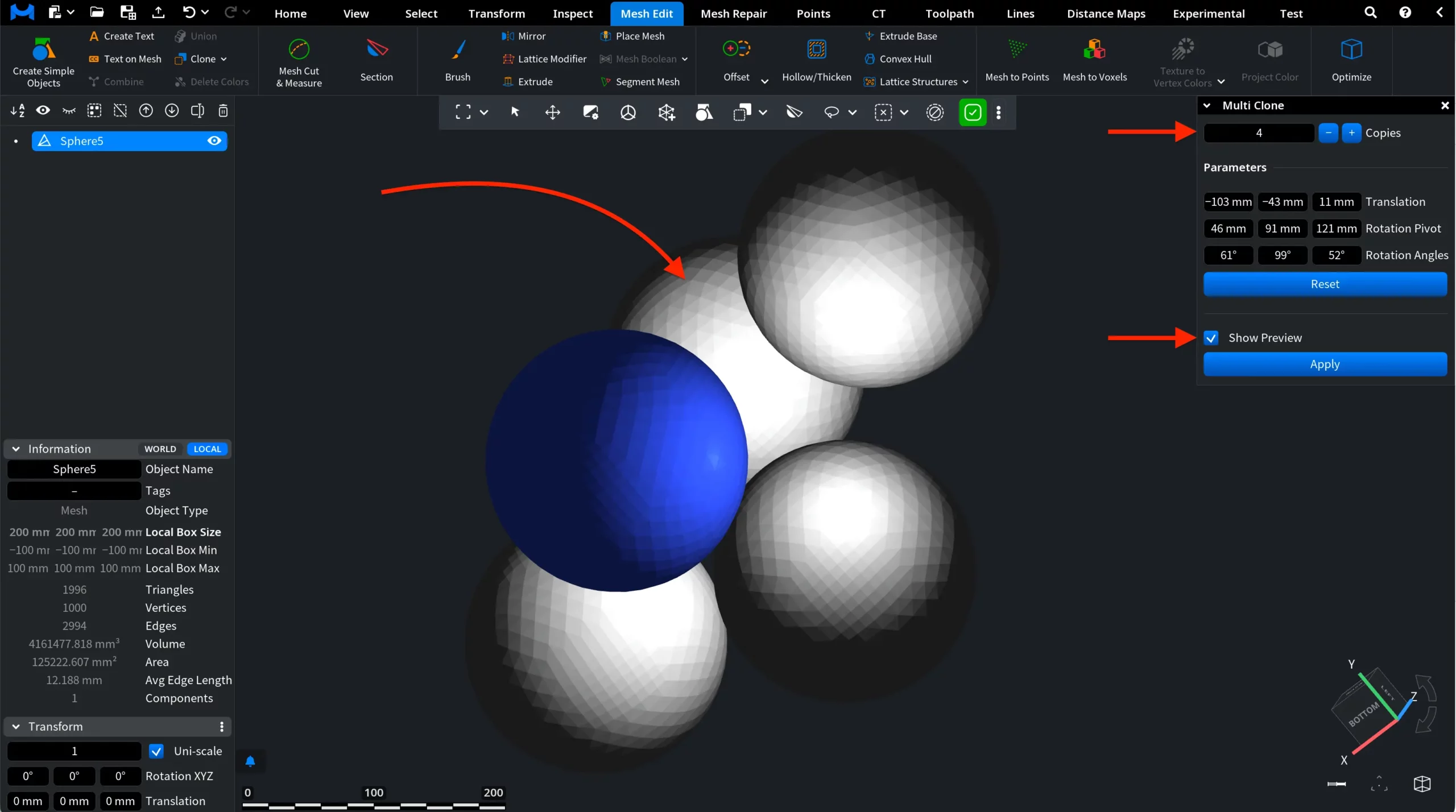
Once you have enough copies and are ready to finalize the process, click Apply. All copies will be added to the Scene Tree.