Elizabeth Robinson
Needed to get this math model into a standard art program. Worked like a charm. Thanks for supporting weird formats.
Convert OFF geometry files to OBJ format for modeling, rendering, or simulation.
 No Limits
 Automatic Mesh Repair
 SSL & Auto-Delete
| MeshInspector | MeshInspector | Other Converters | |
|---|---|---|---|
| Speed | Ultra-fast Local processing | Fast | Slow |
| File Size Limits | Unlimited | Unlimited | File size limit (50 MB) |
| File Number Limits | Unlimited | Unlimited | Usually single file only |
| Folder Support | Full folder import | Full folder import | Not supported |
| Assembly Conversion | Partial or full assembly | Partial or full assembly | Not supported |
| Mesh Validation | Integrated | Integrated | Not supported |
| Auto Mesh Repair | Advanced | Advanced | Not supported |
| Mesh Repair Options | Advanced | Advanced | Not supported |
| Accuracy Control | Full | Full | Not supported |
| 3D Viewer | Advanced | Advanced | Basic or no preview |
| 3D Editor | Advanced | Advanced | Not supported |
| Security & Privacy | 100% Local | SSL + Auto-delete | Files often stored on servers |
| Cross-Platform | Windows, macOS, Linux | All devices | Web only, limited mobile UX |
| Suitable for | Professionals and engineers | Quick online conversions | Not recommended |
Join thousands of engineers who trust MeshInspector for their 3D file conversion needs. Start converting today with no limits and professional results.
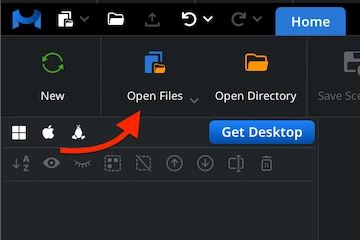
To initiate the OFF-to-OBJ conversion, launch the MeshInspector program. Once our intuitive interface is open, go to the ’Home’ tab and click ‘Open Files’ to import your 3D model.
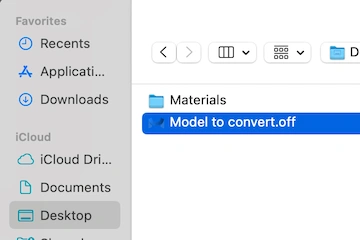
In the dialog window that appears, locate your .off file. Once found, select it and either click ‘Upload’ or double-click its name to open it. MeshInspector will then load the file and display its geometry.
After loading, your OFF model appears as a polygonal surface mesh ready for further operations. You can view it from any angle to make sure it is in proper condition for work.
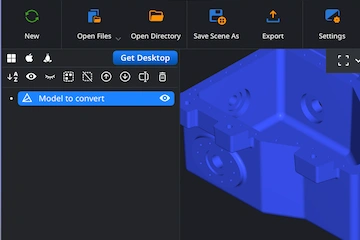
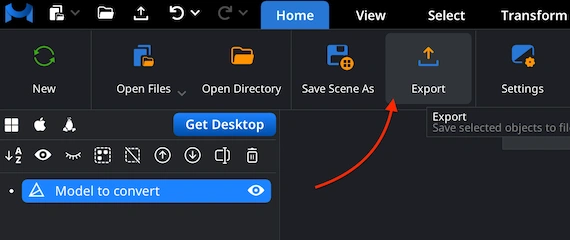
When your OFF model is loaded, select the part or assembly you wish to export. In the Scene Tree, right-click the chosen element and click the ‘Export’ icon to open the export dialog.
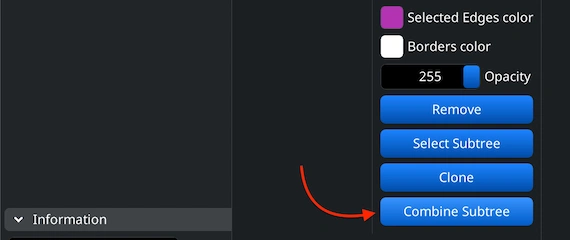
If your OFF file includes several objects, you can merge them. In the Scene Tree, select the objects to combine, right-click, and choose ‘Group’. Then, right-click the new group and select ‘Combine Subtree.’
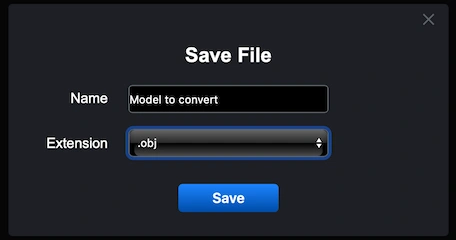
After clicking ‘Export’, the ‘Save File’ dialog will appear. Rename the file whenever needed and open the ‘Extension’ dropdown list. Choose .obj as the output format. MeshInspector will then carry out the OFF-to-OBJ conversion, generating an OBJ file for your workflows.
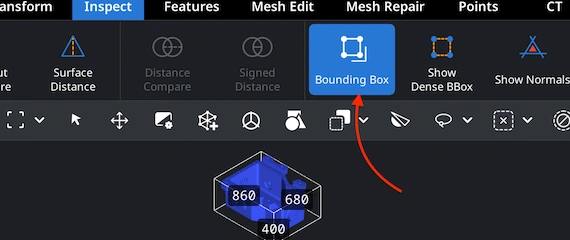
Once your OBJ file is exported, reopen it in MeshInspector to verify the dimensions. Navigate to the ’Inspect’ tab and enable ‘Bounding Box’ to calculate and display the OBJ model’s overall size. This measure helps ensure you receive the very outcome you anticipate.
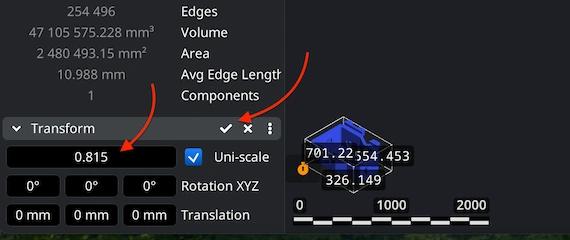
If the model does not match your requirements in terms of size, go straight to ’Transform’ under ’Information.’ Employ the Scale slider to resize the object to your desired proportions. Once satisfied, confirm the change by clicking the checkmark icon.