The Scale tool, located under the Transform tab, resizes the selected object by a specified factor. The transformation is applied uniformly to the entire object, preserving its proportions.

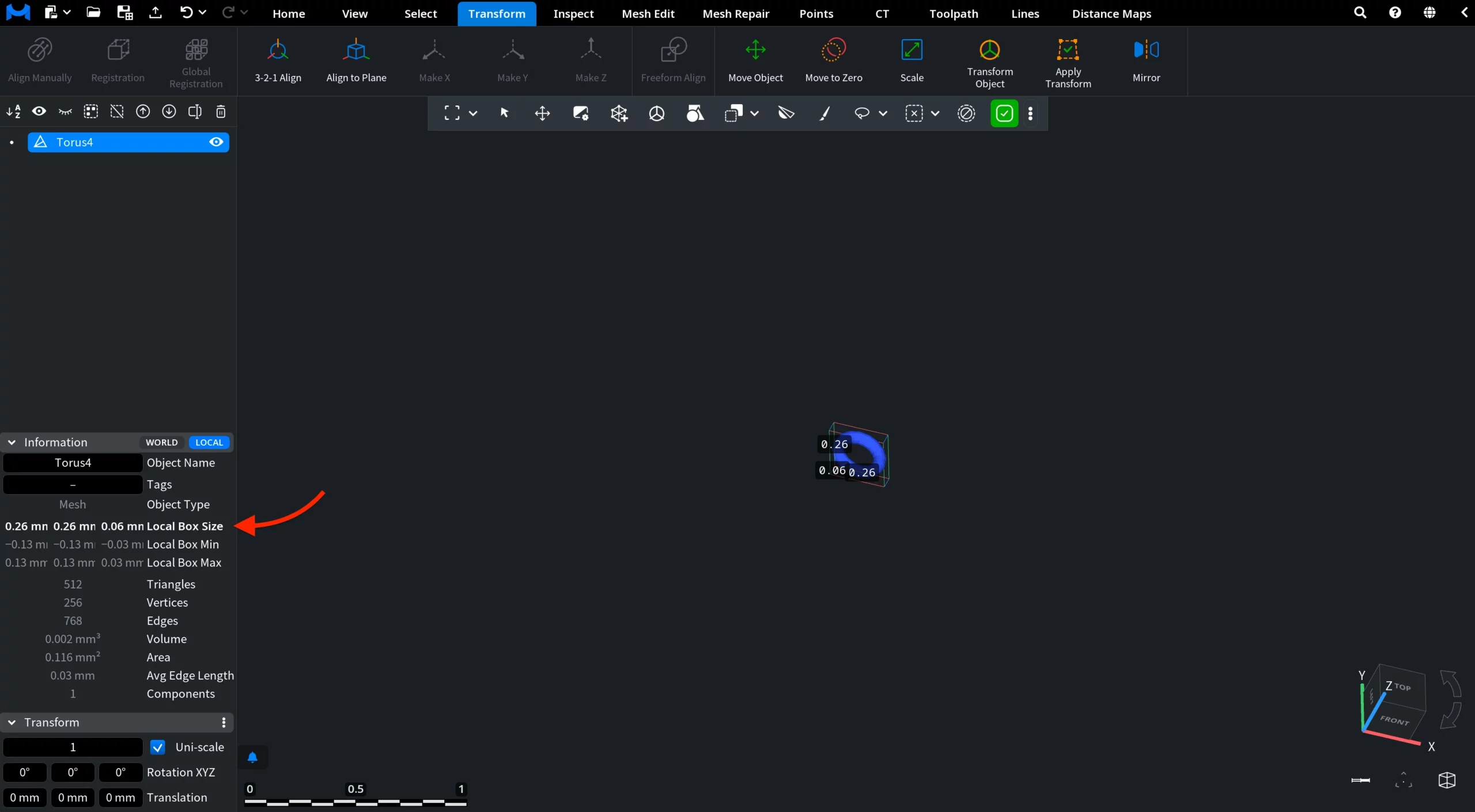
Once you click Scale, a dedicated panel appears on the right. There, you can specify the scaling factor and apply the transformation. For clarity, we have also activated Bounding Box under the Inspect tab so that you can see the object dimensions before applying Scale.
The Scale field defines the multiplier applied to the object’s current size. The panel provides preset buttons for common scale factors that multiply the current size:
- ×1000 / ×100 / ×10 increase object size.
- ×0.1 / ×0.01 / ×0.001 reduce object size.
Click Apply to commit the scaling operation.
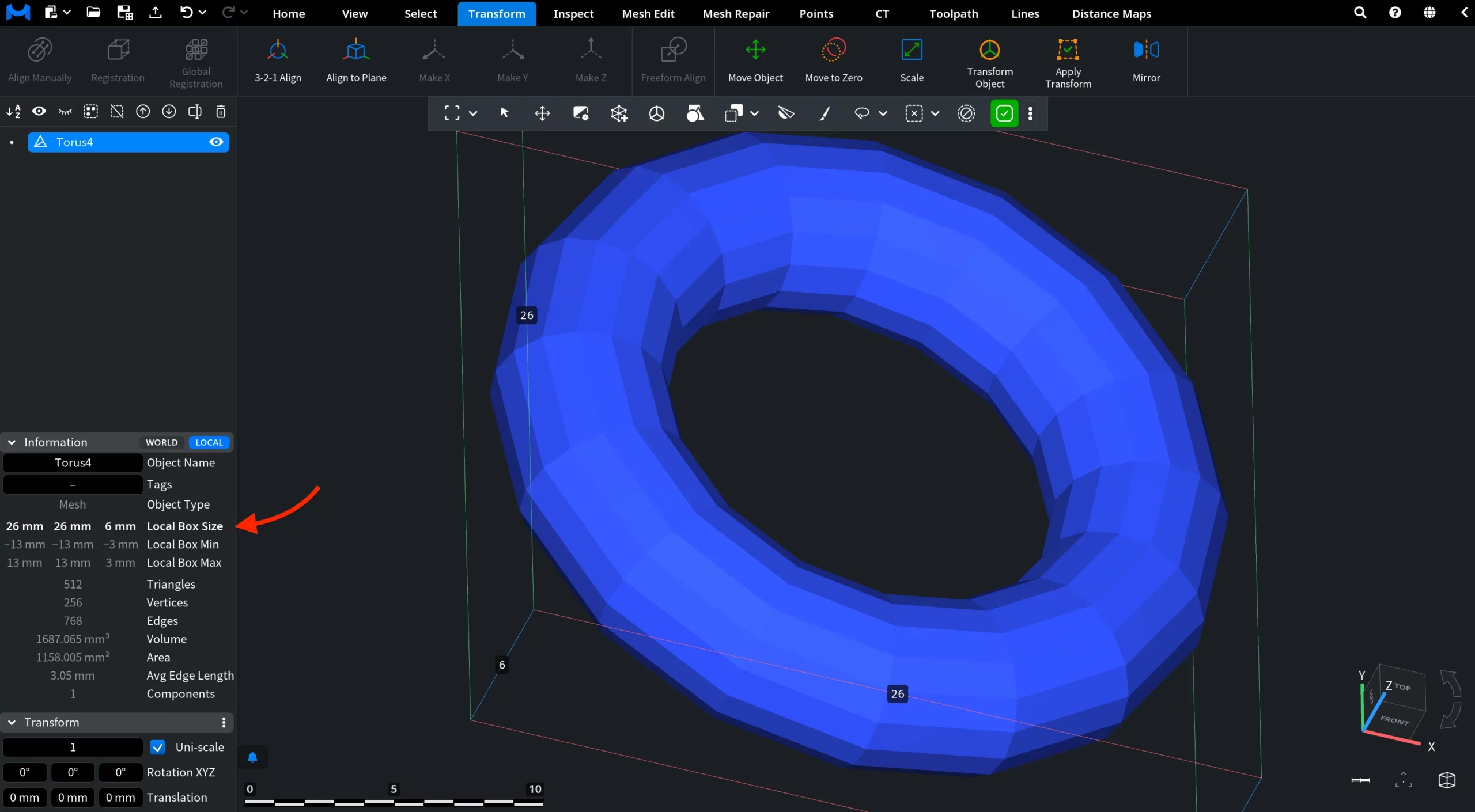
In the screenshot below, you can see the object after its size has been increased tenfold by clicking ×10.
In the next screenshot, you can see the object after its size has been reduced tenfold by applying a scale factor of ×0.1.