Use MeshInspector's View tools to control how the scene is displayed, navigated, and arranged within the workspace. This section focuses on camera orientation, projection modes, viewport layouts, and visual orientation aids. Apply these tools to inspect geometry from standard angles, compare multiple views simultaneously, and maintain spatial awareness during analysis and editing.

Toggle Global Basis
Clicking Toggle Global Basis cycles through the visibility of the global coordinate system in the scene.
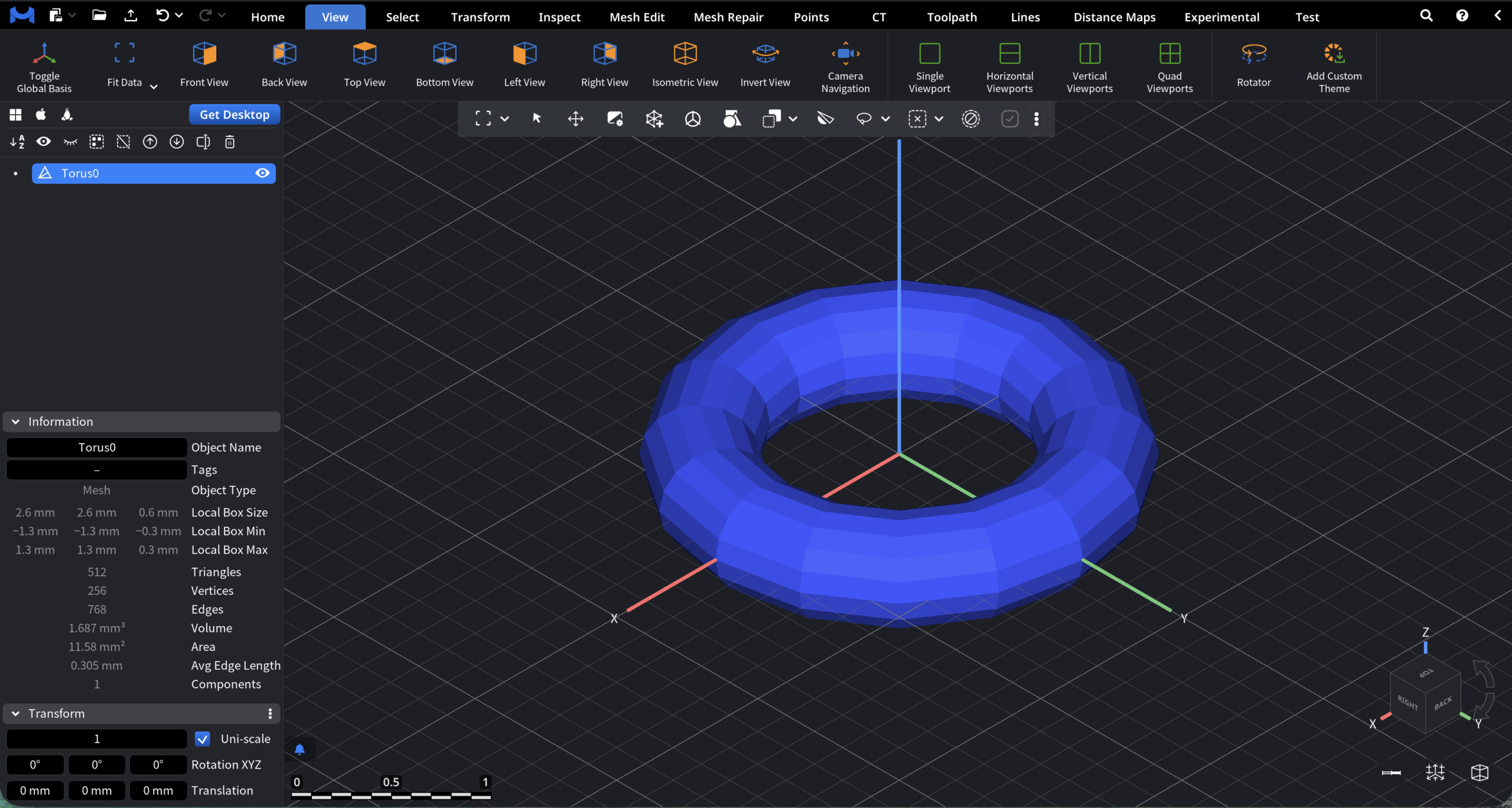
- The first click displays the global zero point and the X, Y, Z axes
- The second click adds a 3D grid.
- The third click returns the view to the default state, with both the global basis and the grid hidden.
Use this feature to orient the model relative to the global coordinate system and better understand its position and alignment in 3D space.
Fit Data
Use Fit Data to quickly adjust the Viewport and center relevant content in the scene.
- Clicking Fit Data fits the viewport to all currently visible objects.
Additional options are available via the Fit Data dropdown:
- Fit Selected Objects fits the viewport to the currently selected visible objects.
- Fit Selected Primitives fits the viewport to the current primitive-level selection.
If the global basis is enabled, it is displayed together with the fitted objects for all Fit Data options.
Front / Back / Top / Bottom / Left / Right View
Clicking Front, Back, Top, Bottom, Left, or Right View adjusts the Viewport to display the scene from a fixed global perspective. Each view aligns the camera with a principal axis and displays the corresponding orthographic plane, enabling precise alignment, inspection, and spatial analysis.
- Front / Back
The camera is oriented along the ±Y axis, displaying the XZ plane:
- X extends horizontally (left to right).
- Z extends vertically (bottom to top).
- X extends horizontally (left to right).
- Top / Bottom
The camera is oriented along the ±Z axis, displaying the XY plane:
- X extends horizontally (left to right).
- Y extends vertically (bottom to top).
- Left / Right
The camera is oriented along the ±X axis, displaying the YZ plane:
- Y extends horizontally (left to right).
- Z extends vertically (bottom to top).
- Y extends horizontally (left to right).
Isometric View
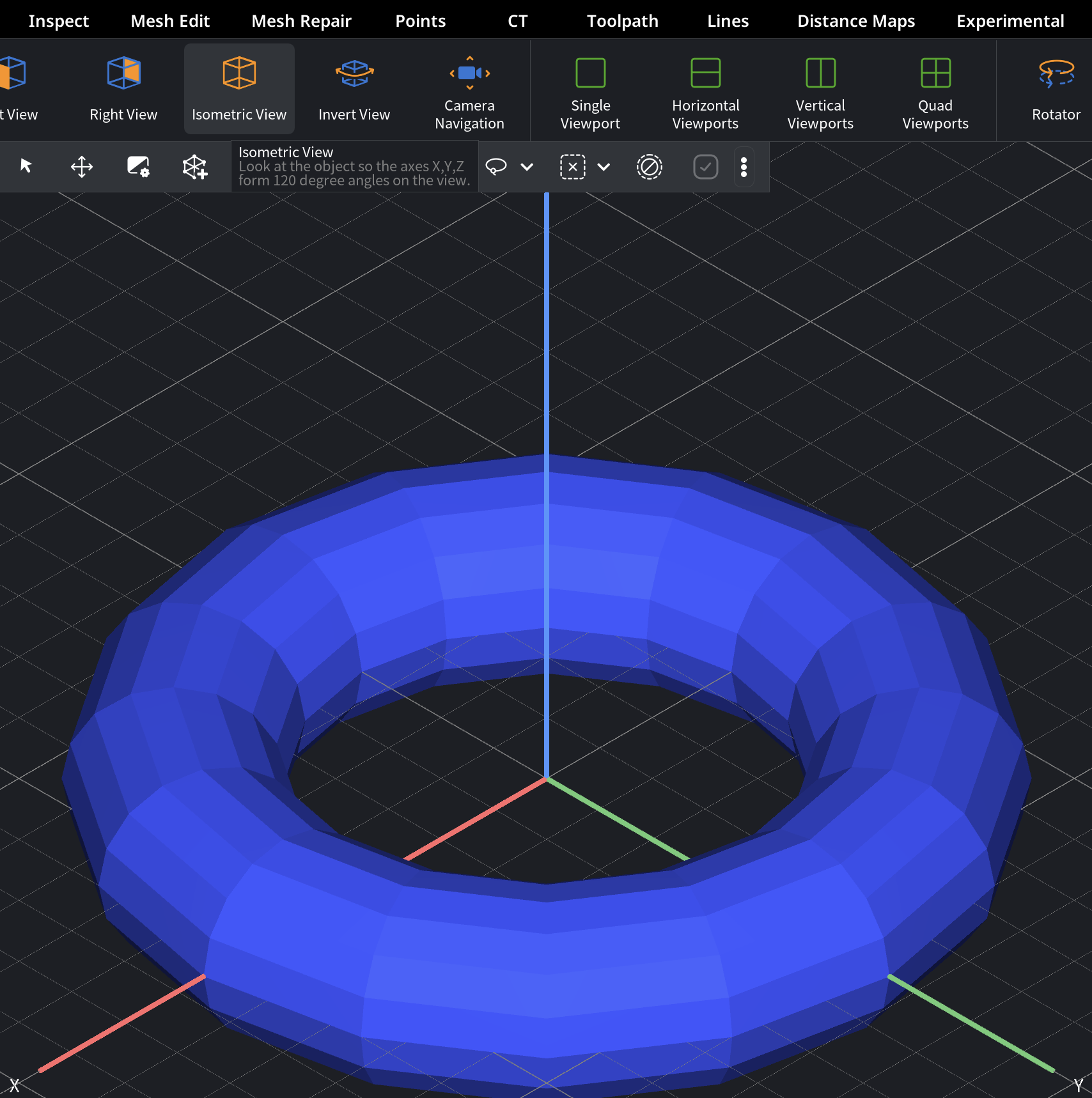
Clicking Isometric View displays the scene using an isometric axonometric projection, where the X, Y, and Z axes appear at 120° angles to each other in the viewport. This view provides a clear and consistent representation of the 3D structure and is well suited for technical visualization and spatial analysis without relying on perspective-based navigation.
Invert View
Clicking Invert View rotates the camera 180 degrees around the current vertical axis, flipping the view. Use this option to quickly switch between opposite perspectives without manually rotating the camera.
Camera Navigation
Clicking Camera Navigation enables camera movement through the scene using the keyboard arrow keys. While active, you can adjust the camera movement speed using the Speed Modifier and switch between Projection Modes:
- Perspective mode enables forward and backward movement along the viewing direction, allowing navigation with depth changes.
- Orthographic mode replaces forward/backward movement with up/down movement, enabling planar navigation without depth changes.
This feature provides precise control over scene exploration and camera positioning.
Single Viewport
Single Viewport, the default layout, displays the scene through one viewport and uses the entire work window for an unobstructed view. Use this layout when focusing on a single perspective or performing detailed inspection and editing.
Horizontal Viewports / Vertical Viewports
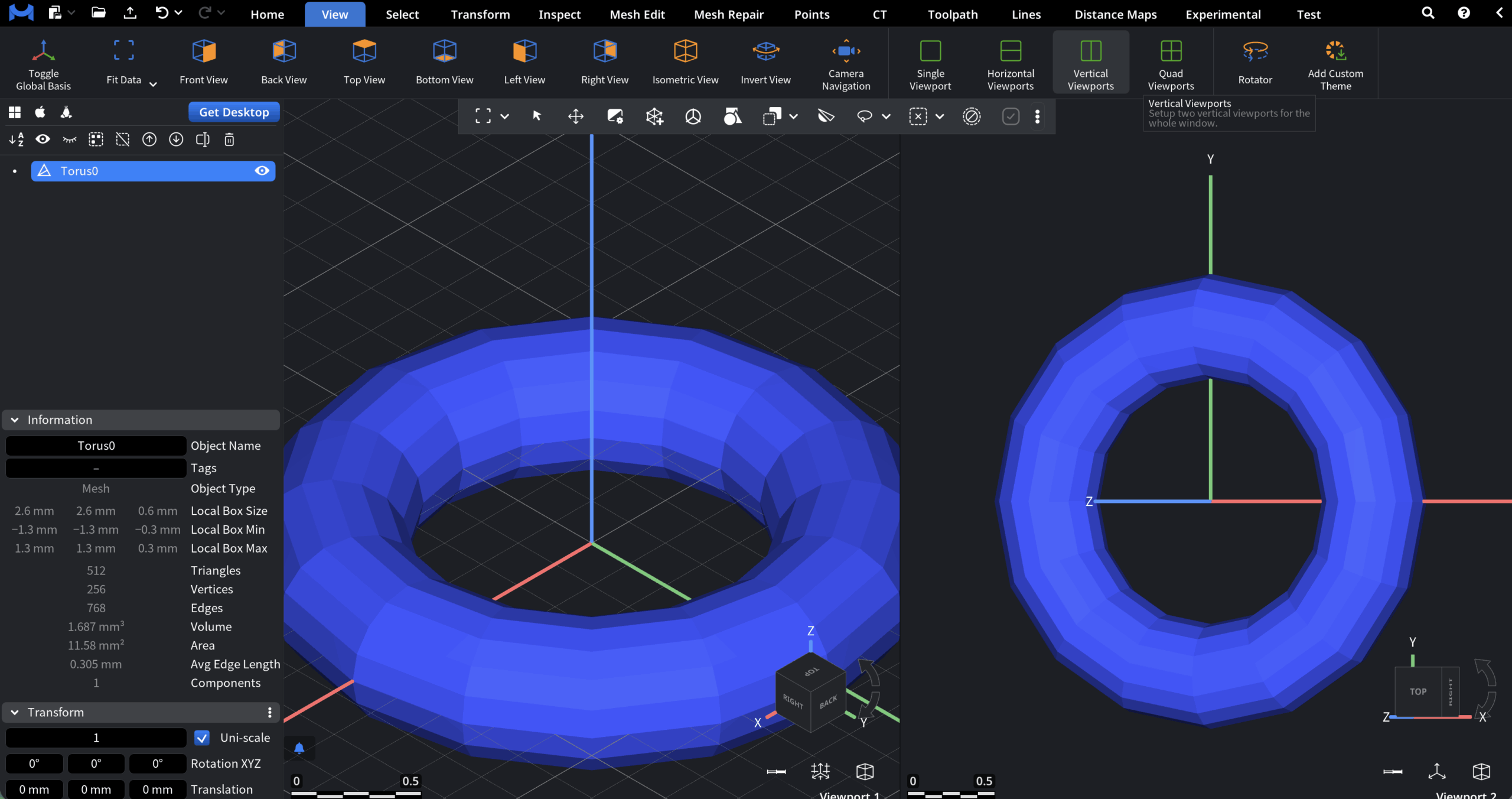
Clicking Horizontal Viewports or Vertical Viewports splits the work window into two viewports arranged horizontally or vertically.
When Toggle Global Basis is enabled, one viewport displays the global basis by default while the other does not. The global basis can be enabled in the second viewport by selecting it and clicking Toggle Global Basis.
This layout allows simultaneous viewing from different angles, improving analysis and workflow efficiency. Each viewport can be configured independently in terms of View settings.
Quad Viewports
Clicking Quad Viewports splits the work window into four viewports, allowing multiple perspectives to be displayed simultaneously.
When Toggle Global Basis is enabled, one viewport displays the global basis by default, while the remaining viewports do not. The global basis can be manually enabled in any viewport by selecting it and clicking Toggle Global Basis. This layout enhances scene analysis, spatial awareness, and overall workflow efficiency.
Rotator
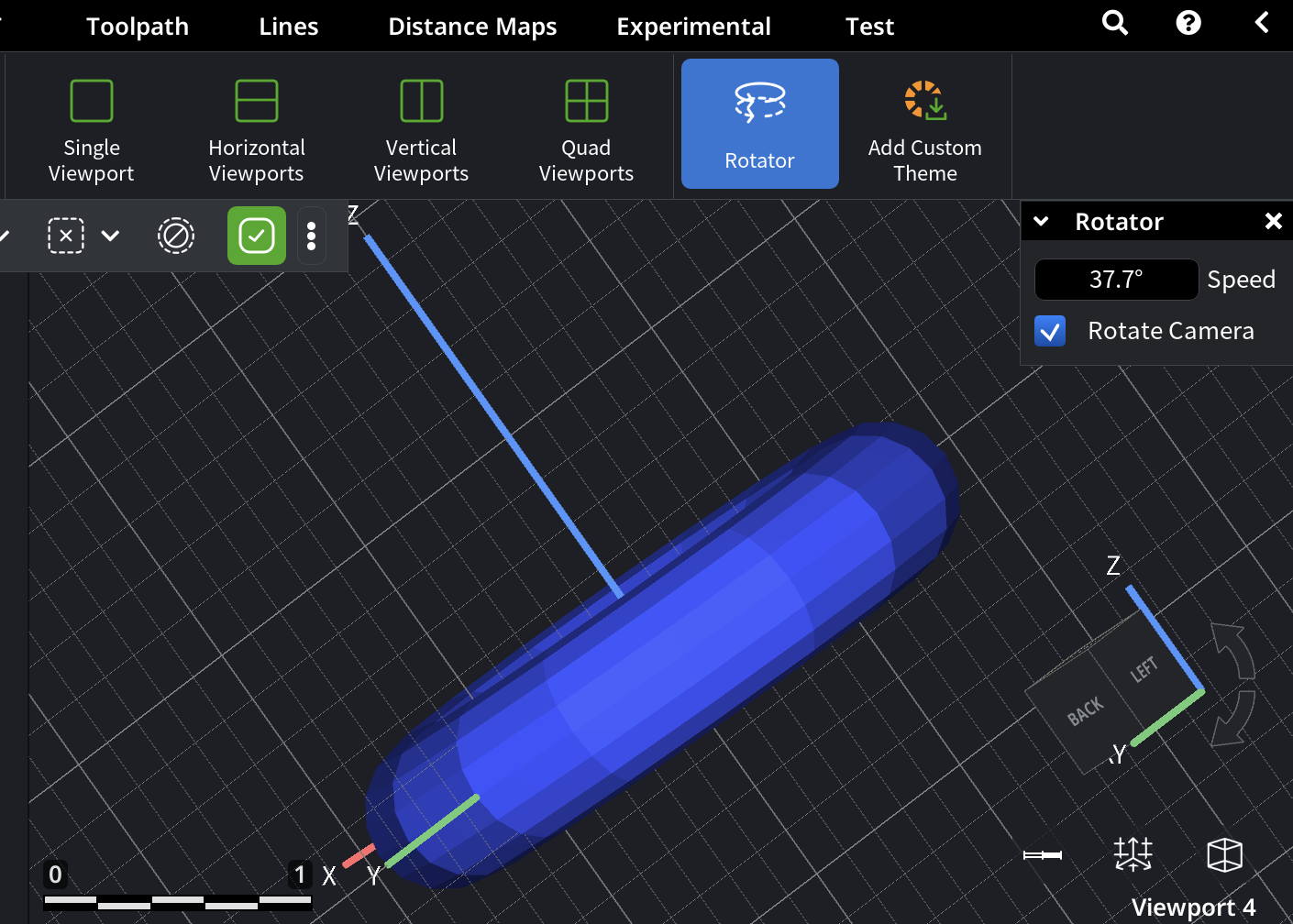
Clicking Rotator causes the entire scene to rotate continuously around the vertical axis until the tool is disabled.
In the Rotator panel, use the Speed parameter to define the rotation speed in degrees:
- Positive values rotate the scene in one direction.
- Negative values rotate it in the opposite direction.
Use this feature for visual inspection, presentations, or continuous surface review.
Add Custom Theme
Clicking Add Custom Theme opens the theme editor panel, allowing you to create, customize, and save a color theme for the workspace.
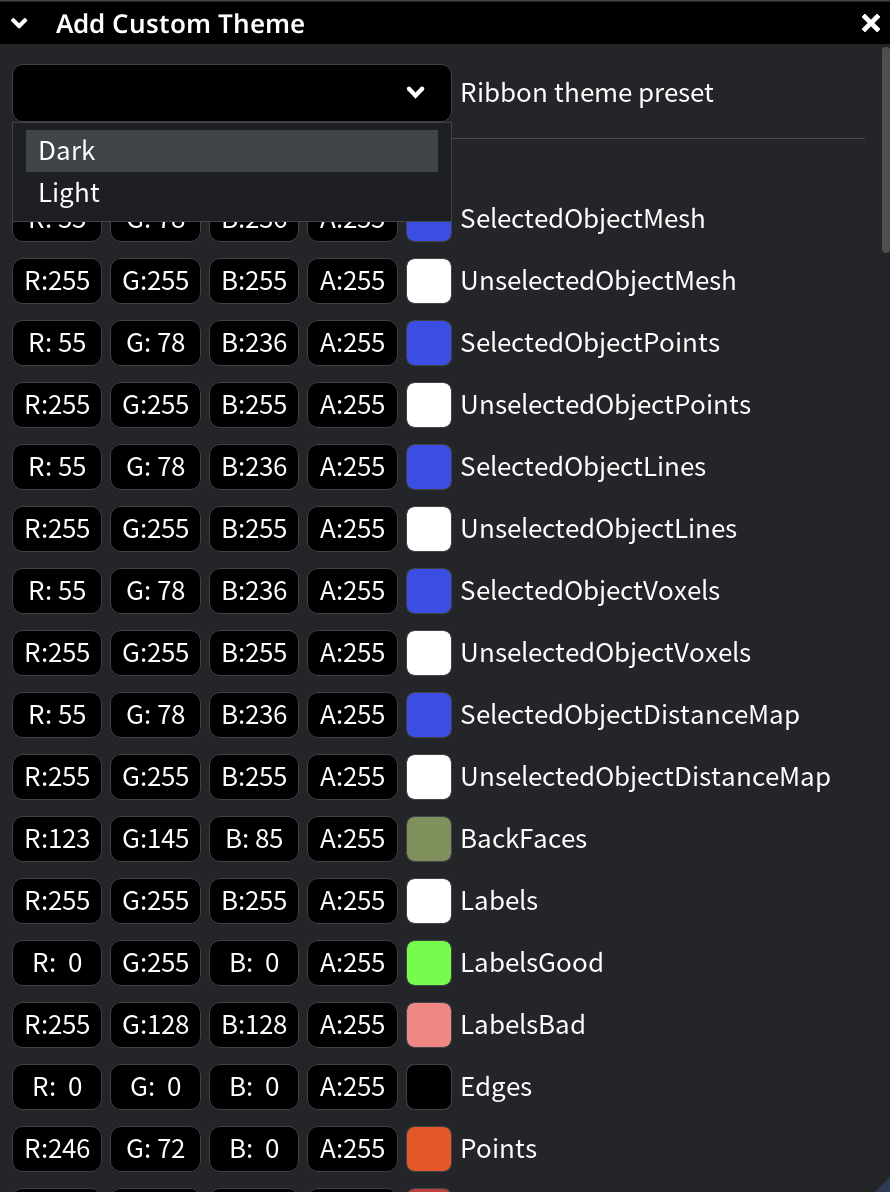
You can:
- Choose a Light or Dark ribbon theme preset.
- Adjust colors for scene elements, both selected and unselected.
- Fine-tune individual color values.
- Specify whether the theme applies to new objects only.
- Set a custom theme name.
- Apply and save the customized theme for future use.
Final Notes
View tools in MeshInspector are designed to support precise inspection, comparison, and navigation rather than enforce a single viewing style. Combine fixed views, viewport layouts, and navigation modes to match the task at hand, whether technical analysis, research, or medical visualization.
Revisit View settings as your workflow changes or when working with different model types to maintain clarity and efficiency.