Its icons are context-aware—they always act on whatever is currently visible or selected in the scene. Think of it as your “command palette” for everyday modeling, inspection, and cleanup.
The 14 Core Buttons*

| # | Icon / Shortcut | Name | What it does |
|---|---|---|---|
| 1 | ALT + CTRL + F | Fit Data | Frames all visible objects. ▸ Fit Selected Objects ▸ Fit Selected Primitives |
| 2 | CTRL + Q | Select Objects | Box- or lasso-select whole objects. |
| 3 | — | Move Object | Drag arrows in the scene to reposition. |
| 4 | CTRL/CMD + , | Settings | Opens global preferences. |
| 5 | — | Transform Object | Widget for translate-rotate-scale in one mode. |
| 6 | — | Apply Transform | “Bakes” the current transform into object geometry. |
| 7 | — | Create Simple Objects | Drop in cubes, spheres, cylinders, etc. |
| 8 | — | Clone | Duplicates selected objects. |
| 9 | — | Section | Adds a cutting plane; optionally generates edge lines from that section. |
| 10 | CRTL/CMD + W | Select Primitives | Switches to Triangles, Edges, Incident Triangles, Short Edges, or Twin Edges picker. |
| 11 | CRTL/CMD + X | Clear Selections | Deselects everything. ▸ Clear Selected Edges (dropdown) |
| 12 | Del | Delete Selected | Removes highlighted objects or primitives. |
| 13 | — | Active List | Green-check icon; dropdown of live tools—click Close to disable any. |
| 14 | — | ⋮ Customize Toolbar | Opens the customization panel (details below). |
Customizing the Toolbar
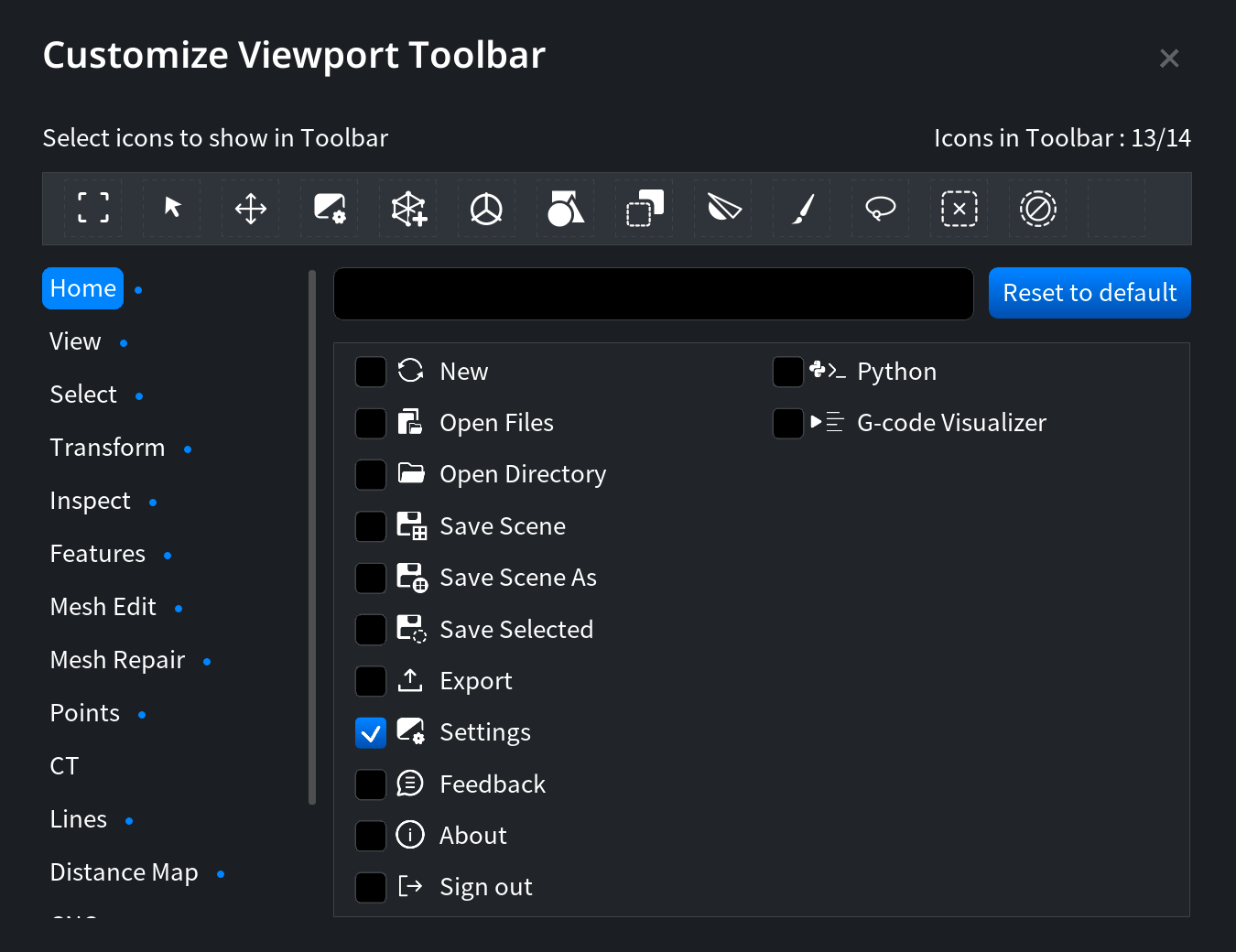
-
Open it by clicking the ⋮ three-dot icon.
-
Tools are grouped by function: View, Select, Transform, Inspect, Mesh Edit, Mesh Repair, Points, CT, etc.
-
Check / uncheck boxes to show or hide icons.
-
Drag-drop within the dialog to reorder icons.
-
Click Reset to Default to go back to the factory layout.
Tip: If your screen is small, hide rarely used icons to free up horizontal space—everything stays accessible via the Menu-Bar tabs or the 🔍 Search box.
* may be a subject to change with new releases.