Advice and answers from the MeshInspector Team

View Tools in MeshInspector

What Different View Options Show in MeshInspector
Updated over 2 days ago

Under the View tab, MeshInspector offers several view options: Front View, Back View, Top View, Bottom View, Left View, Right View, Isometric View, and Invert View.

View: Options

Front View displays the model in the XZ plane, with the camera looking along the Y axis.
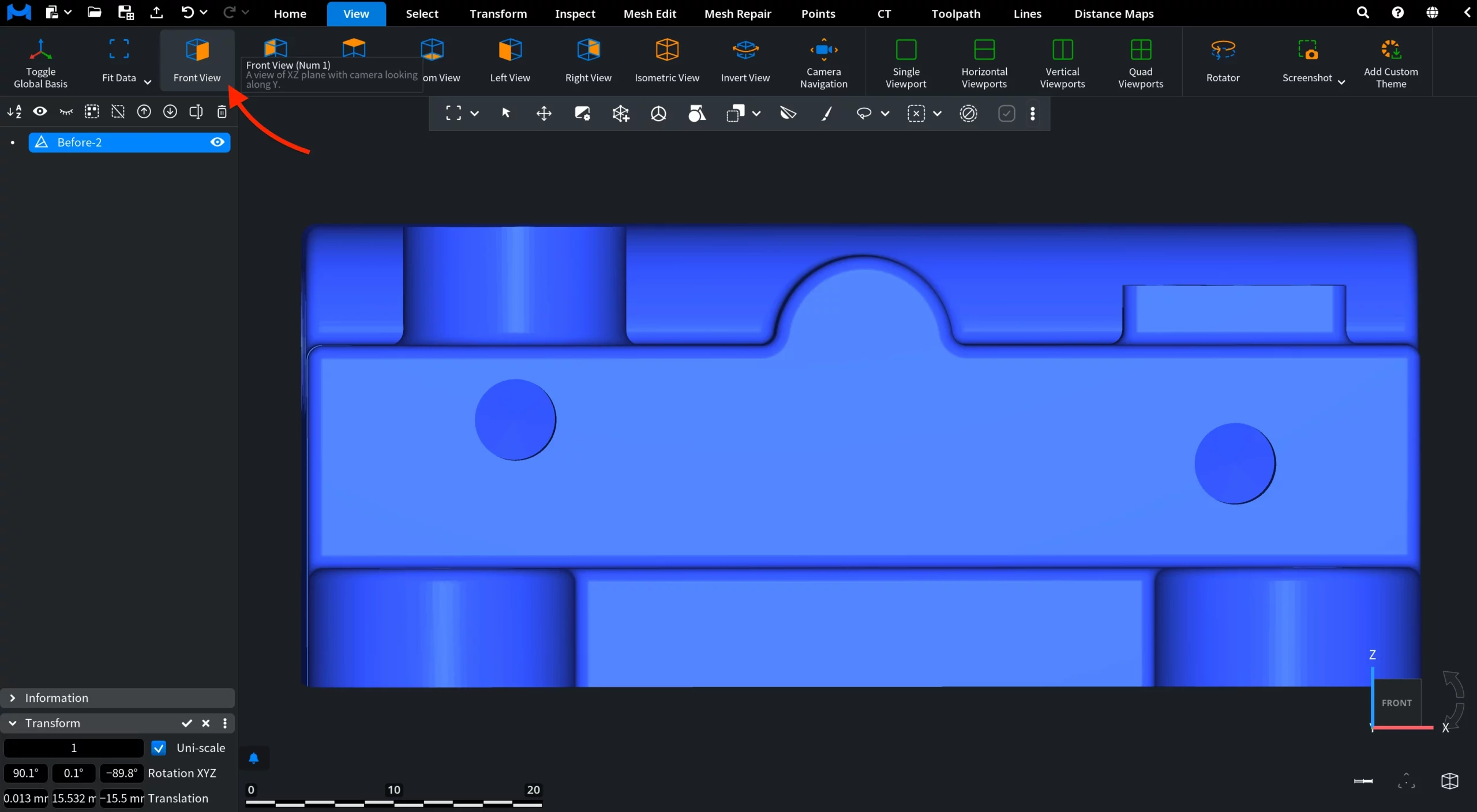
Front View

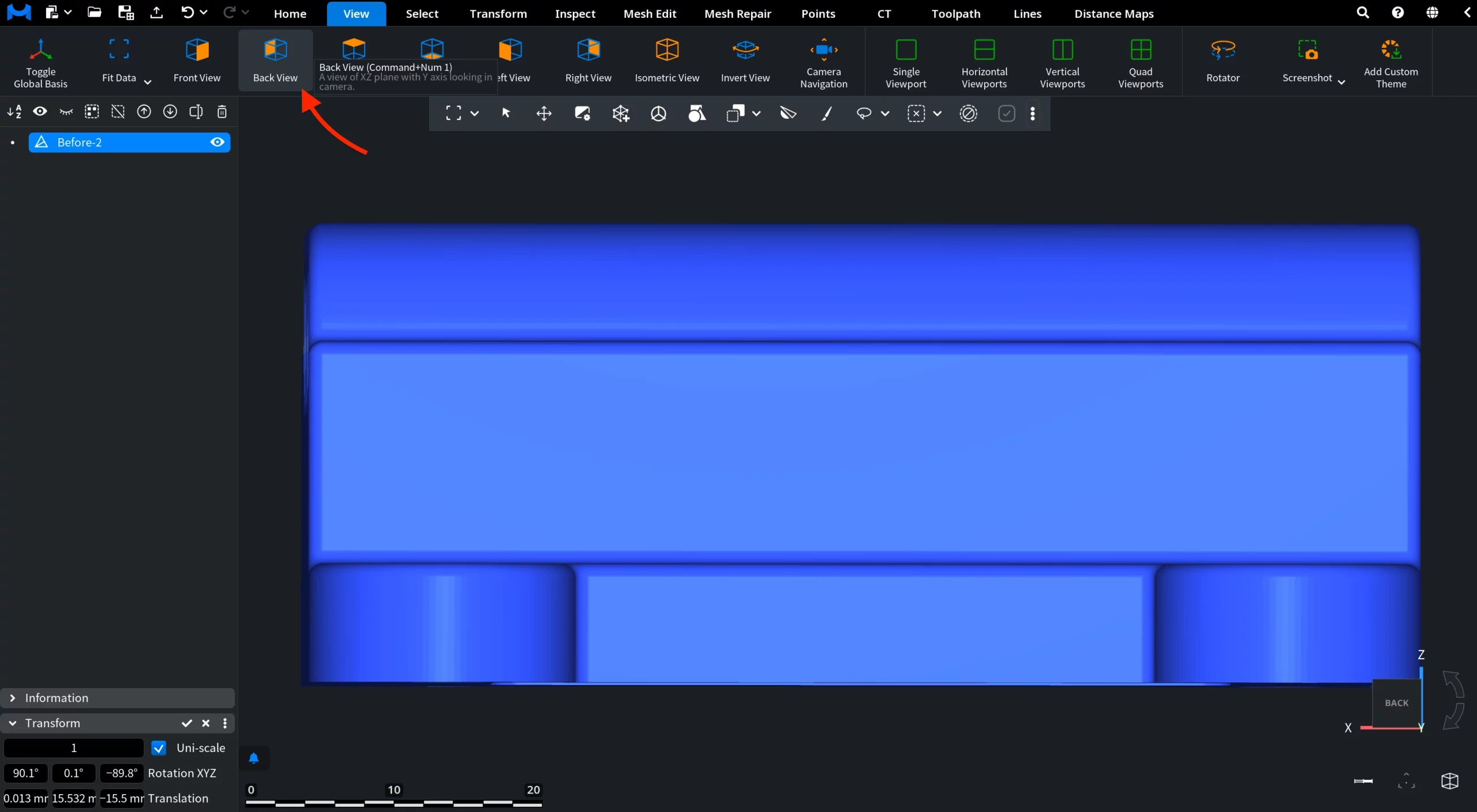
Back View displays the model in the XZ plane, with the Y axis pointing toward the camera.

Back View

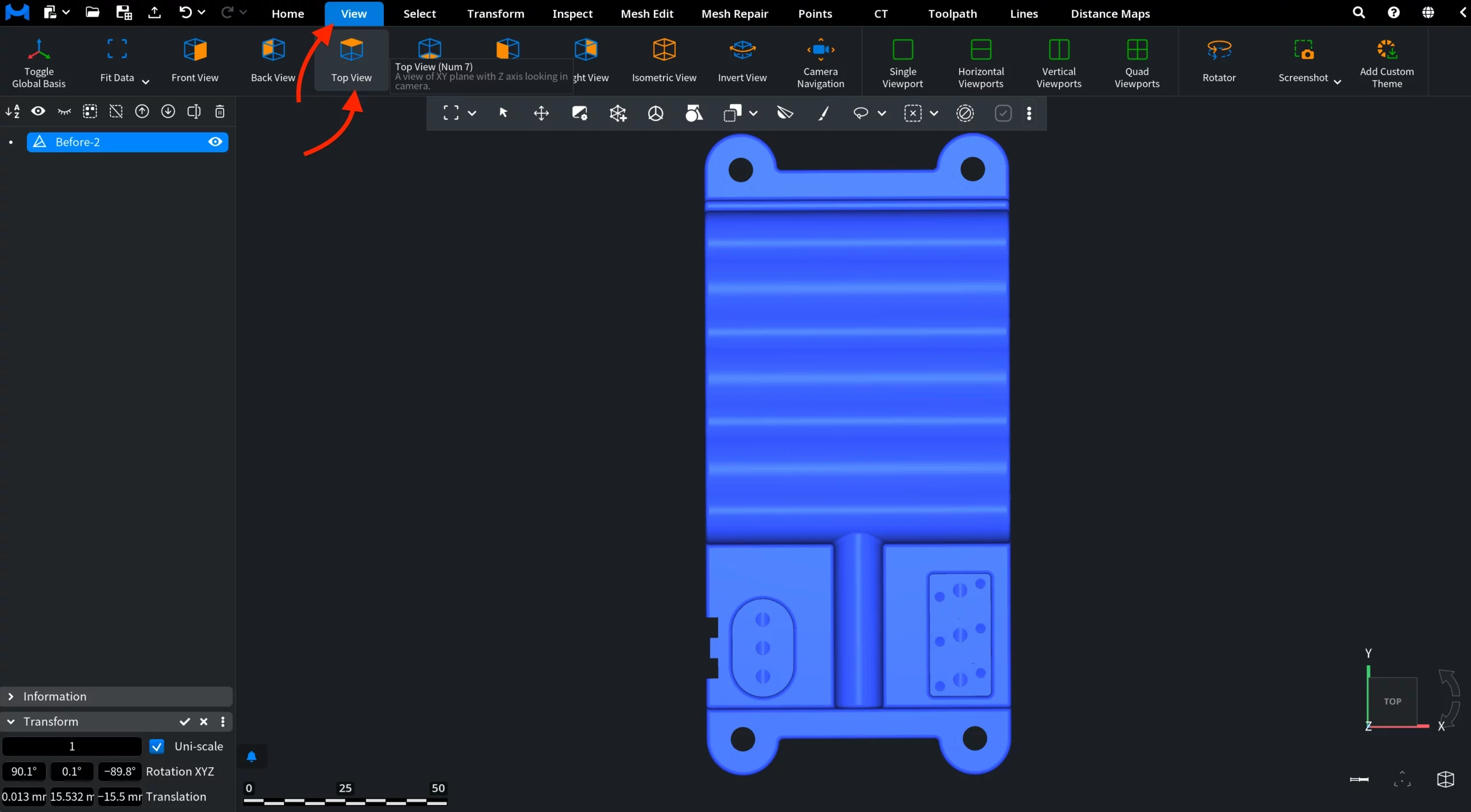
Top View displays the model in the XY plane, with the Z axis pointing toward the camera.

Top View
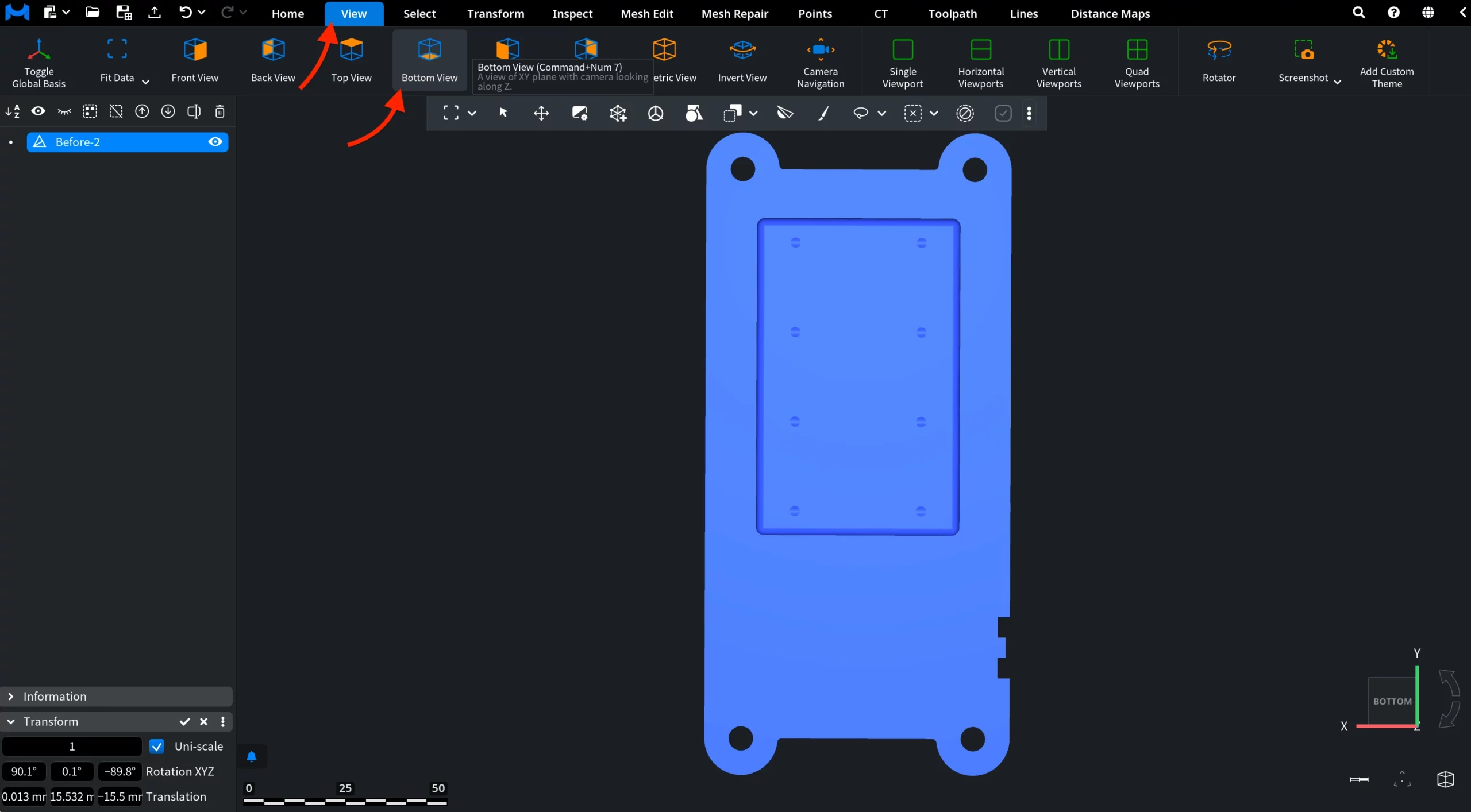
Bottom View displays the model in the XY plane, with the camera looking along the Z axis.
Bottom View
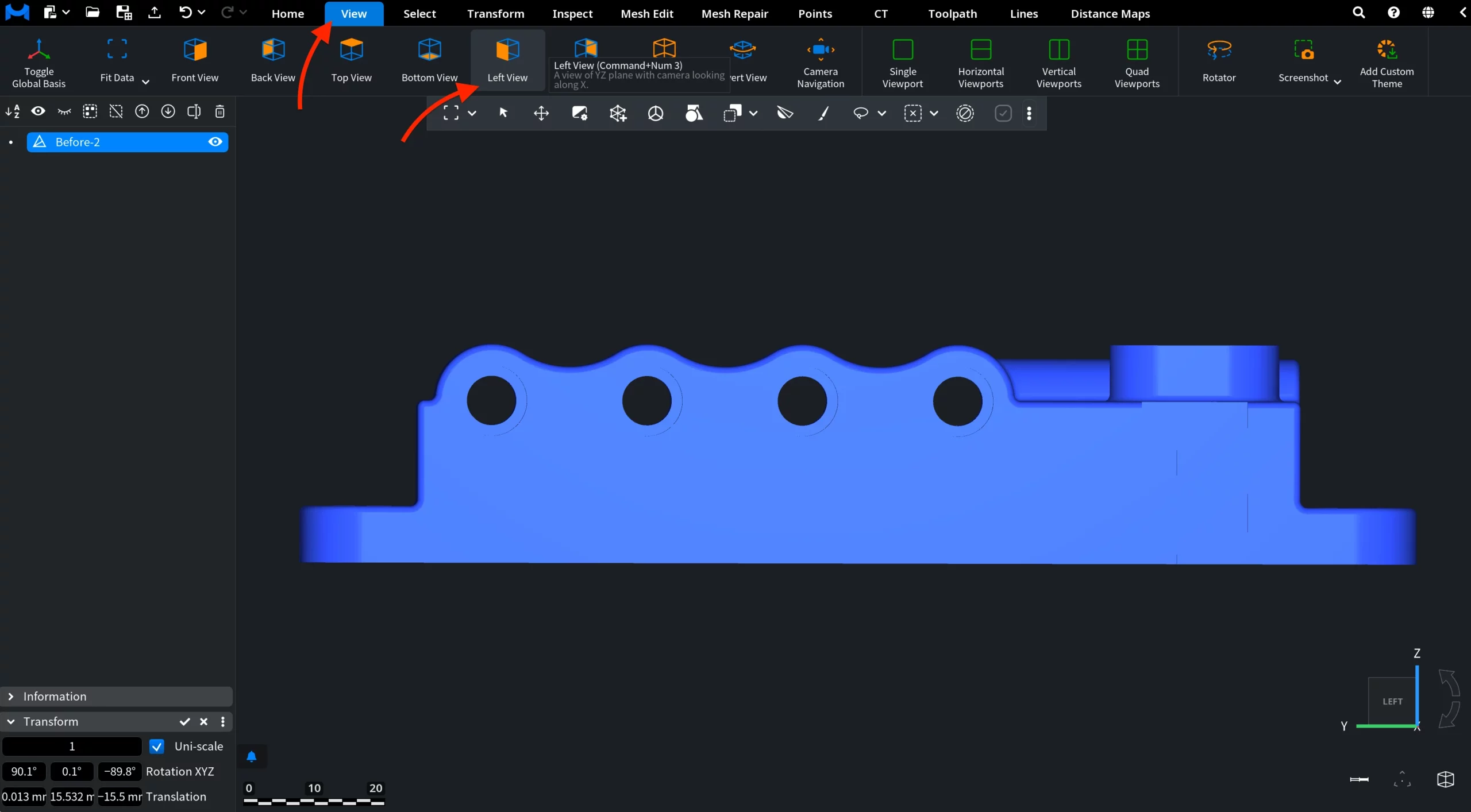
Left View displays the model in the YZ plane, with the camera looking along the X axis.
Left View

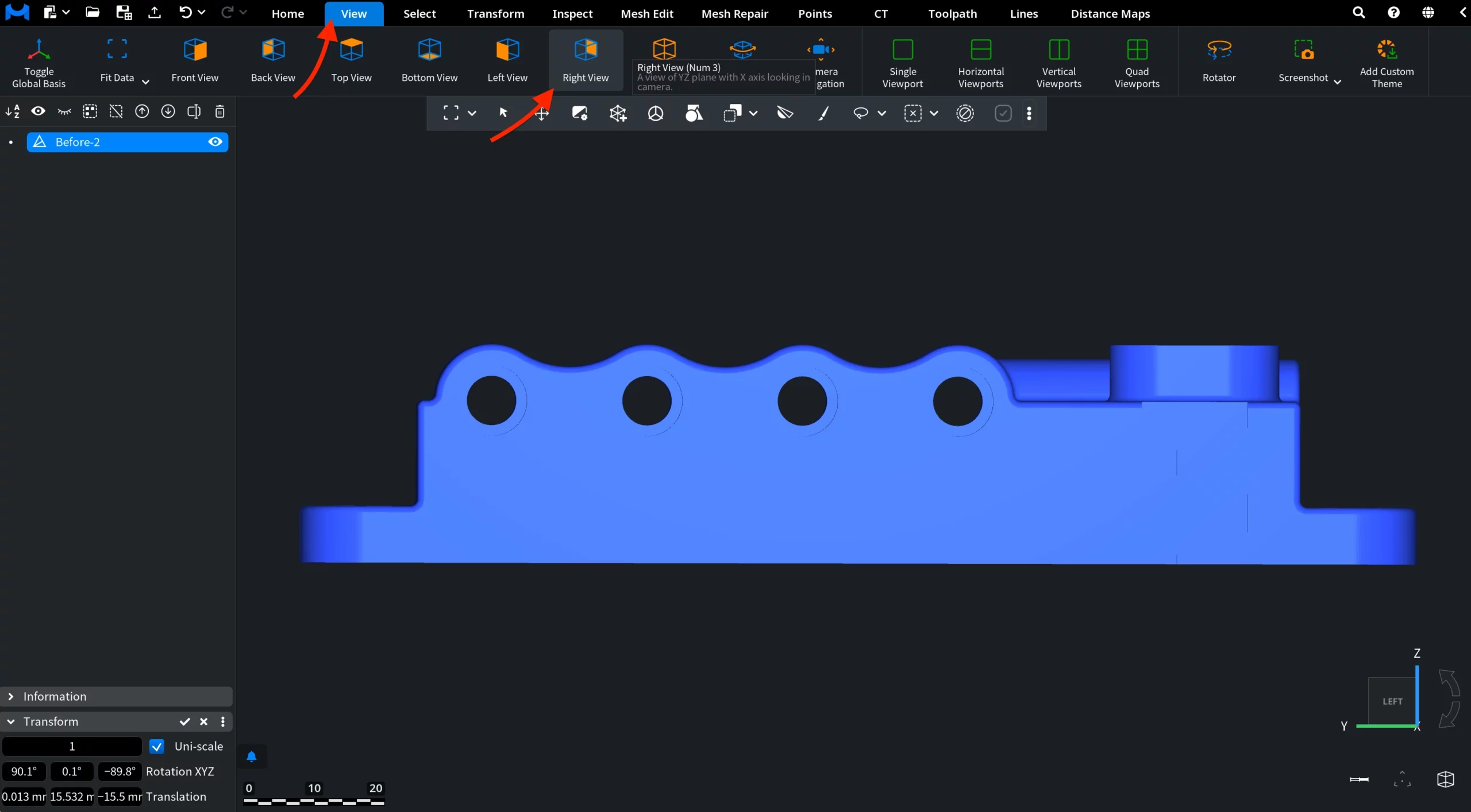
Right View displays the model in the YZ plane, with the X axis pointing toward the camera.

Right View

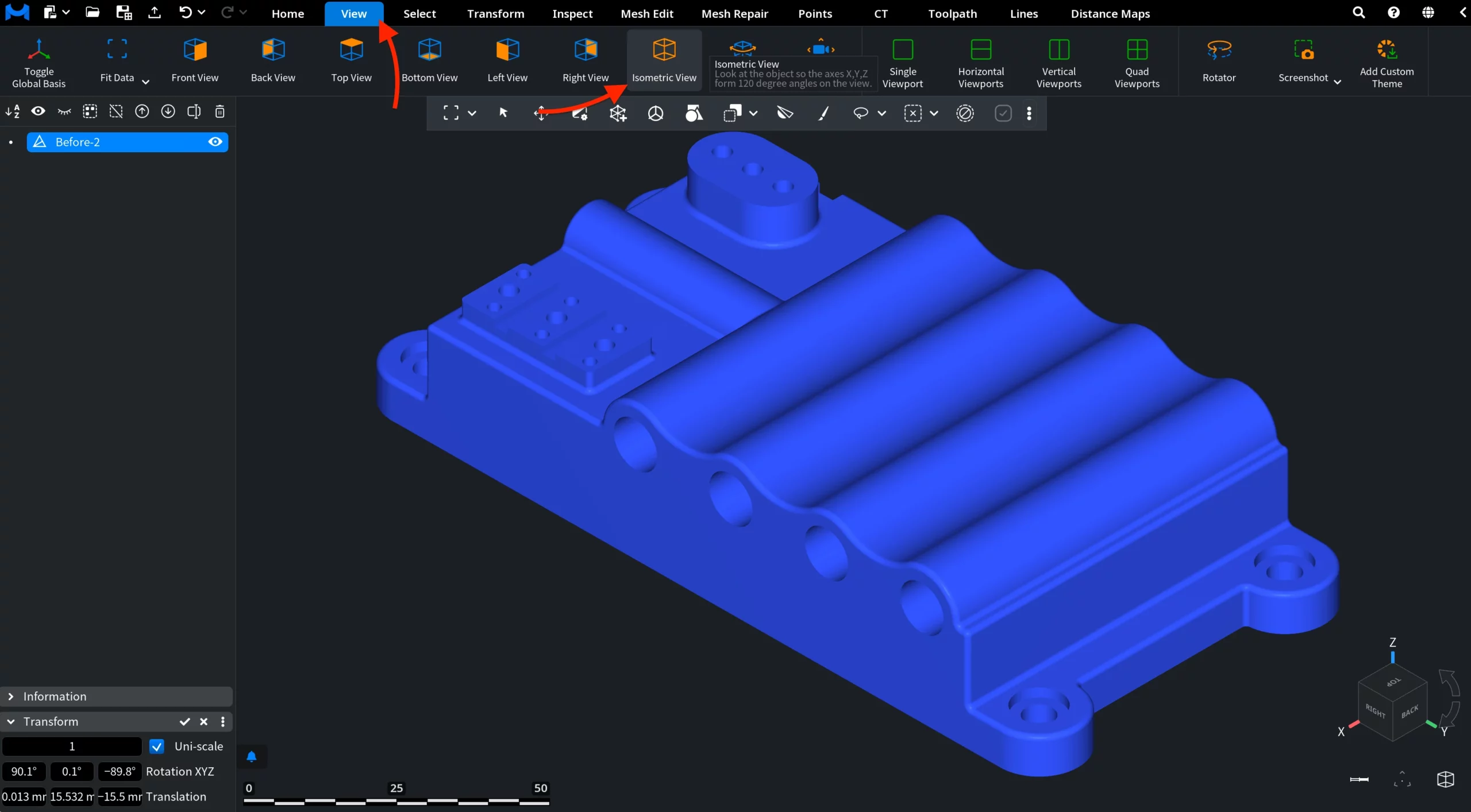
Isometric View displays the model so that the X, Y, and Z axes form 120-degree angles on the screen.

Isometric View
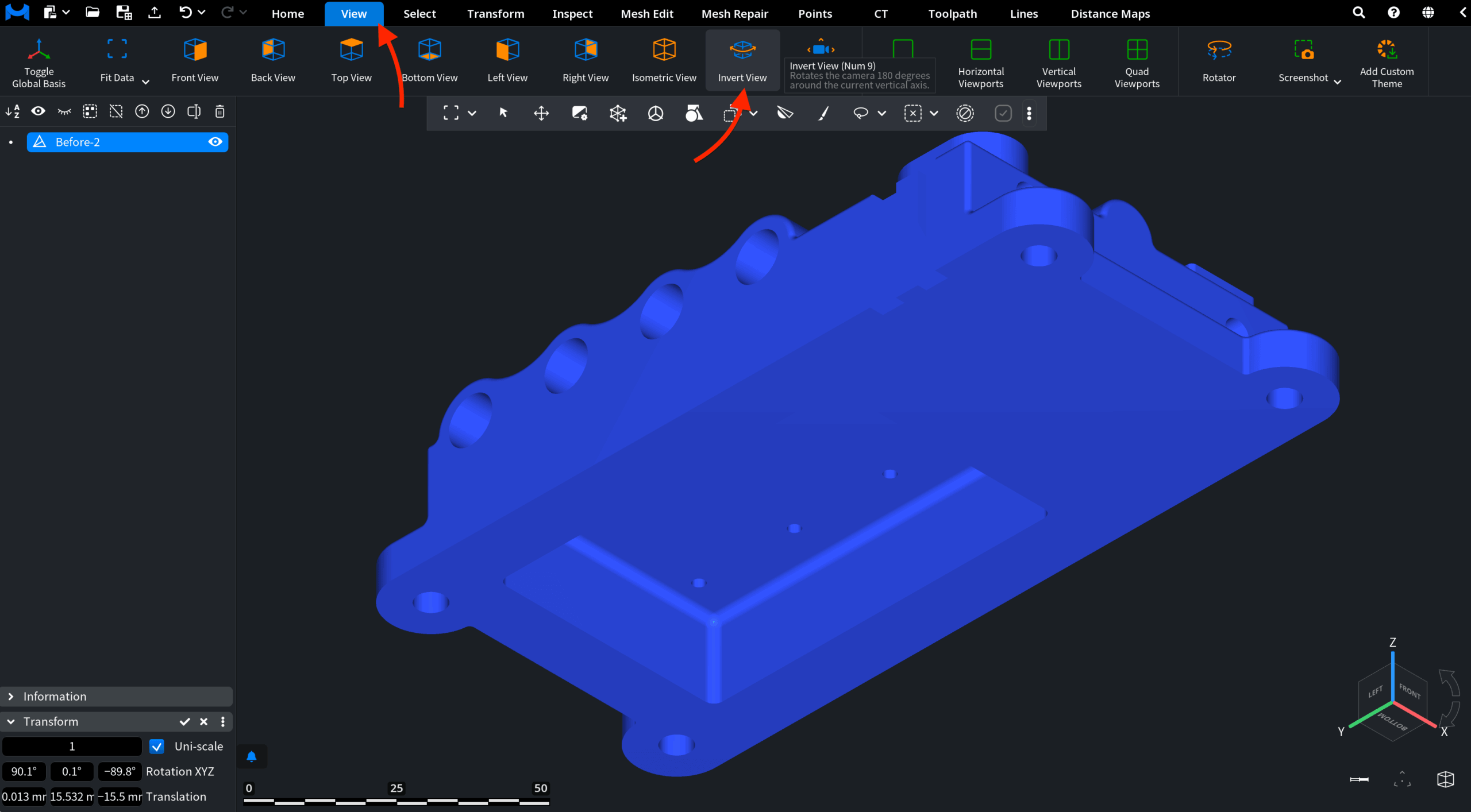
Invert View rotates the camera 180 degrees around the current vertical axis.
Invert View

View options in MeshInspector

Table Of Contents
Related materials