Loads from YouTube (Google) when you press Play
MeshInspector tools depend on what is selected in the Scene Tree and on each other. This guide explains why a tool button can be greyed out, which tools can stay open at the same time, and how to close a tool.
Why a tool is greyed out
Most tools work on the objects that are selected in the Scene Tree. When the selection does not suit a tool, its button is greyed out. A click on it does not open the tool but shows a message with the reason.
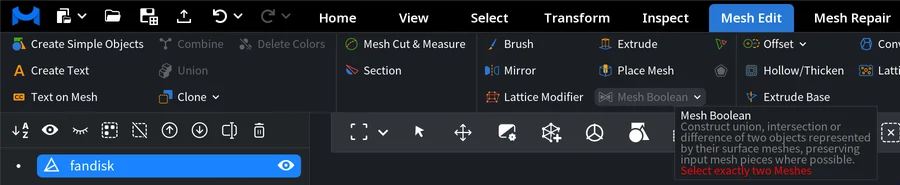
Point at the greyed-out button to see why. Its tooltip shows the name of the tool, what it does and, in red, what it needs.
For example, with one mesh selected, Mesh Edit › Mesh Boolean is greyed out, and its tooltip says Select exactly two Meshes. Click the first mesh in the Scene Tree, Ctrl+click (Cmd+click on macOS) the second one, and the button becomes available.
If a tool stays greyed out, check:
- The number of objects. Some tools need exactly one object, others need two or more.
- The type of the objects. A mesh tool does not work on a point cloud, a polyline or a voxel volume. See Object Types for the types and the tools that convert one type into another.
- A selection inside the object. Some tools work on selected triangles or points, for example Select › Selection to Object and Select › Expand Selection.
- Something to work on. Mesh Repair › Fill Holes is greyed out when the mesh has no holes.
Which tools can be open at the same time
Most tools can only be open one at a time, for example Mesh Healer, Simplify, Mesh Boolean, Offset and Measure Distance.
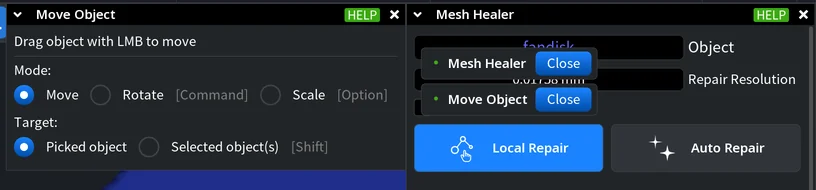
A few tools can stay open next to any other tool, for example Move Object, Select Primitives, Section, Object Info, Rotator, Quality Control Report and Settings. You can keep Move Object open to place a mesh while Mesh Healer is open.
What happens when you open a second tool of the first kind depends on Auto Close Previous Tool (Settings › Application › Behavior, see Settings Explained):
| Auto Close Previous Tool | What happens |
|---|---|
| On (default) | The open tool closes, and the new tool opens. The first time in a session, a message says so and offers Open Settings. If the open tool cannot close at that moment, its window is highlighted and the message Unable to close this plugin appears. |
| Off | The new tool does not open, and the window of the open tool is highlighted. The first time in a session, a message says that another tool is already active and offers Open Settings. Close the open tool first. |
How to close a tool
Close a tool in one of these ways:
- Click × in the top-right corner of the tool window.
- Click the tool button on the ribbon again.
- Click inside the tool window and press Esc. Esc closes the window you clicked last; while a drop-down list or a pop-up menu is open, it closes only that list or menu.
- Click Active List (the check mark on the viewport toolbar). It lists every open tool with a Close button next to it. When no tool is open, Active List is greyed out.
FAQ
The Mesh Boolean button is greyed out. How do I run it?
Mesh Boolean needs exactly two meshes. Select both of them in the Scene Tree (click the first, Ctrl+click or Cmd+click the second), then click Mesh Edit › Mesh Boolean. See Mesh Boolean for the operations.
Can two tools be open at the same time?
Yes, if one of them can stay open next to others, such as Move Object or Select Primitives. Two tools of the first kind, for example Mesh Healer and Simplify, cannot be open together: with Auto Close Previous Tool on, opening the second one closes the first.
How do I close a tool?
Click × in its window, click its ribbon button again, press Esc after clicking inside its window, or click Close next to it in Active List.


