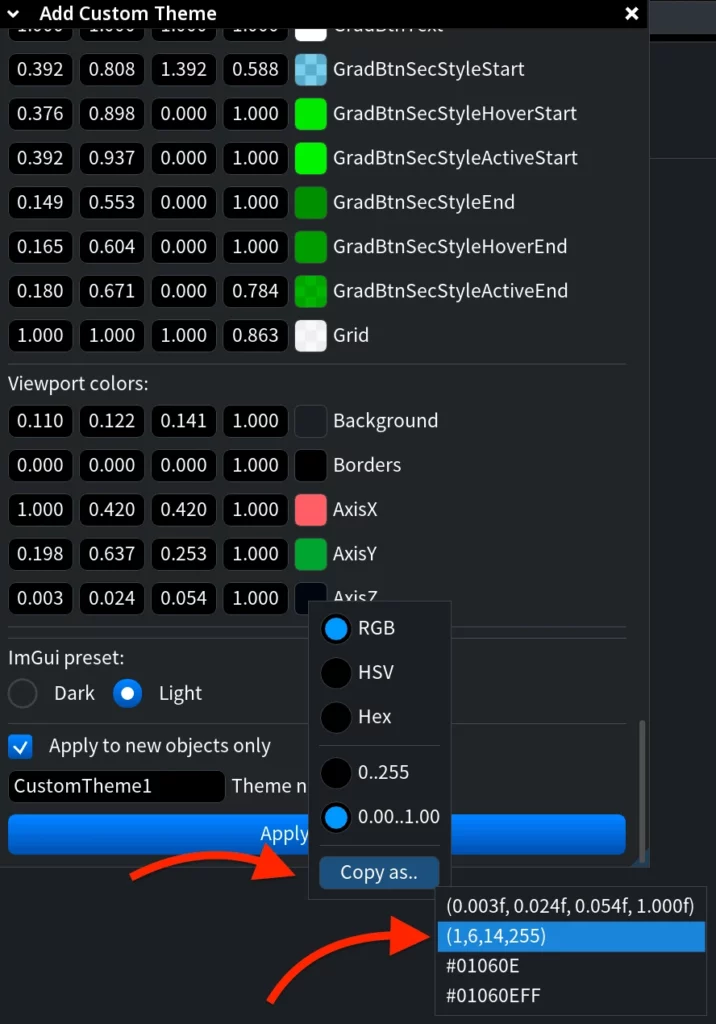
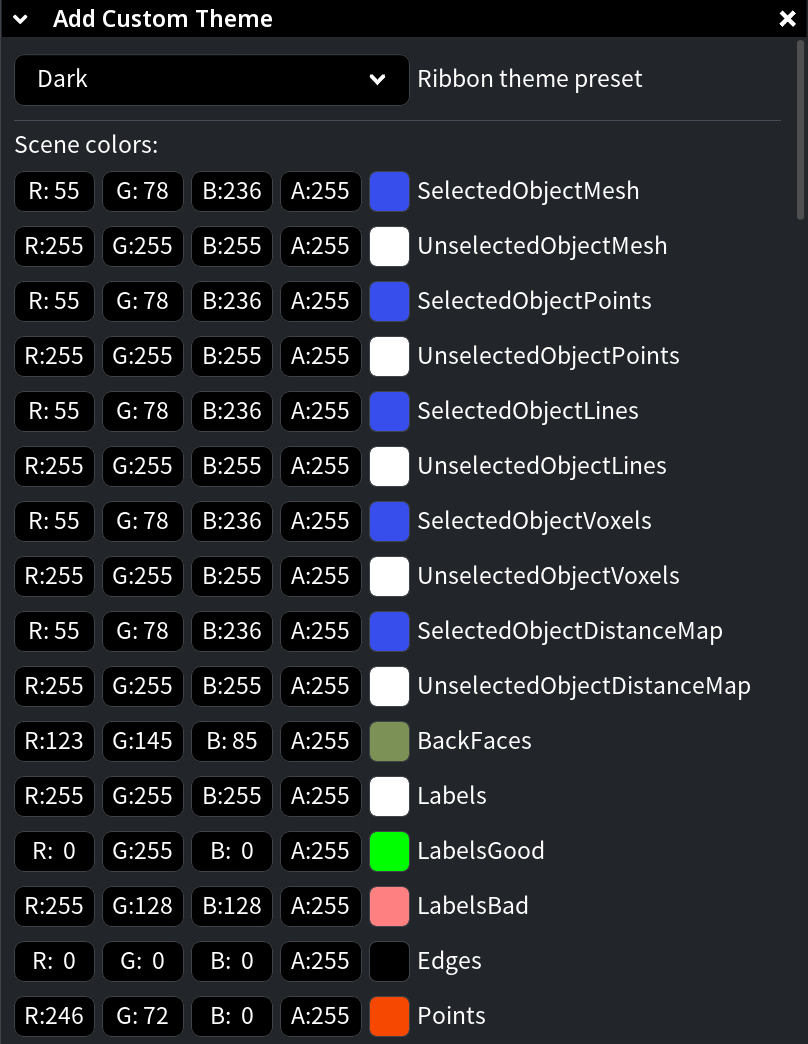
Clicking the Add Custom Theme tool, located under the View tab, opens the theme editor panel. This allows you to create, customize, and save a color theme for your work in MeshInspector.

Once you click Add Custom Theme, a dedicated panel opens where you can:
- Select a ribbon theme preset: Dark, Light, or an existing custom theme.
- Adjust object colors for selected and unselected meshes, points, lines, voxels, distance maps, faces, edges, features, measurements, brushes, and other scene elements.
- Configure UI colors, including backgrounds, headers, tabs, text, buttons, borders, toolbars, dialogs, and grid colors.
- Set viewport colors, including the viewport background, borders, and the colors of the X, Y, and Z axes.
- Choose the ImGui preset: Dark or Light.
- Enable or disable Apply to new objects only.
- Enter a custom theme name.
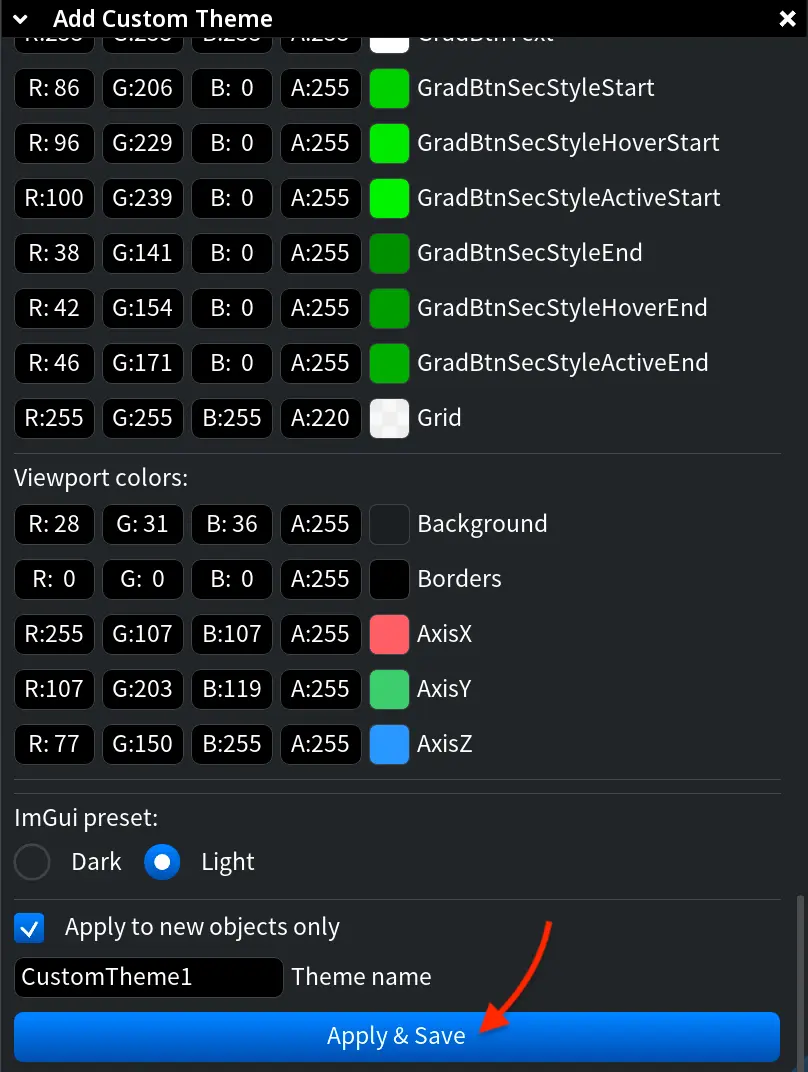
Once you fine-tune your theme, click Apply & Save at the bottom of the panel to save the theme.
Note that the Add Custom Theme panel uses RGBA values: R, G, and B control the color, while A controls opacity. Each setting also includes a color preview, making it easier to understand which visual element is being edited.
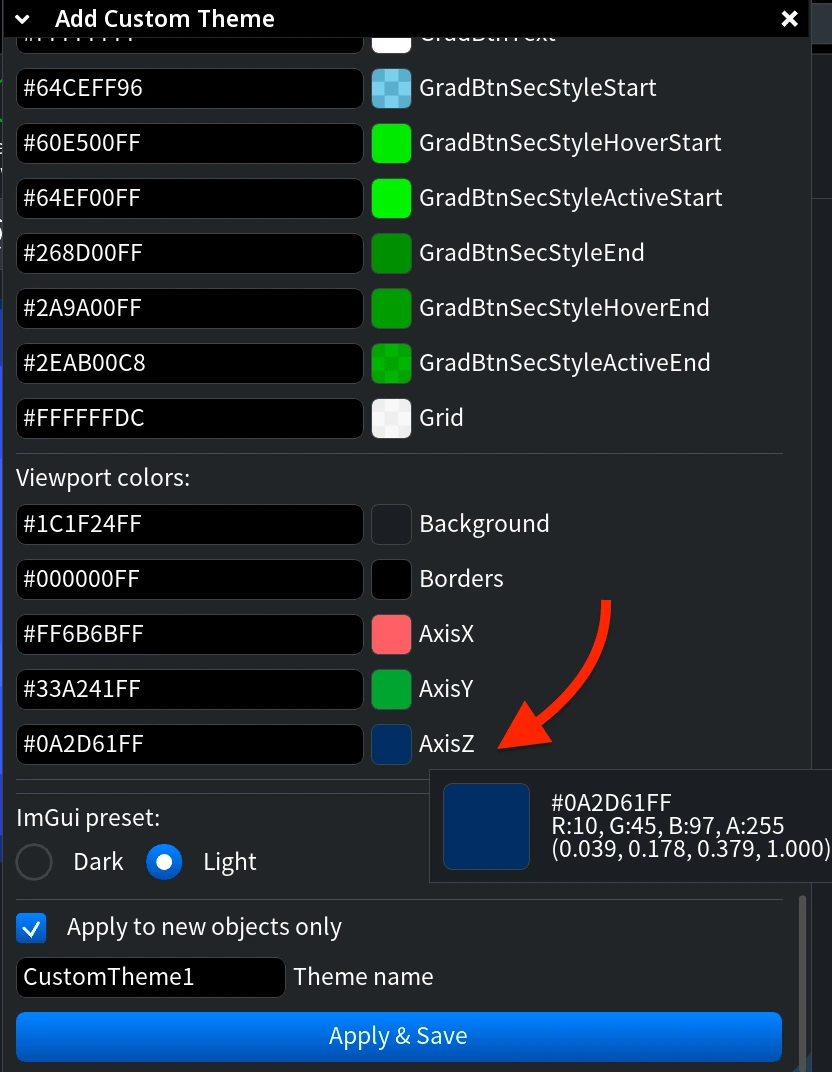
You can hover over a color preview to see its detailed color properties, including the HEX value, RGBA values, and normalized color values.
To edit a color, left-click the color preview. This opens the color picker, where you can adjust the color by moving the selector inside the color field, using the color slider, or changing the numeric and HEX values manually. The panel also shows the Current and Original colors, making it easier to compare the edited color with the previous one.
Right-clicking a color value, or tapping it with two fingers on a touchpad, opens a color format menu. There, you can switch between RGB, HSV, and Hex formats, choose the value range, and copy the color value using Copy as....
In the example below, the color values are displayed in the 0.00..1.00 range, and the Copy as... option shows several available formats for copying the selected color value.