


Fit Data moves and zooms the camera so that the objects you need fill the Viewport. Use it when a model opens off-screen, when you have zoomed or panned too far and lost it, or when you want to focus on one object or on a small selected area.
Where to find it
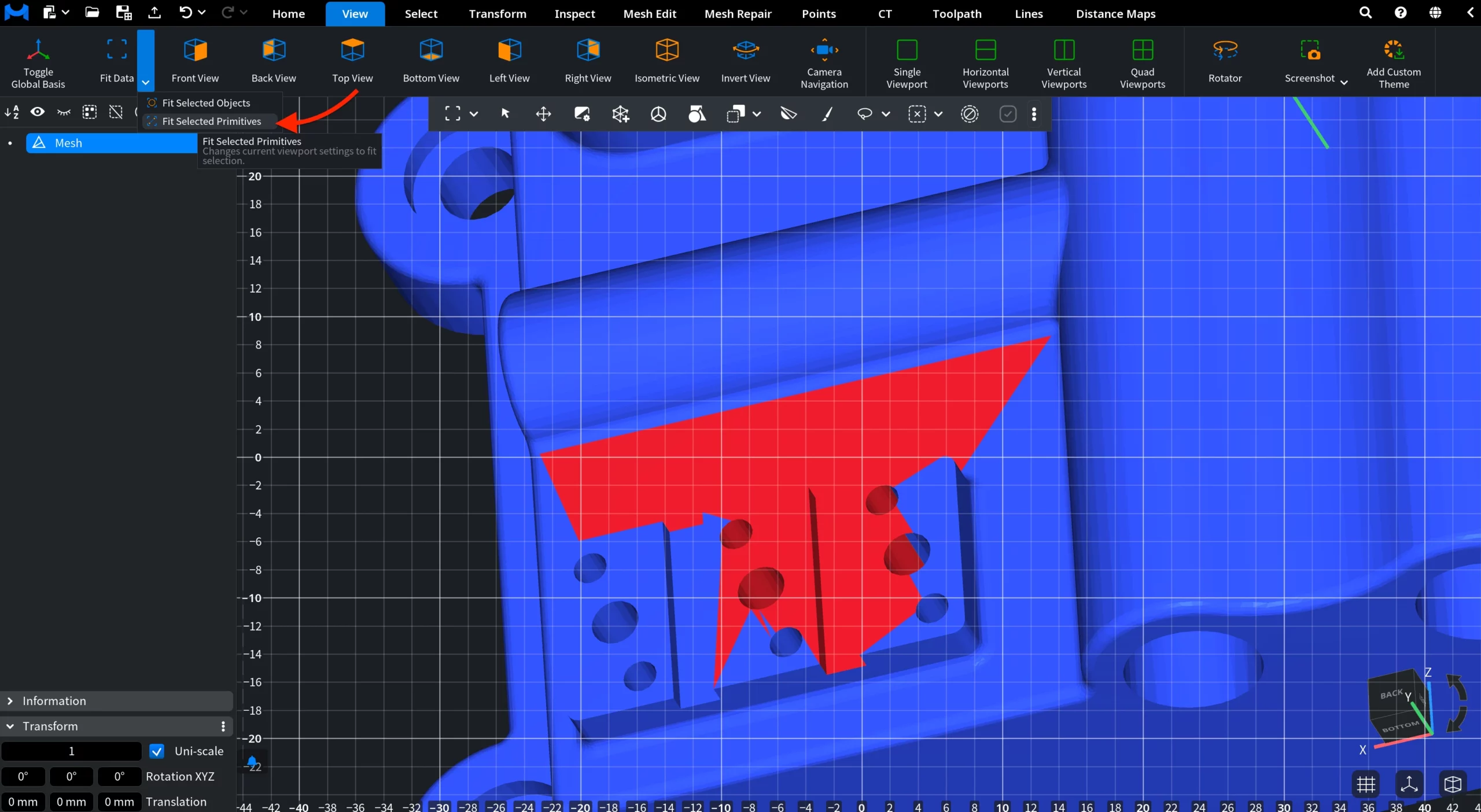
- View tab › Fit Data. The arrow next to the button opens Fit Selected Objects and Fit Selected Primitives.
- Shortcut for Fit Data: Ctrl+Alt+F (macOS: Cmd+Option+F).

How to use it
- Make sure the objects you want to see are visible in the Scene Tree.
- Click Fit Data (or press Ctrl+Alt+F). The camera fits all currently visible objects.
- To fit only some objects, select them in the Scene Tree, open the Fit Data drop-down and click Fit Selected Objects.
- To zoom in on a selected area of a mesh, for example faces picked with a selection tool, open the drop-down and click Fit Selected Primitives.
Options
| Command | What the camera fits |
|---|---|
| Fit Data | All visible objects in the scene. |
| Fit Selected Objects | The selected visible objects only. |
| Fit Selected Primitives | The currently selected primitives only. |
Result
Only the camera of the current viewport changes: the objects keep their position and coordinates.
Tips
- Hidden objects are not taken into account. Show an object in the Scene Tree first if you want Fit Data to include it.
- With two or four viewports, the command changes only the current viewport. Click inside a viewport to make it current.


