Besides Mesh Healer, MeshInspector, under the Mesh Repair tab, offers you the Auto Mesh Repair tool. It allows you to repair one or multiple meshes by completely rebuilding them according to a specified tolerance level.
Unlike tools that fix individual defects step by step, Auto Mesh Repair performs a full reconstruction of the mesh geometry within the tolerance you define. In practical terms, this means the tool does not simply patch holes or merge isolated issues. Rather, it regenerates the mesh structure to ensure geometric consistency, remove defects, and improve overall integrity.

As you can see in the screenshot below, four Resolution options are available. Resolution defines the internal reconstruction density used during mesh rebuilding:
- Standard
- High
- Ultra
- Custom
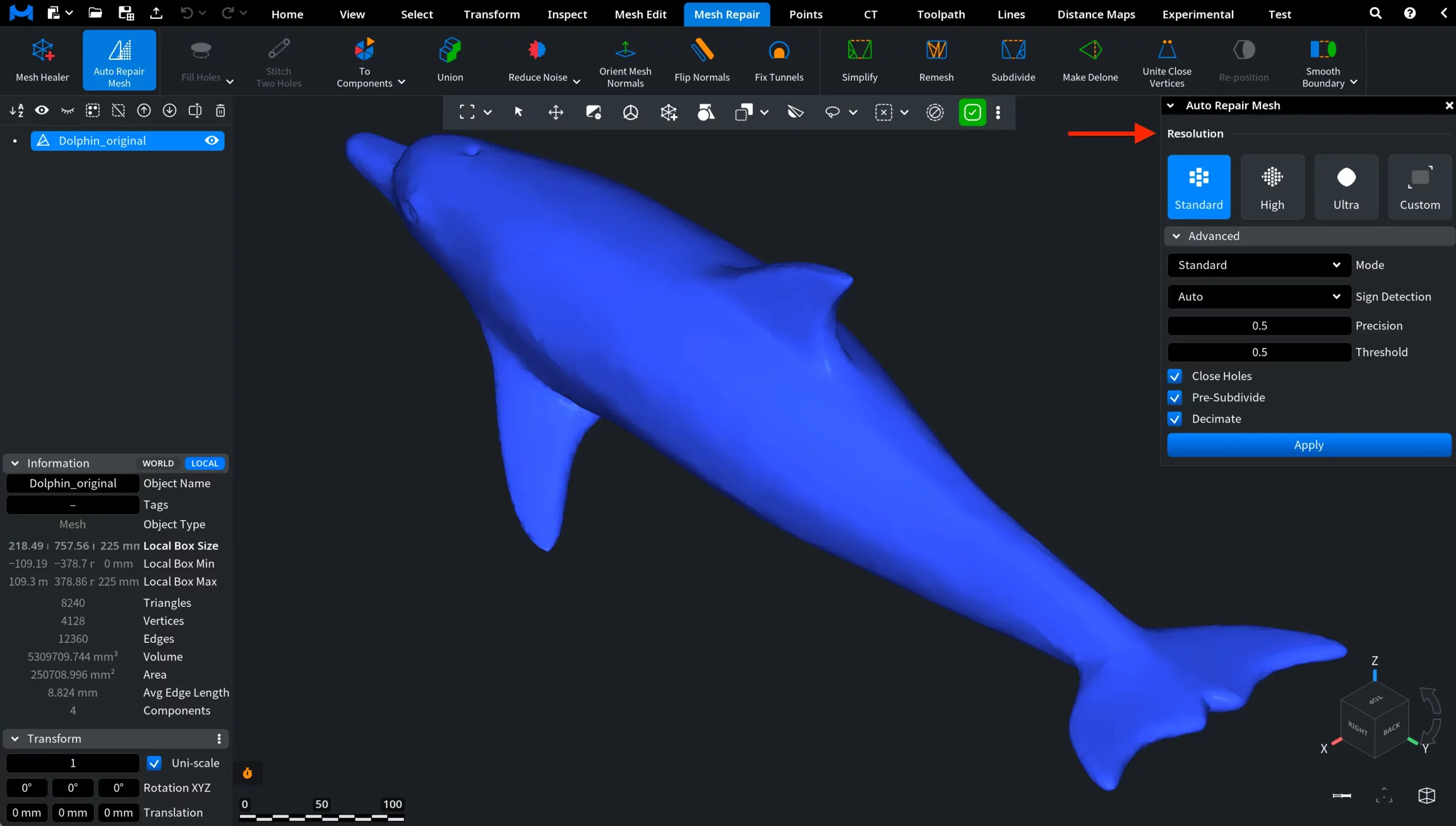
Standard
Standard Resolution balances quality and performance. Also, in the Advanced settings you can choose:
Mode
Mode defines how the surface characteristics are treated during reconstruction. Available options are:
- Smooth prioritizes surface smoothing and noise reduction.
- Standard is a balanced repair option that preserves the original shape and proportions.
- Sharpening enhances edge definition and feature clarity.
Sign Detection
Sign Detection defines how MeshInspector determines the inside and outside of the mesh during reconstruction. Correct sign detection is essential for generating a proper closed surface. Available options are:
- Auto automatically selects the most suitable detection method. Recommended for most cases.
- Winding Number uses winding number generalization. More robust for meshes with holes or self-intersections.
- Projection Normal determines sign based on surface normals. Faster, but requires relatively clean and consistently oriented geometry.
Precision
Precision, available with Auto and Winding Number, controls geometric accuracy during reconstruction. Lower values mean more tolerant reconstruction, potentially stronger simplification. Higher values offer greater detail preservation.
Threshold
Threshold, available with Auto and Winding Number, controls sensitivity for detecting geometric features during reconstruction. Lower values mean more conservative behavior. Higher values mean more aggressive correction.
Close Holes
Close Holes, when enabled and available, automatically fills open boundaries during reconstruction.
Pre-Subdivide
Pre-Subdivide, when enabled and available, subdivides the mesh before reconstruction to better capture fine details.
Decimate
Decimate, when enabled and available, reduces polygon count after reconstruction to optimize performance.
High and Ultra
High increases the internal reconstruction density compared to Standard. When selected, a warning appears: Fine resolution – repair may take longer.
Ultra applies the highest available internal reconstruction density. When selected, the system displays: Ultra-fine resolution – expect significantly longer compute time.
Custom
Custom allows you to manually define the reconstruction resolution instead of choosing one of the preset levels (Standard, High, or Ultra). When Custom is selected:
- A Resolution field appears (in mm), allowing you to set the voxel size manually. The smaller the voxel size, the finer the reconstruction and the higher the geometric accuracy.
- A volume indicator displays the estimated voxel count and memory usage.
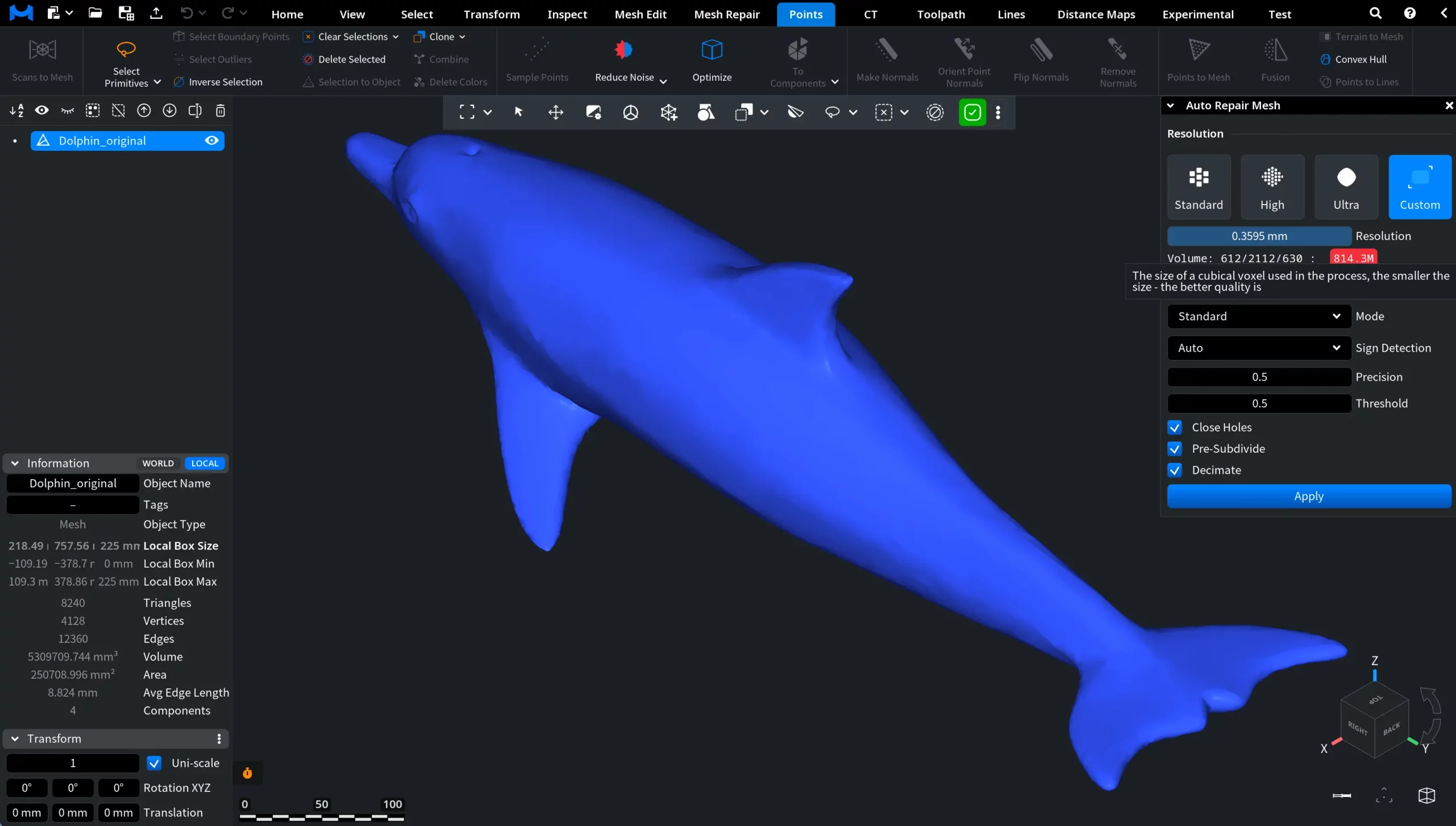
Note: The size of a cubic voxel used in the process — the smaller the size, the better the quality.