The Make Delone tool, located under the Mesh Repair tab, allows you to achieve Delone optimality in your mesh. That is, to create the most favorable triangulation possible for the existing vertex positions. It does this by flipping edges between adjacent triangles to reduce poorly shaped, narrow triangles without moving the vertices or changing the overall surface.

Once you click Make Delone, the dedicated settings panel opens.
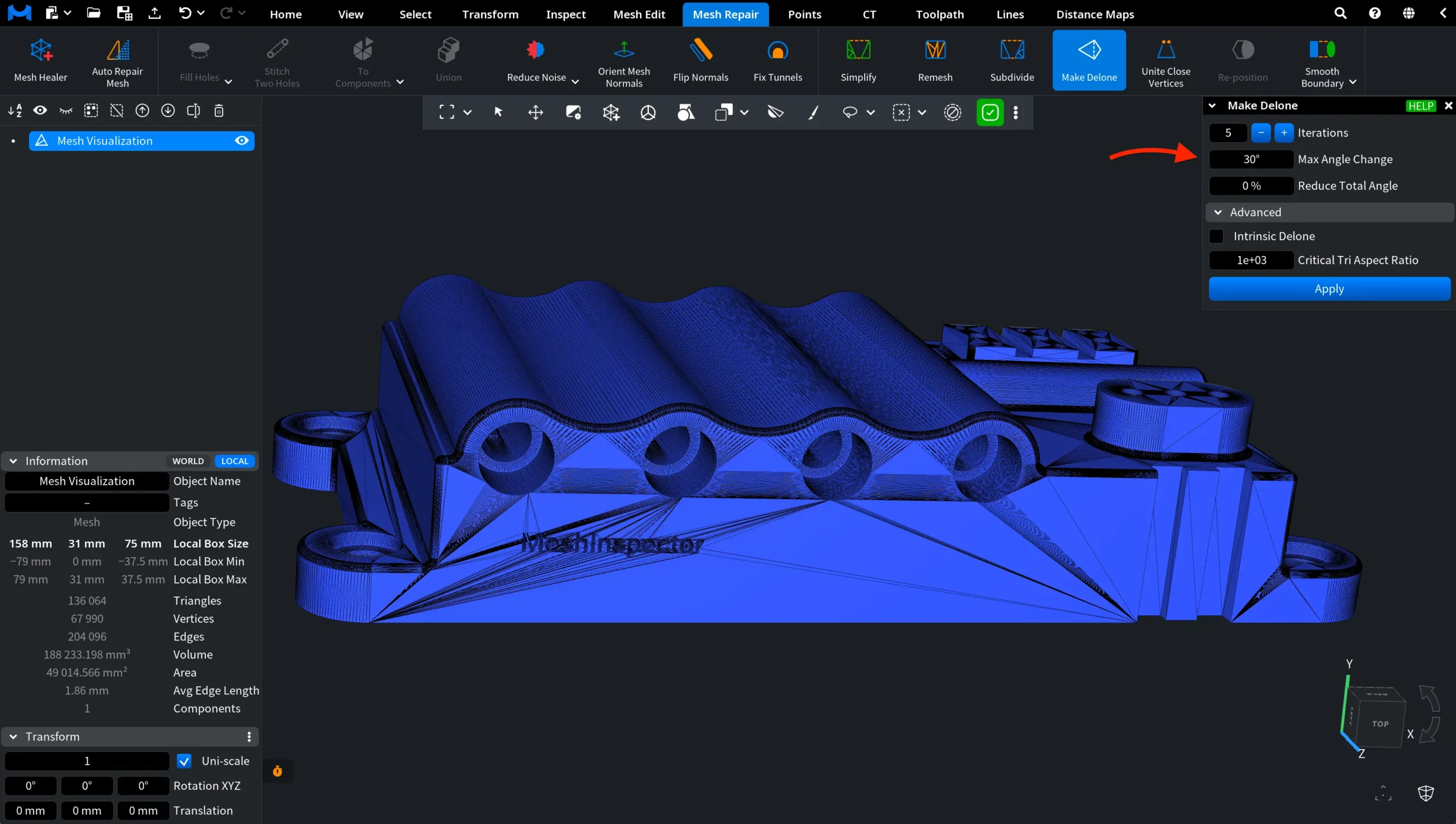
Make Delone Settings
Iterations defines the number of passes the tool performs over the mesh. During each pass, it checks the triangulation and flips eligible edges.
Max Angle Change defines the maximum permitted change in the dihedral angle when an edge is flipped. The dihedral angle is the angle between two adjacent triangle faces. An edge can be flipped only when the resulting change does not exceed this value.
Reduce Total Angle controls the balance between two optimization criteria:
- 0% optimizes only the Delone criterion.
- 100% minimizes only the dihedral angles between triangles and ignores the Delone criterion.
- Intermediate values optimize a mixture of both criteria.
Advanced Settings
Under Advanced, you can configure two additional options.
- Intrinsic Delone treats every edge as a geodesic line between its endpoints on the original mesh. However, the edges are still displayed as straight line segments in the viewport. When this mode is enabled, all parameters except Iterations are hidden.
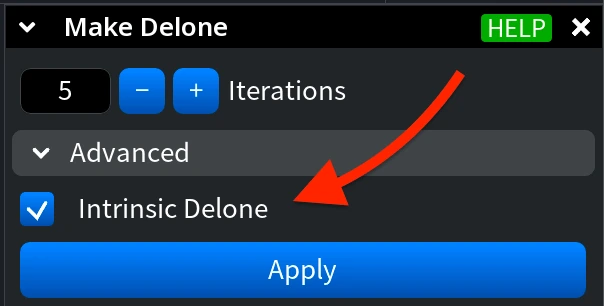
- Critical Tri Aspect Ratio defines which triangles are considered degenerate. A triangle whose aspect ratio exceeds this value is treated as degenerate, and the Max Angle Change restriction is skipped when processing it. In practical terms, the aspect ratio indicates how stretched or narrow a triangle is.
Click Apply to process the mesh using the selected settings.
Result
After clicking Apply, the tool reports how many edge flips were performed during the operation. In this example, the tool performed 31,260 edge flips.
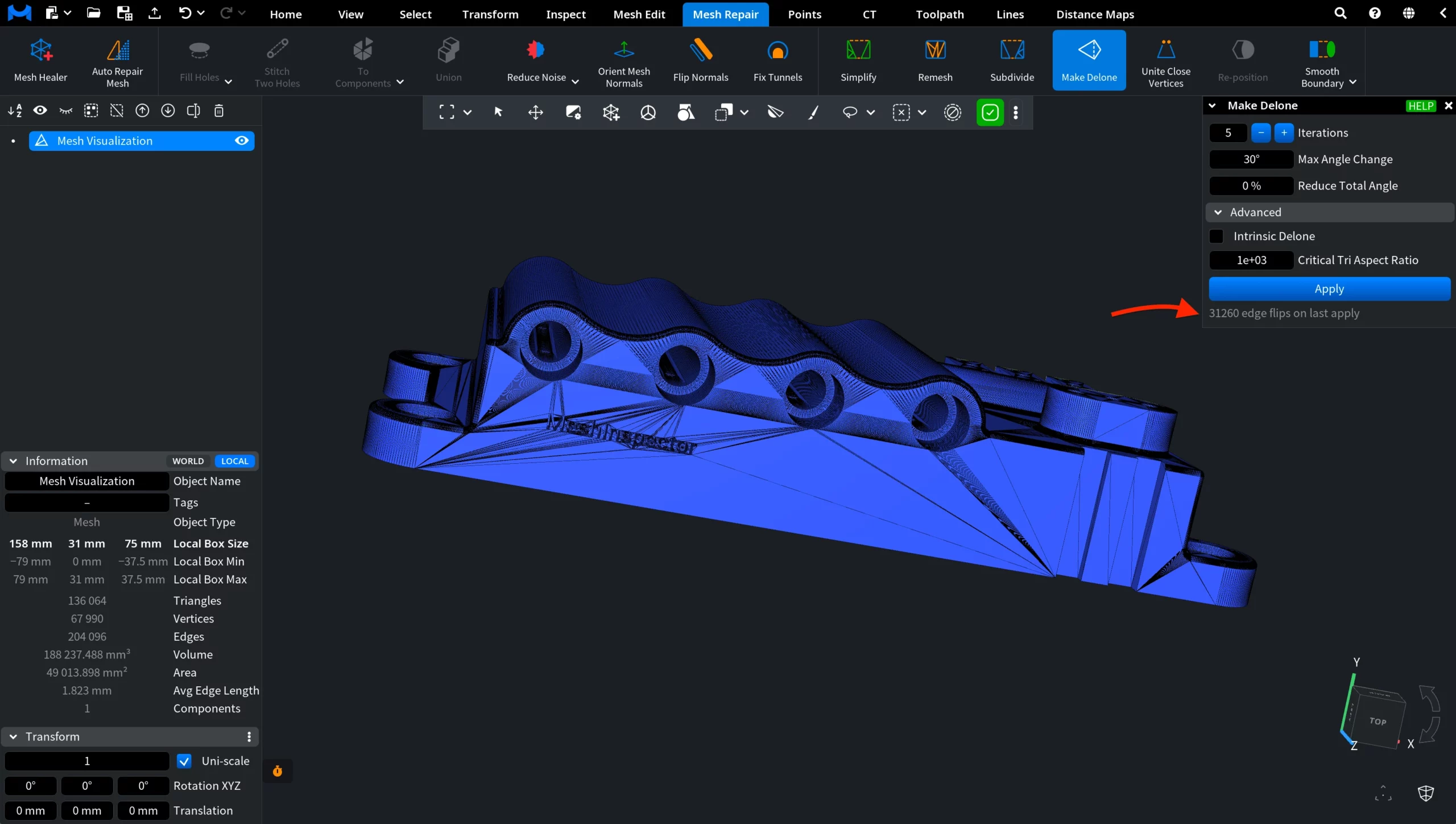
How the Make Delone Tool Works in MeshInspector