Meshes with an excessive number of triangles may be difficult to process, visualize, export, etc. That is, high-density geometry may slow down editing operations, increase memory usage, and make the model harder to work with in downstream applications in general. To address this potential challenge, MeshInspector provides a dedicated Simplify tool. Its mission is to reduce the number of triangles while preserving the overall shape of the model. You can find it under the Mesh Repair tab. Click Simplify to open the tool panel.

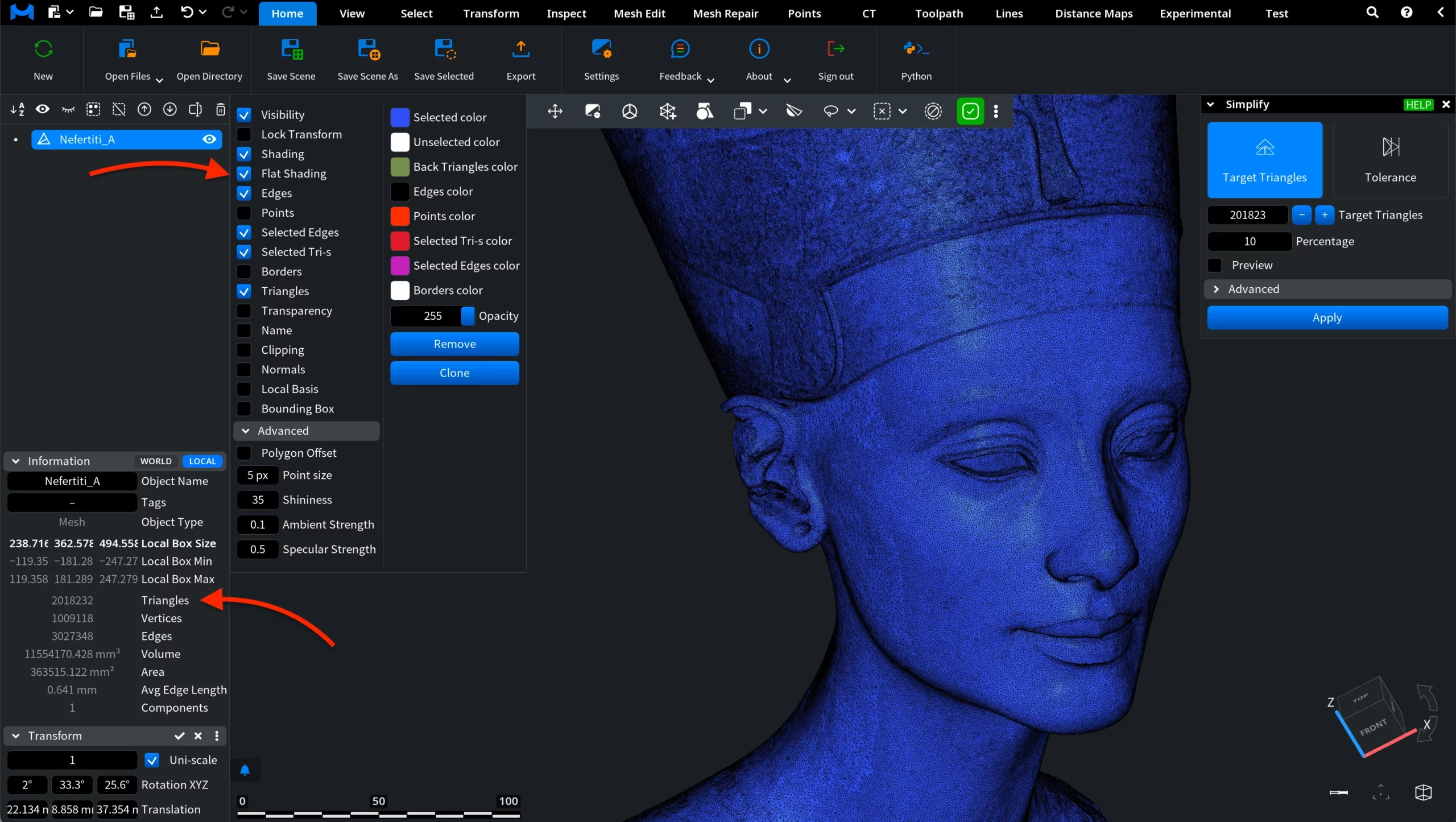
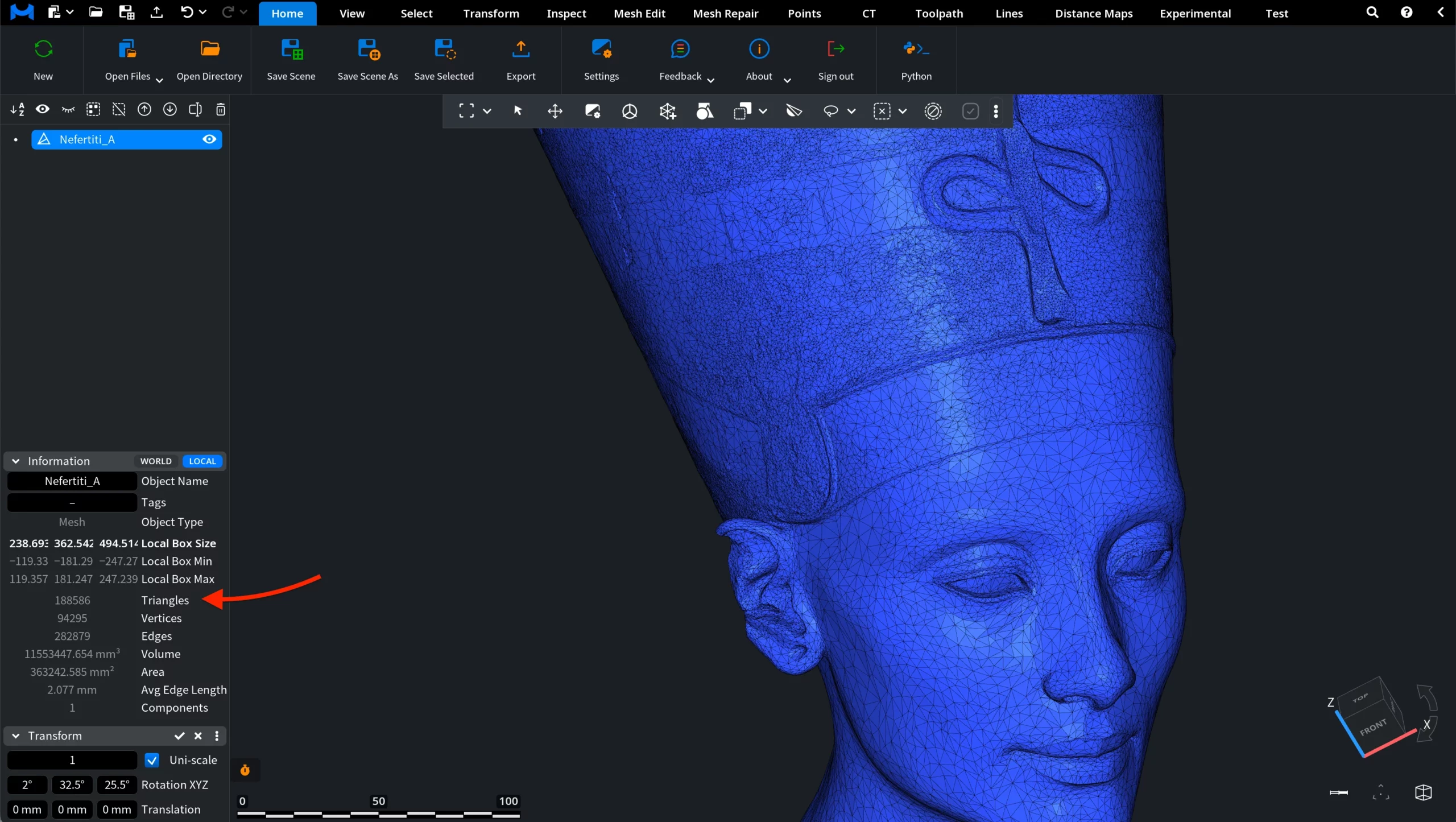
When you click Simplify, a dedicated panel opens on the right with its default settings, allowing you to configure how the decimation will be performed. Before adjusting the settings, it is useful to check the current complexity of the mesh. In our example, the bust contains a large number of geometric elements.
You can see the mesh statistics in the Information panel on the left side of the UI. This panel displays key metrics such as the number of triangles, vertices, and edges in the model. As shown in the screenshot, the bust contains 2,018,232 triangles, along with over 1 million vertices and more than 3 million edges. A mesh of this density can be computationally heavy, making it a good candidate for simplification. To visualize the triangle structure, press L. Also, we enabled Flat Shading.
MeshInspector provides two modes for controlling the simplification process: Target Triangles and Tolerance.
Target Triangles
The Target Triangles mode allows users to directly specify how many triangles should remain in the mesh after simplification. The algorithm reduces the mesh density until the selected triangle count is reached while attempting to preserve the overall shape of the model. Here, you can see that the number of triangles will be reduced to 201,823 from 2,018,232.
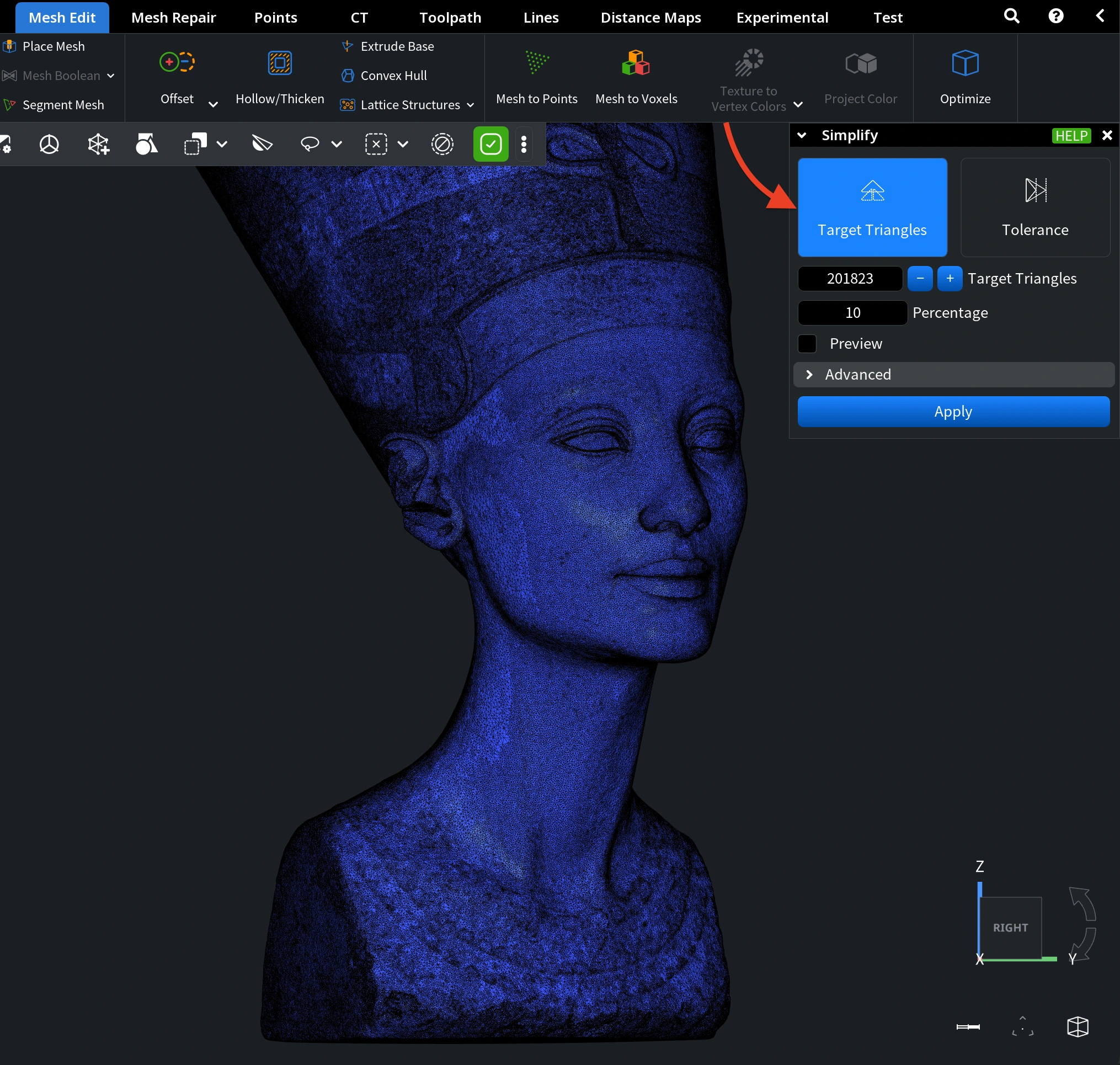
As you can see, this mode includes three main controls:
- Target Triangles defines the desired number of triangles after decimation. You can enter the value manually or adjust it using the – / + buttons. In this scenario, we will reduce the number of triangles to 201,823.
- Percentage defines the target triangle count as a percentage of the original mesh. Instead of specifying an exact number, you can indicate what portion of the original triangles should remain after decimation. For example, the default value of 10% will reduce the mesh to roughly one tenth of its original triangle count.
- Preview. When Preview is enabled, MeshInspector updates the mesh in real time while you change parameters. This allows you to visually evaluate the simplification result before committing it. Note that real-time updates may temporarily freeze the interface for very dense meshes, as the decimation operation must be recomputed each time the parameters change.
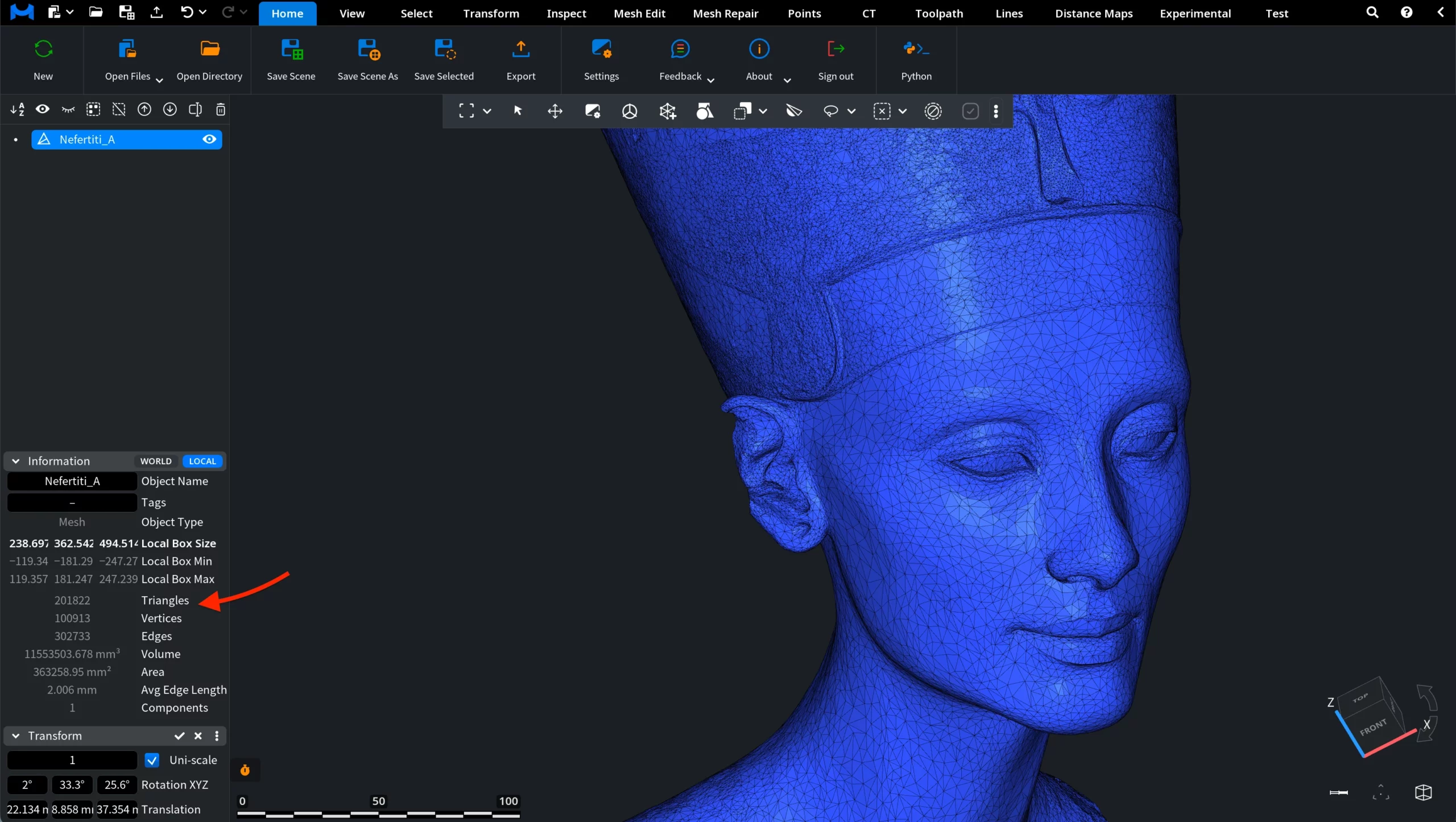
Once you are satisfied with the result, click Apply at the bottom of the Simplify panel. As you can see, the model stays visually the same, yet the number of triangles has been reduced 10x.
Tolerance
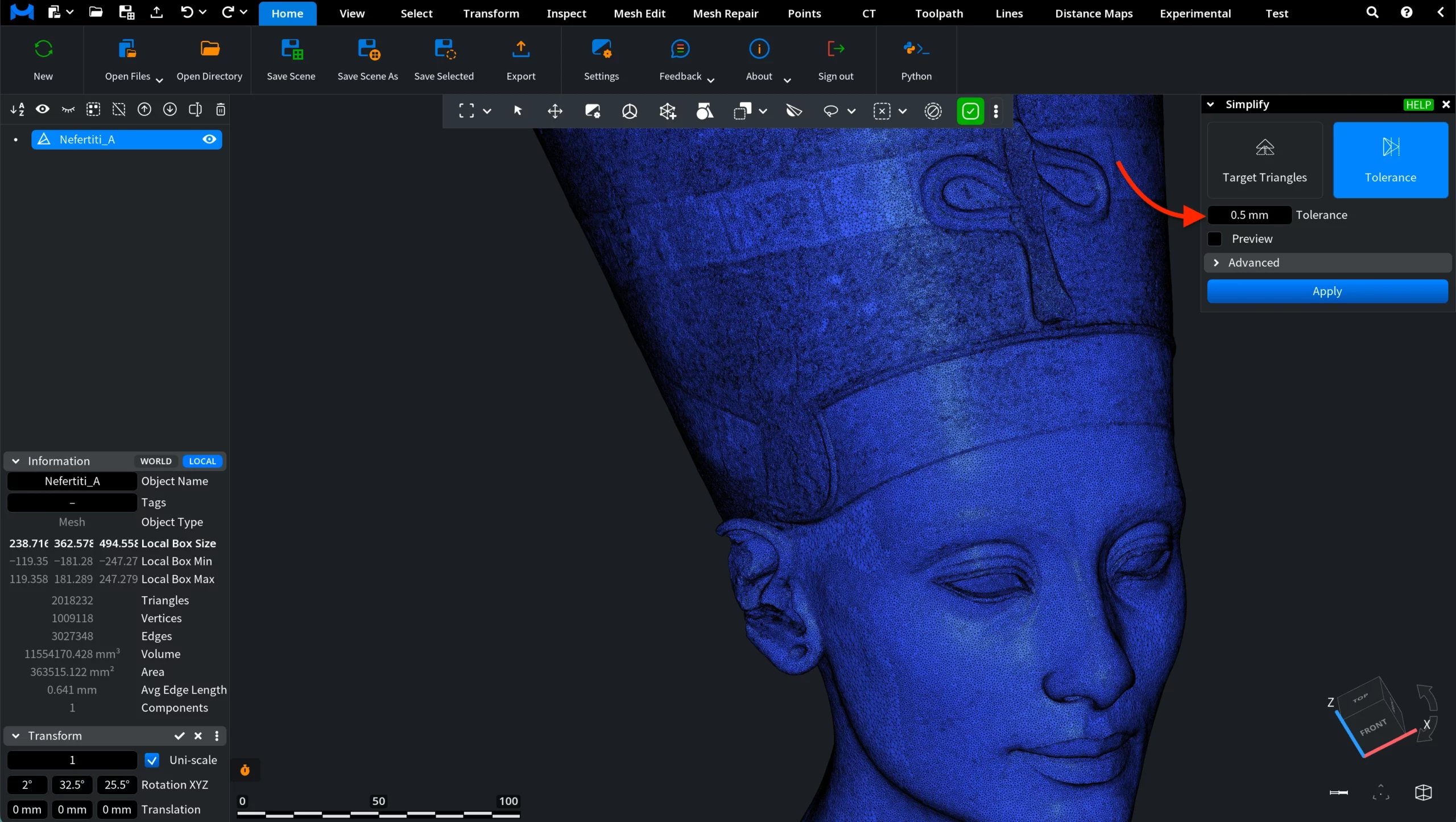
The Tolerance mode controls simplification based on geometric deviation from the original mesh, rather than a specific triangle count. In this mode, the algorithm continues decimating the mesh until the estimated distance between the simplified mesh and the original surface reaches the specified tolerance value. Once this deviation exceeds the limit, the simplification process stops automatically.
This mode includes two controls:
- Tolerance defines the maximum allowed geometric deviation from the original mesh. The decimation operation stops as soon as the estimated distance deviation from the original mesh becomes larger than the specified tolerance value.
- Preview behaves the same as described above.
Click Apply at the bottom of the panel to finalize the operation. To illustrate the Tolerance mode, we apply a tolerance value of 5 mm.
As the screenshot shows below, the mesh is simplified significantly while the overall facial structure remains recognizable. Fine details such as eyelids, lips, and subtle surface features become smoother and more generalized. At the same time, the main proportions of the model are preserved.
Advanced
The Advanced settings are identical for both simplification modes.
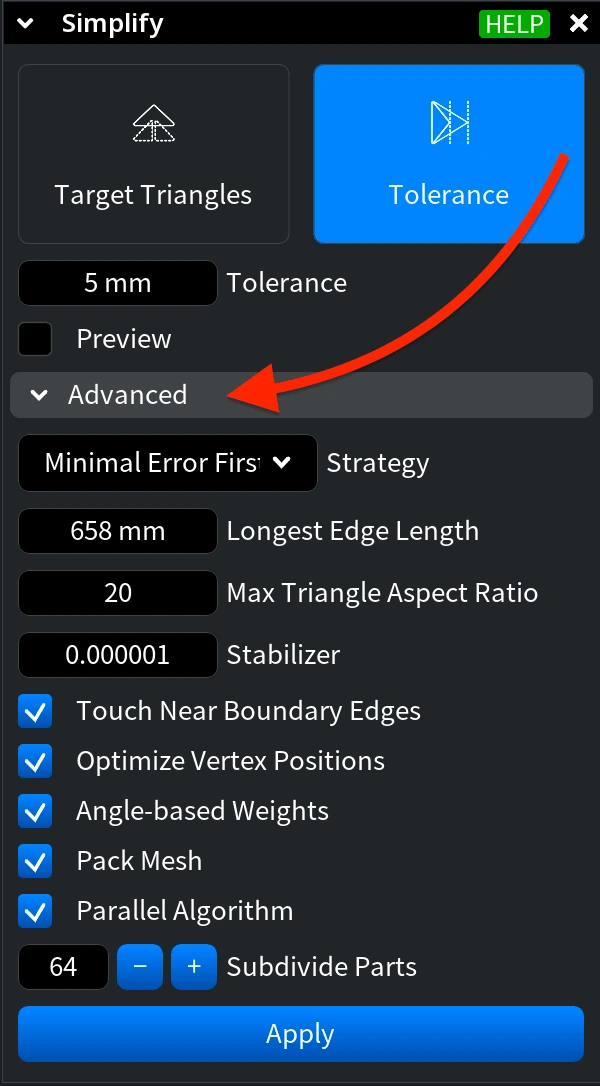
Strategy defines how the algorithm selects the next edge to collapse during the decimation process. Two strategies are available:
- Minimal Error First. MeshInspector's algorithm collapses the edge that introduces the smallest surface error, helping preserve the overall shape of the mesh as accurately as possible.
- Shortest Edge First. MeshInspector's algorithm collapses the shortest edges first, which simplifies the mesh more aggressively but may introduce larger deviations from the original surface.
Longest Edge Length defines the maximum allowed edge length that can appear in the mesh during decimation. By limiting the longest edge size, this setting helps prevent the algorithm from creating excessively large triangles that could distort the mesh or reduce local detail.
Max Triangle Aspect Ratio sets the maximum allowed aspect ratio of triangles created during decimation. By limiting the aspect ratio, the algorithm avoids generating extremely stretched or elongated triangles that could degrade mesh quality.
Stabilizer. A small Stabilizer value can help achieve better results on completely planar parts of a mesh. If the mesh does not contain planar regions, this parameter can be set to zero.
Touch Near Boundary Edges controls whether edges with at least one vertex on a region boundary are allowed to collapse during decimation.
Optimize Vertex Positions. If enabled, after each edge collapse the position of the remaining vertex is optimized to minimize local shape change. If disabled, the edge collapses into one of its vertices, which keeps its position unchanged.
Angle-based Weights enables the use of angle-based weights during the decimation process.
Pack Mesh. If enabled, unused vertices, edges, and triangles are removed from the mesh after the simplification process is completed.
Parallel Algorithm controls whether the simplification process uses a parallel algorithm or a sequential one. The parallel version is faster, while the sequential version is more precise. When this option is enabled, an additional parameter becomes available:
- Subdivide Parts defines how many parts the mesh is split into so they can be processed in parallel during decimation.