MeshInspector makes it possible to smooth boundaries of both an entire mesh and its selected regions. For this purpose, two dedicated tools exist in MeshInspector.
Smooth Boundary
Meshes may contain irregular or jagged boundaries. As a result, the mesh boundary may not only look uneven but also be less suitable for further processing or visualization. MeshInspector’s Smooth Boundary tool helps address this issue by adding triangles along the mesh boundary to make it straighter and more regular. To start using this tool, open the Mesh Repair tab and click Smooth Boundary, as highlighted below.

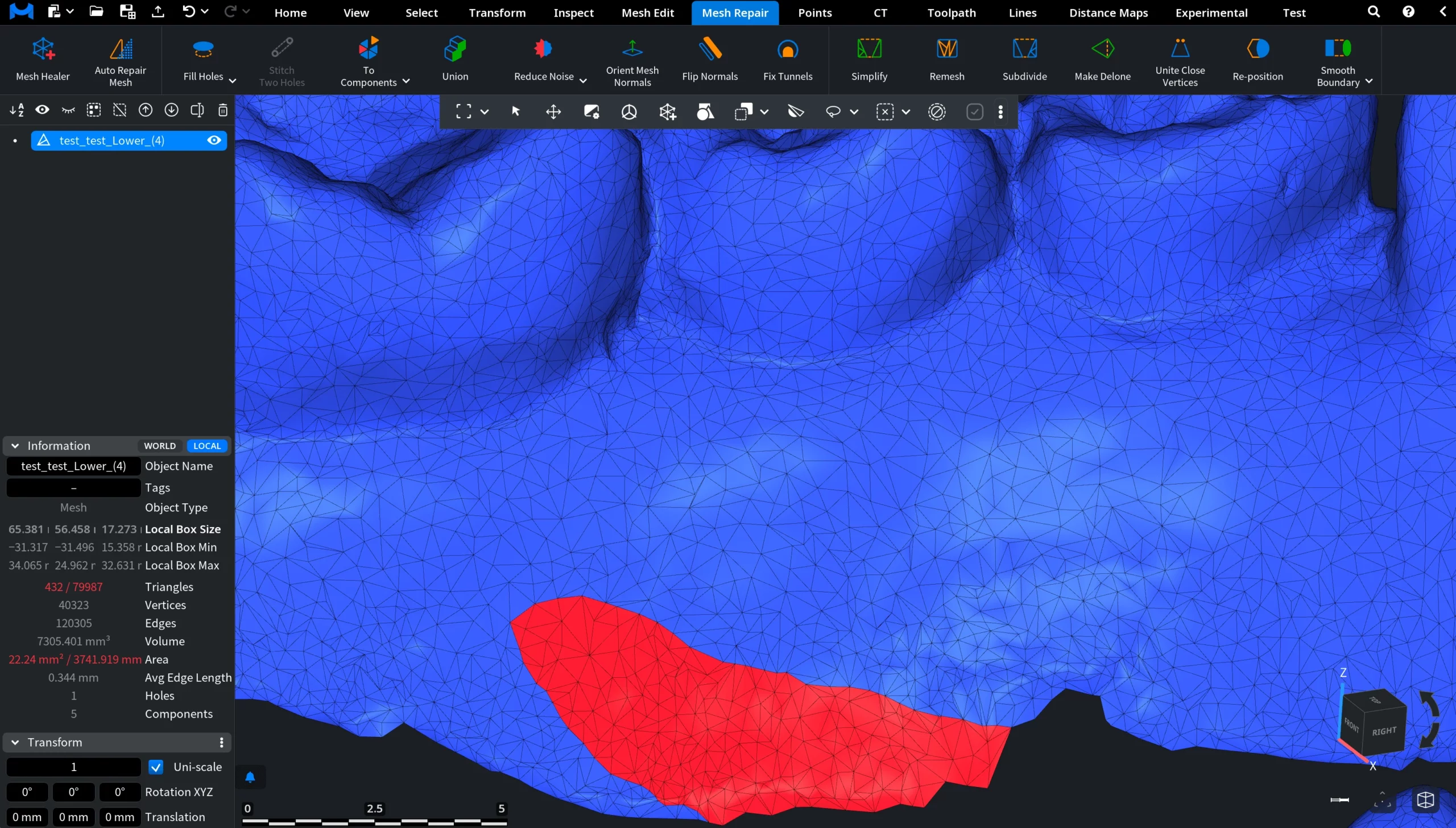
Before Smooth Boundary
In this example, the jaw model contains an open boundary with an uneven edge. As you can see in the zoomed-in view, the boundary follows quite an irregular path which is formed by the mesh triangles. Applying Smooth Boundary helps regularize this edge by smoothing the boundary and producing a more continuous outline.
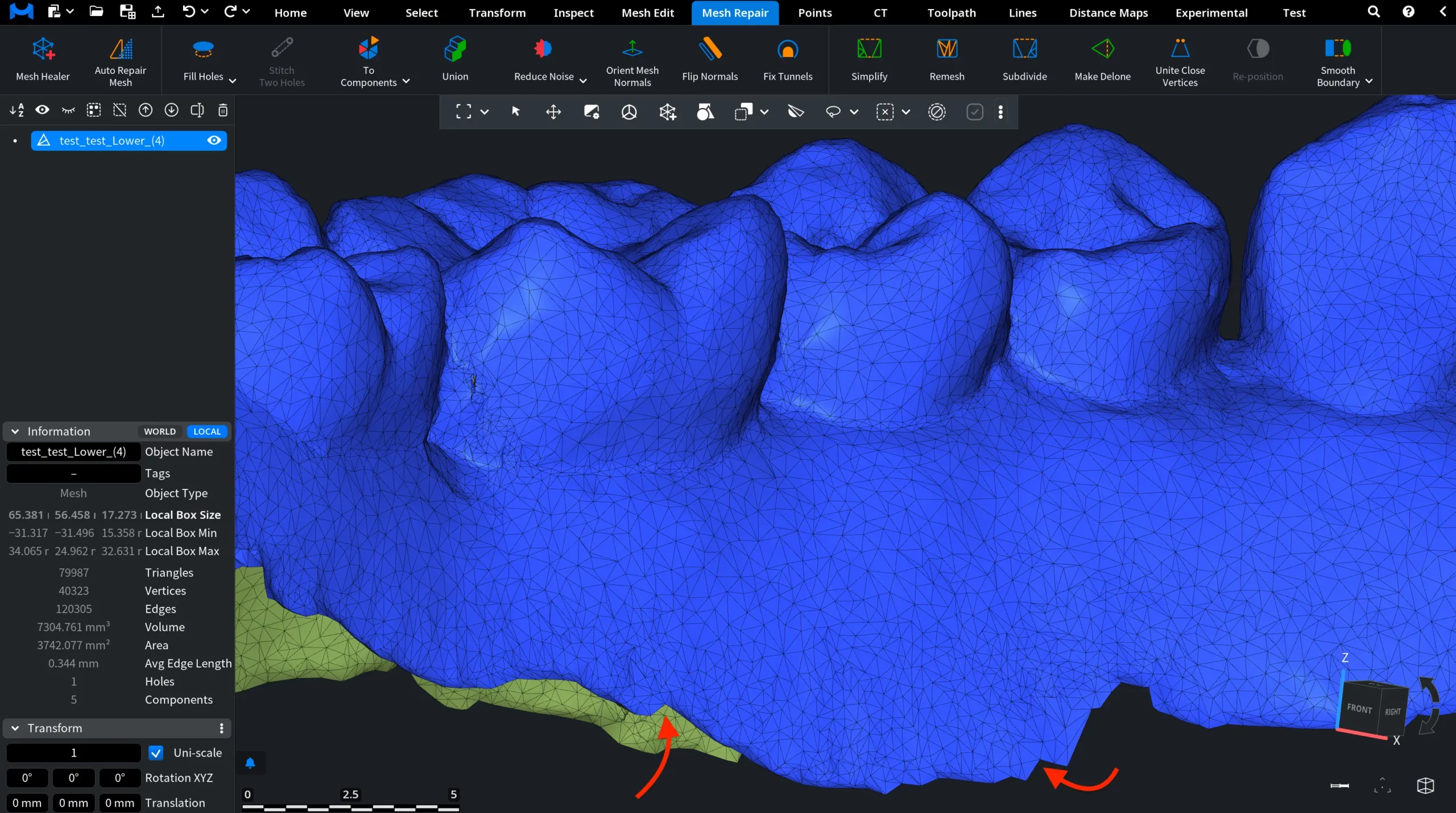
After Smooth Boundary
After clicking Smooth Boundary, the mesh boundary is automatically regularized. The tool immediately analyzes the open edge and adds triangles where necessary to make the boundary straighter and more consistent.
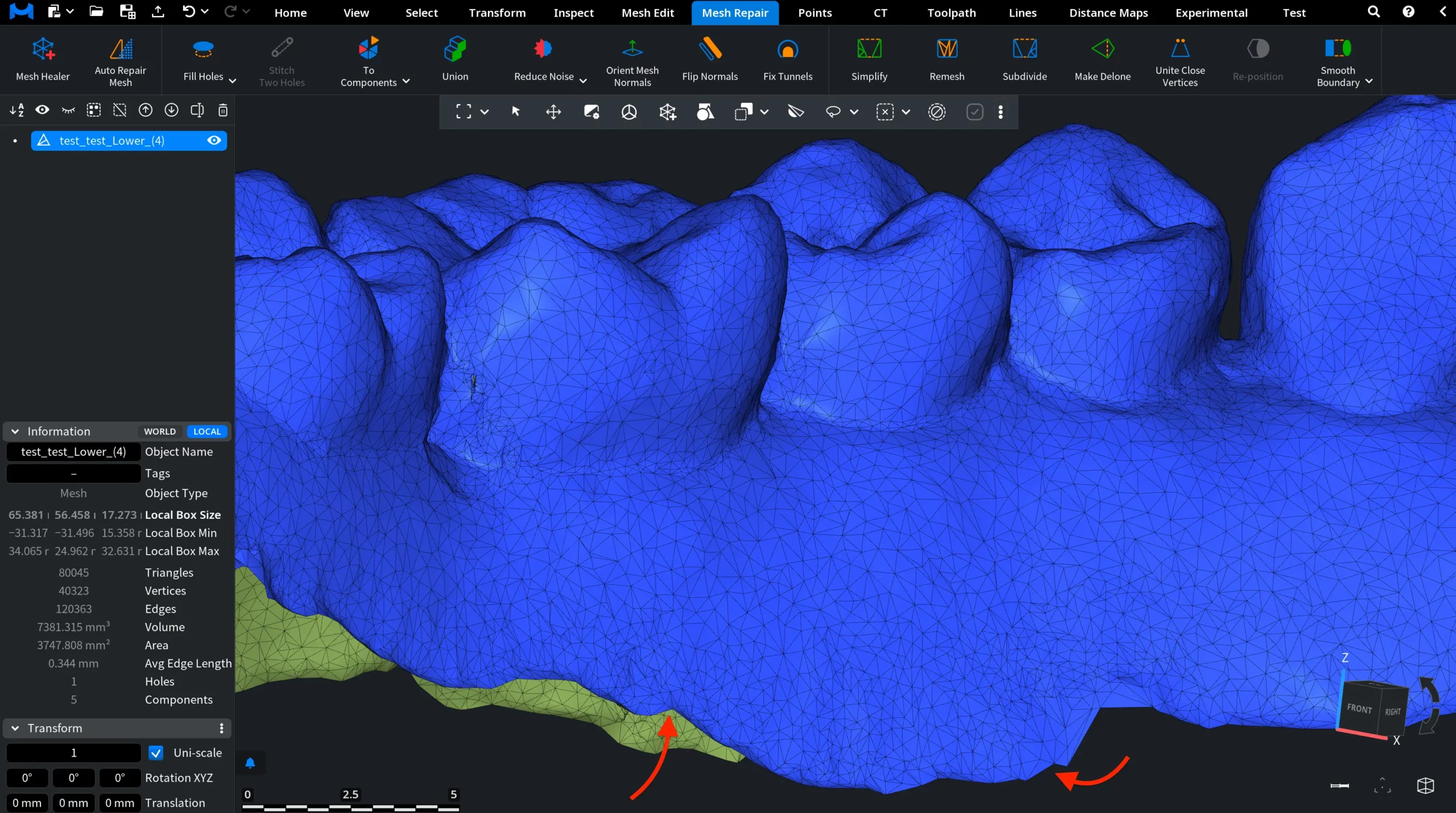
As shown in the highlighted areas, the previously uneven sections of the boundary become smoother and more continuous. The operation is applied automatically without opening additional panels or requiring manual parameter adjustments.
Smooth Region Boundary
In some cases, it is necessary to smooth the boundary of only a specific part of the mesh rather than the entire model. For example, after selecting a group of faces, the boundary of the selected region may appear irregular or jagged. MeshInspector’s Smooth Region Boundary tool helps address this issue by moving boundary vertices of the selected region to make the boundary smoother.
To access this tool, open the Mesh Repair tab and click the dropdown next to Smooth Boundary, then select Smooth Region Boundary, as highlighted below.

Note: This button remains inactive until you select faces on the mesh. The tool becomes available only when a region of the mesh is selected.
Before Smooth Region Boundary
To activate this tool, we first selected a region of the mesh. In this example, we opened the Select tab, clicked Select Primitives, chose Lasso, and selected several faces on the jaw model. As shown in the image below, the selected faces are highlighted in red. The boundary of this selected region forms an uneven and irregular edge.
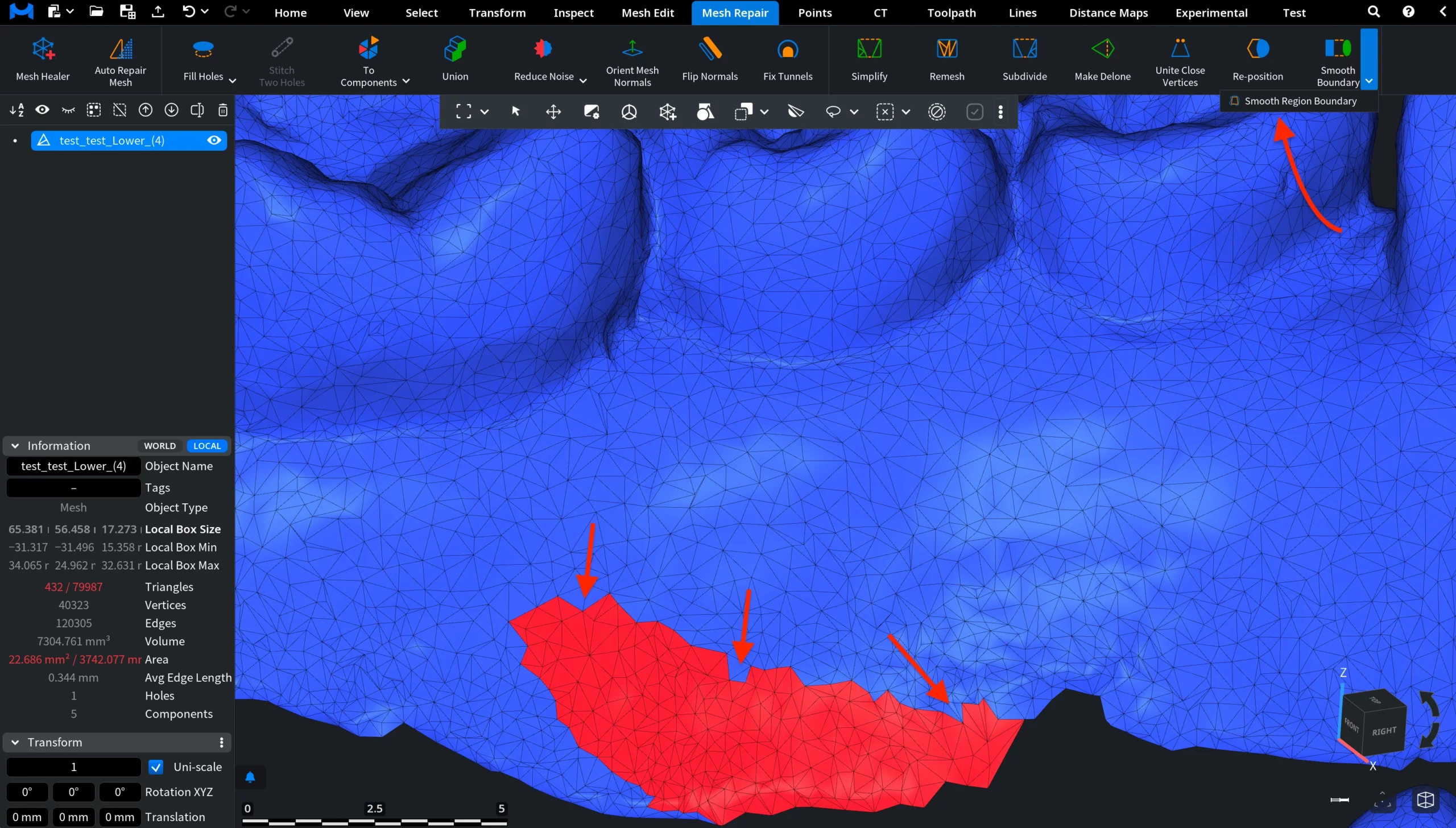
Once faces are selected, the Smooth Region Boundary tool becomes active and available for use.