MeshInspector’s Re-position tool smoothly repositions mesh vertices inside a selected region of the mesh.
Note that this tool becomes active only when triangles are selected on the mesh surface.
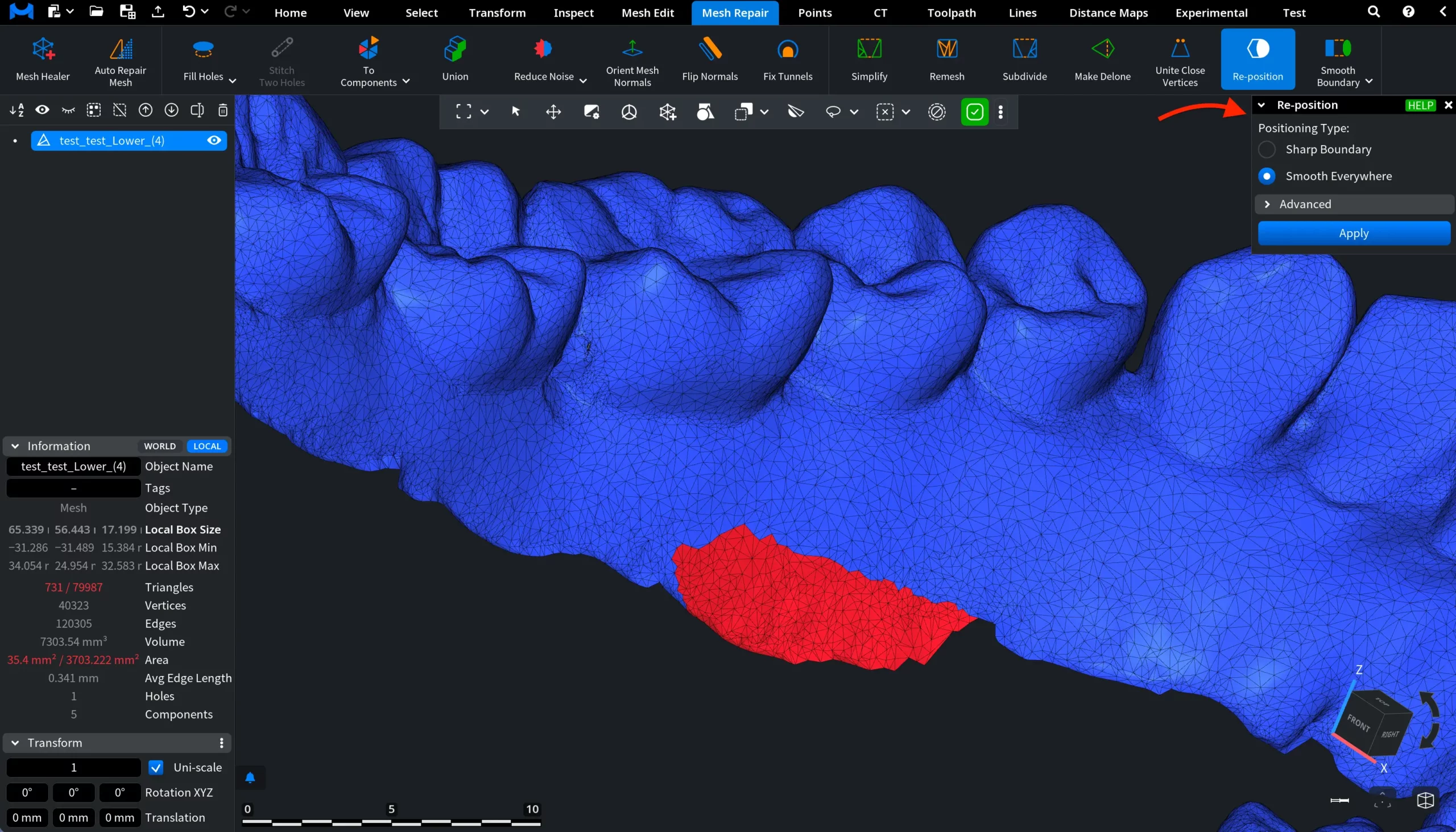
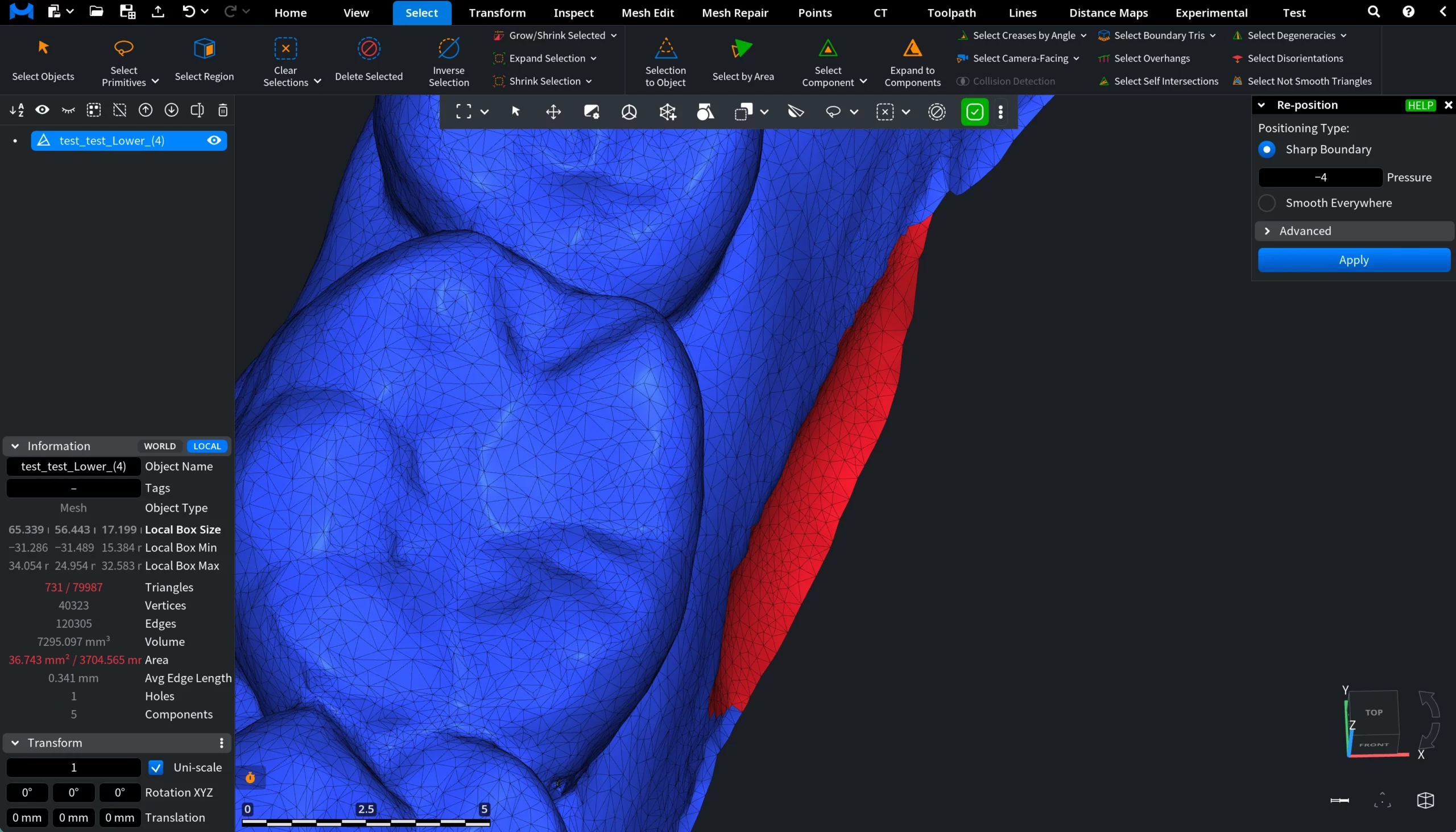
In the screenshot below, we opened the Select tab, clicked Select Primitives, chose Lasso, and selected an area of the mesh. The selected region is highlighted in red. Also, to visualize the triangles, we pressed L.
Once the region is selected, the Re-position tool becomes available. Clicking Re-position opens a dedicated settings panel. There, two positioning types are available: Sharp Boundary and Smooth Everywhere.
Sharp Boundary
When Sharp Boundary is enabled, the vertices inside the selected region are repositioned smoothly, while the region boundary itself remains unchanged. As a result, the interior surface becomes smoother, but the boundary may still contain sharp turns.
Pressure controls the amount of pressure applied to the selected mesh region during repositioning. Positive pressure moves the vertices outward, while negative pressure moves them inward. A value of zero constructs a minimal surface inside the selected region. This parameter allows you to slightly inflate or deflate the selected area while smoothing its internal geometry.
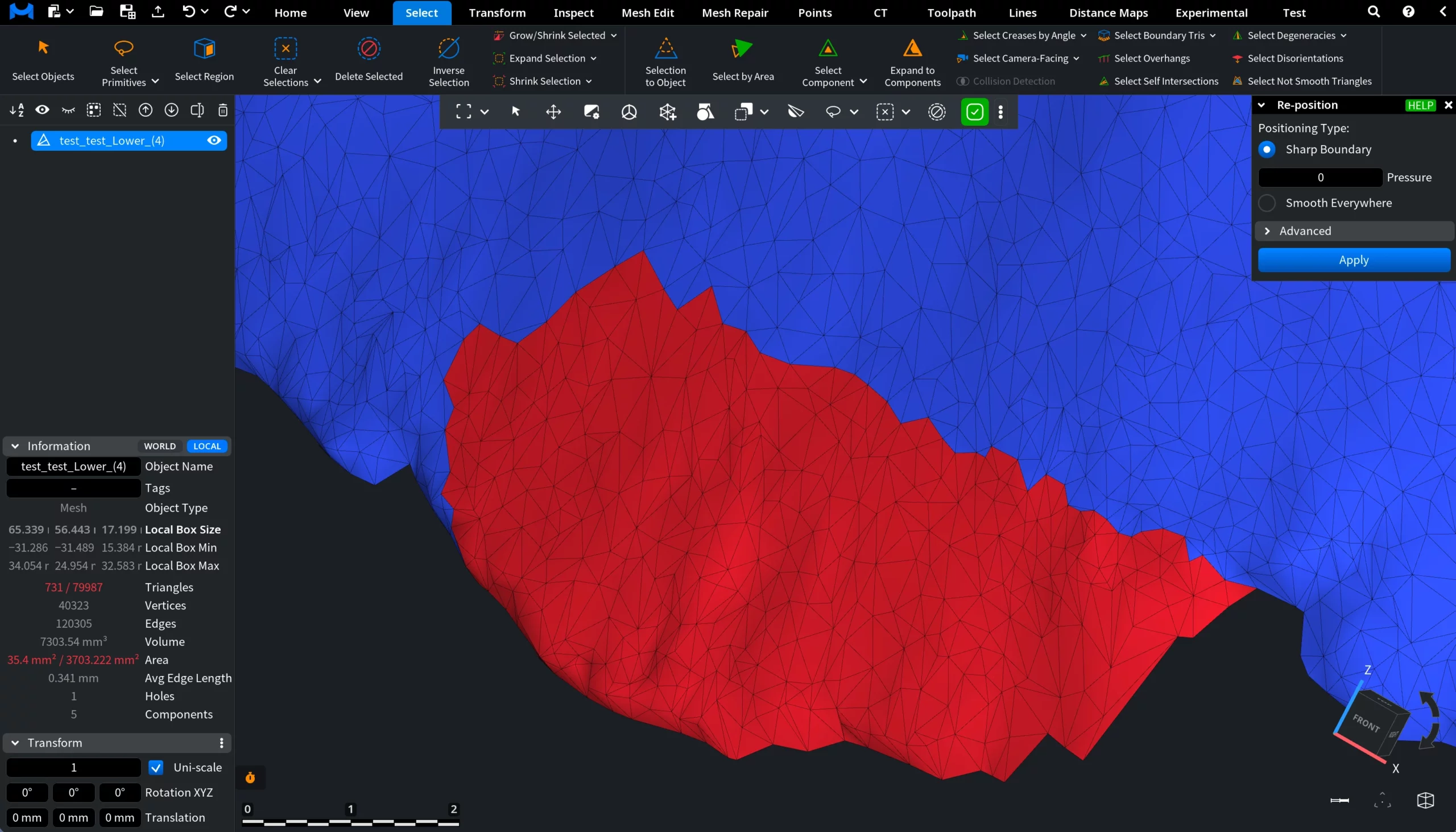
Before Re-position with Sharp Boundary
In this example, a region of the mesh was selected, as highlighted in red. As you can see in the zoomed-in view, the surface inside the selected region appears uneven and slightly irregular due to the underlying triangle structure.
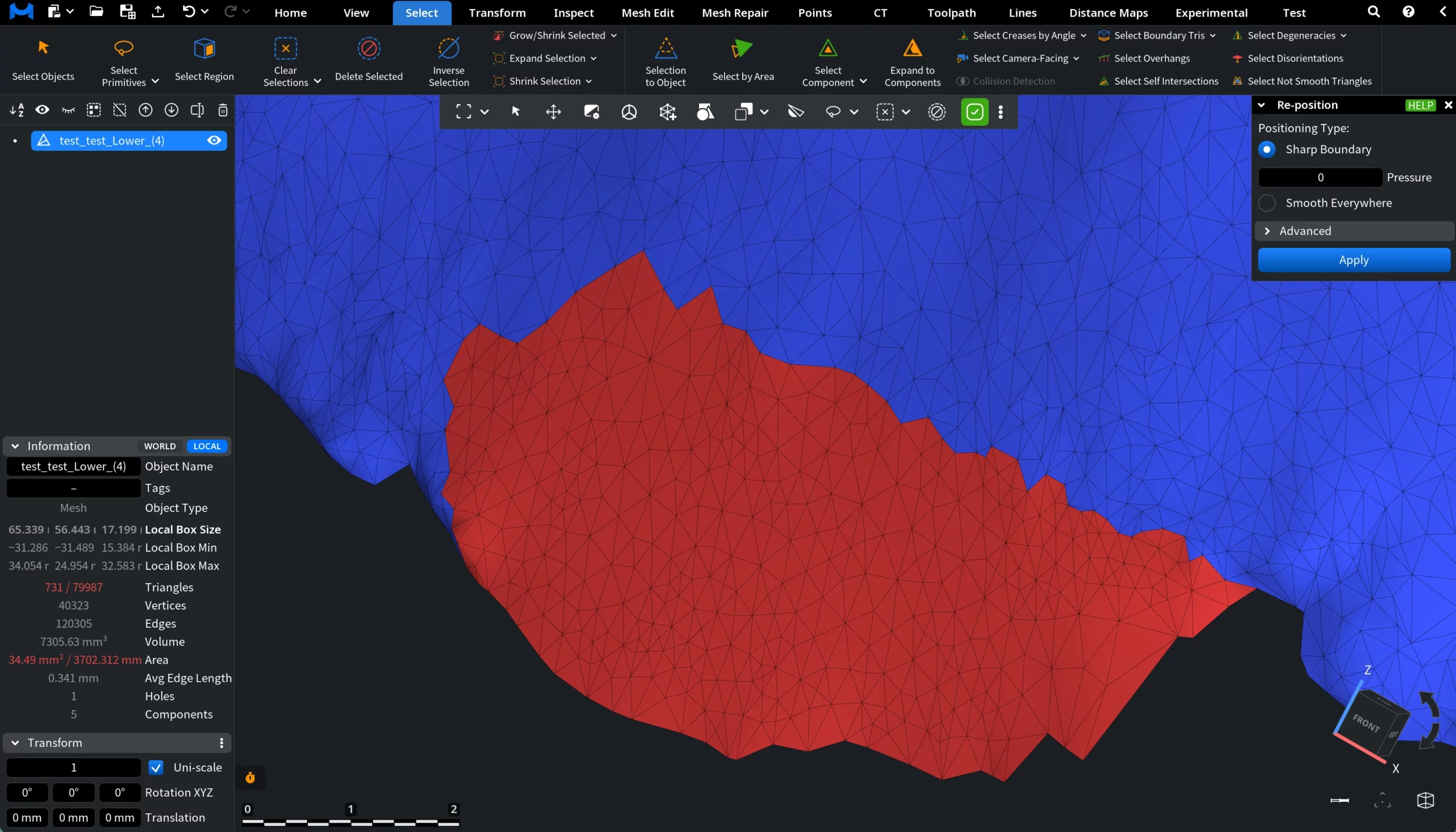
After Re-position: Sharp Boundary, Pressure = 0
After applying Re-position with Sharp Boundary enabled and Pressure set to 0, the vertices inside the selected region are repositioned to create a smoother internal surface.
As shown in the example, the interior of the selected area becomes more regular and evenly distributed, while the boundary of the region remains unchanged.
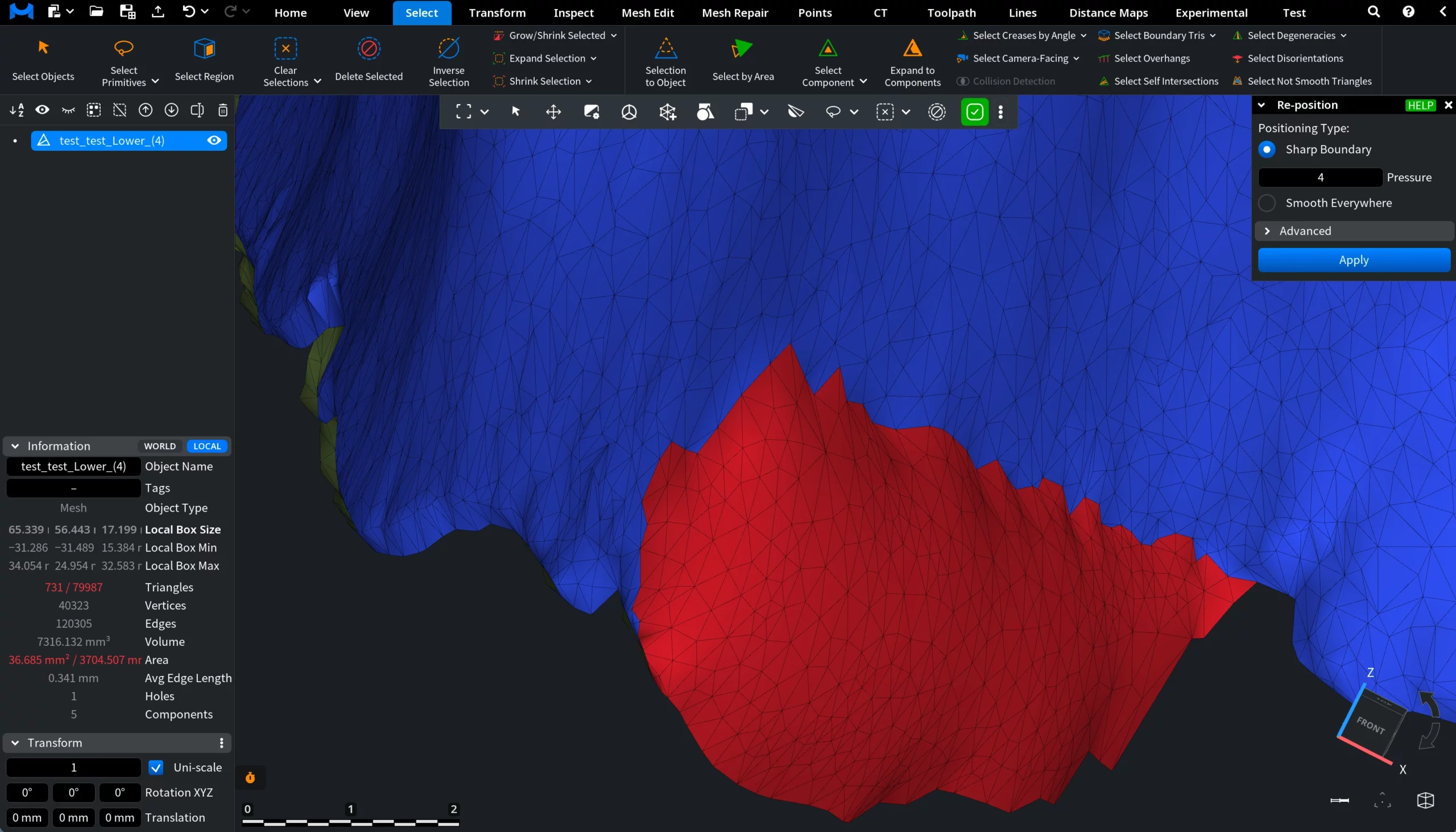
After Re-position: Sharp Boundary, Pressure = 4
After applying Re-position with Sharp Boundary enabled and Pressure set to 4, the vertices inside the selected region are repositioned while additional outward pressure is applied to the surface.
As a result, the interior of the selected area becomes smoother and slightly expanded outward. At the same time, the boundary of the region remains unchanged, preserving its original shape while the internal surface adjusts under the applied pressure.
After Re-position: Sharp Boundary, Pressure = –4
After applying Re-position with Sharp Boundary enabled and Pressure set to –4, the vertices inside the selected region are repositioned while inward pressure is applied to the surface.
As a result, the interior of the selected area becomes smoother and slightly pulled inward relative to the surrounding mesh. The boundary of the selected region remains fixed and unchanged.
Smooth Everywhere
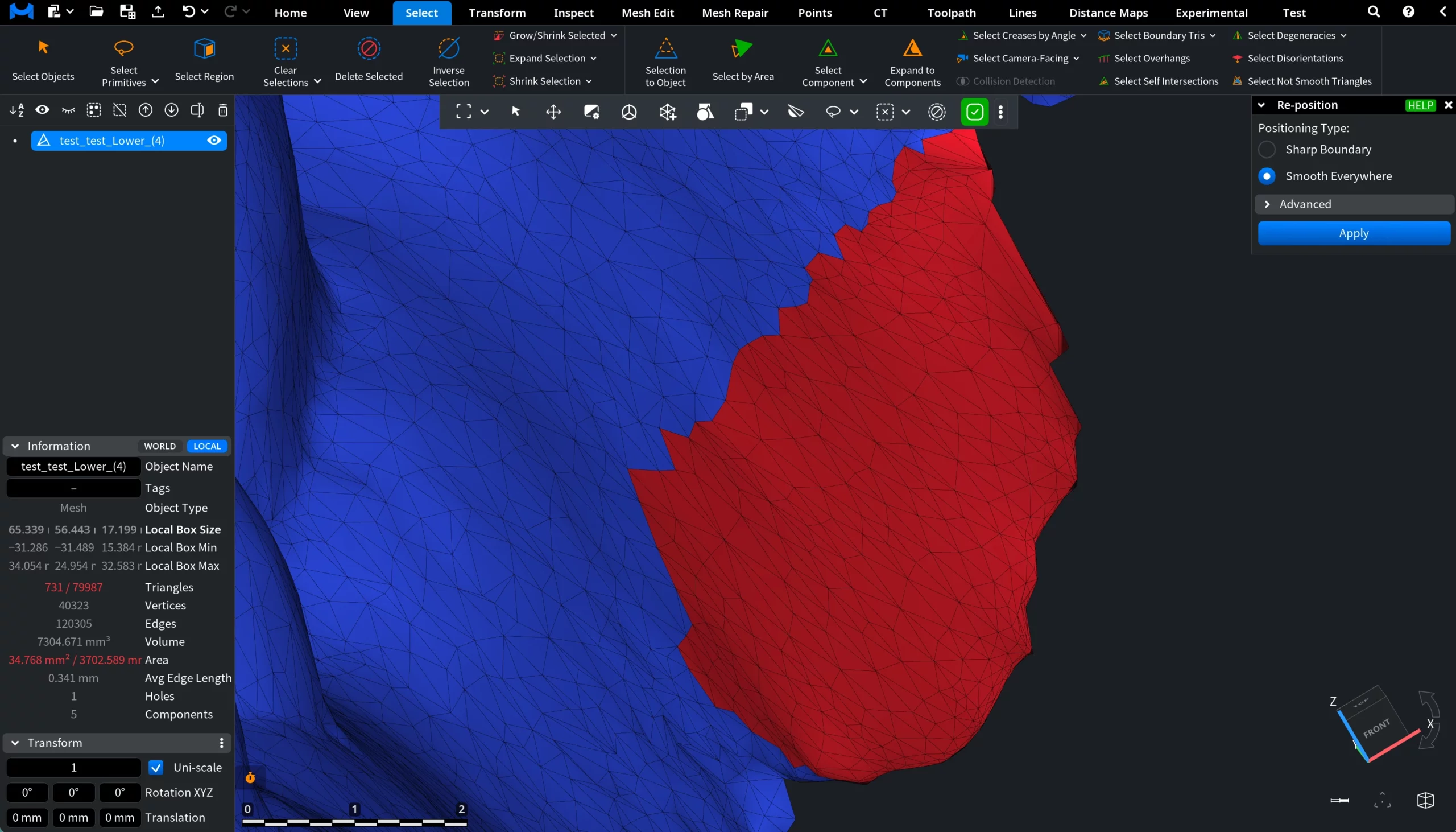
When Smooth Everywhere is enabled, the vertices inside the selected region are repositioned smoothly, including the region boundary. As a result, the smoothing operation affects both the interior of the selected region and its boundary.
After Re-position: Smooth Everywhere
In this example, we use the same selected region shown earlier in Before Re-position with Sharp Boundary. After applying Re-position with Smooth Everywhere enabled, the selected region becomes smoother both inside and along its boundary. As shown in the image, the triangles inside the selected region are redistributed more evenly, and the boundary of the region is also smoothed.
Because the boundary vertices are allowed to move, the transition between the selected region and the surrounding mesh becomes softer and more continuous.
Advanced Settings
The Advanced section provides additional parameters that control how the repositioning operation is performed. These settings allow you to adjust the smoothing process and improve the quality of the resulting surface.
Iterations controls how many smoothing iterations are applied during the repositioning process.
Cotangent Edge Weights (available only with Smooth Everywhere) enable cotangent weights in the Laplacian equations.
Neighbor Area as Vertex Mass (available only with Smooth Everywhere) makes vertex mass proportional to the area of surrounding triangles.
Optimize Triangulation converts the triangulation of the selected region to Delaunay before constructing the Laplacian system.